Cart Settings
Overview
Cart Settings controls how the shopping cart behaves in your store. Configure cart modes, guest access, quantity validation, and cart expiry notifications to match your business model.
Accessing Cart Settings
Navigate to: Modules > System Settings > Cart
The cart settings are organized into two tabs: Behavior and Expiry & Notifications.
Behavior Tab
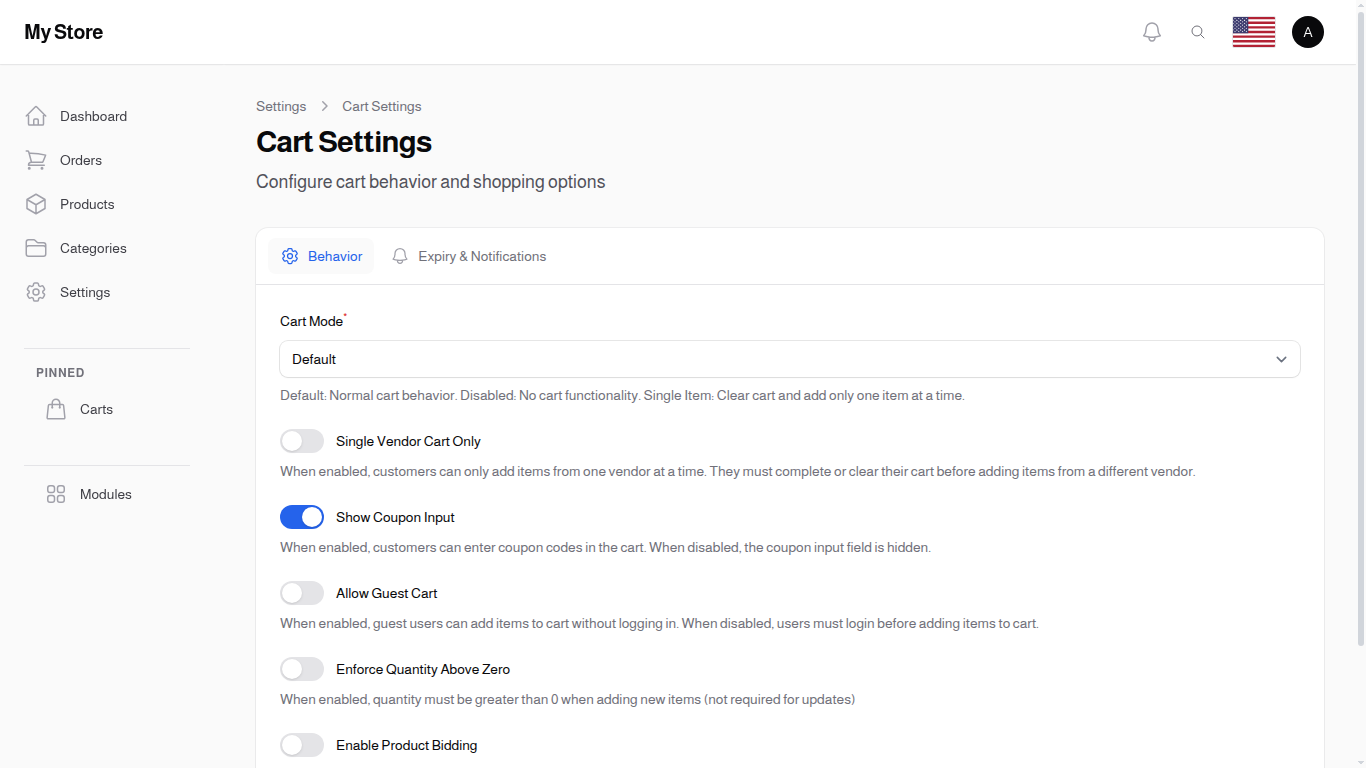
Cart Mode Required
- Type: Dropdown selection
- Default: Default
- Purpose: Control how the shopping cart behaves
Options:
| Mode | Description | Use Case |
|---|---|---|
| Default | Normal cart behavior—customers can add multiple items from multiple vendors | Standard e-commerce stores |
| Disabled | No cart functionality—must checkout immediately after selecting product | Service bookings, event tickets, single-purchase items |
| Single Item | Cart clears and adds only one item at a time—adding a new item removes the previous item | Rental stores, subscription boxes, one-item-per-order businesses |
Skip Cart Review on Single Item
- Type: Toggle switch (On/Off)
- Default: Off (show cart review)
- Visibility: Only appears when Cart Mode is set to "Single Item"
- Purpose: Bypass cart/review page and go directly to payment
When Enabled:
- After adding product to cart, customer goes directly to payment
- Faster checkout for single-item purchases
- If customer data is missing, redirects to cart to collect information
When Disabled:
- Customer sees cart/review page before payment (standard flow)
- Gives customer chance to review item details
Allow Guest Cart
- Type: Toggle switch (On/Off)
- Default: Off (must login)
- Purpose: Let guests add items to cart without logging in
When Enabled:
- Anyone can browse and add to cart
- Login required only at checkout
- Better conversion (lower barrier to entry)
- Cart is stored in session/cookies
When Disabled:
- Must login to add items to cart
- Better for member-only stores
- Captures user data earlier
- Useful for B2B stores
Enforce Quantity Above Zero
- Type: Toggle switch (On/Off)
- Default: Off (not enforced)
- Purpose: Require quantity to be greater than 0 when adding items
When Enabled:
- Cannot add item with quantity of 0
- Prevents accidental empty cart additions
- Validation error shown if quantity is 0
Single Vendor Cart Only
- Type: Toggle switch (On/Off)
- Default: Off
- Purpose: Restrict cart to products from a single vendor
When Enabled:
- Cart can only contain products from one vendor at a time
- Adding a product from a different vendor clears the previous items
- Useful for marketplace stores with vendor-specific checkout flows
When Disabled:
- Standard multi-vendor cart behavior
- Customers can add products from multiple vendors in a single order
Show Coupon Input
- Type: Toggle switch (On/Off)
- Default: On
- Purpose: Display coupon code input field in cart
When Enabled:
- Customers see a coupon code input field
- Can apply discount codes before checkout
When Disabled:
- No coupon input displayed
- Cleaner cart interface if you don't use coupons
Enable Product Bidding
- Type: Toggle switch (On/Off)
- Default: Off
- Purpose: Allow customers to submit price offers on products
When Enabled:
- Customers can propose their own price for products
- Sellers can accept, reject, or counter the bid
- Useful for negotiable pricing, auctions, or B2B scenarios
When Disabled:
- Standard fixed pricing only
Expiry & Notifications Tab
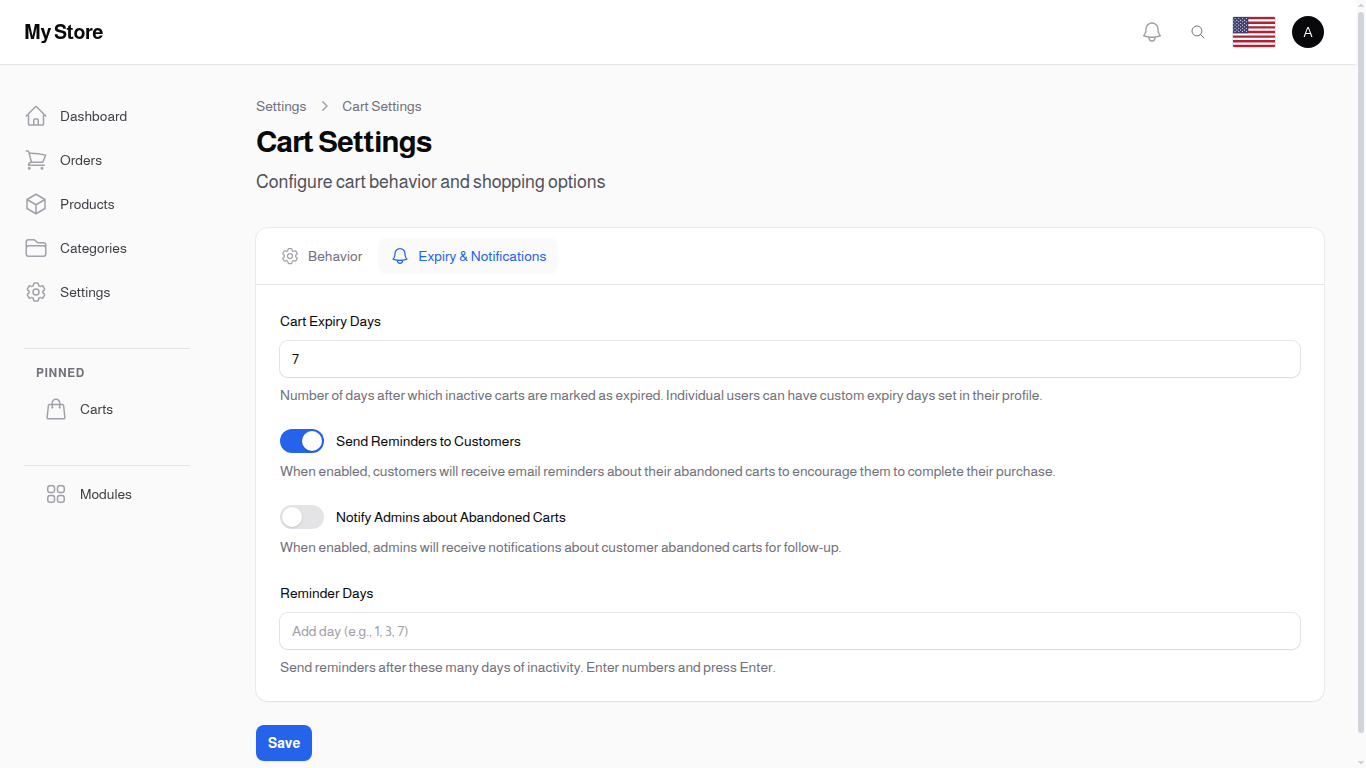
Configure automatic cart cleanup and abandoned cart notifications.
Cart Expiry Days
- Type: Number input
- Default: 7
- Range: 1-365 days
- Purpose: Automatically mark inactive carts as expired after specified days
How It Works:
- Set the number of days after which inactive carts are marked as expired
- Individual users can have custom expiry days set in their profile
- Helps manage abandoned carts and keep inventory accurate
Send Reminders to Customers
- Type: Toggle switch (On/Off)
- Default: Off
- Purpose: Send email reminders to customers with abandoned carts
When Enabled:
- Customers receive email reminders about their abandoned carts
- Helps recover potentially lost sales
- Uses the reminder days setting below
Notify Admins about Abandoned Carts
- Type: Toggle switch (On/Off)
- Default: Off
- Purpose: Send notifications to store admins about abandoned carts
When Enabled:
- Admins receive notifications about abandoned carts
- Allows manual follow-up with customers
- Useful for high-value cart monitoring
Reminder Days
- Type: Tags input (multiple values)
- Visibility: Only appears when customer or admin notifications are enabled
- Purpose: Days after which to send abandoned cart reminders
How It Works:
- Enter one or more days when reminders should be sent
- Type a number and press Enter to add it
- Suggested values: 1, 3, 7, 14, 30
- Reminders are sent after the specified days of cart inactivity
Example Configuration:
| Days | Reminder Schedule |
|---|---|
| 1, 3, 7 | First reminder after 1 day, second after 3 days, third after 7 days |
| 1, 7, 14 | Reminders at 1 day, 1 week, and 2 weeks |
| 3, 7 | Reminders at 3 days and 1 week only |
Cart Mode Examples
Standard E-commerce (Default Mode)
Customer Journey:
1. Browse products
2. Add Item A to cart
3. Continue shopping
4. Add Item B to cart
5. View cart (Items A + B)
6. Proceed to checkout
7. Pay for both items
Event Tickets (Disabled Mode)
Customer Journey:
1. Select event/ticket
2. Choose quantity
3. Immediately proceed to payment
4. No cart page shown
5. Complete purchase
Subscription Box (Single Item Mode)
Customer Journey:
1. Browse subscription options
2. Select "Premium Box"
3. Cart now contains "Premium Box"
4. Customer changes mind, selects "Basic Box"
5. Cart now contains only "Basic Box" (Premium removed)
6. Proceed to checkout
Saving Changes
Click the Save button at the bottom of the page to apply your changes. Changes take effect immediately for new shopping sessions.
Related Sections
- Checkout Settings - Delivery form fields
- Registration Settings - User account requirements
- Payment Methods - Available payment options
- Coupons - Manage discount codes