SKU Generator Settings
Overview
SKU Generator Settings controls automatic SKU (Stock Keeping Unit) generation for products. When enabled, the system automatically creates unique SKU codes for new products with customizable format options.
Accessing SKU Settings
Navigate to: Modules > System Settings > SKU Generator
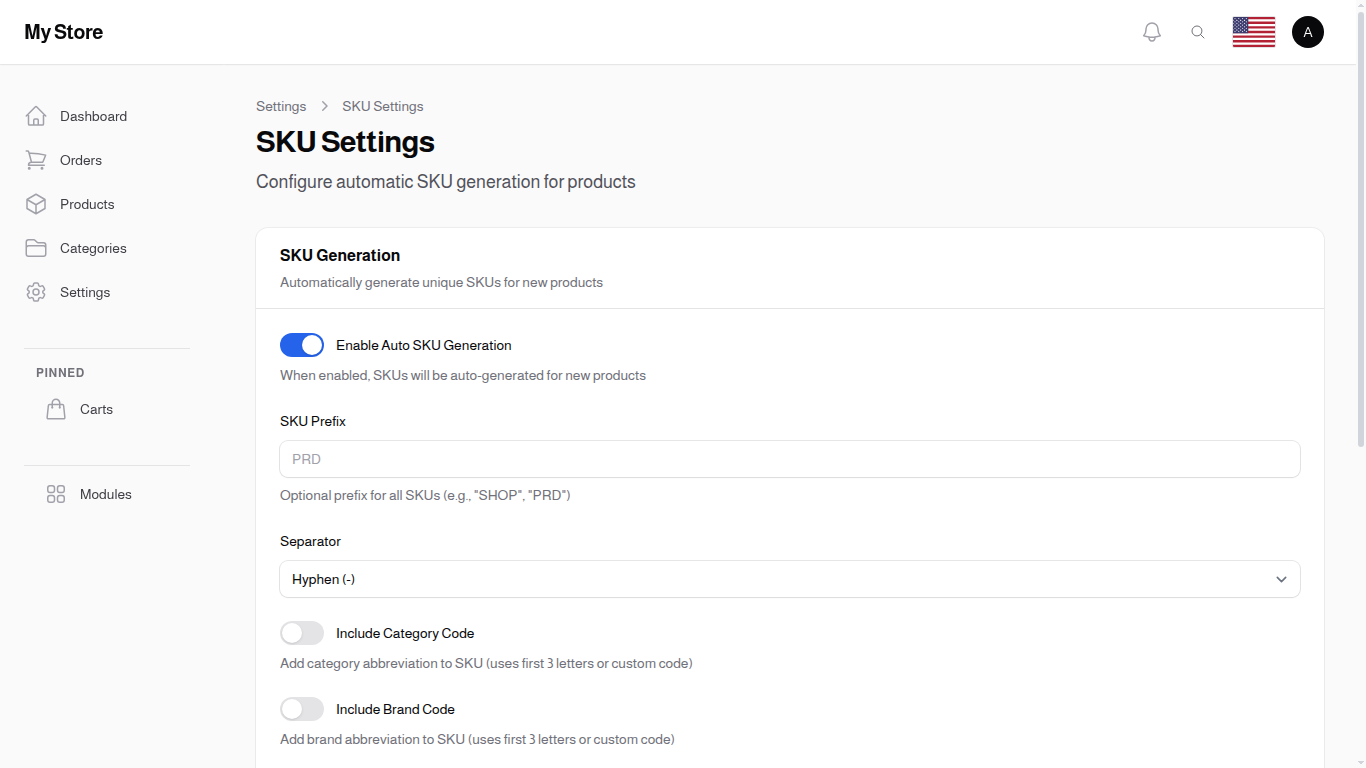
SKU Generation
Enable Auto SKU Generation
- Type: Toggle switch (On/Off)
- Default: Off (manual SKU entry)
- Purpose: Automatically generate unique SKUs for new products
When Enabled:
- New products automatically receive a unique SKU
- Additional configuration options appear below
- No need to manually enter SKU codes
- Ensures all products have consistent SKU format
- Reduces data entry errors
When Disabled:
- SKU must be entered manually when creating products
- Allows custom SKU formats
- More control over SKU naming conventions
Format Configuration
The following options appear when Auto SKU Generation is enabled.
SKU Prefix
- Type: Text input
- Maximum Length: 10 characters
- Default: Empty
- Purpose: Add an optional prefix to all SKUs
Examples:
| Prefix | Generated SKU |
|---|---|
SHOP |
SHOP-0001 |
PRD |
PRD-0001 |
INV |
INV-0001 |
| (empty) | 0001 |
Use Cases:
- Identify products from your store vs. supplier SKUs
- Differentiate product types or departments
- Brand identification in multi-store setups
Separator
- Type: Dropdown selection
- Default: Hyphen (-)
- Purpose: Character used between SKU components
Options:
| Option | Example |
|---|---|
| Hyphen (-) | PRD-CAT-0001 |
| Underscore (_) | PRD_CAT_0001 |
| Dot (.) | PRD.CAT.0001 |
| None | PRDCAT0001 |
Include Category Code
- Type: Toggle switch (On/Off)
- Default: Off
- Purpose: Add category abbreviation to SKU
When Enabled:
- Uses the first 3 letters of the category name
- Or uses custom code if defined in category settings
- Helps identify product category from SKU
Examples:
| Category | SKU |
|---|---|
| Electronics | PRD-ELE-0001 |
| Clothing | PRD-CLO-0001 |
| Home & Garden | PRD-HOM-0001 |
Include Brand Code
- Type: Toggle switch (On/Off)
- Default: Off
- Purpose: Add brand abbreviation to SKU
When Enabled:
- Uses the first 3 letters of the brand name
- Or uses custom code if defined in brand settings
- Helps identify product brand from SKU
Examples:
| Brand | SKU |
|---|---|
| Samsung | PRD-SAM-0001 |
| Apple | PRD-APP-0001 |
| Nike | PRD-NIK-0001 |
Number Padding
- Type: Number input
- Range: 1-10
- Default: 4
- Purpose: Number of digits for the sequential number
Examples:
| Padding | Sequential Number |
|---|---|
| 1 | 1, 2, 3... 9, 10 |
| 3 | 001, 002... 999, 1000 |
| 4 | 0001, 0002... 9999, 10000 |
| 6 | 000001, 000002... |
Recommendation: Use 4-6 digits for most stores. Higher numbers for larger catalogs.
Counter Mode
- Type: Dropdown selection
- Default: Global
- Purpose: How the sequential number increments
Options:
| Mode | Description | Example |
|---|---|---|
| Global | Single counter for all products | Products 1, 2, 3... regardless of category |
| Per Category | Separate counter per category | Electronics: 0001, 0002; Clothing: 0001, 0002 |
When to Use Each:
- Global: Simple stores, unique numbers across all products
- Per Category: Organized by department, allows same number in different categories
SKU Format Preview
A live preview section shows how your SKU will look based on current settings.
Example Preview:
Product SKU: PRD-CAT-BRD-0001
Variation SKU: PRD-CAT-BRD-0001-RED-L
The preview updates in real-time as you change settings, helping you visualize the final format before saving.
What is a SKU?
A Stock Keeping Unit (SKU) is a unique identifier for each product in your inventory. SKUs are used for:
- Inventory tracking and management
- Order processing
- Warehouse organization
- Product identification in reports
- Barcode generation
- Integration with external systems
SKU Best Practices
When to Enable Auto Generation
- Stores with large product catalogs
- Situations where unique identification is more important than descriptive codes
- When you want to reduce manual data entry
- Businesses without existing SKU conventions
- New stores starting fresh
When to Use Manual SKUs
- Existing SKU system in place
- Need descriptive SKUs (e.g., "BLU-SHIRT-M" for Blue Shirt Medium)
- Integration with external inventory systems
- Industry-specific SKU requirements
- Supplier-provided SKUs
Recommended Configurations
Simple Store:
Prefix: (empty)
Separator: Hyphen
Category: Off
Brand: Off
Padding: 4
Counter: Global
Result: 0001, 0002, 0003...
Multi-Category Store:
Prefix: PRD
Separator: Hyphen
Category: On
Brand: Off
Padding: 4
Counter: Per Category
Result: PRD-ELE-0001, PRD-CLO-0001...
Brand-Focused Store:
Prefix: (empty)
Separator: Underscore
Category: On
Brand: On
Padding: 5
Counter: Global
Result: ELE_SAM_00001, CLO_NIK_00001...
Saving Changes
Click the Save button at the bottom of the page to apply your changes. Changes take effect for new products only - existing products keep their current SKUs.
Related Sections
- Products - Manage product catalog
- Inventory Settings - Track stock levels and notifications
- Categories - Manage product categories
- Brands - Manage product brands