
Track Stock Levels Automatically 📊
Inventory is the lifeblood of any retail operation. Too much stock ties up capital and risks obsolescence. Too little means missed sales and disappointed customers. The challenge is finding the balance—knowing exactly what you have, what's selling, and when to replenish. Trinavo's inventory management system gives you the tools and visibility to maintain that balance without the complexity of traditional inventory software.
Every product, every variant, every sale—tracked in real-time. When a customer completes a purchase, inventory updates instantly. When you receive new stock, a simple adjustment reflects across your entire system. No more manual reconciliation between sales and stock levels. No more overselling products you don't have.
Understanding Inventory Tracking
Not every product needs inventory tracking. Digital products, services, and some physical goods with unlimited supply can operate without stock counts. Trinavo lets you choose the right approach for each product.
Toggle Tracking Per Product
Each product has an inventory tracking toggle. Enable it for physical goods where stock matters; disable it for digital downloads or services. This flexibility means your inventory dashboard shows only what's relevant—products where stock levels actually affect availability.
How Tracking Works
When inventory tracking is enabled, Trinavo monitors stock quantities and adjusts them based on store activity:
Sales: Each completed order deducts the purchased quantity from available stock.
Returns: When orders are cancelled or items returned, quantities can be restored to inventory.
Manual Adjustments: Add or subtract stock through the admin panel for receiving shipments, correcting errors, or recording losses.
The system maintains accuracy by updating in real-time, so the quantity you see in the dashboard reflects the actual available stock at that moment.
Quantity Controls
Beyond simple stock counts, Trinavo provides controls over how customers can purchase your products.
Minimum Order Quantity
Set a minimum quantity that customers must order. This is useful for:
- Wholesale products that only make sense in bulk
- Items with high handling costs relative to price
- Products where profitability requires volume purchases
When a minimum is set, customers cannot add fewer than that quantity to their cart.
Maximum Order Quantity
Limit how many units a single customer can purchase. Reasons to set maximums include:
- Preventing resellers from depleting your stock
- Ensuring fair access during high-demand launches
- Managing limited-edition or scarce inventory
Maximum limits help you serve more customers rather than letting a few buy everything.
Preset Quantity Options
Some products sell best in specific quantities—6-packs, dozen units, or bulk cases. Rather than letting customers enter any number, you can offer preset quantity options. They choose from your defined quantities, simplifying the purchase decision and potentially encouraging larger orders.
Disable Custom Quantity Input
Combined with preset options, you can disable the free-form quantity input entirely. Customers must choose from your predefined quantities, perfect for products that only make sense at certain counts.
Variant-Level Inventory
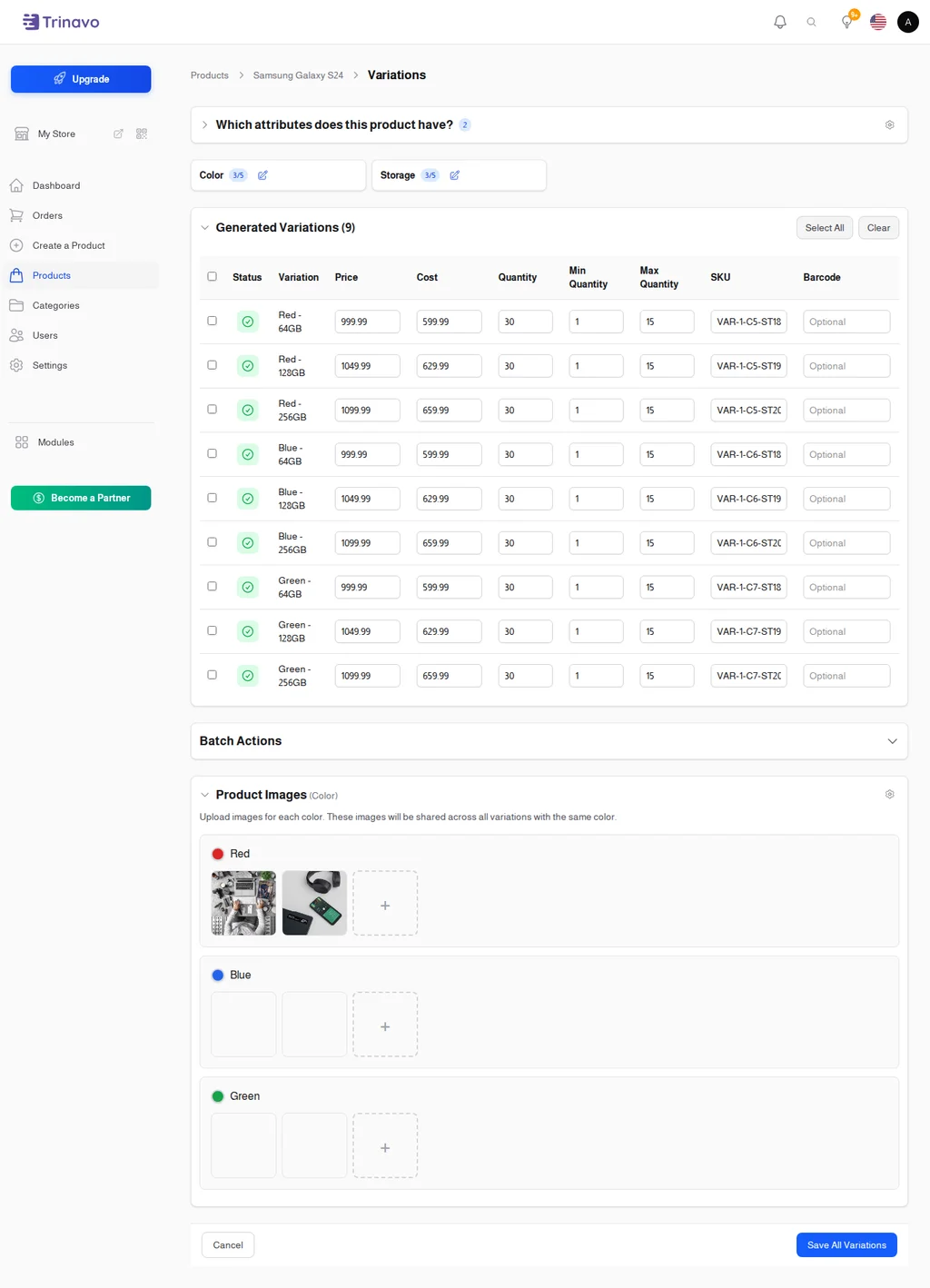
Products with variants (size, color, style) require inventory tracking at the variant level. A shirt might be available in five sizes and three colors—fifteen variants total. Customers don't just want "a shirt"; they want a specific size and color combination.
Independent Stock Per Variant
Each variant maintains its own quantity. You might have plenty of Medium Blue shirts but be out of Large Red ones. The system tracks each separately, showing accurate availability for every combination.
Per-Variant Tracking Toggle
Just like products, each variant can have inventory tracking enabled or disabled independently. This accommodates special cases where some variants are made-to-order while others are stocked.
Out-of-Stock Detection
The system checks variant availability intelligently:
- If tracking is disabled for a variant, it's always considered in stock
- If tracking is enabled, the variant is out of stock when quantity reaches zero
- Products show as out of stock only when all tracked variants are depleted
This logic ensures customers see accurate availability without manual intervention.
Preventing Overselling
Nothing damages customer trust faster than accepting an order you can't fulfill. Trinavo implements automatic safeguards to prevent overselling.
Real-Time Stock Checks
During checkout, the system verifies that ordered quantities are actually available. If another customer completed a purchase while items sat in someone's cart, the system catches this before accepting the order.
Automatic Hiding
Products and variants that reach zero stock can be automatically hidden from your storefront. Customers don't waste time trying to buy unavailable items, and your store maintains a professional appearance.
Cart Validation
When customers return to abandoned carts, the system re-validates availability. If stock has changed, customers see updated availability before proceeding to checkout.
Stock Management Tools
Managing inventory efficiently requires the right tools for common tasks.
Individual Adjustments
From any product or variant edit page, adjust quantities directly. Add received stock, correct counting errors, or record damaged goods—all with a simple quantity update.
Bulk Operations
When receiving large shipments or conducting inventory counts, update multiple products at once. Select products, enter new quantities or adjustments, and apply changes across your selection.
Import and Export
For stores with large catalogs, spreadsheet-based inventory updates may be more efficient. Export current quantities, make adjustments in your preferred spreadsheet software, and import the updated data.
Inventory Visibility
Understanding your inventory position requires clear, actionable information.
Dashboard Overview
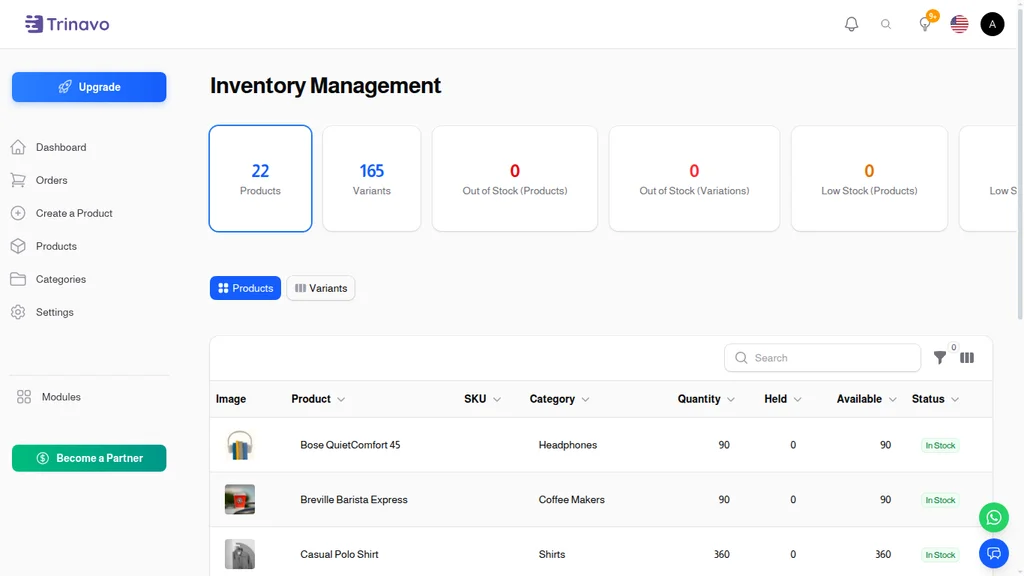
Your inventory dashboard shows key metrics at a glance:
- Total products with tracking enabled
- Products currently in stock
- Items approaching low stock thresholds
- Out-of-stock products
This overview helps you identify problems before they impact sales.
Product-Level Details
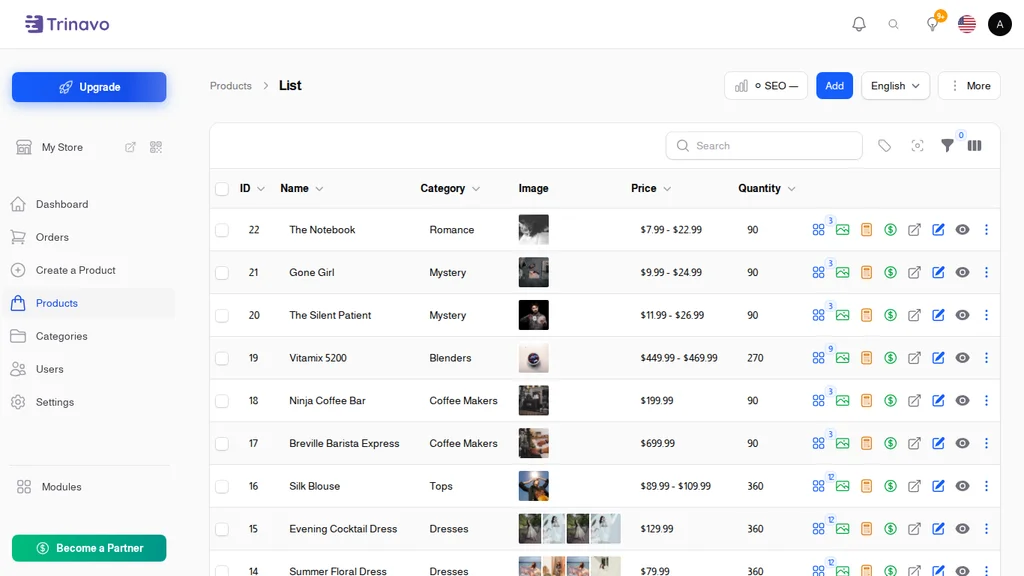
Drill down into individual products to see:
- Current quantity available
- Quantity settings (min, max, options)
- Recent stock movements
- Associated variant quantities
Filtering and Search
Find specific inventory situations quickly:
- Filter by stock status (in stock, low stock, out of stock)
- Search by product name or SKU
- Sort by quantity ascending to find lowest-stock items
- Filter by category to review sections of your catalog
Inventory Considerations by Product Type
Different product types have different inventory needs. Trinavo accommodates various scenarios:
Physical Products
Standard physical goods use traditional inventory tracking. Receive shipments, sell items, track quantities. This is the core use case for inventory management.
Digital Products
Digital products typically don't need inventory limits—you can sell unlimited copies of an ebook or software download. Disable tracking for these items to simplify your dashboard.
Made-to-Order Items
Products manufactured after ordering may not need traditional inventory. You're always "in stock" because you make them on demand. Disable tracking or set it at the variant level where some options might have constraints.
Services
Service offerings—consultations, installations, training—often don't have inventory in the traditional sense. You may have capacity limits, but not physical stock. Handle these through booking systems or by disabling inventory tracking entirely.
Limited Editions
Special releases with fixed quantities benefit from strict inventory tracking. Set exact quantities, enable tracking, and the system ensures you don't sell more than you have.
Multi-Vendor Inventory
For marketplace operators with multiple vendors, inventory management extends across sellers.
Vendor-Managed Stock
Vendors can manage their own product inventory through their dashboard. They see only their products and can update quantities as they receive or sell stock.
Central Oversight
As the marketplace operator, you maintain visibility across all vendor inventory. See platform-wide stock situations and identify vendors with inventory issues.
Integration with Order Management
Inventory and orders are tightly connected. When orders move through their lifecycle, inventory responds:
Order Placed: Quantities reserved or immediately deducted based on your settings.
Order Cancelled: Stock returned to available inventory.
Order Fulfilled: Final confirmation that stock has left your warehouse.
This integration ensures your inventory counts reflect actual operations without manual synchronization.
Start Managing Inventory Smarter
Inventory management shouldn't require complex software or dedicated staff. Trinavo builds the essential tools directly into your e-commerce platform, giving you visibility and control over stock levels without additional systems.
Track what matters, ignore what doesn't. Set the controls that match your business—minimums, maximums, presets—and let the system enforce them automatically. Focus on running your business while Trinavo ensures you never oversell and always know what's in stock.
Whether you're managing ten products or ten thousand, variant-level tracking across multiple categories, or a simple catalog without complexity, Trinavo's inventory tools scale to your needs.