
The Hidden Cost of Stockouts
Running out of a product isn't just a missed sale — it's a missed sale of something customers were already committed to buying. They landed on your store, found the product, and were ready to click Buy Now. When the product shows "Out of Stock," most of them don't wait. They leave, buy from a competitor, and often don't come back.
The frustrating part is that stockouts are almost entirely preventable. You know your sales velocity, you know your supplier lead times, and you know the quantities in your warehouse. The only thing you need is a system that watches inventory in real-time and taps you on the shoulder the moment a product approaches the danger zone. That's exactly what Trinavo's Low Stock Notifications do.
The feature runs quietly in the background. You set a threshold — global, or per-product — and the system monitors every stock change. The moment a product's available quantity drops to or below its threshold, an alert fires. You place a reorder before the shelf empties. Customers never see "Out of Stock." Sales keep flowing.
Setup in One Page
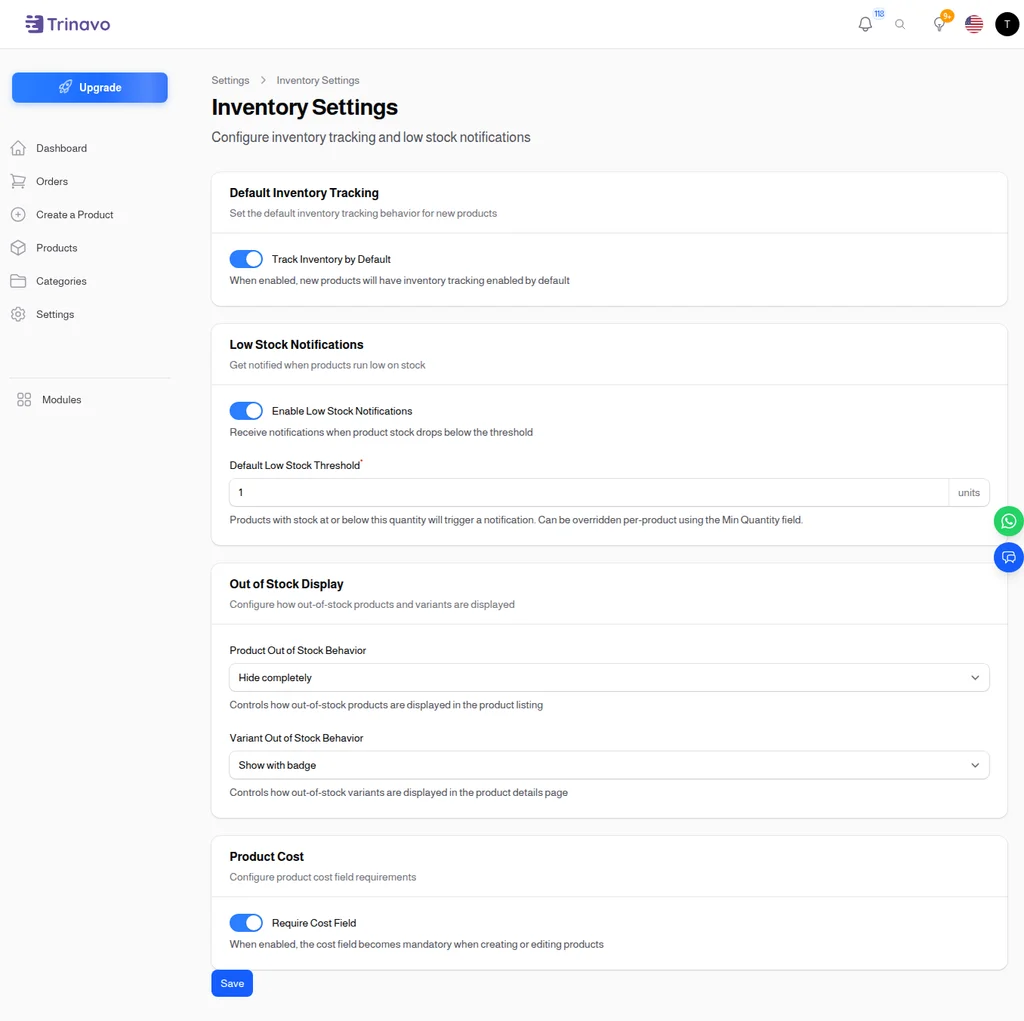
The Inventory Settings page (Settings → Inventory) is where low stock behavior lives. Four sections organize the controls:
Default Inventory Tracking
- Track Inventory by Default — when enabled, every new product you create starts with inventory tracking turned on. You can still opt-out per product for things like digital goods or made-to-order items, but this saves the hassle of flipping the toggle for every single SKU.
Low Stock Notifications
This is the section that matters most for this feature:
- Enable Low Stock Notifications — the master switch. When off, no alerts fire even if stock drops to zero. When on, the system actively watches every tracked product.
- Default Low Stock Threshold — the quantity at or below which a product is considered "low stock." Products at or below this number trigger a notification.
The default threshold applies to every product that doesn't have its own override. Most stores run with a default around 3–10 units, tuned based on average sales velocity and reorder lead time.
Per-product overrides
The Default Low Stock Threshold is a catch-all. For products with unusual characteristics — high-velocity bestsellers, slow movers, seasonal items, fragile supply chains — you can override the threshold on the individual product. The product edit form exposes a Min Quantity field that acts as the trigger level for that specific SKU.
Common override patterns:
- High-velocity products: set a higher threshold (say, 20 units) because you'll blow through small reserves fast
- Long lead-time products: set a higher threshold to account for the weeks it takes to restock
- Slow-moving items: set the threshold to 1 or 2 — you don't need to reorder until you're truly close to zero
- Fragile/single-supplier products: set threshold generously to give you buffer if the supplier has issues
Out of Stock Display
A related but distinct set of controls that determines what customers see when a product goes to zero:
- Product Out of Stock Behavior — "Hide completely" (default) removes the product from listings entirely, or you can switch to "Show with badge" which keeps it visible but marks it as out of stock
- Variant Out of Stock Behavior — same choice for product variants specifically
These choices shape customer experience. Hiding out-of-stock products keeps your store feeling fresh and avoids customer frustration. Showing with badges is useful for anticipation ("this will be back!") but can drive frustration if frequent.
Product Cost
- Require Cost Field — when enabled, the cost price becomes mandatory on all product creation and edits. This isn't directly related to low-stock notifications but sits on the same page because cost tracking is an inventory concept. It enables accurate margin reporting and loss-prevention analytics.
The Inventory Management Dashboard
Settings control the behavior. The Inventory Management page is where you see the state of your inventory in real time.
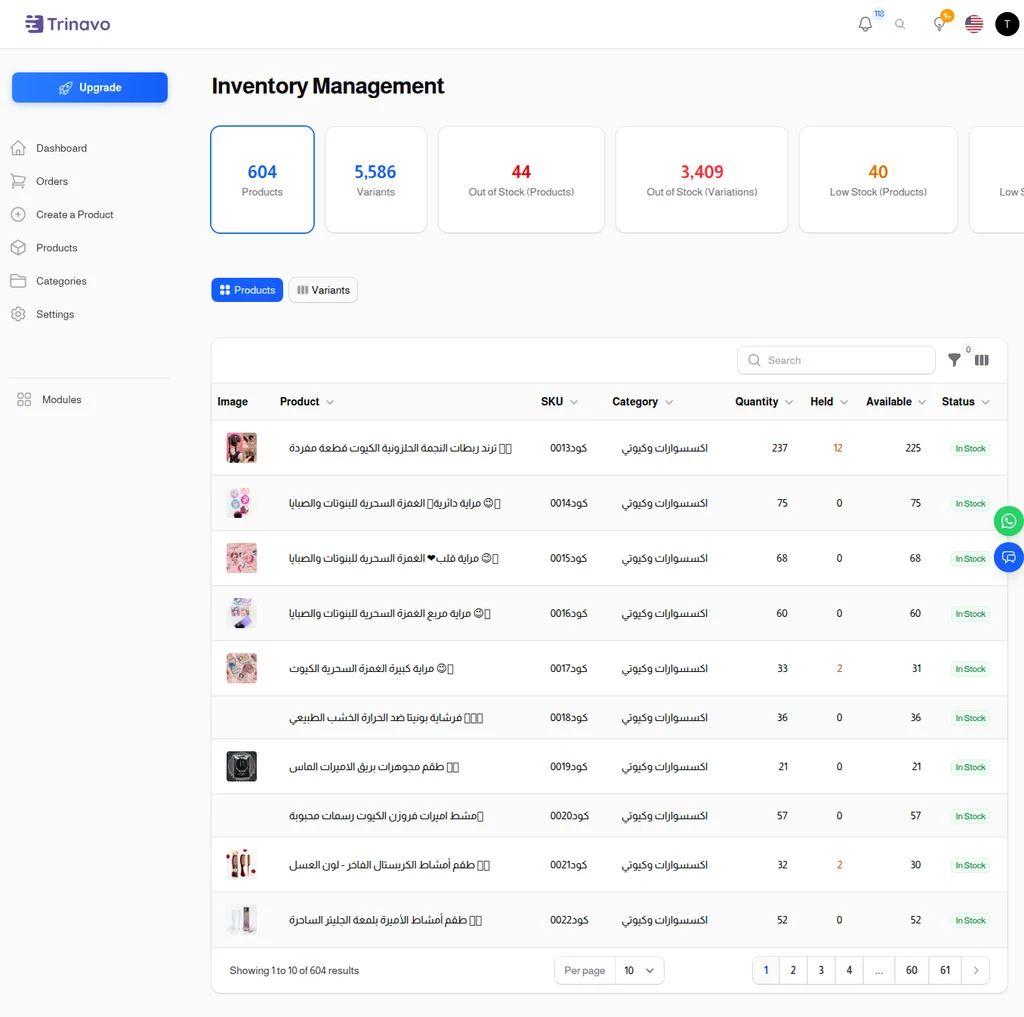
At the top, a scrolling row of status cards summarizes your catalog health:
- Products — total product count in your catalog
- Variants — total variant count (often much larger than product count if you sell in multiple sizes, colors, etc.)
- Out of Stock (Products) — products with zero quantity
- Out of Stock (Variations) — variants with zero quantity
- Low Stock (Products) — products at or below threshold
- Low Stock (Variations) — variants at or below threshold
These six numbers are your dashboard for inventory health. Glance at them in the morning. If Out of Stock products climbs suddenly, investigate. If Low Stock products is stable week-over-week, your reorder cadence is working.
Below the cards: every tracked product
The list shows every tracked product with:
- Image — product photo for quick visual identification
- Product — name
- SKU — your internal product code
- Category — how you've categorized it
- Quantity — total quantity in warehouse (held + available)
- Held — quantity currently reserved for in-progress orders
- Available — quantity actually available for new sales (Quantity − Held)
- Status — human-friendly status badge: In Stock, Low Stock, Out of Stock
The Available column is the one that matters for low-stock decisions. A product with 100 total units but 90 held in pending orders has only 10 available for new buyers — and if your threshold is 5, you're close to trouble even though the raw quantity looks healthy.
Filtering for what matters
The page supports powerful filtering to cut to the action:
- Filter by Status: Low Stock to get the exact list of products that need reordering right now
- Filter by Status: Out of Stock to identify recovery priorities (reorder urgently, or remove from listings if permanently discontinued)
- Filter by Category to focus on a specific part of your catalog during a planning session
- Search by SKU or name when you need a specific product fast
For most stores, "show me everything that's Low Stock right now" becomes a weekly or twice-weekly ritual. Five minutes of review, a batch reorder placed, problem solved.
How Notifications Actually Fire
Low-stock notifications are event-driven. Every time an order is placed, a return comes in, a manual adjustment is made, or any other stock change occurs, the system re-checks the affected product's available quantity against its threshold. If the product crosses from above-threshold to at-or-below threshold, a notification fires.
Who gets the notification?
- Admins and staff with the "Low Stock Notifications" permission
- Subscribed users configured in your notification settings
Notifications land in the in-app notification center (the bell icon in the top bar) and, if configured, in email and/or WhatsApp. The in-app notification is the highest-signal channel: when you see the bell light up, it's usually either a real customer issue or an inventory heads-up.
Debouncing
A product that hovers right at its threshold would create a storm of notifications without any protection. The system only fires a notification when the product crosses the threshold downward — once it's flagged, additional stock movements that keep it below threshold don't re-fire. When the product goes back above threshold (after a reorder), the flag resets, so the next time it drops into the danger zone you'll get a fresh notification.
Out-of-stock notifications
There's a separate, more urgent notification class for products that hit zero. These are always loud — your team should know immediately when something becomes genuinely unavailable because out-of-stock is when the money actually stops.
Everyday Use
The habits that maximize the feature's value:
Morning dashboard check. First thing when you open the admin, check the Inventory Management stat cards. A 60-second review tells you if anything is urgent.
Weekly reorder planning. Filter the list to Low Stock, print (or export) the list, and take it to your reorder-planning session. The threshold-triggered list is a much better reorder signal than sales reports — it accounts for existing stock levels, not just sales velocity.
Per-product threshold tuning. Every quarter, review the products that have been triggering notifications often. If a product is always at Low Stock, either raise the threshold (you're under-ordering) or lower it (you're getting false alarms for a slow mover).
Category-level analysis. Filter by category to see if a specific product line is chronically low on stock. If your "wireless headphones" category has 40% Low Stock prevalence, that's a supplier issue or a demand surge — either way, worth investigating.
Seasonal adjustment. Before peak seasons (holidays, back-to-school, etc.), raise thresholds across affected categories temporarily. This creates a larger safety buffer during the high-velocity window. Lower them back after the season.
Out-of-stock triage. Filter to Out of Stock weekly. For each product, decide: reorder urgently, mark as permanently discontinued and hide, or replace with a newer version. Letting an out-of-stock list grow unchecked makes your catalog look stale.
Integration With Customer Experience
Low-stock monitoring on the admin side has a parallel on the customer side that works together:
"Only X left" urgency. When a product drops below a customer-facing threshold (configurable separately), product pages can show "Only 3 left in stock!" — a proven conversion driver without being false scarcity.
Notify when back in stock. For out-of-stock products, customers can sign up to be notified when inventory returns. When your reorder arrives, these customers get an automatic email — a warm-lead list of already-interested buyers.
Automatic hiding. Products that go to zero can be hidden from listings (per the Out of Stock Behavior setting). This keeps your store looking healthy even when you have a few stockouts, and prevents the frustration of customers clicking into a dead-end "Sorry, out of stock" page.
The Bottom Line
Stockouts are a preventable failure mode. You have the data — sales velocity, stock levels, reorder cadence — and Trinavo's Low Stock Notifications turn that data into real-time action. Set a threshold, subscribe to the alerts, and a background process quietly watches your entire catalog around the clock.
The alternative — manually reviewing inventory spreadsheets weekly, guessing at which products are trending hot, and reacting to customer complaints after the fact — is how small stores stay small. Real operational discipline means getting the alert before the problem reaches the customer. That discipline, in Trinavo, is just one settings page and a sensible threshold away.