
What Is Pay by Link?
Pay by Link is the simplest way to start accepting orders on Trinavo without signing up for a payment gateway. Instead of integrating an online processor, you attach a ready-made payment URL to each of your products — a PayPal.me link, a Stripe payment link, a Tap link, your bank transfer instructions page, or even a hosted invoice from any provider you already use. At checkout, customers see your payment instructions, click through to pay externally, then upload a screenshot or PDF as proof of payment. You review the proof in your admin panel and mark the order as paid.
This is the same idea as a "manual payment" or "bank transfer" option in other platforms, but made flexible enough that every single product in your catalogue can have its own destination URL.
Key Features
- No payment gateway needed: Start selling on day one with the payment rail you already use — PayPal, Stripe links, Wise, a bank account, a wallet… anything that can produce a URL.
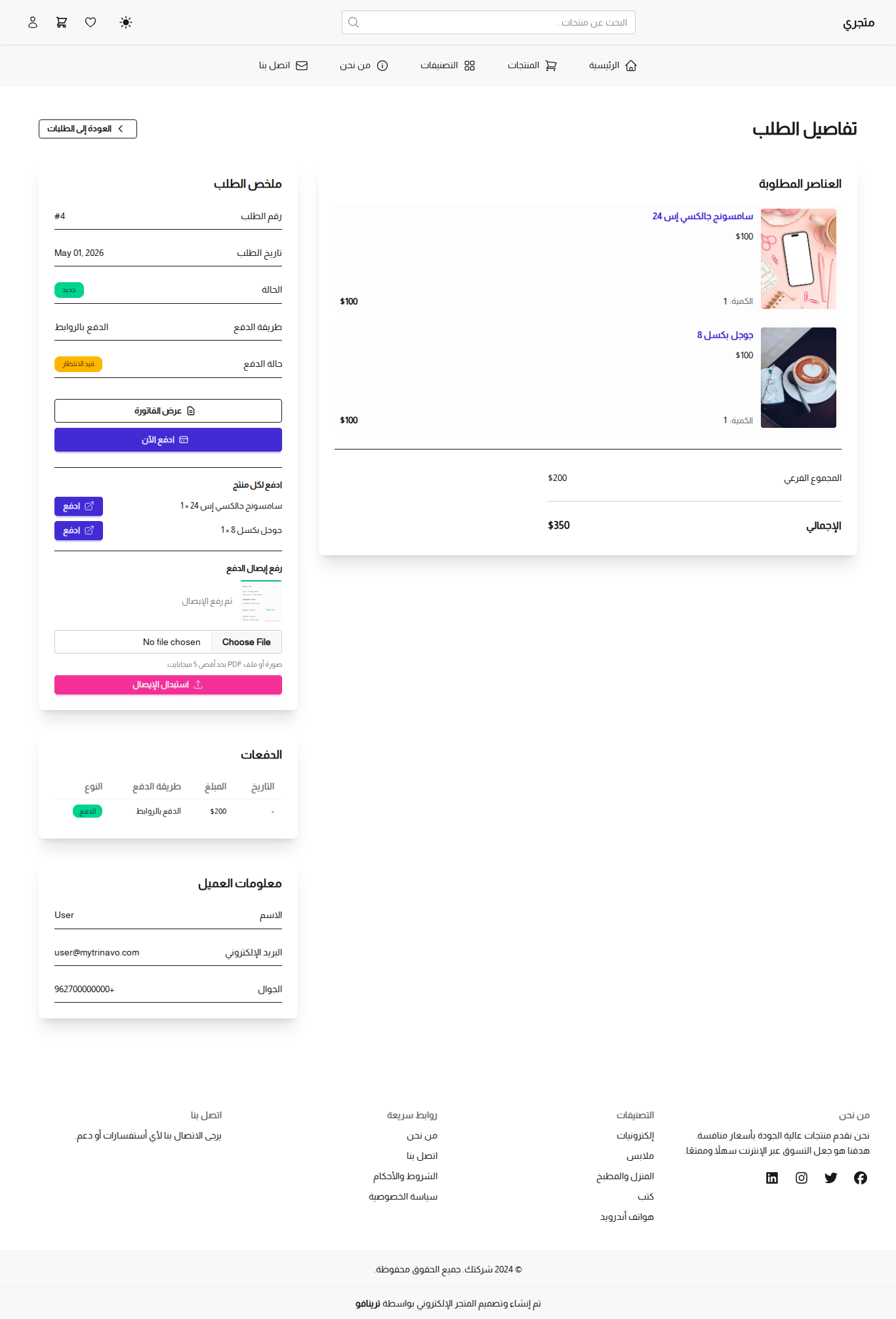
- One link per product: Each product can carry its own external payment URL. Customers see a "Pay" button per product at checkout that opens in a new tab, so multi-product orders can collect from multiple destinations if needed.
- Optional proof of payment: Turn on "Require Payment Receipt" and customers will be asked to upload a JPG, PNG, WebP, or PDF (up to 5 MB) of their receipt. The receipt is attached to the order's payment record automatically.
- Upload at checkout or later: Customers don't have to have the receipt ready. They can upload it during checkout, or come back to "My Orders" later and upload it from the order details page — until you mark the order as paid.
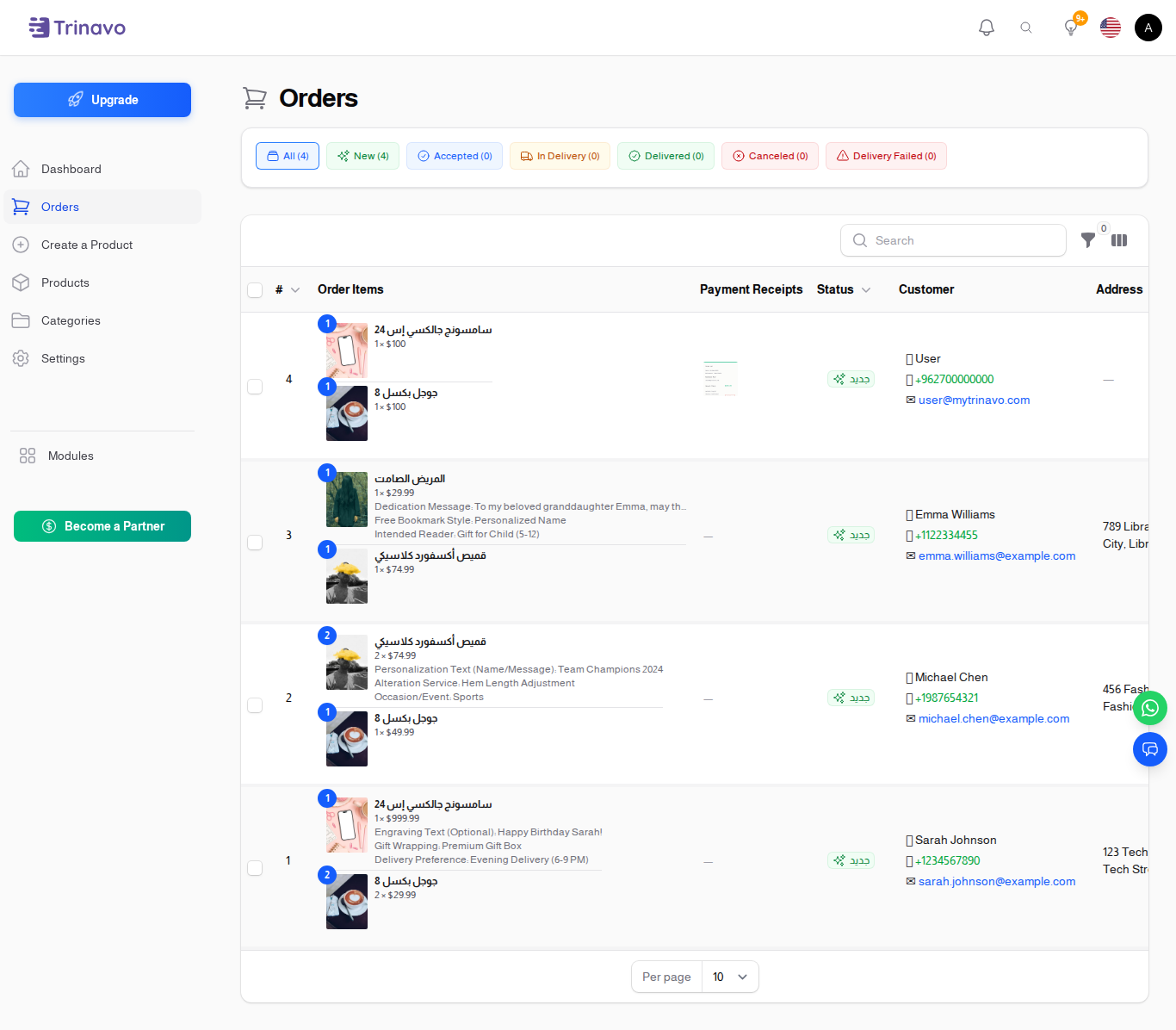
- Admin review built in: A "Payment Receipts" column on the orders list (hidden by default, toggle once and Trinavo remembers your preference) shows a thumbnail for image receipts and a PDF icon for PDF receipts. Click any image to open it full-size.
- Snapshot at checkout: The product's payment link is captured into the order at the moment of checkout, so editing or removing the link on the product later does not affect historical orders. Customers always see the link they were originally promised.
- Translatable instructions: The payment method's description supports rich HTML and is shown to the customer at checkout. Use it for transfer instructions, account numbers, deadlines, or anything else they need to know.
- No fees, no credentials: Pay by Link is a built-in plugin with nothing to configure beyond a name, description, and the optional receipt toggle. You don't share secrets with any third party.
When to Use Pay by Link
- You don't have a payment gateway yet: Skip the merchant-account paperwork and start selling today using your existing PayPal, Stripe, or bank accounts.
- Cross-border or unsupported currency: If the gateway you have doesn't support a customer's currency, give them a Wise/PayPal link instead.
- Per-product destinations: Marketplaces or vendor stores where each product belongs to a different seller can route each "Pay" button to the seller's own link.
- High-ticket B2B: Send the customer to a hosted invoice page on your accounting system and accept proof of bank wire as the receipt.
- Cash on delivery + proof: Pair Pay by Link with a "Cash on Delivery" use case where the courier takes a payment screenshot.
- Fallback while a gateway is pending approval: Many gateways take days or weeks to approve a new merchant. Use Pay by Link in the meantime.
How It Works in Trinavo
- From the admin panel, open Modules → Delivery & Payments → Payment Methods and create a new method using the Manual Payment plugin. Set a customer-facing name like "Pay by Link" or "الدفع بالروابط" and write your transfer instructions in the description.
- In the Other tab, turn ON Require Payment Receipt if you want customers to upload proof at checkout (recommended).
- Open any product under Catalog → Products, switch to the Sales & Discounts tab, and paste a URL into the new Payment Link field.
- At checkout, the customer picks Pay by Link. They see your description, a list of "Pay" buttons (one per product that has a payment link), and an upload box for the receipt.
- They click each "Pay" button to complete payment externally, upload the receipt, and confirm the order.
- The order lands in the admin panel with Paid = OFF and the receipt visible in the new "Payment Receipts" column. You verify the proof, then flip the Paid toggle, which moves the order through the rest of your fulfillment workflow exactly like any other paid order.
If the customer didn't have the receipt ready at checkout, the upload box is also shown in their My Orders → Order Details page until the order is marked paid, so they can attach it whenever they're ready.
Security and Compliance
Pay by Link does not handle card details and does not store any sensitive payment data inside Trinavo. The actual money movement happens on the external rail you choose (PayPal, Stripe, your bank…), so PCI compliance and KYC are handled by that provider. The only data Trinavo stores is the receipt file the customer uploaded — kept on the same disk you use for product images.
Receipts are scoped per order: only the order's owner can upload one, and only authenticated admin users in your store can view them.
Getting Started
To enable Pay by Link in your Trinavo store, go to Payment Methods, click New Payment Method, and select the Manual Payment plugin. Save, then visit your products and add a Payment Link to each one that should support this flow. Within minutes, your customers can place orders using any external payment rail you already use — no integration, no waiting on gateway approvals, no monthly fees.


