
Talk to Your Customers While They Shop
Customers who can ask a quick question before they buy are far more likely to buy. Trinavo works with tawk.to, a free live chat service, so a chat bubble appears on every page of your store and a chat button appears in your store's mobile app.
You answer from tawk.to: in the browser, or from its free phone and desktop apps, with a notification for every new message. And the chat can greet your customers in Arabic, with quick questions they tap instead of typing.
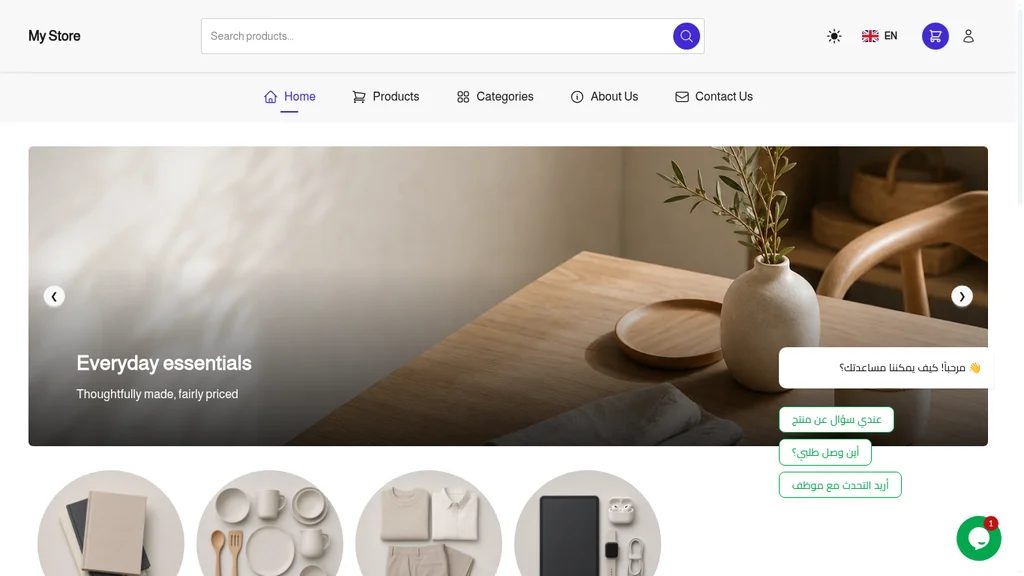
Setup takes about five minutes. Making the chat Arabic takes five more.
Step 1: Create Your Free tawk.to Account
- In your Trinavo dashboard, click Modules, then Plugins, and open the Support tab.
- On the tawk.to card, click More Info to open the tawk.to website, then click Get Started.
- Enter your name, email and a password, then click Sign Up for free.
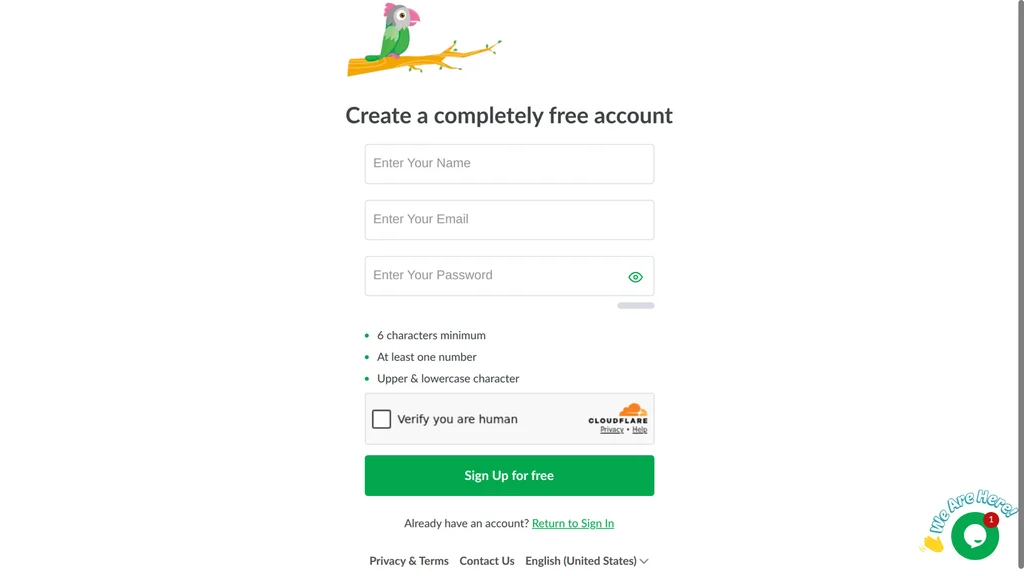
tawk.to then asks a few setup questions: choose Live Chat, and enter your store address and a name. When it shows the widget code, you can skip the rest: Trinavo installs it for you.
Step 2: Copy Your Chat Link
- In tawk.to, click Administration (the gear icon at the bottom of the left bar).
- Click Chat Widget.
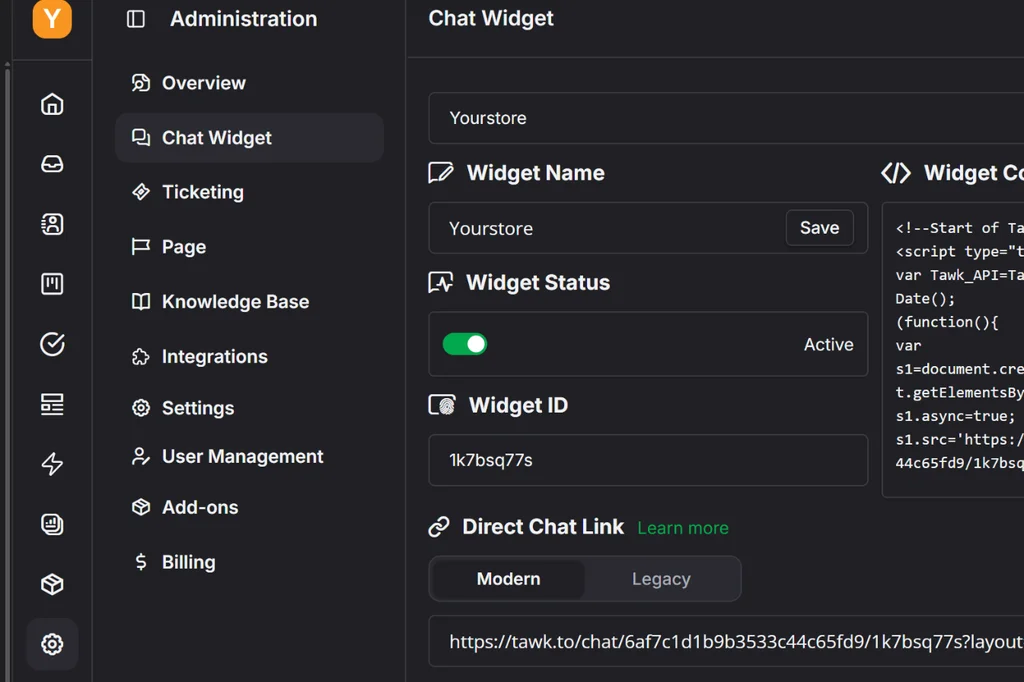
- Under Direct Chat Link, click Copy.
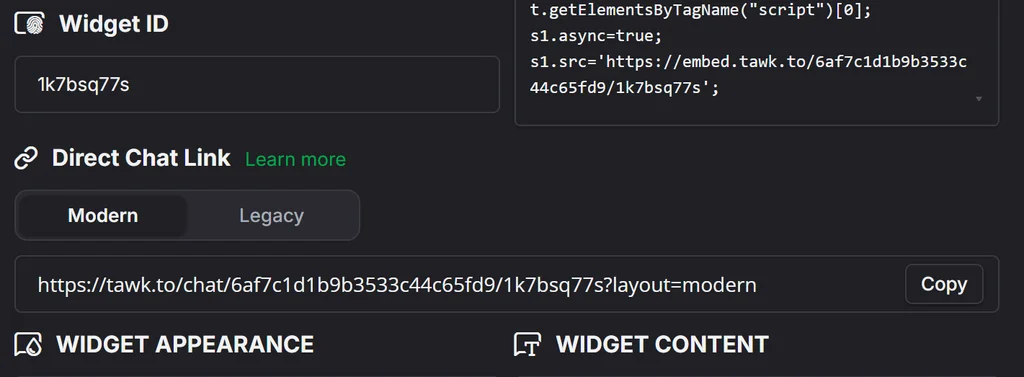
The Widget Code on the same page works too, if you prefer to copy that.
Step 3: Turn On tawk.to in Your Store
- In your Trinavo dashboard, click Modules, then Plugins.
- Open the Support tab and click Configure on the tawk.to card.
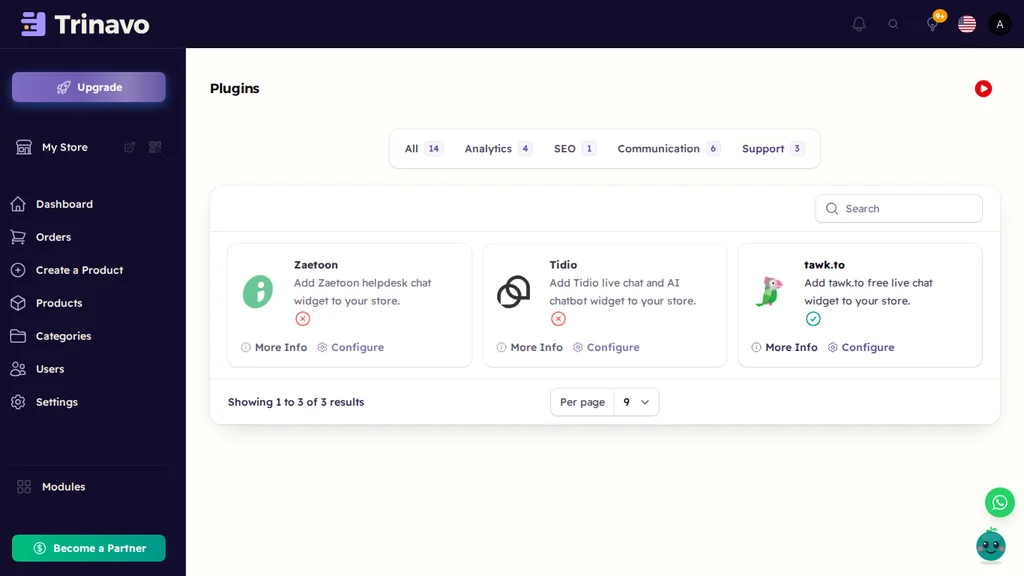
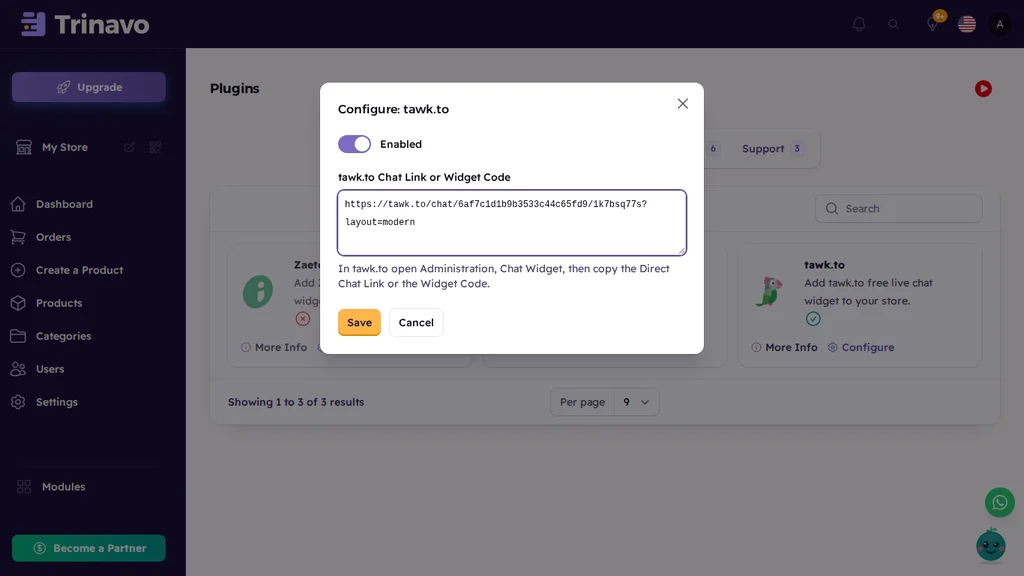
- Switch on Enabled, paste your link into tawk.to Chat Link or Widget Code, and click Save.
Step 4: Check Your Store and App
Open your store: the chat bubble is in the bottom corner of every page. When a signed-in customer writes to you, tawk.to shows you their name and email, so you know who you are talking to.
In your store's mobile app, a chat button appears by itself. It opens the chat full screen, with no extra setup.
Make the Chat Speak Arabic
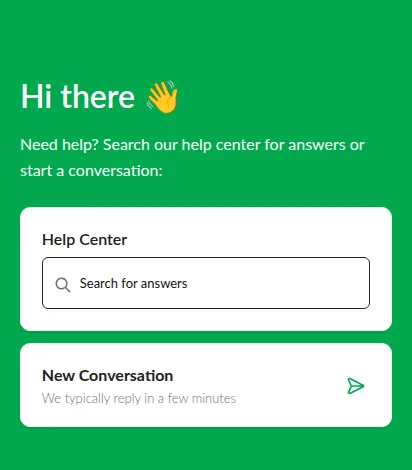
The chat comes in English. Three places in tawk.to make it speak your customers' language, and every change shows on your store and in your app right away.
Choose the Language
In tawk.to, open Administration > Chat Widget. Under Widget Content, open Language and choose العربية (Arabic). It is saved at once.
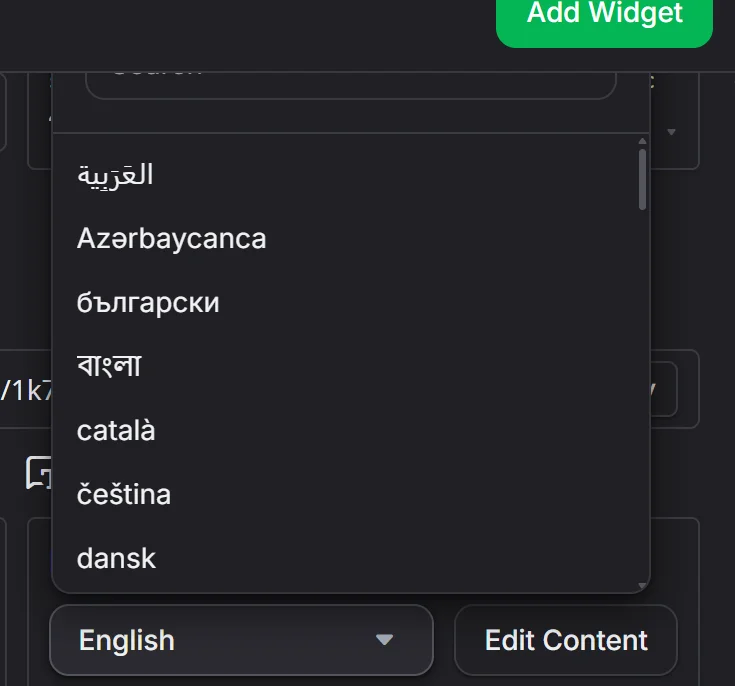
The language changes tawk.to's own buttons and labels, and turns the chat right to left. The texts in the chat are yours, and you change them next.
Rewrite the Chat's Texts
Next to Language, click Edit Content. Click the pencil on each card (Heading, Text Area, Chat), write your text in Arabic, set Alignment to Right, and click Update. The preview on the right shows the result as you type.
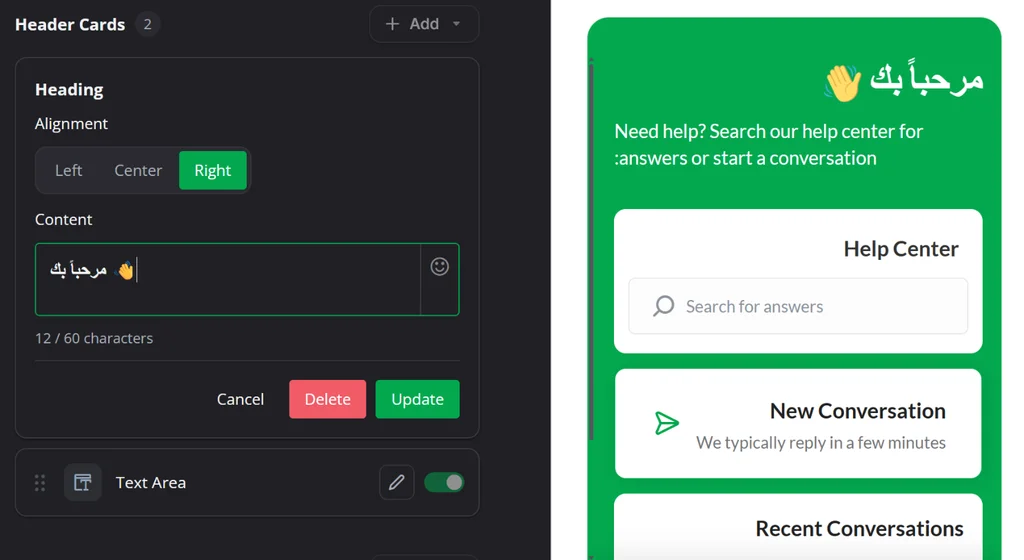
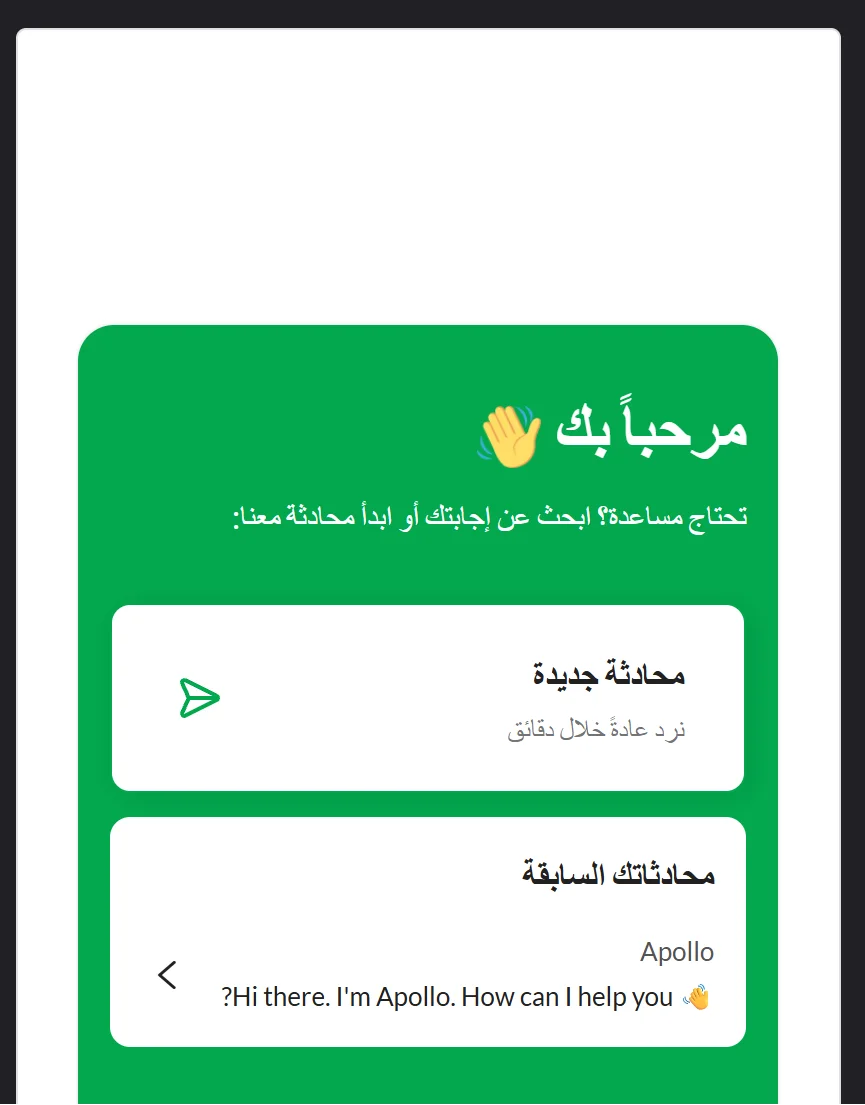
On the Chat card you can also change the conversation title, its description and the hint in the message box. The KB Search card shows a Help Center search box; switch it off unless you write a knowledge base in tawk.to.
Change the Welcome Message and Quick Questions
The greeting that pops up on your store, and the quick questions under it, are a tawk.to trigger.
- Open Administration > Settings > Triggers, then click Welcome message.
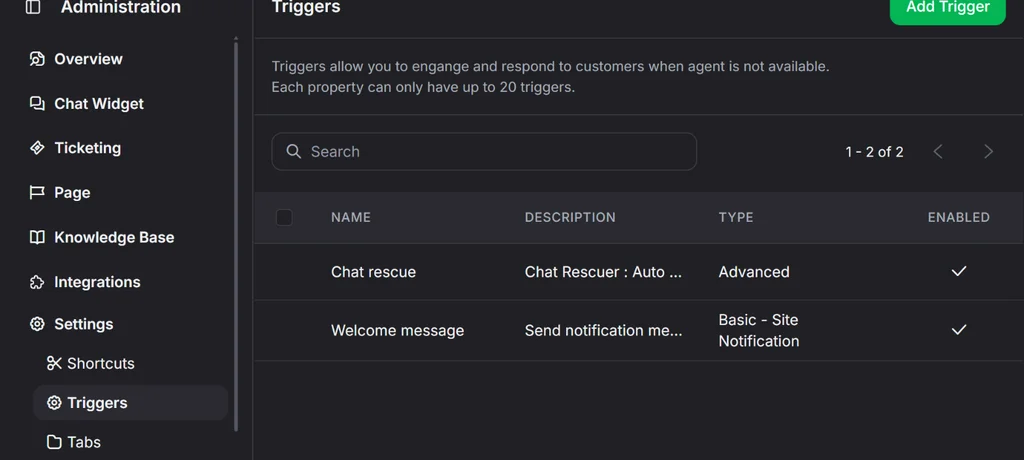
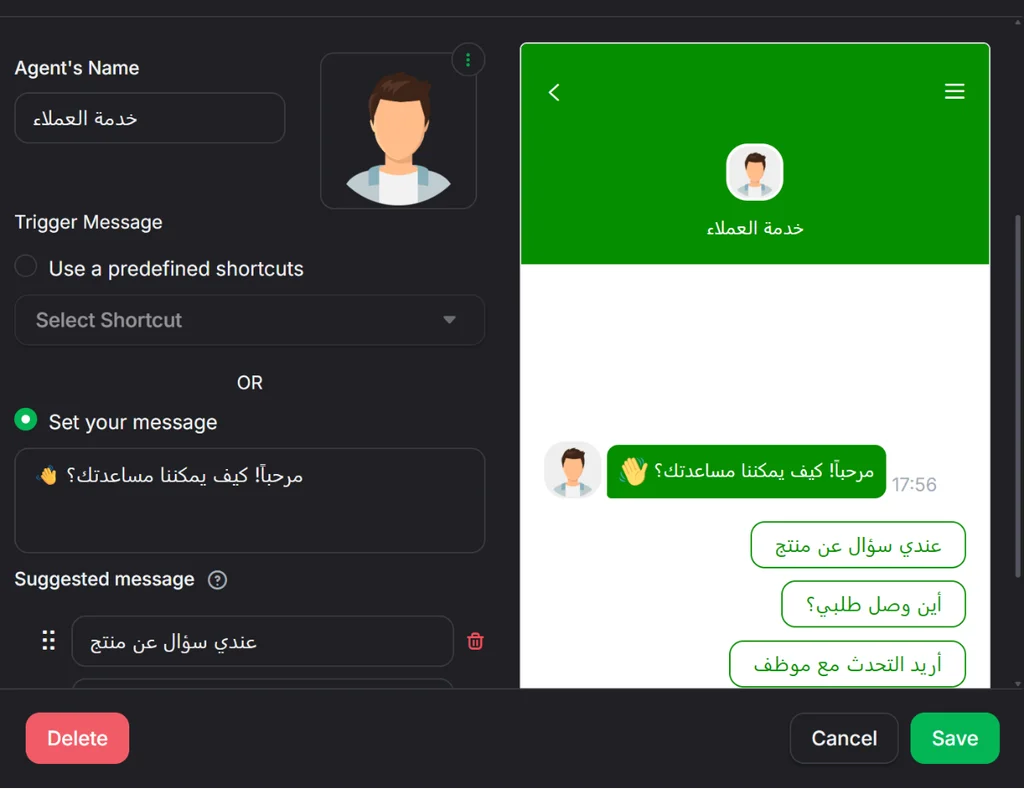
- Change Agent's Name, for example to خدمة العملاء (Customer Service).
- Write the greeting under Set your message.
- Under Suggested message, write the quick questions your customers can tap, such as "Where is my order?". Click Add Message to add more.
- Click Save.
Answer From Anywhere
- On your computer: keep the tawk.to dashboard open, or install its desktop app.
- On your phone: install the free tawk.to app for iPhone or Android and turn on notifications.
- With your team: invite staff from User Management in tawk.to so they can answer too.
More Ways to Customize
Under Administration > Chat Widget you can also set:
- Widget Color to match your brand
- Scheduler to show the chat only during your working hours
- Widget Behavior to hide the chat on phones or computers, or turn off sounds and file uploads
Questions
Is it really free? Yes. tawk.to's live chat is free with no limit on chats. Paid extras, such as removing the tawk.to branding, are optional.
Do I need to set anything up in the app? No. The chat button appears in the app by itself once the plugin is enabled.
Why don't I see the welcome message again? tawk.to greets each visitor once. Open your store in a private window to see it again.
Can I turn it off? Yes. Switch off Enabled in the plugin and the chat disappears from your store and app.