SEO Manager
Watch the video
Optimize Product Seo
Overview
SEO Manager is a dedicated workspace that scores every product in your catalog from 0 to 100 for search-engine readiness, per language, and lets you fix the lowest-scoring ones in a single modal — manually, per-field with AI, or all fields at once with the Magic button. The merchant problem it solves is simple: you cannot fix what you cannot measure. Until you know which products are leaking Google traffic, you have no idea where to spend your SEO effort.
Why this matters
A product that ranks on page 2 of Google search results gets close to zero organic clicks. The first three results capture the majority of all clicks, and pages 2+ might as well not exist for most shoppers. Most stores have hundreds of products, but the owner has no way to tell which ones are well-optimized and which ones are silently losing customers to better-optimized competitors selling the same thing.
SEO Manager makes that signal visible. It tests every product against 14 concrete rules, gives each one a score, and sorts the worst products to the top so you fix the catalog where the leak is biggest. The fix path is a single click — either type the corrections yourself with live feedback, or hand the whole job to the Magic AI button.
Accessing the SEO Manager
Navigate to: Marketing & Content > SEO Manager
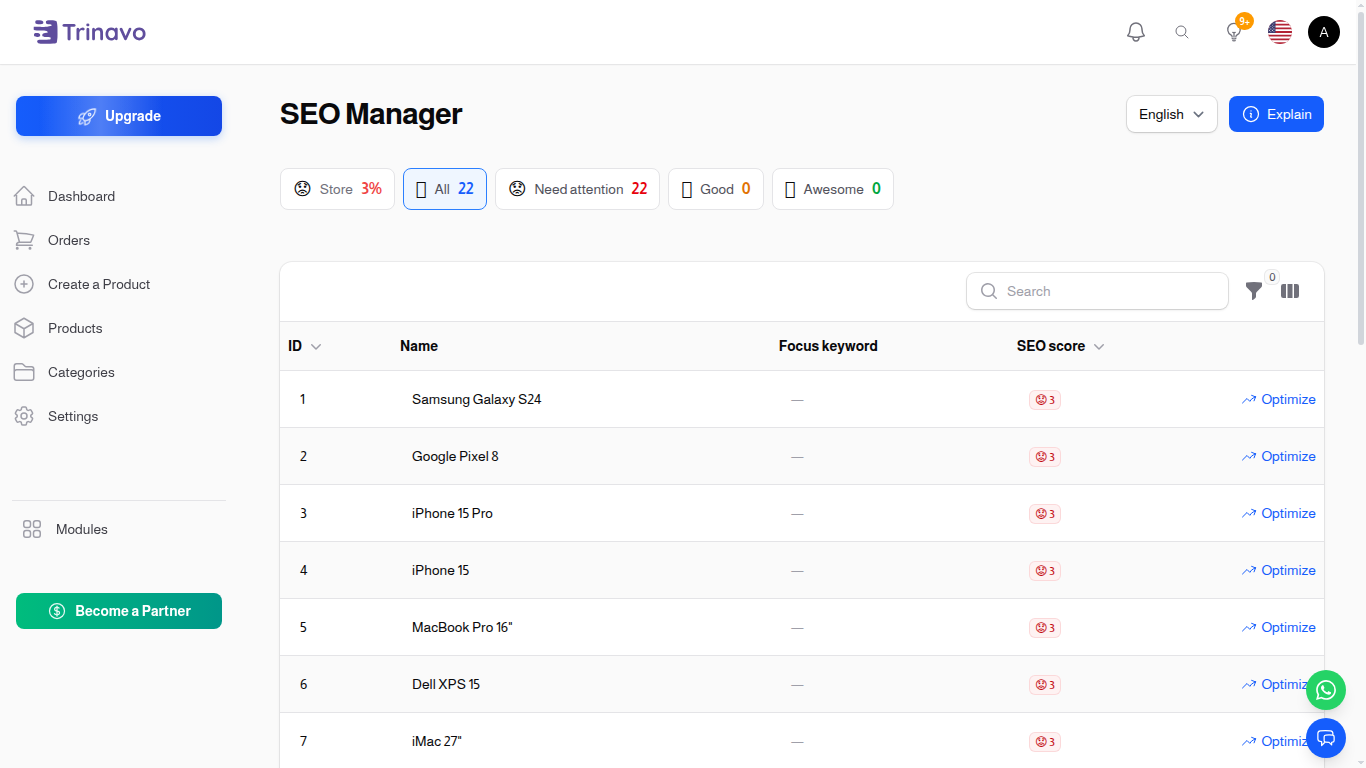
Reading the dashboard
The top row is a single horizontal strip of compact chips. On mobile it scrolls horizontally, so the same information fits on small screens without wrapping.

- Store score chip — the average score across every product for the currently selected language, with an emoji (😟 / 🙂 / 🤩) and a colored badge that reflects the bucket the average falls into.
- All — clears the bucket filter and shows every product. This is selected by default.
- Need attention — products scoring under 50. Red.
- Good — products scoring 50 to 79. Amber.
- Awesome — products scoring 80 and above. Green.
Each filter chip also shows the count of products in that bucket. Clicking a chip applies it as the active filter and re-queries the table.
The locale switcher in the page header lets you toggle between installed languages. Scores are calculated and stored per language — a product can be Awesome in Arabic and Need attention in English at the same time.
The product list
The table shows the product id, name in the current locale, focus keyword for that locale, and a colored score badge. The default sort is by score ascending so the products that need help most appear at the top. Pagination defaults to 25 rows; standard 25 / 50 / 100 options are available.
Optimizing a product
Click Optimize (the magnifying-glass icon) on any row. A modal opens with a sticky header showing the current score chip and a sticky footer with the Save and Cancel buttons. Everything in between scrolls.
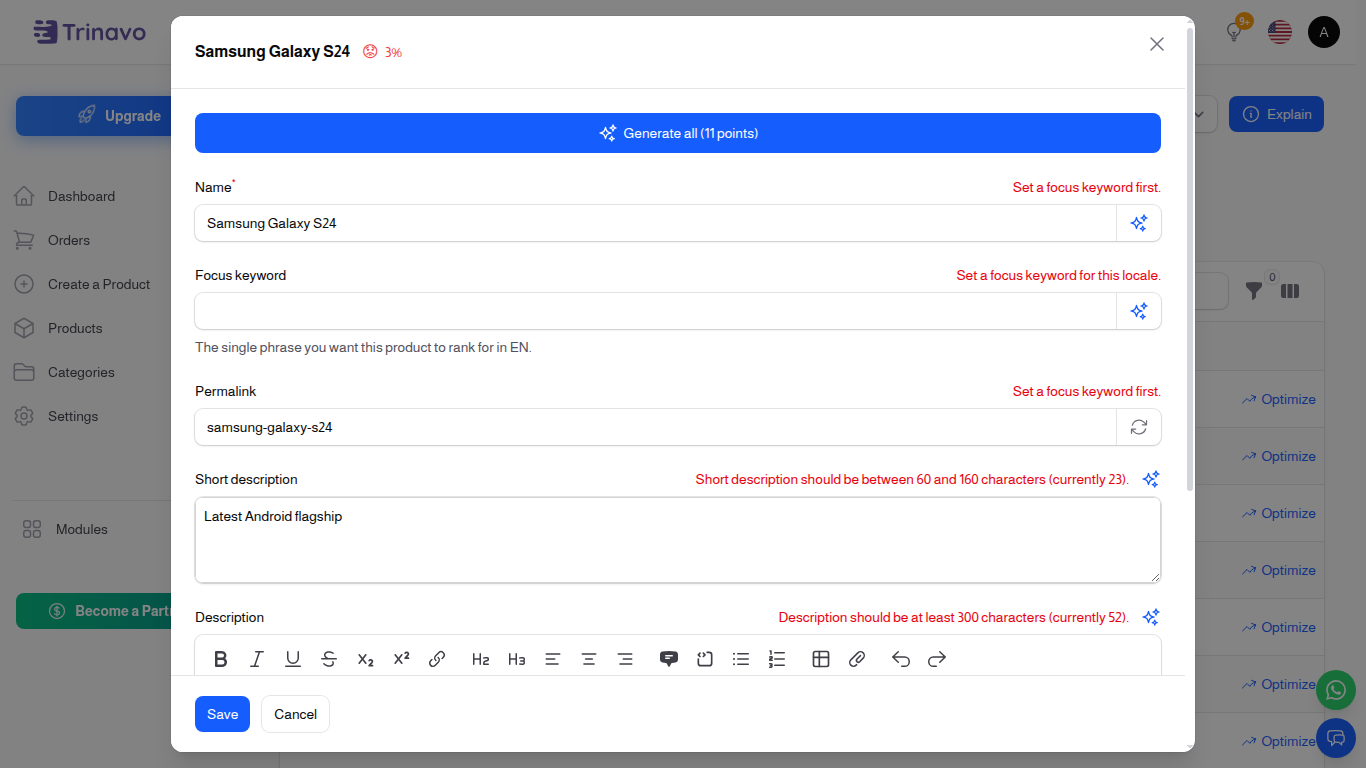
Inside the modal you have three paths:
- Manual editing — type values yourself. The score chip at the top updates 500 ms after you stop typing, and the inline hints under each field tell you exactly what is wrong (
"Meta title is too short — aim for 50 to 60 characters"). - Per-field AI — click the sparkle button next to any field to generate just that one field. Costs 1 credit per field (5 for the long description).
- Magic — Generate all — one button at the top of the form generates all 7 SEO fields in a single AI call.
When you click Save, the row's score on the table updates immediately.
The Magic button — Generate all with AI
The Magic button label includes the cost in points: Generate all (11 points). Click it once and one AI call returns a complete SEO package for the product: focus keyword, name, short description, long description (500 to 1000 words), meta title, meta description, and meta keywords. The page applies all 7 values, runs the long description through markdown so it formats correctly, and refreshes the live score preview.
The cost is 11 credits — the exact sum of what you would have paid clicking each sparkle button individually (1 + 1 + 1 + 5 + 1 + 1 + 1). There is no bulk discount. The Magic button is a speed feature, not a pricing perk. It saves you six modal opens and six waits; it does not save you money.
One field stays separate: the permalink is regenerated by the local slug helper, not AI, because Unicode permalink generation is deterministic. After the Magic button finishes, the recommended last step is to click "Regenerate from product name" so the permalink picks up the new AI-generated product name.
Per-field AI sparkles
Sometimes you only want to regenerate one field — perhaps the AI's meta description was perfect but you want a fresh meta title. Click the sparkle icon next to any individual field. A small modal opens letting you add an optional instruction ("Focus on dropshipping merchants"), and one AI call generates just that field. Cost is 1 credit per field, or 5 credits for the long description.
Focus keyword
The focus keyword is the single phrase a customer would type into Google to find this specific product. It is set per product per language and is used by 5 of the 14 scoring rules — its presence in the meta title, meta description, long description, product name, and permalink.

You can set the focus keyword by typing it directly, by clicking its sparkle button (1 credit), or by letting the Magic button set it along with everything else. Because it drives 5 rules out of 14, setting a good focus keyword is usually the highest-leverage change you can make on a low-scoring product.
When the focus keyword is empty, those 5 rules short-circuit to zero with the message "Set focus keyword first" — that is the very first thing to fix.
Filling SEO without AI
The SEO Manager is fully usable without spending any credits. Open the Optimize modal, type the values yourself, and watch the score climb live as each rule turns from failing to passing. The inline hints describe each rule's pass condition explicitly, so you do not need to memorize the rules — they teach you as you type.
Manual optimization is also the right choice for products where you have a very specific brand voice or a copywriter has already written perfect descriptions and you only need to fill the meta tags.
The store SEO score
The store score is the AVG of every product's score for the current language. It updates automatically when any product's SEO fields change, and a 5-second debounce coalesces bursts (so saving 50 products at once does not trigger 50 recalculations).
The same number appears in two places: the chip at the top of the SEO Manager page, and a non-clickable colored chip at the top of the Items list page.
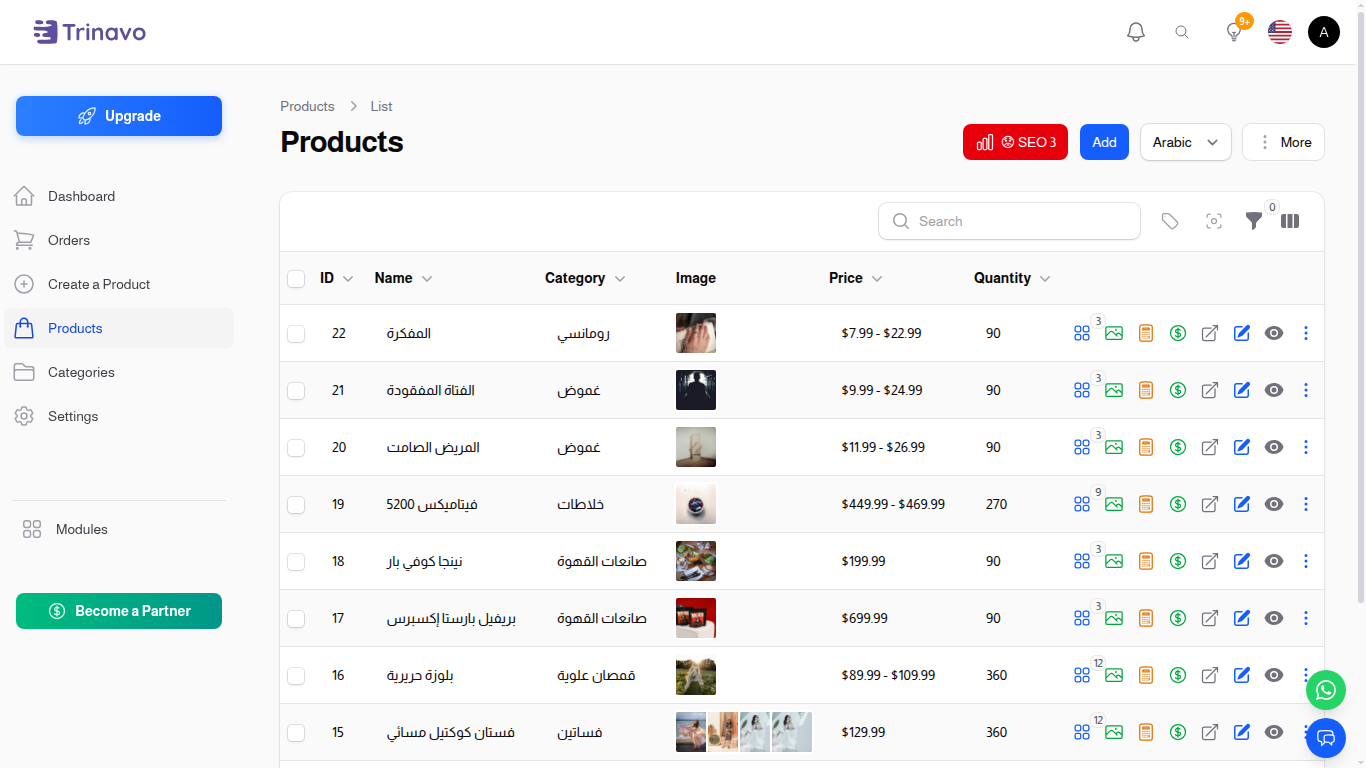
This gives you an at-a-glance signal of overall SEO health without leaving the catalog. If the badge is green, your store is in good shape. If it is amber or red, the SEO Manager will tell you exactly which products to fix first.
The artisan command
On a fresh database (or after restoring a backup) the item_seo_scores table is empty. Recalculate everything in one pass:
php artisan seo:calculate --tenant=local         # current tenant only
php artisan seo:calculate --tenant=<slug>        # specific tenant
php artisan seo:calculate --all                  # every local tenant
The command is idempotent — running it twice does nothing harmful.
Why AI credits matter for SEO
AI credits are not a feature unlock. They are an investment in search ranking.
Every product you do not optimize is one a competitor's product will outrank in Google. Credits buy ranking; ranking buys traffic; traffic buys orders. Skipping the Magic button on a 500-product catalog means leaving 500 products to compete with whatever default SEO happens to be in the database — and you are competing against merchants who have already used the same Magic button on theirs.
Each product you optimize with AI is one more product that competes for Google traffic. Skipping it means competitors with the same product but better SEO win the click.
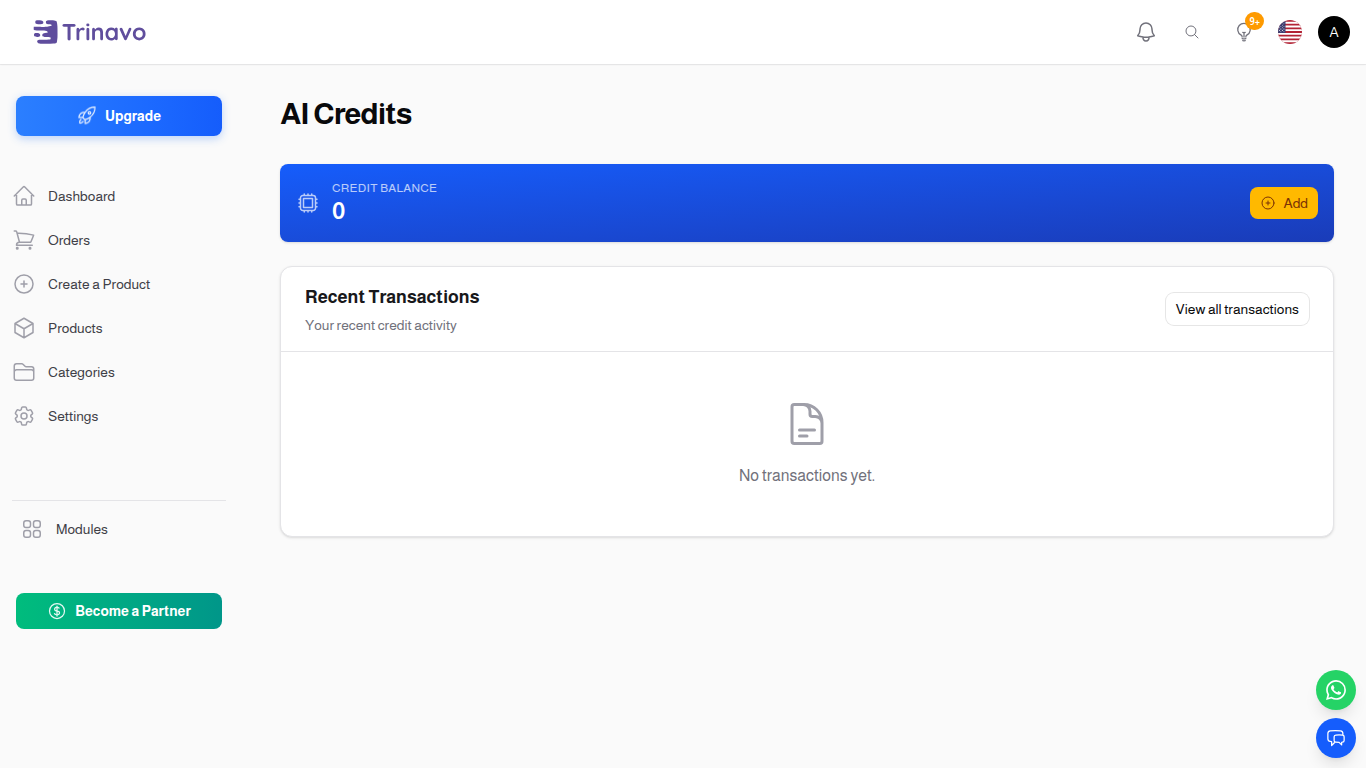
To buy credits, open AI Credits from inside the admin and click Buy credits. The platform never asks merchants to spend more than the per-call cost — what changes is how many products you can afford to optimize per day.
Troubleshooting
My product's score did not change after saving
The score is recalculated by a background job. On most stores it updates within a second. If you see no change, refresh the page; if it is still stale, run php artisan seo:calculate --tenant=local to force a full recompute.
The Arabic permalink looks off
Arabic permalinks use a Unicode-aware slug generator. If your old Arabic products had Latin-only permalinks generated by the previous slug helper, click "Regenerate from product name" inside the Optimize modal to refresh them.
The Magic button gave me a short description
The bulk prompt explicitly tells the AI: "If the current description is already long and useful, keep or extend its length — do not shrink it." If you still see shrinking, check whether the input description was very generic — the model may have judged a generic 800-word description as less valuable than a focused 500-word one and rewritten accordingly.
I am on a free plan — can I still use this page?
Yes. The SEO Manager page, the scoring, the filters, the Optimize modal, and manual editing are all free for every tenant. Only the AI sparkle buttons and the Magic button require a paid plan (and credits). Manual optimization works exactly the same way; AI just makes it faster.