Dropshipping Monitor
Every job your suppliers run gets a row here: sending an order to a supplier, updating order statuses, updating products. Look here when an order did not reach a supplier or prices stopped changing.
Where to find it
Open Modules → Dropshipping → Dropshipping Monitor. A red number next to it in the menu counts the jobs that failed.
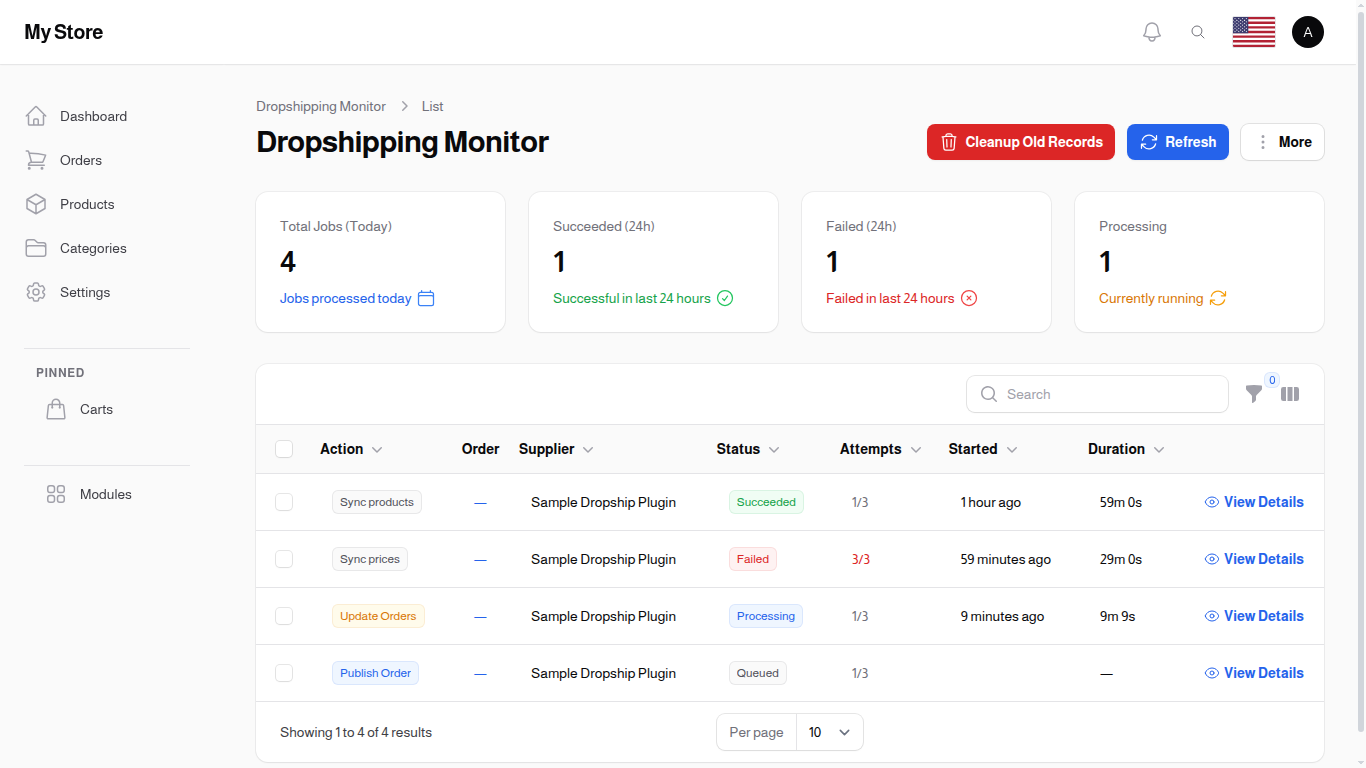
The boxes at the top count Total Jobs (Today), Succeeded (24h), Failed (24h) and jobs Processing right now. The newest job is first, and the list refreshes itself every 30 seconds; Refresh reloads it at once.
| Column | What it shows |
|---|---|
| Action | Publish Order (one order sent to the supplier), Update Orders (order statuses asked from the supplier) or Update Products (prices, stock and products updated from the supplier). |
| Order | The order a Publish Order job sent. Click it to open the order. Shown while Action Type is not filtered or is set to Publish Order. |
| Status | Queued, Processing, Succeeded or Failed. |
| Attempts | Tries made out of tries allowed. Sending an order is tried up to three times; updates are tried once. It turns red when the last try is used. |
| Duration | How long the job took. |
| Processed | Shown when Action Type is set to Update Orders or Update Products: the items that went through out of all the items the update handled, in orange when some failed. |
| Error | Shown when Status is set to Failed: the start of the error message; point at it to read all of it. |
Search by ID or supplier name. The filters show one Action Type, one Status, one Supplier, one Order ID, or the jobs created between From and Until.
See why a job failed
Click View Details on the job's row.
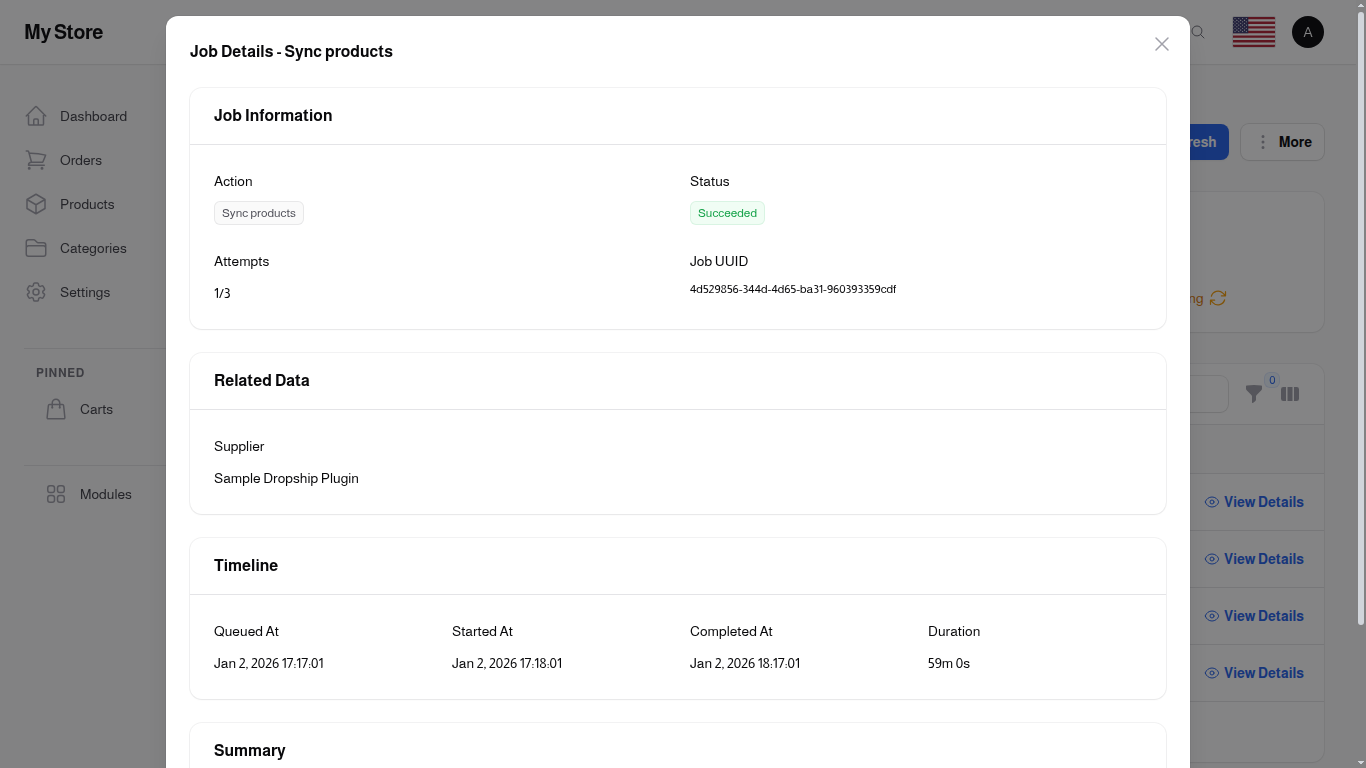
- Job Information: the action, status and attempts.
- Related Data: the Order Number and Customer for a sent order, the Supplier, and how many items an update went through.
- Timeline: when it was queued, started and completed, and how long it took.
- Summary: what the job reported when it finished.
- Error Details: for a failed job, the Error Message and what the supplier answered. Both can be copied to send to your supplier or to us.
Try a failed job again
Fix the cause first (a supplier balance, a token, a product the supplier no longer sells), then open View Details and click Retry Job. It shows on failed jobs only, to staff whose role may edit monitor records; a failed order can be retried as long as the order and the supplier still exist.
Clean up old records
- Click Cleanup Old Records.
- Choose which jobs to delete under Status: Succeeded Only (the starting choice), Failed Only or All Records.
- Set Older Than (Days), 7 to start with.
- Confirm.
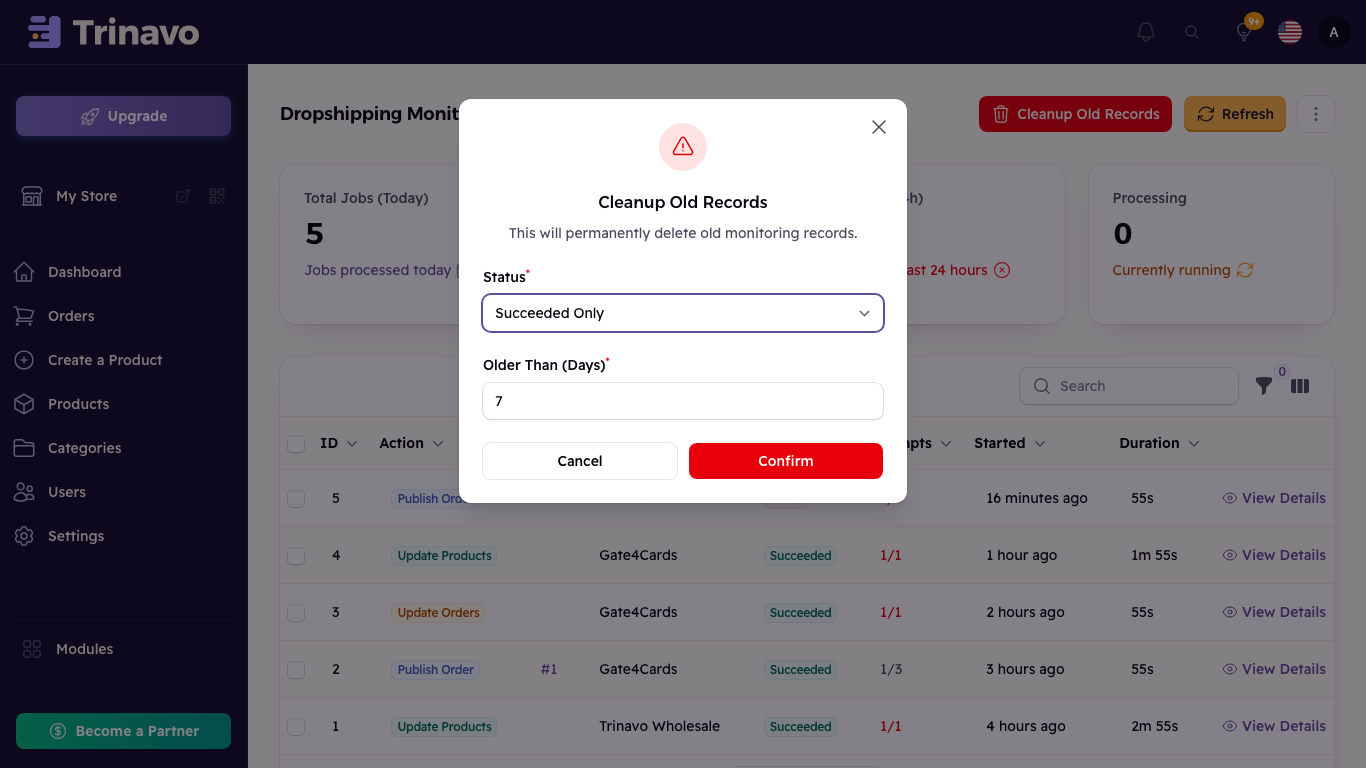
Deleted records are gone for good. To remove a few, tick them and choose Delete selected from the bulk actions. Cleanup Old Records and Delete selected show only to staff whose role may delete monitor records. Export is in the bulk actions and in the ⋮ menu (More) at the top, next to Related reports.