Google Ads
Tells Google Ads about every sale on your website, with its value, so Google Ads knows which ads bring sales and its automatic bidding can aim for them.
Where to find it
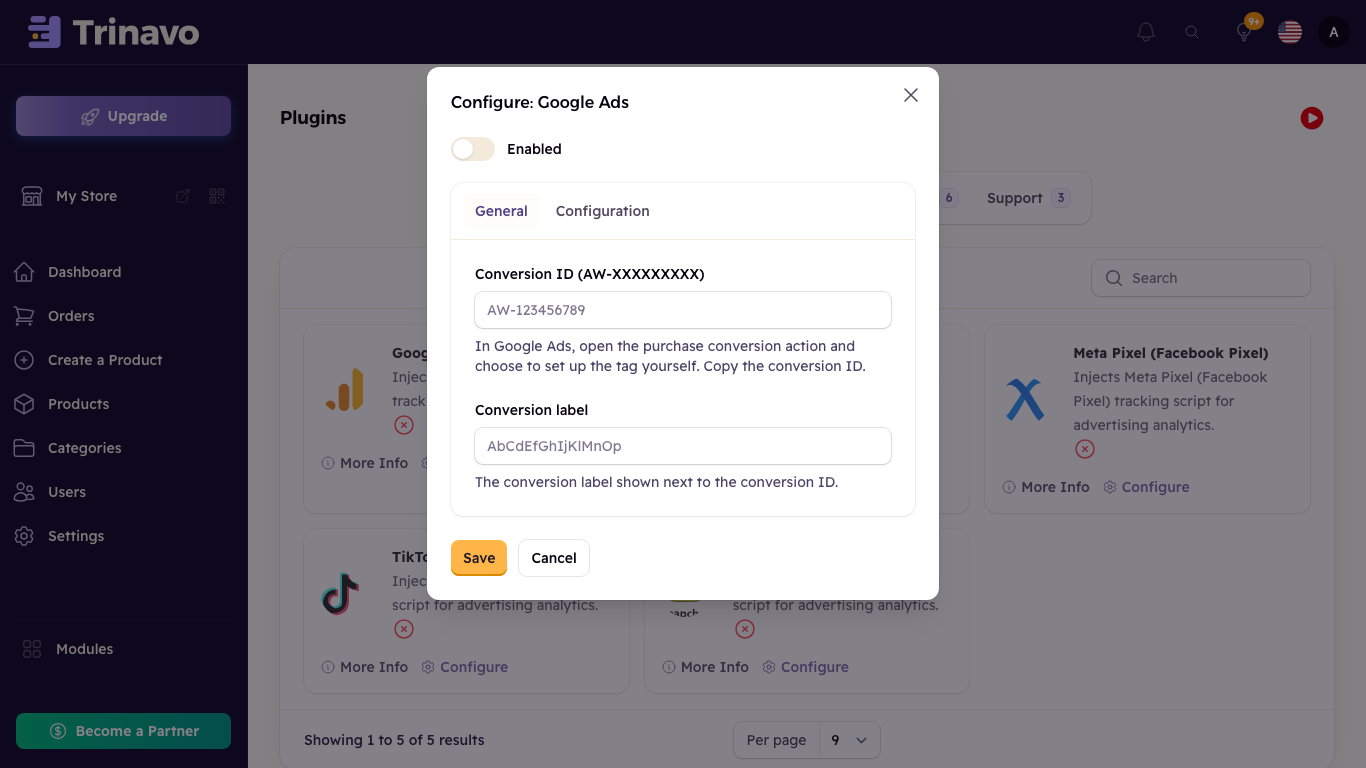
Open Modules → System Settings → Plugins, go to the Analytics tab and click Configure on the Google Ads card.
The plugin needs your own domain connected to the store before it can be switched on.
Count website sales in Google Ads
- In Google Ads, open Goals → Conversions, add a website conversion action of the Purchase kind, and choose to set up the tag yourself.
- Copy the Conversion ID (it starts with
AW-) and the Conversion label. - In the plugin's settings, switch on Enabled.
- On the General tab, paste them in Conversion ID (AW-XXXXXXXXX) and Conversion label.
- Click Save.
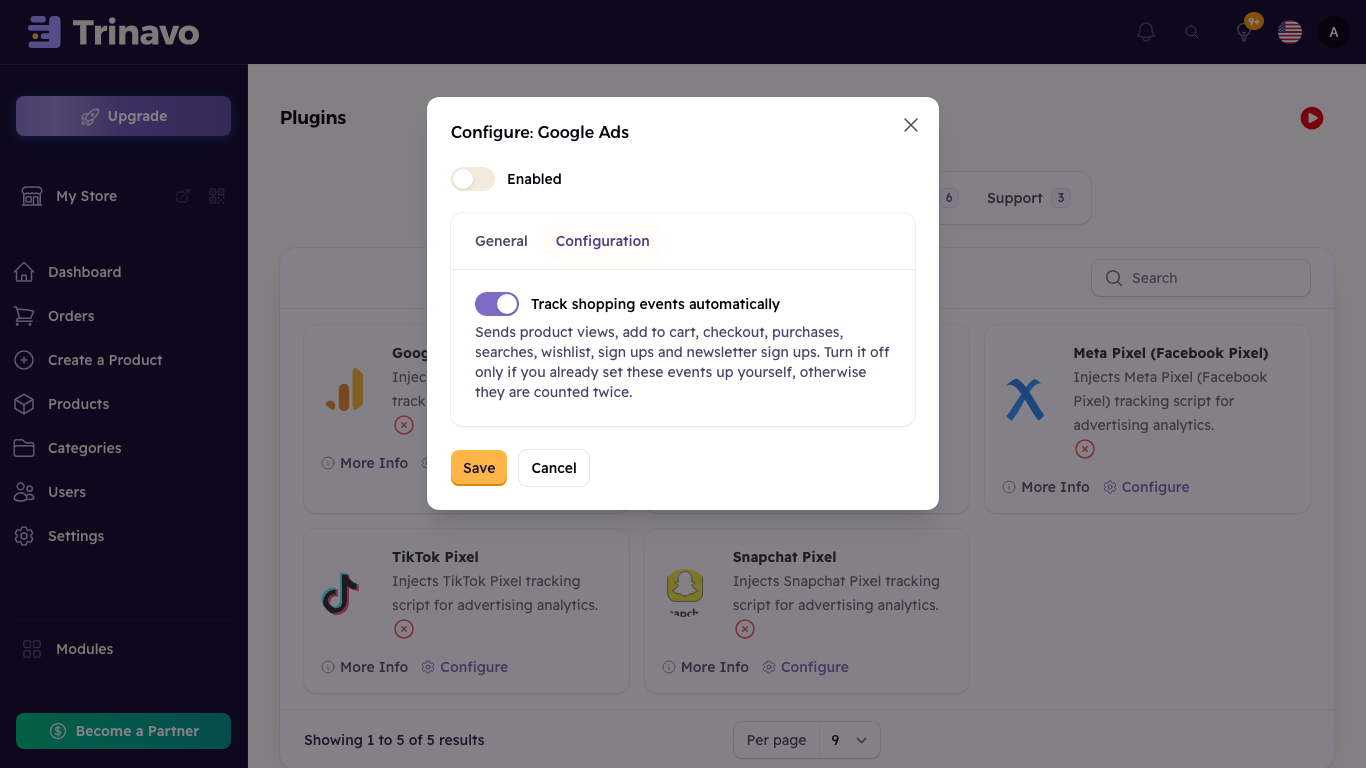
The Configuration tab of the dialog holds Track shopping events automatically, which is what sends the sales. Leave it on.
| Field | What it does |
|---|---|
| Conversion ID (AW-XXXXXXXXX) | The ID of your purchase conversion. You can also paste the whole tag Google gives you; the ID and label are read from it. |
| Conversion label | Shown next to the conversion ID in Google Ads. |
| Track shopping events automatically | Sends each order once, with its total and order number. Turn it off only if you send purchases to Google Ads another way. |
An order paid online is sent once the payment is confirmed, never for a cancelled payment. Google Ads can take a few hours to show new conversions.
If you also use Google Analytics, you can instead import its purchase event into Google Ads. Use one way only, or each sale is counted twice.
Count app sales
Sales in your store's own mobile app reach Google Ads through Firebase, not through this plugin. Connect the app in the Mobile app tab of the Google Analytics plugin, as described in Connect your mobile app.