Subscription Plans
Subscription plans are memberships your store sells to its customers: a monthly club, an annual membership, or a plan your sellers pay to list products. The price is taken from the customer's wallet and taken again every time the plan renews.
This is not your own Trinavo plan, which is under My Account.
Where to find it
Open Modules → Subscription Plans → Subscription Plans.
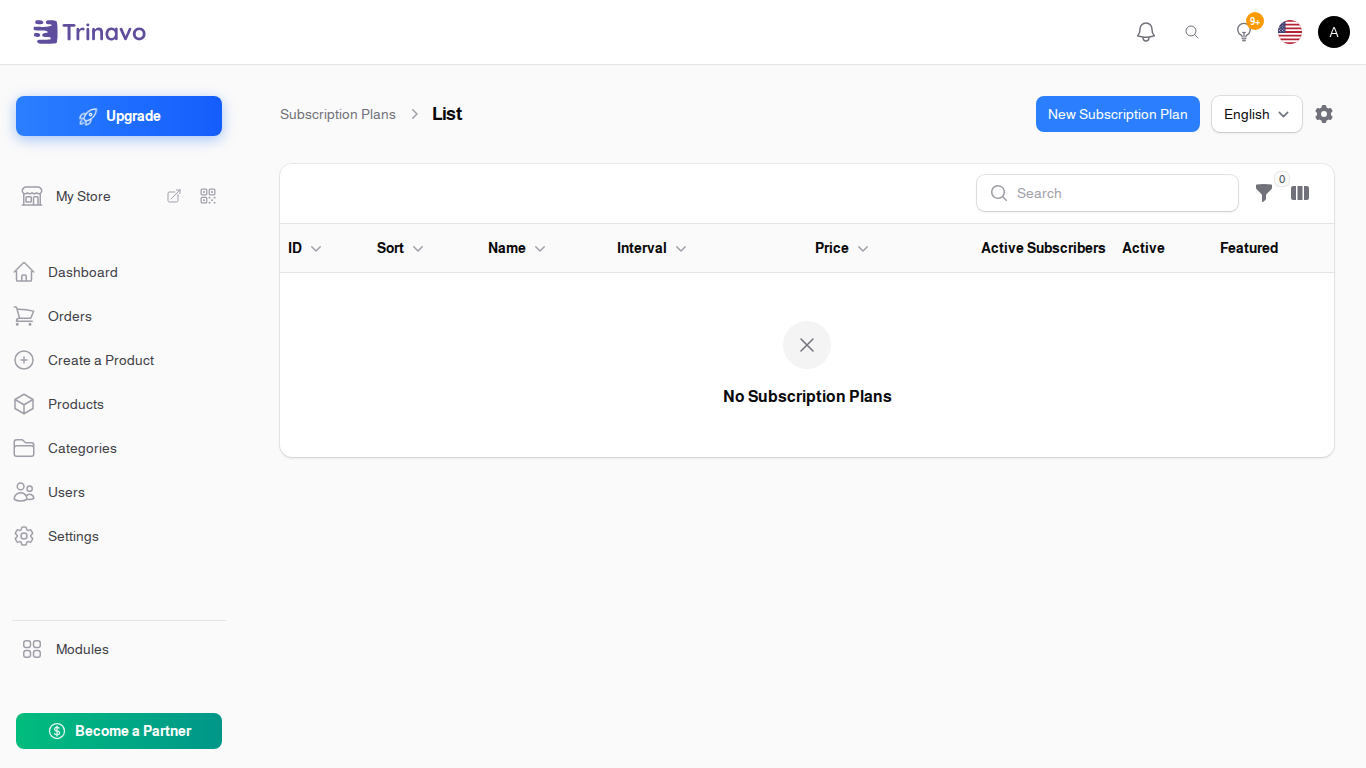
Each row shows the plan's Interval, its Price, how many Active Subscribers it has, and whether it is Active and Featured. The Active filter shows only active or only inactive plans, and Deleted records shows plans you deleted.
How customers subscribe
Your active plans appear on your store's subscription plans page (your store's address followed by /subscription-plans), and on any page where you place the Subscription Plans block.
- A signed-in customer chooses a plan.
- The plan's price is taken from their wallet at once. The balance, including any credit limit you gave them, must cover it.
- When the interval is up, the price is taken from the wallet again, even if that leaves the balance below zero.
A customer can hold one subscription at a time, and can cancel it on the same page. Cancelling stops the next charges; nothing is refunded for the period already paid.
Add a plan
- Click + (New Subscription Plan).
- Enter the Name, the Interval (months) and the Price.
- Write a Description of what the plan includes, and tick any Features unlocked by this plan.
- Click Create.
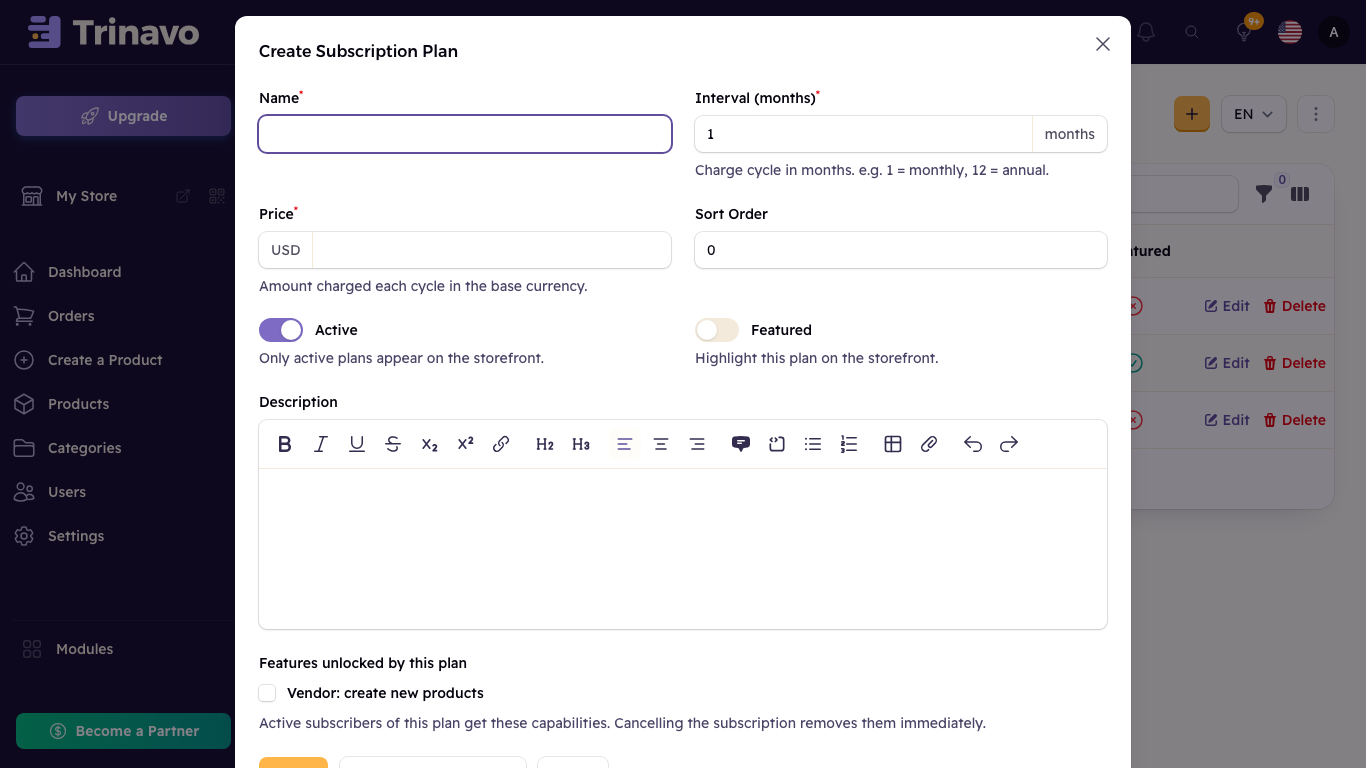
| Field | What it does |
|---|---|
| Interval (months) | How often the plan renews: 1 for monthly, 12 for yearly. |
| Price | Taken from the customer's wallet each interval, in your store's main currency. A new price applies to new subscribers; customers already on the plan keep paying the price they joined at. |
| Sort Order | The plan's place among your plans, lowest first. |
| Active | Only active plans are offered in the store. |
| Featured | Highlights the plan in the store, the way a pricing table marks its recommended option. |
| Features unlocked by this plan | What subscribers can do while their subscription is active. Today the one choice is Vendor: create new products: a seller can add new products only while on a plan with this ticked. Cancelling the subscription removes it at once. |
To write the name and description in another language, pick that language at the top of the list before you open the plan.
To hide sellers' products when their subscription lapses, turn on Require Vendor Subscription in User Registration settings.
Retire a plan
Edit the plan and turn Active off. It is no longer offered, and everyone already on it carries on.
Delete on the plan's row moves it to the deleted records, where Restore brings it back. Deleting a plan does not cancel its subscribers: they keep being charged until you cancel them in User Subscriptions.
Put a customer on a plan
- Open Users and the customer's ⋮ menu.
- Choose Set Subscription and pick the Plan.
- Confirm.
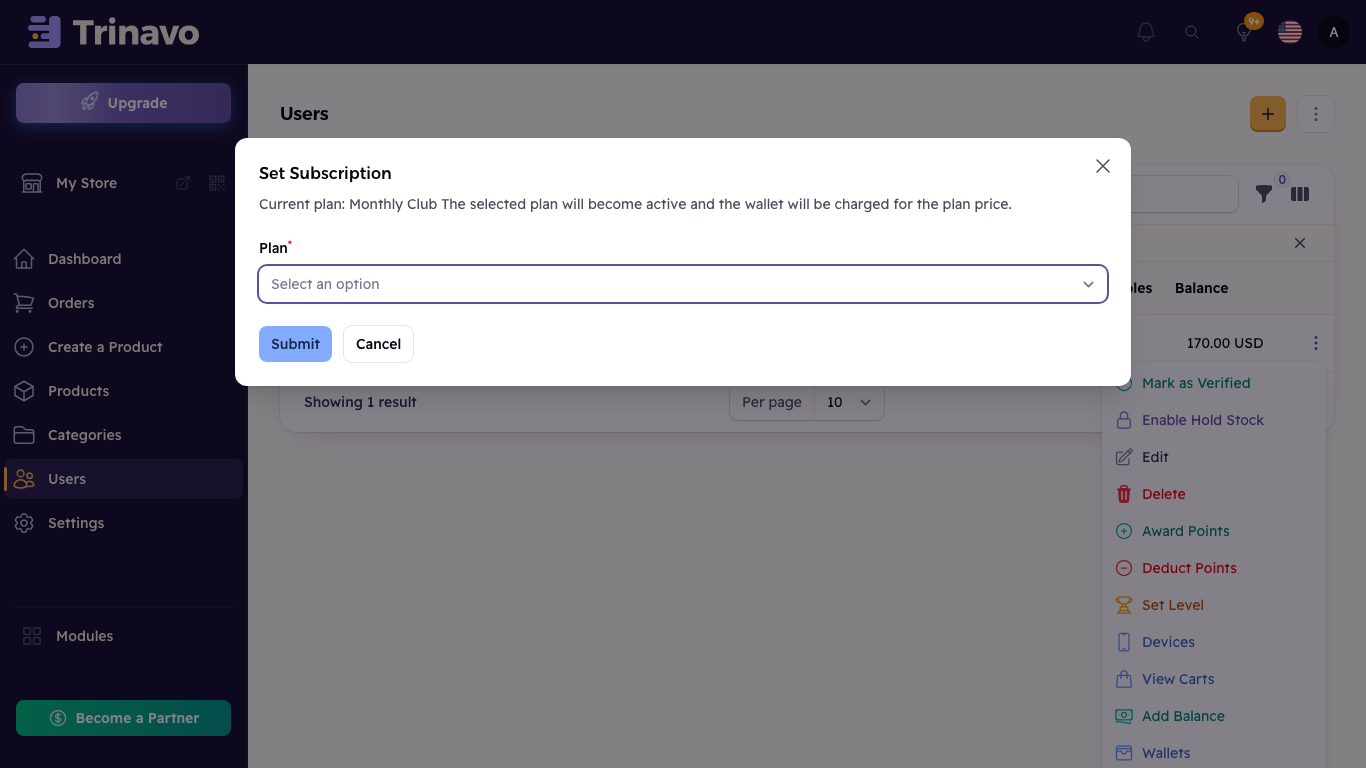
The plan replaces any subscription the customer already has, and its price is taken from their wallet, even if that leaves the balance below zero.
User Subscriptions
Open Modules → Subscription Plans → User Subscriptions to see who is subscribed to what. It is the list to check when a customer says they paid for a plan and something is missing.
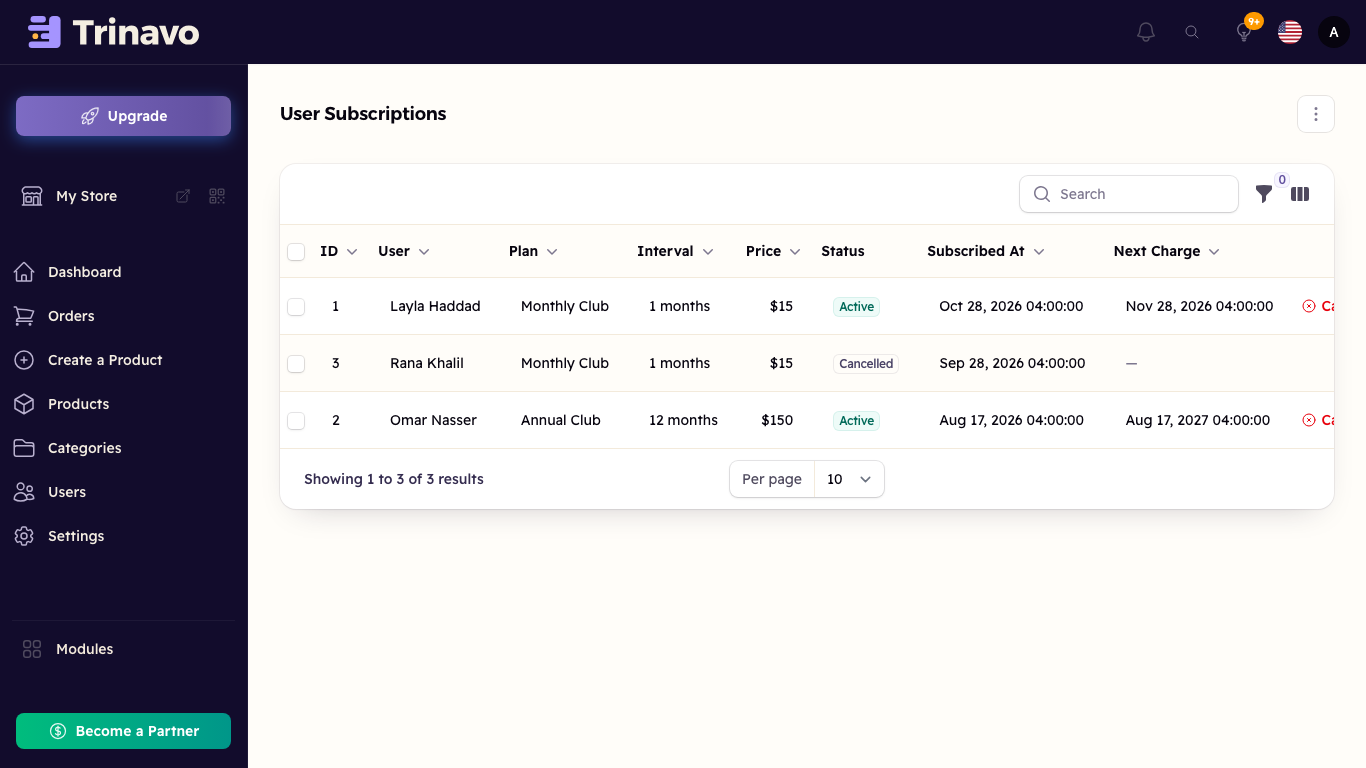
Each row shows the customer (User), the Plan, its Interval, the Price they pay, the Status (Active or Cancelled), when they Subscribed At, and the Next Charge. Last Charged and Cancelled At can be shown from the column button. Filter by Status or Plan to narrow it.
Cancel a customer's subscription
Click Cancel on the subscription's row and confirm. The customer is not charged again, nothing is refunded for the current period, and the plan's features stop at once.