Admin Category Restrictions
Purpose
Admin Category Restrictions allow you to create admin users who can only see items and orders within specific product categories. This is useful when you want to delegate management to admins who should only handle certain departments or product lines, without giving them access to the entire catalog.
Overview
This feature enables you to:
- Create department-specific admins who only see relevant items and orders
- Restrict item and order visibility based on product categories
- Filter order items so admins only see items in their assigned categories
- Restrict the Items resource so admins only see items belonging to their assigned categories
- Maintain full order-level fields (status, notes, address) while restricting item visibility
- Use hierarchical categories — assigning a parent category grants access to all its subcategories
How It Works
Who Is an Admin?
An admin (in this context) is any user who:
- Has the access_admin_panel permission (can log into the admin panel)
- Is not a Super Admin
This includes both regular admin users and vendors. Vendors are handled separately through their own ownership model, but they share the same category assignment mechanism. Super admins always see everything and are never restricted.
Category Restriction Behavior
| Scenario | What They See |
|---|---|
| Admin with no assigned categories | All items, all orders, and all order items (no restriction) |
| Admin with assigned categories | Only items in assigned categories; only orders containing items in assigned categories |
| Super Admin (regardless of assignments) | All items, all orders, and all order items |
Within an order, when an admin has category restrictions:
- They see only the order items that belong to their assigned categories
- Order-level information (status, total, address, notes) is fully visible
- Order totals reflect all items (not just the visible ones)
Category Hierarchy
Assigning a parent category automatically grants access to all its subcategories:
- Assign "Electronics" → admin sees items and orders in "Electronics", "Smartphones", "Laptops", etc.
- No need to assign each subcategory individually
Setting Up an Admin
Step 1: Create a Role
- Go to Modules → User Management → Roles
- Click New Role
- Name it (e.g., "Order Helper" or "Department Manager")
- Grant the access_admin_panel permission
- Grant order permissions: view_order, view_any_order, and optionally update_order
- Click Create
Step 2: Assign the Role to a User
- Go to Modules → User Management → Users
- Edit the user
- In the Advanced tab, assign the role you created
- Make sure the user is Active
- Click Save
Step 3: Assign Categories
Category assignments are managed from the User edit page:
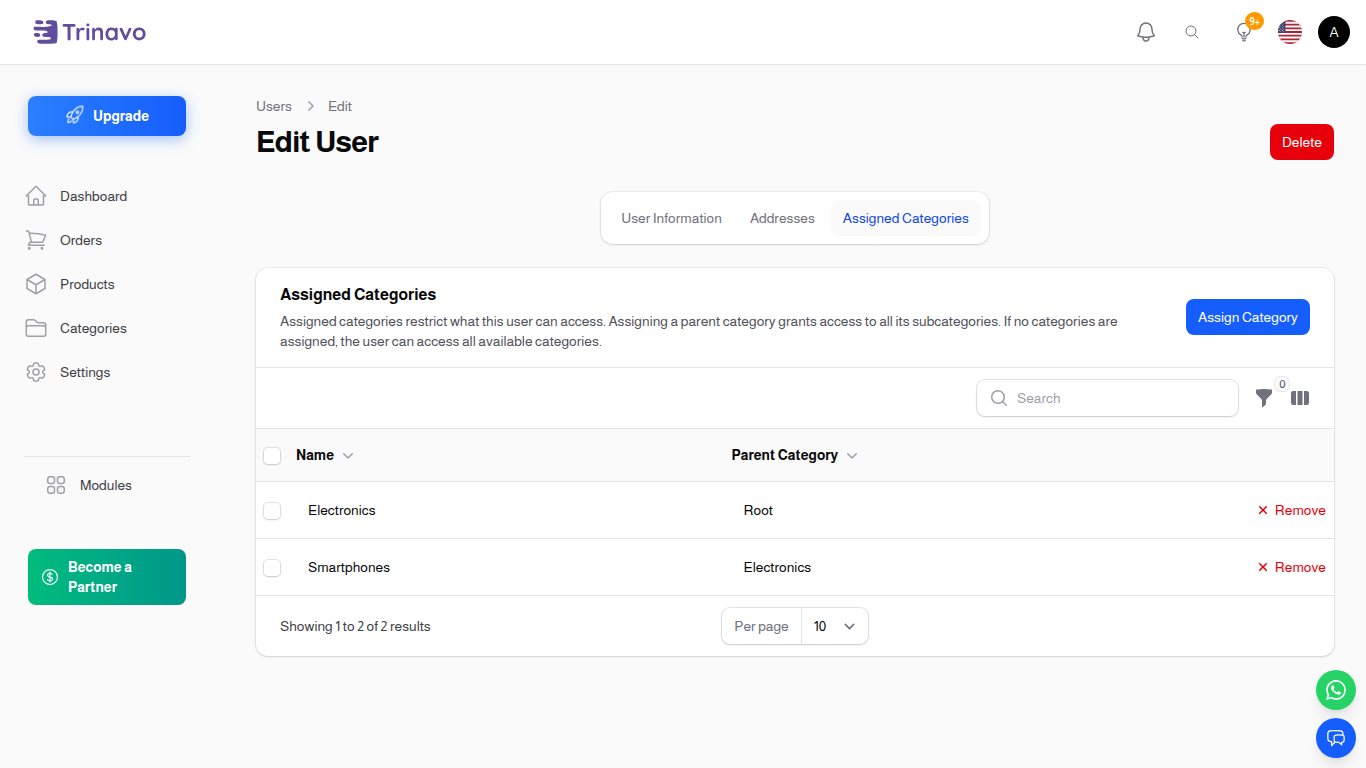
The Assigned Categories tab on the user edit page
- Go to Modules → User Management → Users
- Edit the user
- Scroll to the Assigned Categories section
- Click Assign Category
- Select the categories this admin should manage
- The admin will now only see items and orders within these categories
Removing Category Assignments
- Edit the user and remove categories from the Assigned Categories list
- Removing all category assignments restores full visibility for that admin
Note: Unlike vendors, removing an admin's category assignment does not disable any products — admins (non-vendor) do not own items.
What Admins Can See
Items List
- Only items that belong to the admin's assigned categories appear in the Items resource
- All standard filters and search work within the restricted set
Orders List
- Only orders that contain at least one item in the admin's assigned categories appear
- Status tab counts reflect only the filtered orders
- All standard filters and search work within the restricted set
Order View/Edit
- Order-level information is fully visible and editable (status, customer info, delivery, notes)
- The Order Items tab only shows items in the admin's assigned categories
- Items from other categories are hidden
- Order totals reflect all items (including hidden ones)
Differences from Vendor Restrictions
| Aspect | Vendor | Admin |
|---|---|---|
| Order filter | By ownership (vendor_user_id) |
By item categories |
| Order items | Sees all items (all are theirs) | Sees only items in assigned categories |
| Items/Categories | Restricted to assigned categories | Restricted to assigned categories |
| Owns products | Yes | No |
| Removing category disables items | Yes | No |
Common Workflows
Department Manager Setup
For a clothing store with Electronics and Fashion departments:
- Create role "Electronics Manager" with order view/update permissions
- Assign role to user
- Assign "Electronics" parent category to user
- The manager now only sees electronics items and orders containing electronics items
Multi-Department Admin
Assign multiple categories to one admin:
- Assign both "Electronics" and "Books" categories
- The admin sees items and orders that belong to either category
- In mixed orders, they see only the electronics and book items
Troubleshooting
Q: Admin sees all orders even though I assigned categories.
A: Make sure the user is not a Super Admin. Only users with the access_admin_panel permission who are not super admins are subject to category restrictions.
Q: Order totals don't match the visible items. A: This is expected. Order totals reflect all items in the order, including items from categories the admin cannot see.
Q: Assigned Categories tab doesn't appear on the user edit page.
A: The tab appears for any user who is a vendor or has the access_admin_panel permission (and is not a super admin). Make sure the user meets one of these conditions.
Q: I removed all category assignments but the admin still can't see orders.
A: Verify the user has the view_any_order and view_order permissions. Without category assignments, the admin should see all orders.
Related Sections
- Roles - Create and manage permission roles
- Users - Manage user accounts and role assignments
- Categories - Manage product categories
- Orders - Order management overview