Mobile App Settings
How your store's mobile app looks: its icon, the screen it opens with, its main color and dark mode, and the way sub categories show. From here you also reach the app's home screen and its side menu.
Where to find it
Click Settings in the sidebar, then the Mobile App card. It is also under Modules → Settings → Mobile App.
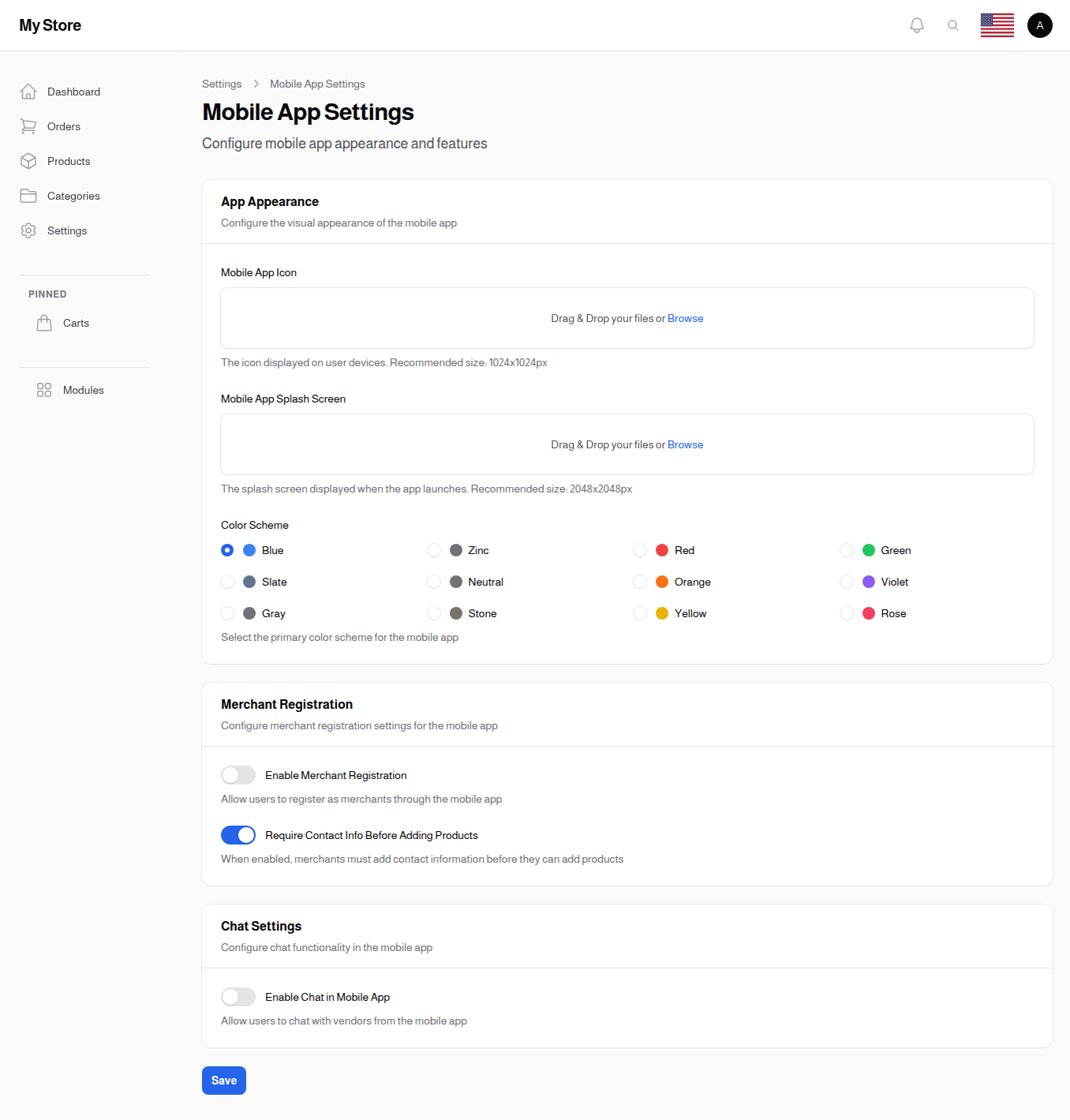
Set the app's look
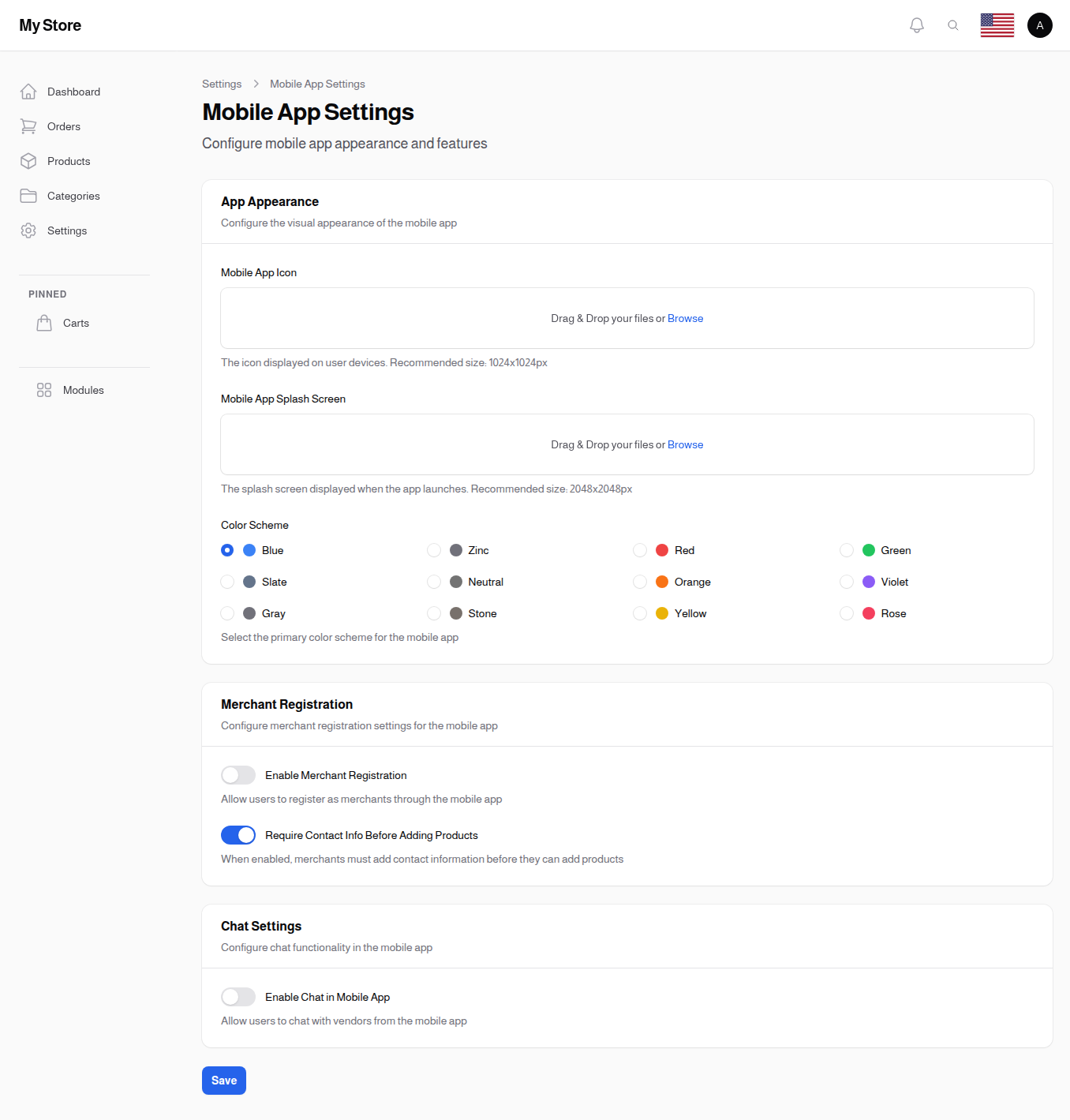
- Under App Appearance, upload the Mobile App Icon: a square picture, 1024 by 1024 pixels, shown on customers' phones.
- Upload the Mobile App Splash Screen, the picture shown while the app starts: 2048 by 2048 pixels.
- Pick the app's main color in Color Scheme.
- Set the two options below, then click Save.
| Field | What it does |
|---|---|
| Enable Dark Mode | Lets customers switch the app to dark. Off, the app is always light. |
| Sub Categories Display | How sub categories show on the products screen: Cards with images, or Text Only, which takes far less room and suits categories without pictures. |
Let merchants sign up in the app
Turn on Enable Merchant Registration to let people register as merchants from the mobile app, then click Save.
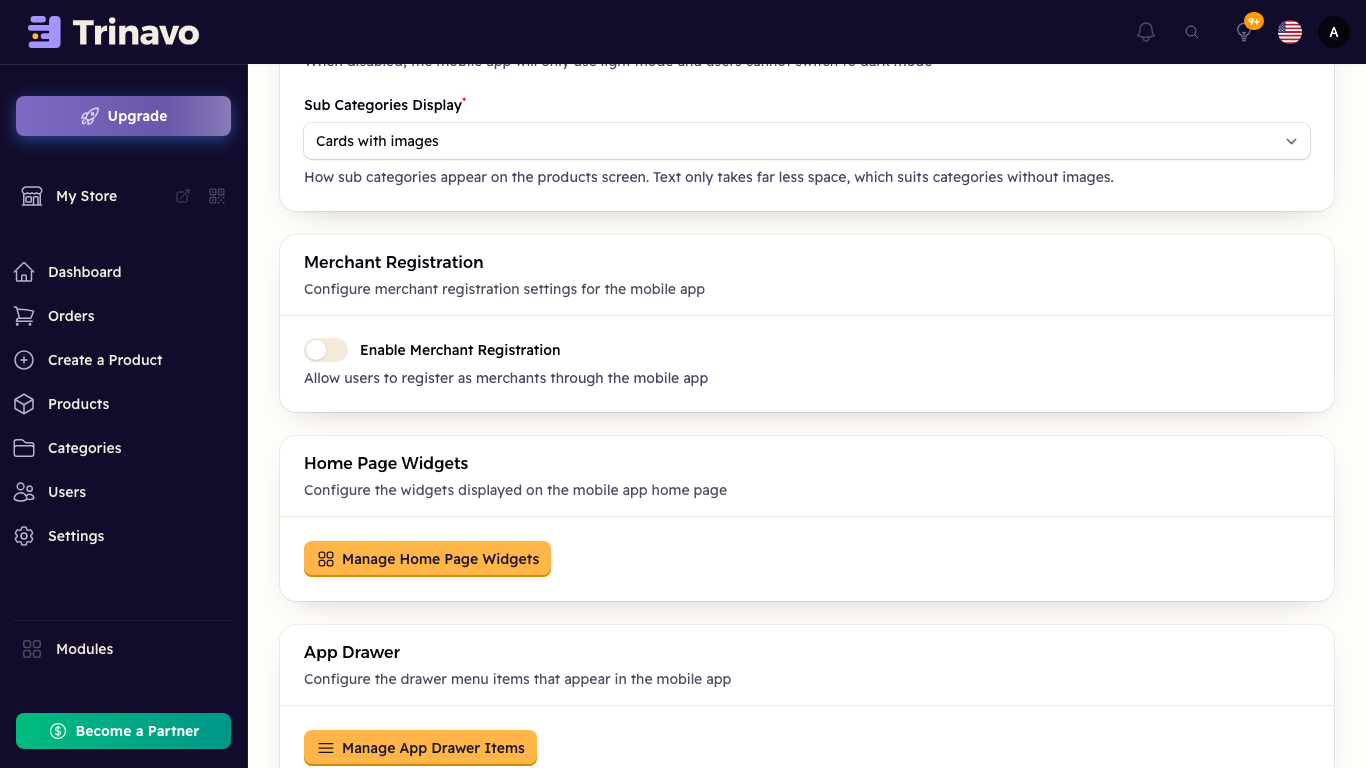
Arrange the home screen and side menu
- Manage Home Page Widgets opens the list of blocks that make up the app's home screen. See Mobile Widgets.
- Manage App Drawer Items opens the list of links in the app's side menu. See App Drawer Items.