Product Groups
A product group shows several products together on one main product's page, such as the models of one phone or the books of one series. Each product in the group stays a full product with its own page, price and stock, but it leaves the store's product lists: customers find it on the group's pages instead.
Where to find it
A group is opened from its main product:
- on the product's page, More → Product group;
- on the products list, the row's three-dots menu → Product group;
- on the product's Sales & Discounts tab, the Product group section's button: Start a group from this product, Manage group, or Open its group for a product that is in another product's group.
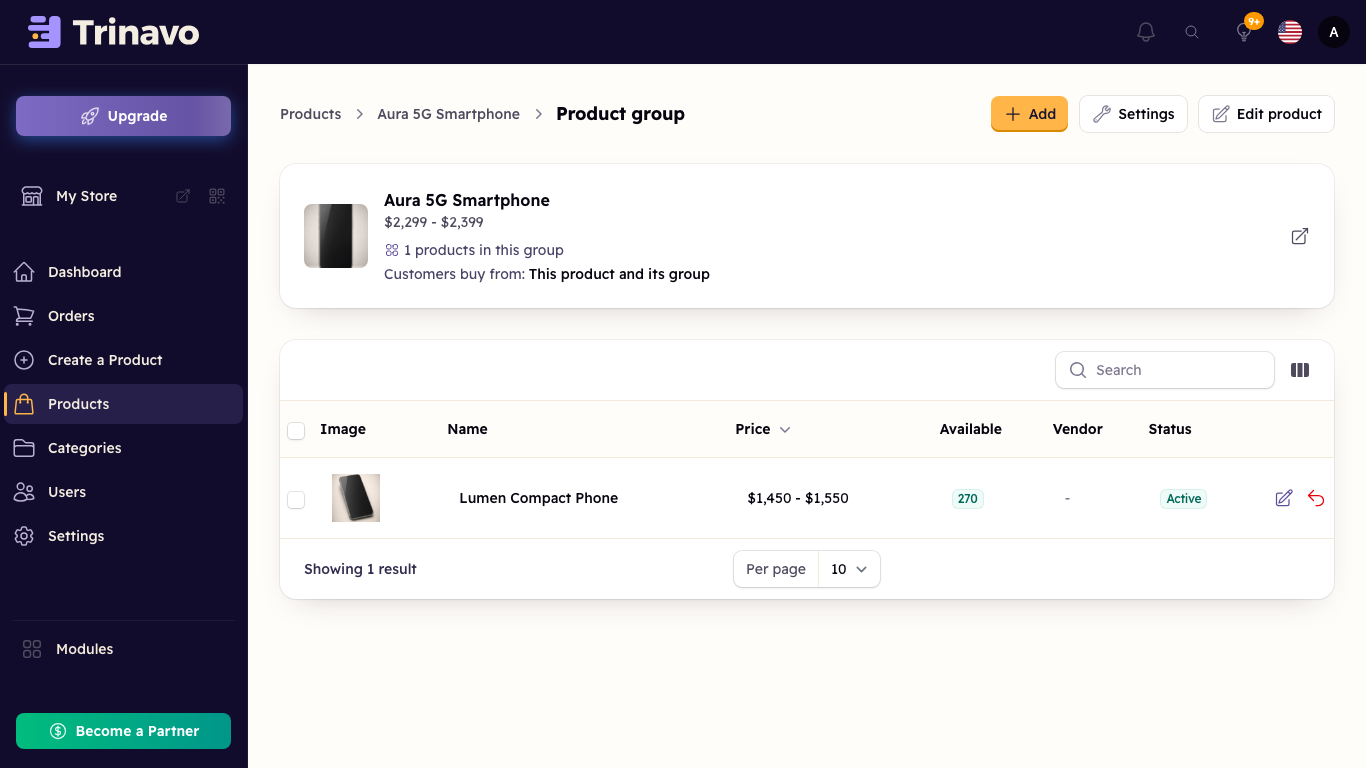
The top of the page shows the main product, how many products are in its group, who customers buy from, and View on Store. Below it, the products in the group with their Price, Available quantity and Status.
On the products list, the Product group filter shows Main products or Products in a group.
Add products to a group
- Open the main product's group and click Add.
- Optionally choose a Category to list only its products.
- Pick the Products. Search by name, SKU, barcode or #ID.
- Click Add.
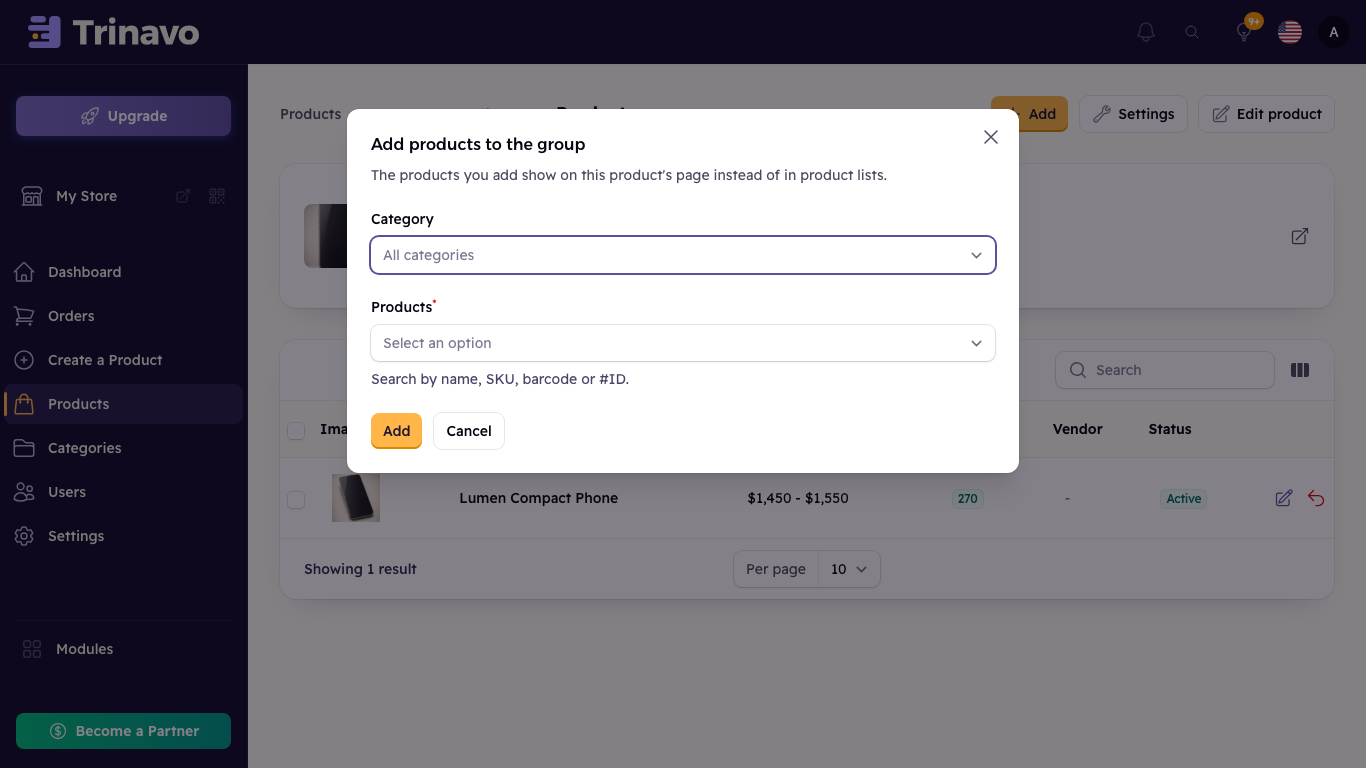
A product can be in one group only, and a main product cannot be in another group. Products that break this rule are left out and a message names them.
You can also put one product in a group from its own form: on the Sales & Discounts tab, choose the main product in Part of the group. To group many products at once, tick them on the products list and choose Bulk actions → Add to a product group.
Choose who customers buy from
- Click Settings on the group's page.
- Under Customers buy from, choose:
- This product and its group: the main product sells as usual, with the products of its group listed under it.
- The group only: the main product presents the group and cannot be added to the cart itself; customers choose and buy one of the products in it.
- Click Save.
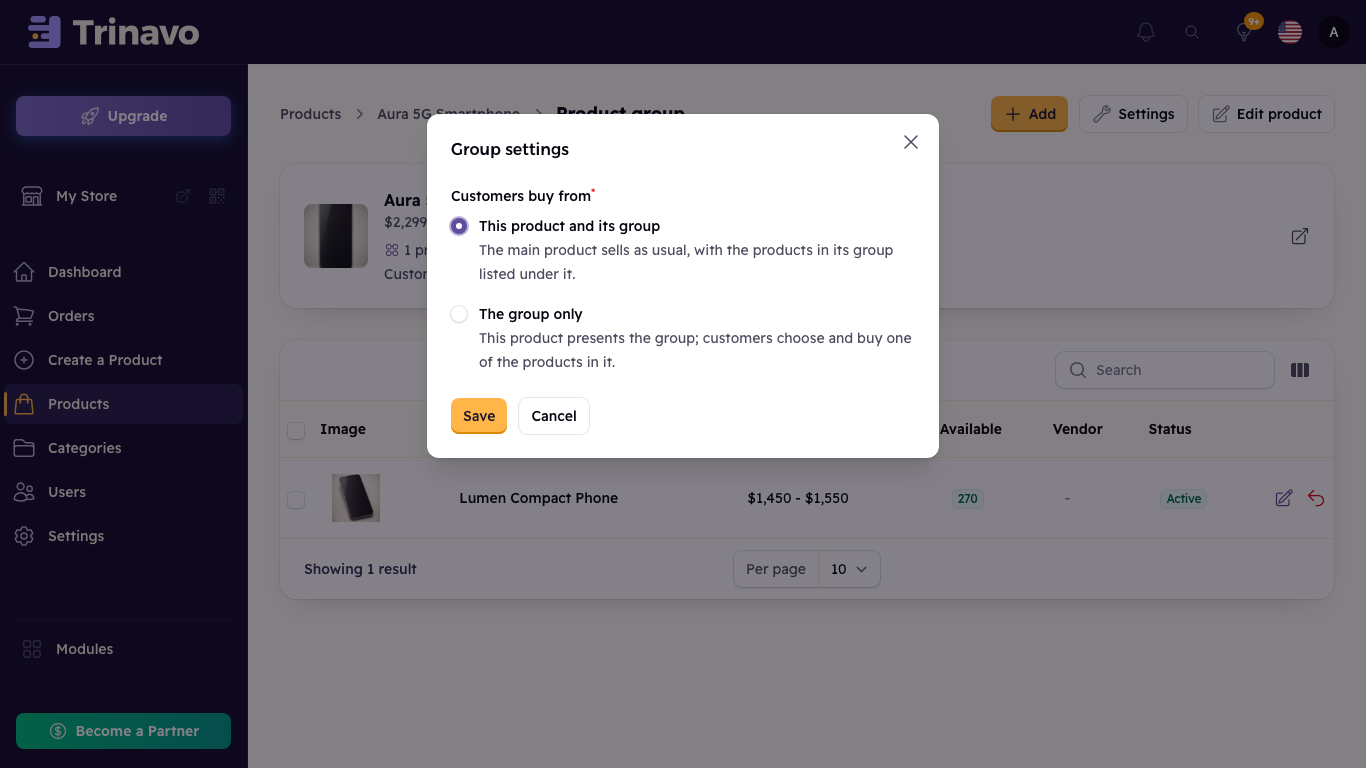
A product with variations cannot sell through its group only.
Remove a product from a group
Click Remove from group on the product's row, or tick several and use Remove from group above the table. The product goes back into the store's lists as a normal product. From the products list, Bulk actions → Remove from group does the same.