Bookings
Overview
Bookings turns your store into an appointment book. Instead of selling a product with a quantity, you sell time: a haircut, a consultation, a repair slot, a training session. Customers pick a day and a time slot right on the product page, and the appointment lands on a calendar in your admin panel where you can confirm it, reschedule it, or collect payment for it.
Everything you already know about the store still applies. A booking is backed by a normal order, so payments, order statuses, and reports work exactly the way they do for physical products.
Why bookings matter
If your business sells services - a salon, a clinic, a workshop, a photographer - the phone-and-notebook way of taking appointments costs you customers. People book outside working hours, they forget to show up, and double bookings happen. With Bookings the store takes appointments 24/7, only offers times that are actually free, holds the slot while the customer pays, and reminds them before they arrive.
Enabling bookings
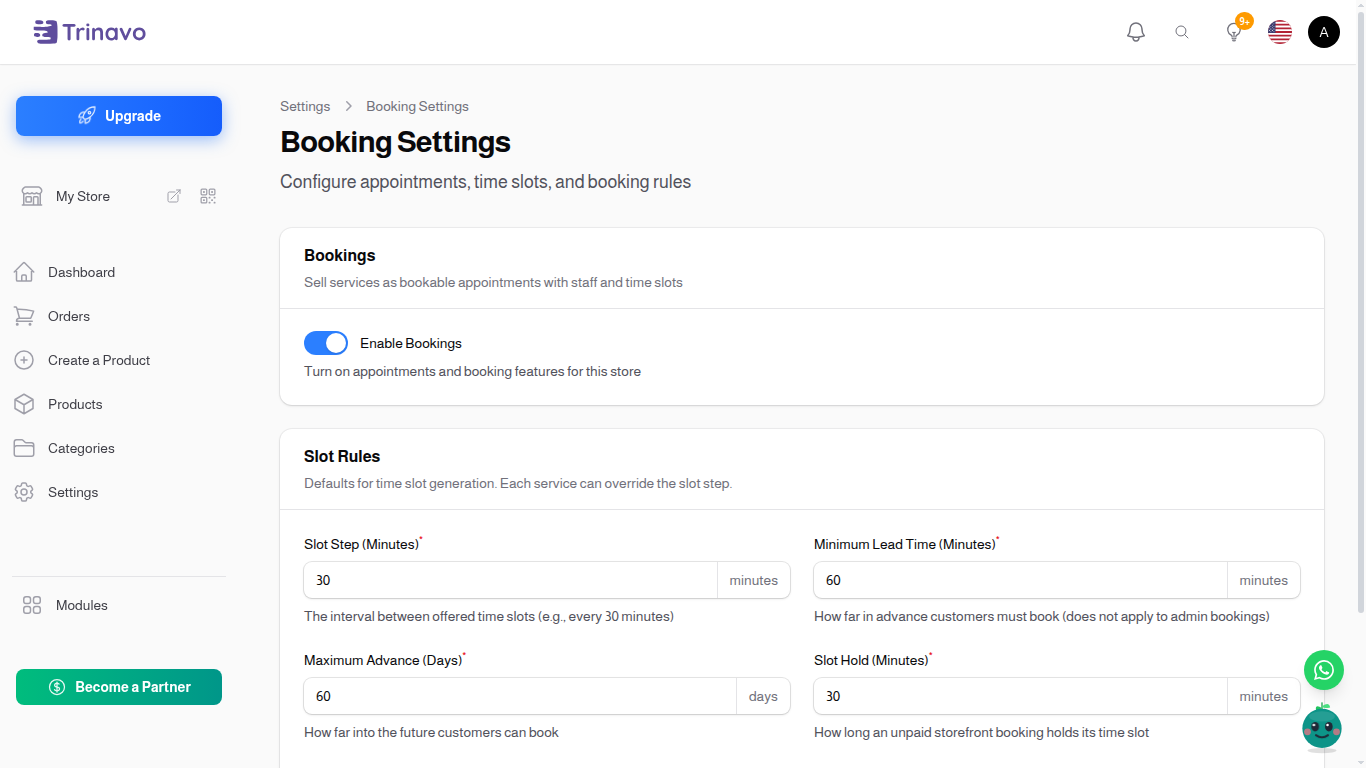
Navigate to: Settings > Bookings
Turn on Enable Bookings and click Save. Once enabled, three new pages appear under Modules: Booking Calendar, Bookings, and Staff.
Note: Bookings is a premium feature. If your current plan does not include it, the toggle will ask you to upgrade first.
Booking rules
The Slot Rules section on the same page controls how time slots are offered to customers:
- Slot Step (Minutes) - the interval between offered times. With a step of 30, customers see 9:00, 9:30, 10:00, and so on. Each service can override this with its own step.
- Minimum Lead Time (Minutes) - how far in advance customers must book. With 60 minutes, a customer cannot book a slot that starts in half an hour. This rule does not apply to bookings you create yourself from the admin panel.
- Maximum Advance (Days) - how far into the future customers can book.
- Slot Hold (Minutes) - how long an unpaid storefront booking keeps its slot reserved. If the customer never completes checkout, the slot is released automatically after this time.
- Reminder (Hours Before) - how many hours before the appointment the reminder is sent to the customer.
Staff and working hours
Navigate to: Modules > Staff
Staff members are the people who deliver your services - stylists, doctors, trainers. Every appointment is assigned to one staff member, and the calendar only offers times when someone is actually available.
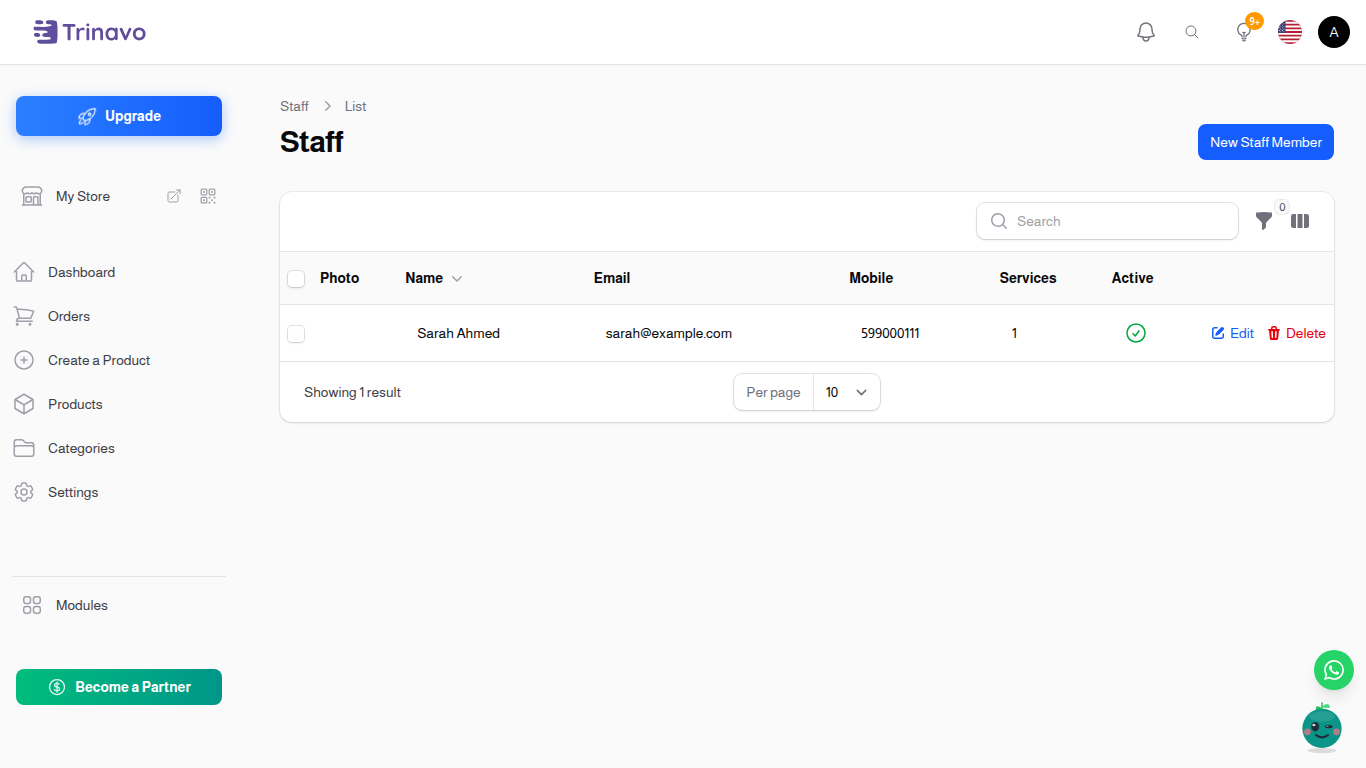
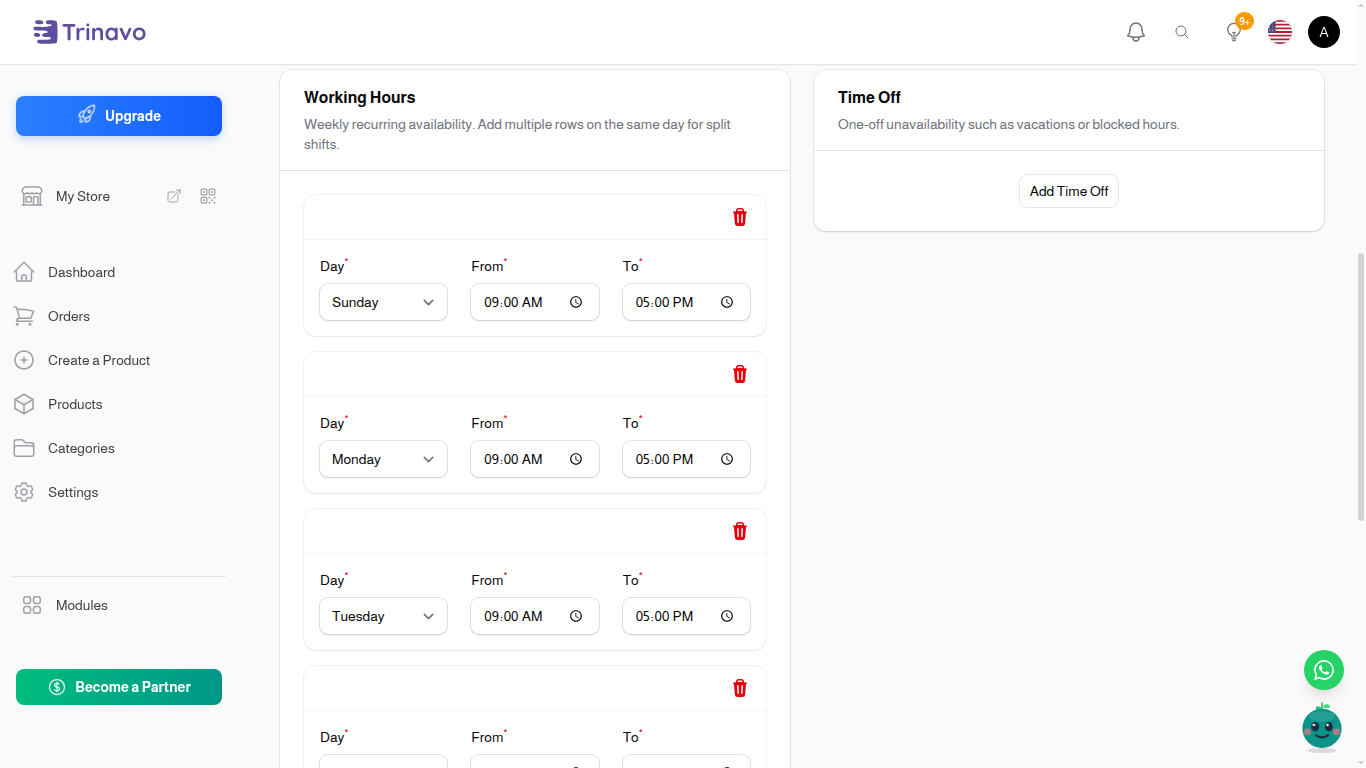
Click New Staff Member to add one. Besides the name and contact details, two sections matter:
- Working Hours - the weekly schedule. Add a row per day with a from and to time. You can add several rows for the same day to model split shifts (for example 9:00-13:00 and 16:00-20:00).
- Time Off - one-off unavailability such as vacations or blocked hours. Time off always wins over working hours.
In the Services section, choose which services this staff member can deliver. A service with no assigned staff cannot be booked.
Making a product bookable
Navigate to: Products, open the product, and switch to the Booking tab.
Turn on Bookable Service and set:
- Duration (Minutes) - how long one appointment takes. This is how much calendar time each booking blocks.
- Buffer After (Minutes) - optional preparation or cleanup time blocked after each appointment.
- Slot Step (Minutes) - optional override of the store-wide slot step for this service.
- Staff - which staff members can deliver this service.
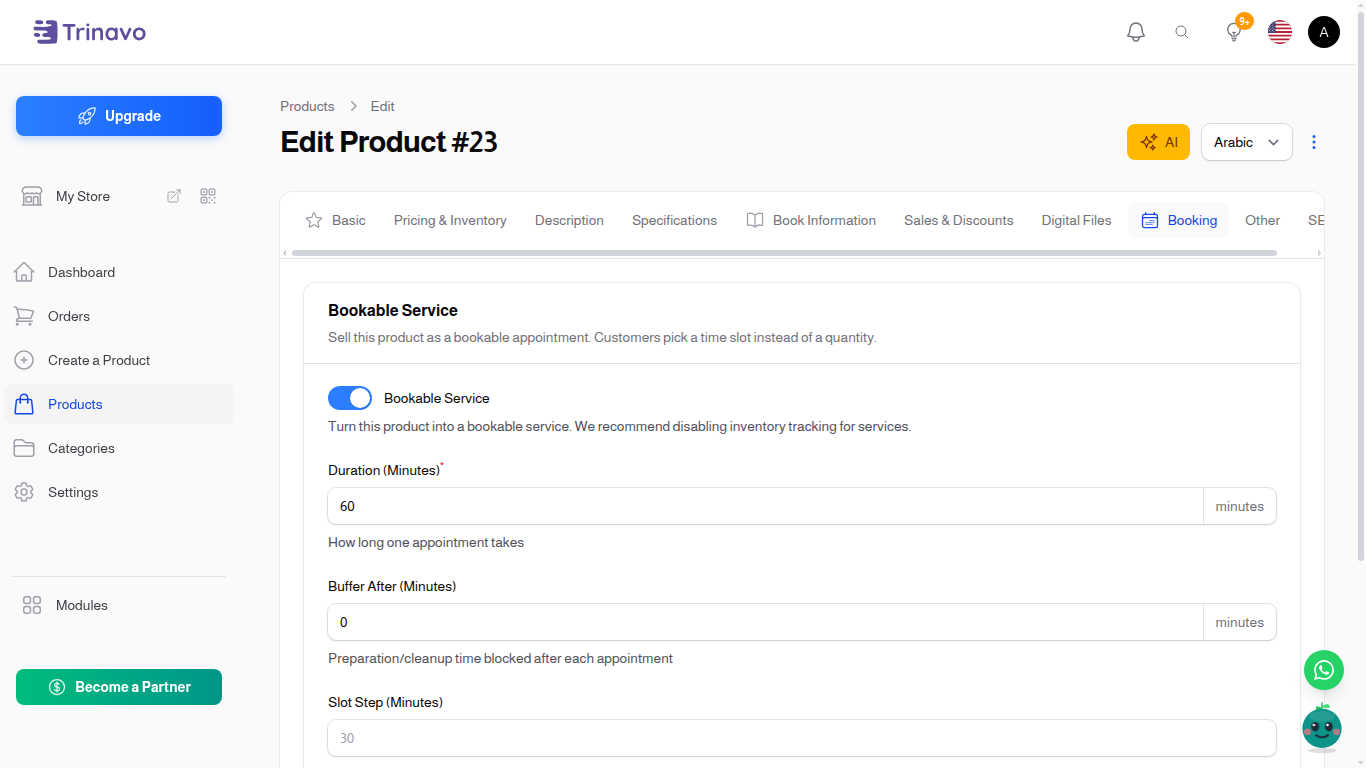
Tip: we recommend disabling inventory tracking for bookable services - you are selling time, not stock.
The product keeps its normal price, images, description, and category. The only thing that changes for the customer is the buy flow: instead of a quantity picker they get a time picker.
How customers book
On the storefront, the product page of a bookable service shows a Pick your appointment time panel. The customer picks a day from the strip, then one of the free time slots, and the selection is confirmed in a green bar underneath.
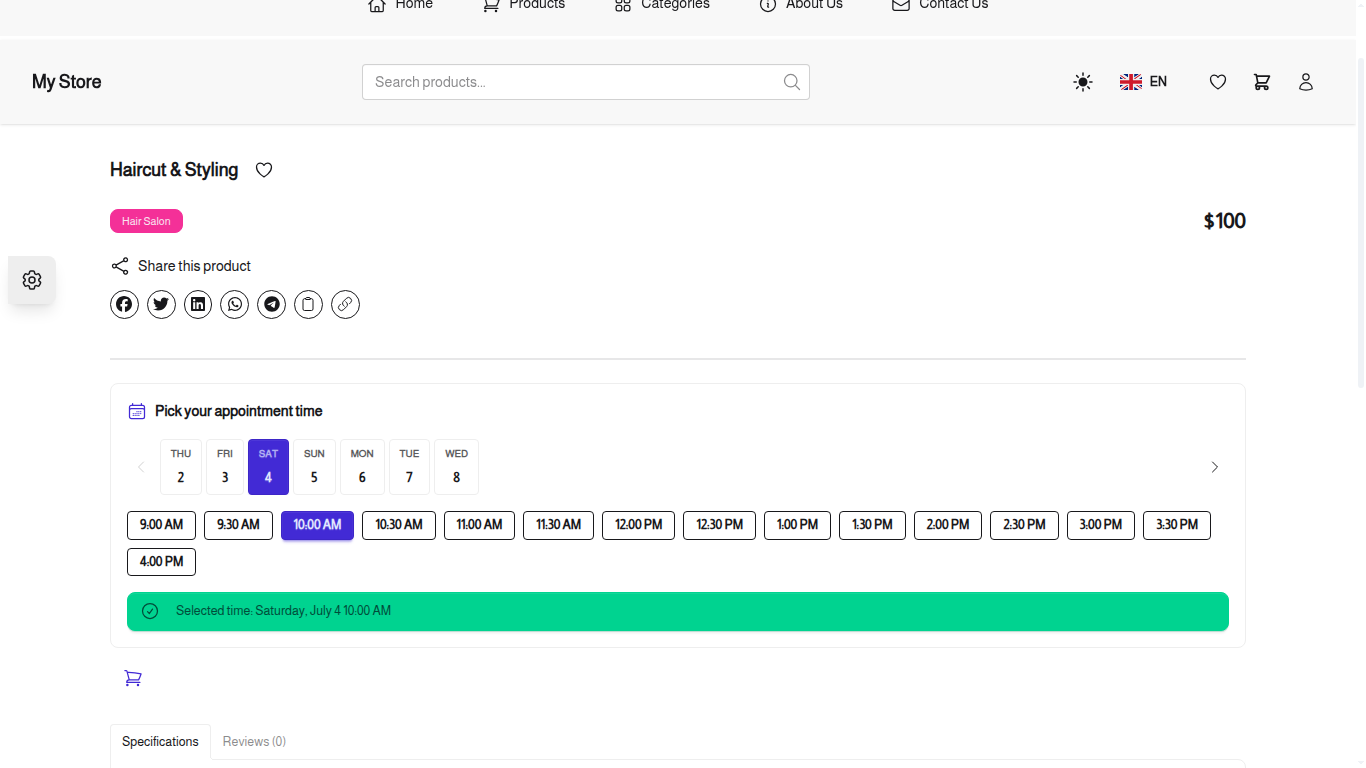
Adding to cart and checking out works like any other purchase. The chosen slot is held for the customer while they complete checkout (see Slot Hold above). After checkout the appointment appears on your Booking Calendar as Pending, and it is confirmed automatically as soon as the order is paid.
The Booking Calendar
Navigate to: Modules > Booking Calendar
The calendar is your day-to-day view of all appointments. Switch between Month, Week, Day, and Staff views with the buttons in the toolbar. Each appointment is color-coded by status: amber for pending, green for confirmed, blue for completed, gray for cancelled, and red for no-shows.
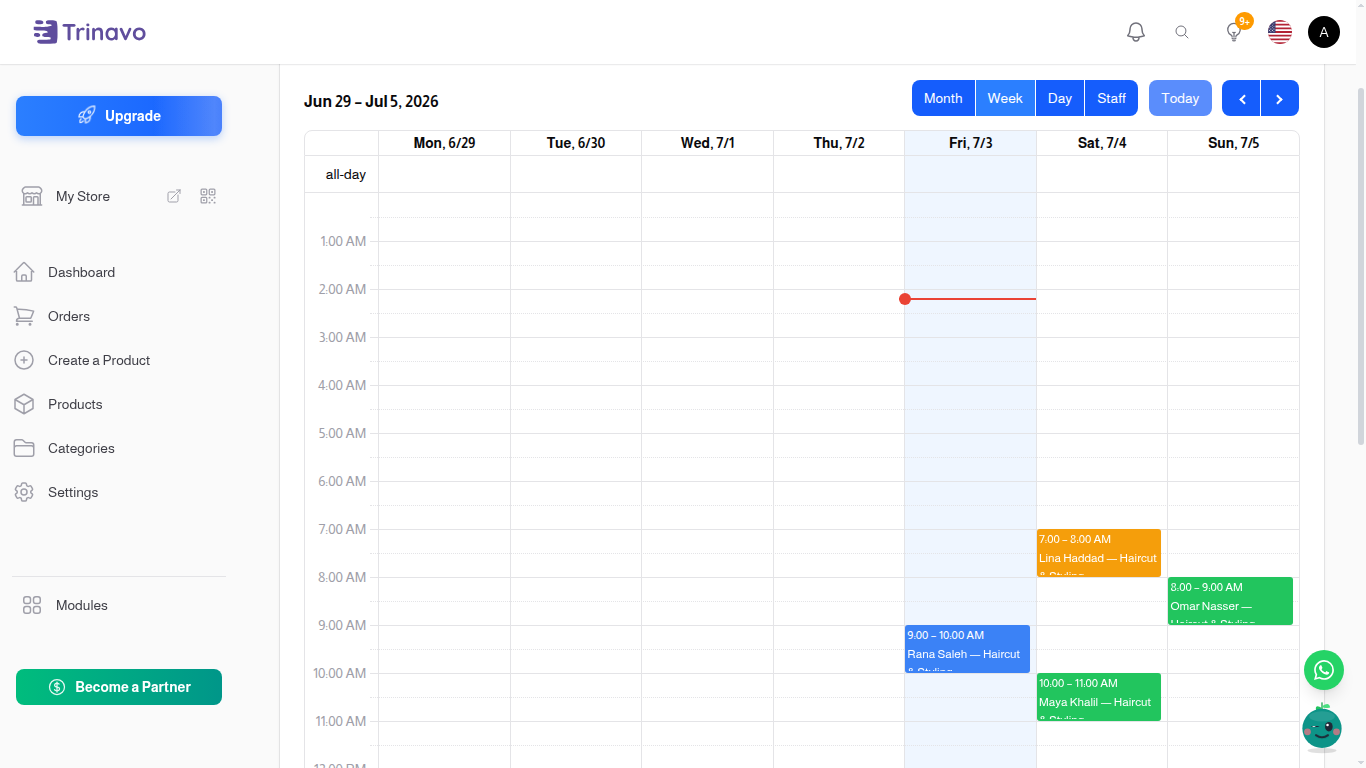
Click any appointment to open its action menu: Details, Confirm, Share Payment Link, Reschedule, Mark No Show, and Cancel Booking.
Creating a booking from the admin
Walk-in customer or a phone call? Click New Booking on the calendar (or click an empty slot) and fill the form: the service, an optional staff member (leave it empty to auto-assign whoever is free), the date and time, and the customer.
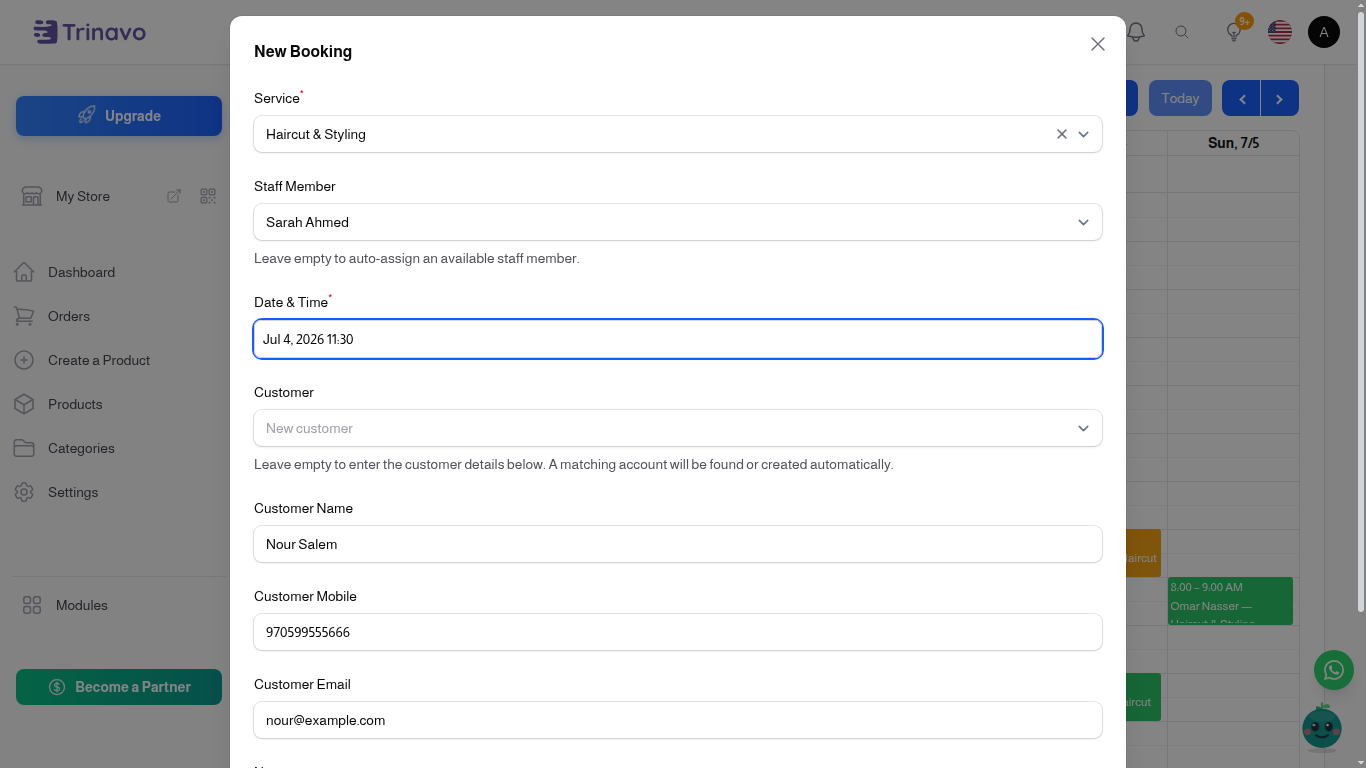
For the customer you have two options:
- Pick an existing customer from the Customer list.
- Leave it empty and type the name, mobile, and email below. The store finds a matching customer account by email or mobile, or creates a new one automatically - so the next time the same person books, their history is already there.
Admin bookings skip the minimum lead time rule, so you can book someone for "right now".
Sharing a payment link
Every booking is backed by an order, and unpaid bookings offer a Share Payment Link action - on the calendar's appointment menu and on the Bookings list.
It opens a small window with the payment link for the order:
- Share via WhatsApp - opens WhatsApp with a ready-made message to the customer's mobile: a greeting, the appointment summary, the amount, and the pay link.
- Copy Link - copies the link so you can paste it anywhere else.
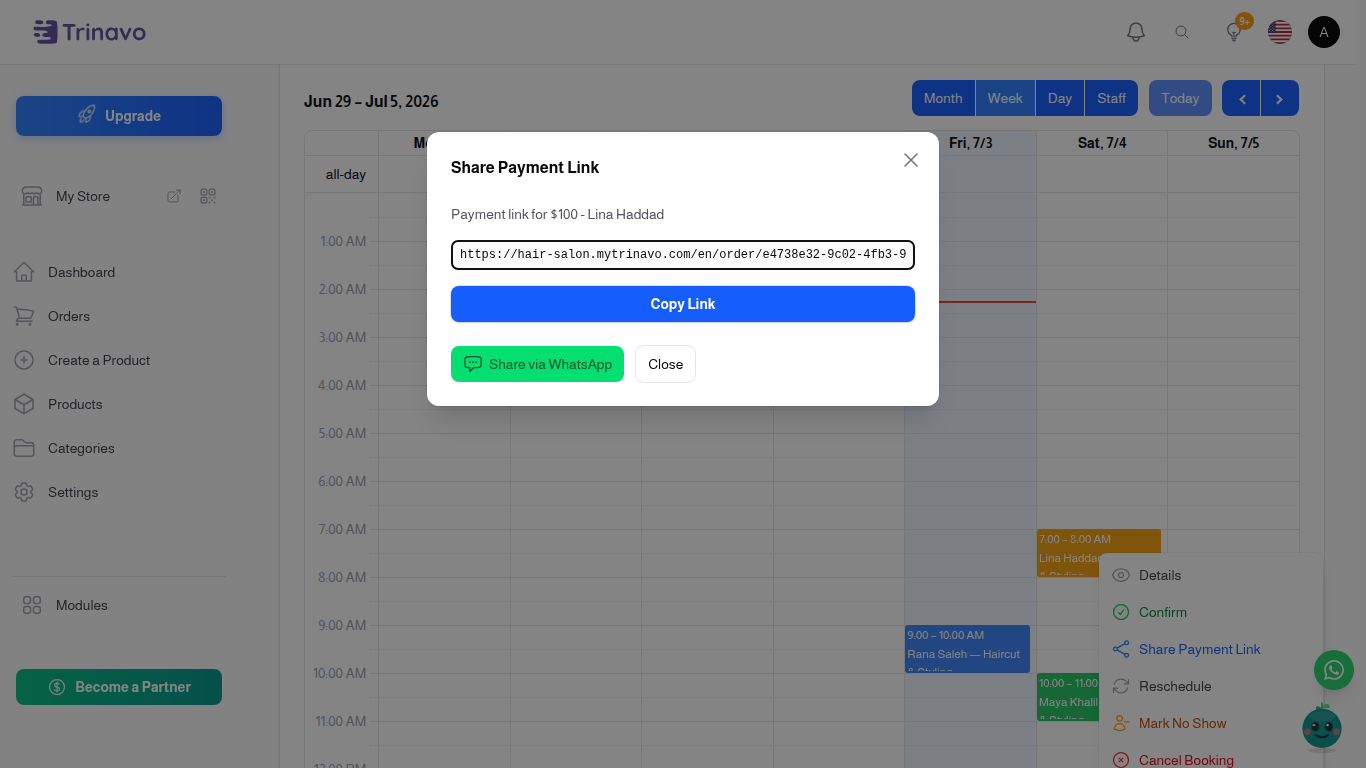
When the customer opens the link, they pay for the order with any of your enabled payment methods - and the booking confirms itself the moment the payment lands.
The Bookings list
Navigate to: Modules > Bookings
The list shows every appointment with its date and time, service, staff member, customer, status, linked order, and payment state. It is the fastest place to filter and search - for example, all unpaid bookings for next week - and the same actions (Confirm, Share Payment Link, Reschedule, Mark No Show, Cancel Booking) are available on each row.
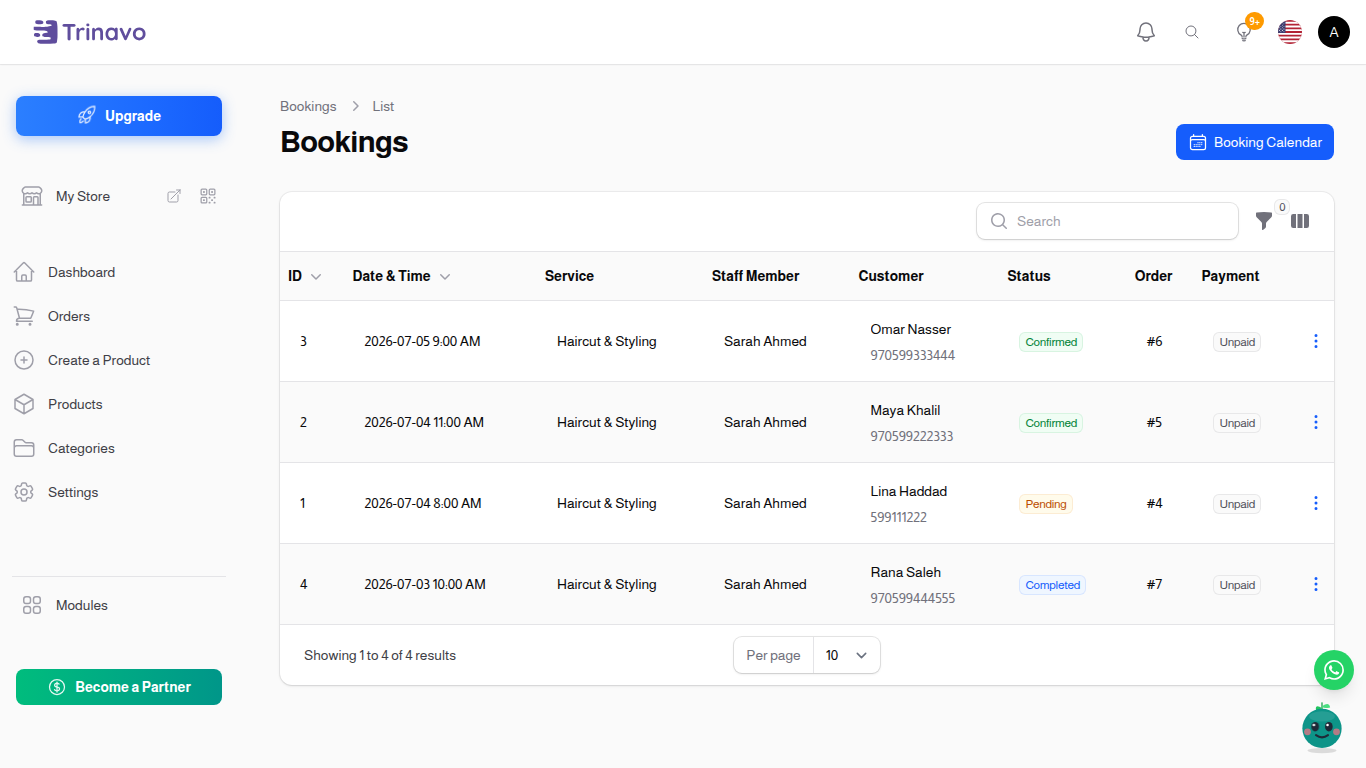
Booking statuses
- Pending - the appointment is taken but not confirmed yet. Storefront bookings start here.
- Confirmed - the appointment is on. Bookings confirm automatically when their order is paid, or you can confirm manually from the calendar or the list.
- Completed - the appointment happened.
- Cancelled - called off; the slot is free again.
- No Show - the customer did not arrive. Marking no-shows keeps your history honest and your statistics useful.
Notifications and reminders
Customers are kept in the loop automatically:
- When a booking is confirmed, the customer receives a confirmation with the date, time, and staff member.
- Before the appointment, a reminder goes out - you control how many hours in advance with the Reminder (Hours Before) setting.
Unpaid storefront bookings that outlive their slot hold are expired automatically, so abandoned checkouts never block your calendar.
Troubleshooting
The Booking tab does not appear on my product
Bookings are not enabled yet. Go to Settings > Bookings and turn on Enable Bookings.
Customers see "No available times on this day"
The picker only offers slots where an assigned staff member is available. Check that the service has at least one staff member assigned in its Booking tab, that this staff member has Working Hours rows covering that day, and that no Time Off blocks it. Also remember the Minimum Lead Time - today's earlier hours may be excluded by it.
A pending booking disappeared from the calendar
Unpaid storefront bookings hold their slot only for the Slot Hold time. If the customer never completed checkout, the booking expires and the slot is released - that is by design, so abandoned carts do not block real customers.
I cannot turn on Enable Bookings
Bookings is a premium feature and your current plan does not include it. The settings page shows the upgrade prompt - or contact support.