Loyalty Transactions
Watch the video
Loyalty Points
Watch the:
Every change to a customer's loyalty points is recorded here, newest first: what they earned, what was taken off, why, and the balance it left. The list is a record, so nothing in it can be added, changed or deleted.
Where to find it
Open Modules → Loyalty Program → Loyalty Transactions.
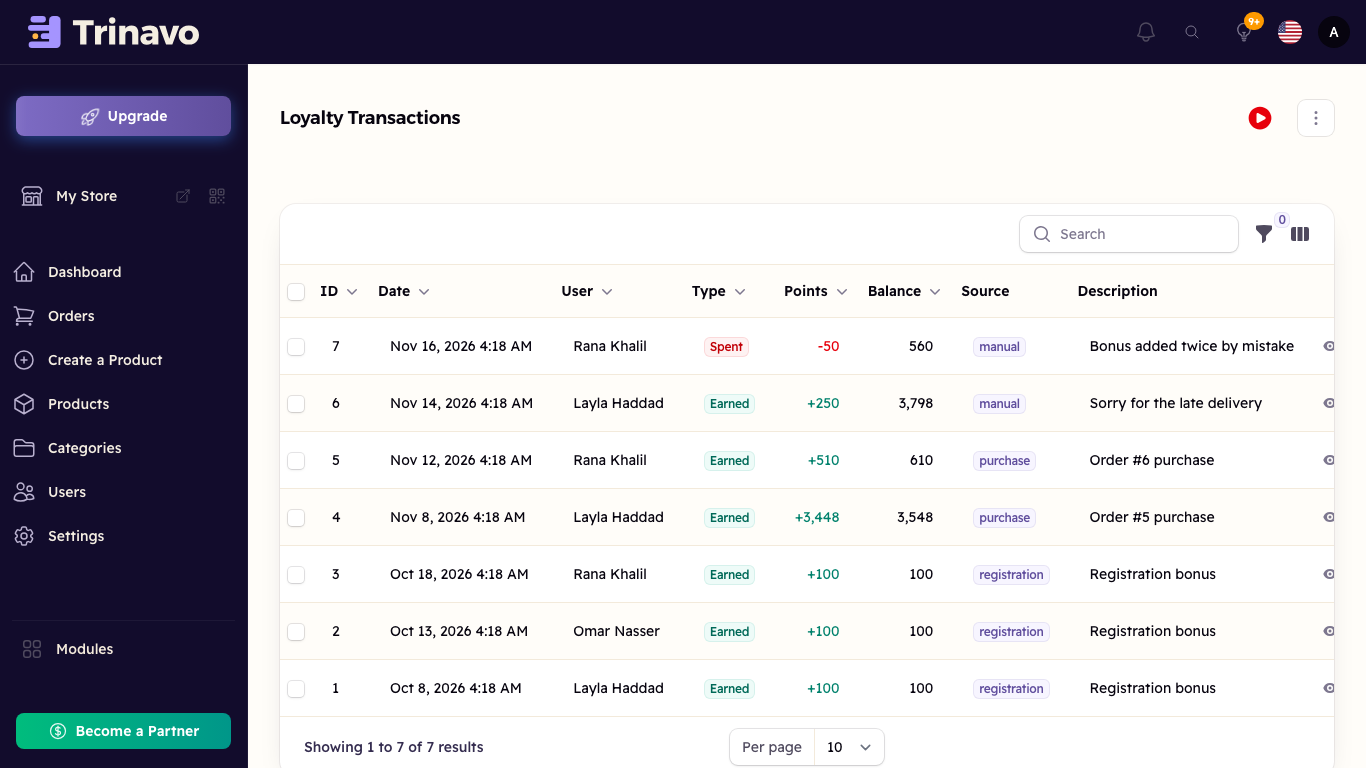
Each row shows the Date, the customer (User), the Type (earned or spent), the Points added in green or taken off in red, the customer's Balance after it, the Source and the Description. Created By, which names the staff member behind a hand-made change, can be shown from the column button.
Use the filters to narrow the list by Type, Source or one customer (User). The search box finds a customer's name or words in the description.
Points are only earned while the loyalty program is switched on in Loyalty Program settings.
How customers earn points
| Source | When | How many |
|---|---|---|
| Purchase | When an order is paid, once per order. | The order total times Points Per Currency Unit, times the customer's level Points Multiplier. |
| Review | When you approve the customer's review. | Review Points, times the level's Points Multiplier. |
| Registration | When the customer creates an account, once. | Registration Bonus. |
The three amounts are set in Loyalty Program settings.
Points are also taken back when you complete a return on an order that earned points, in proportion to the amount refunded: see Returns and exchanges.
Look at one transaction
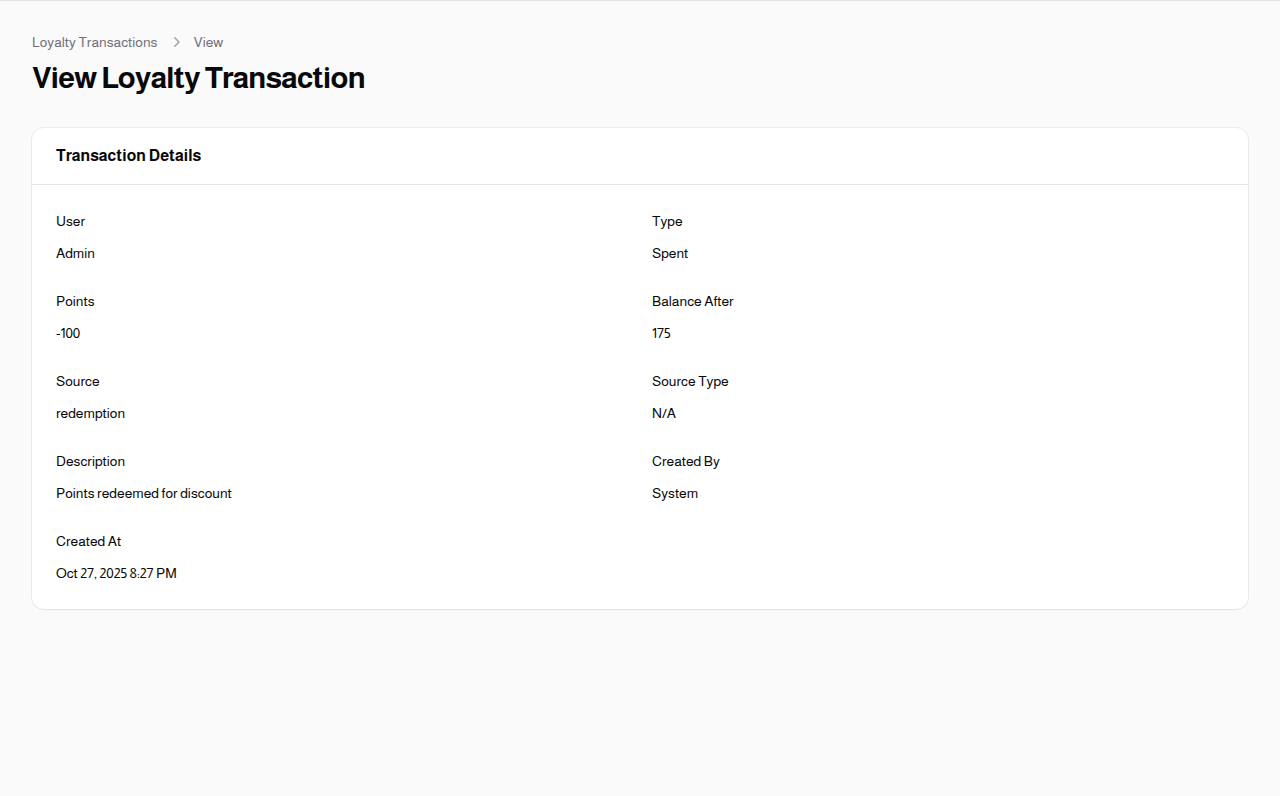
Click View on a row to see all of it, including Balance After, Source Type (whether it came from an order, a review or a customer account) and Created By (System when the store wrote it by itself).
Add or take away points by hand
Points are changed from the customer, not from this list:
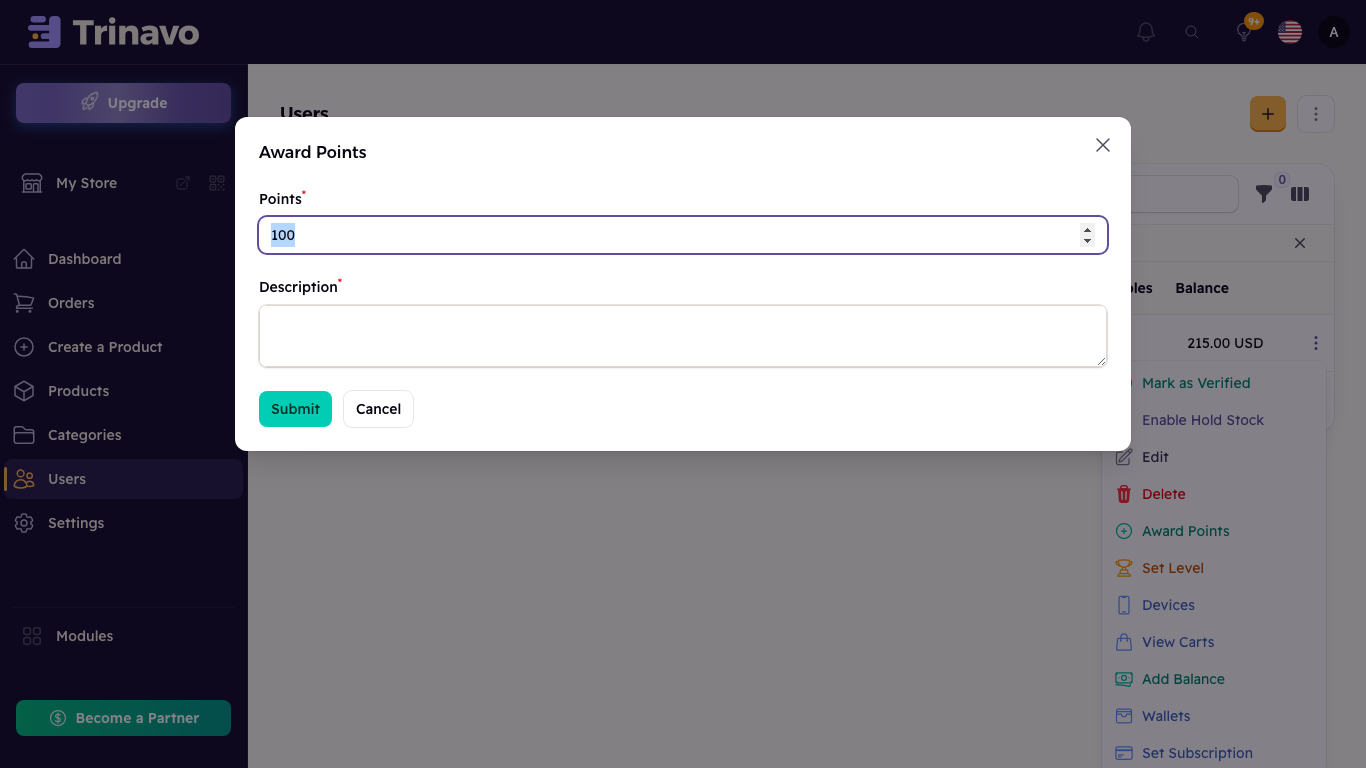
- Open Users and the customer's ⋮ menu.
- Choose Award Points to add points, or Deduct Points to take some off. Deduct Points only appears for a customer who has points, and shows how many are available.
- Enter the Points and a Description. The description is what the customer sees in their points history.
- Confirm.
The change appears here at once with your name under Created By.
Export the transactions
Open the ⋮ menu (More) at the top and choose Export for the whole list, or tick some rows and choose Export from the bulk actions. Related reports in the same menu opens the User Analytics report.