Dropshipping Reconciliation
Asks a supplier which orders they have for one month, compares them with your orders, and lists what does not match: an order the supplier charged you for that you have no record of, an order they delivered that you refunded, two different results for the same order. Use it at the end of a month, or as soon as you suspect a supplier and your store disagree.
Where to find it
Open Modules → Dropshipping → Dropshipping Reconciliation. It is also under Related reports in the ⋮ menu (More) of the other dropshipping screens. The ⓘ button (Explanation) at the top explains the screen in two sentences.
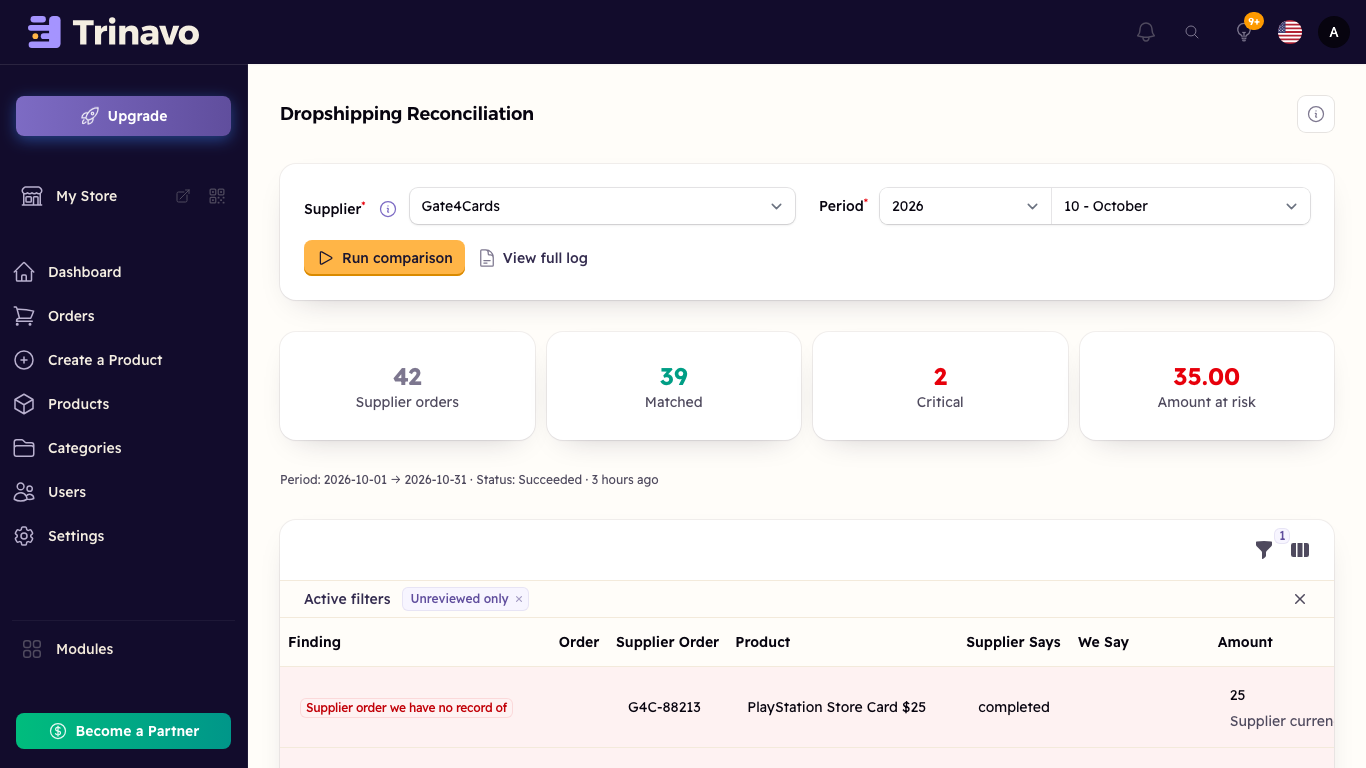
Compare a month
- Pick the Supplier. Only suppliers that can list their own orders are offered.
- Under Period, pick the year and the month (up to four years back; the current year stops at this month).
- Click Run comparison. It usually takes a few seconds; View full log shows each step.
A month that was already compared opens on its last result, so you do not have to run it again; click Run comparison to ask the supplier afresh. If the supplier's system has no way to list its orders, the screen says reconciliation is not supported for that supplier.
Read the result
The boxes count the Supplier orders in that month, how many Matched one of yours, the Critical findings, and the Amount at risk: the supplier's amount for the critical findings, in the supplier's currency.
Each row below is one finding. Critical rows are tinted red. Unreviewed only is on when the screen opens; the other filters show one Finding or one Severity.
| Finding | What it means |
|---|---|
| Supplier order we have no record of | The supplier has an order from you that matches none of your orders. Critical: you may be paying for something you never sold. |
| Supplier fulfilled it, we refunded it | The supplier delivered an order your store marked as failed and refunded. Critical. |
| The supplier holds this order more than once | The same order was bought from the supplier more times than it had items. Critical. |
| The two sides disagree on the outcome | Supplier Says and We Say give different results for the same order. |
| We published it, the supplier does not list it | Your store sent the order, but the supplier does not have it for that month. |
| Waiting for review, never reached the supplier | An order whose sending got no answer, and the supplier does not have it. |
| Waiting for review, the supplier has it | An order whose sending got no answer, and the supplier does have it. |
Order opens your order. Amount is in the supplier's currency.
Deal with a finding
- The code button (Supplier Data) shows what the supplier returned for that order.
- The tick button (Mark reviewed) records that someone looked at the finding, and it leaves the Unreviewed only view. Nothing about the order changes.
- For most findings you decide on the order itself: open it from Order.
An order that is Pending Review because its sending got no answer can be settled from the ⋮ menu on its row, in place of the tick button. Each of these asks the supplier again before changing anything:
| Action | What it does |
|---|---|
| Send again | If the supplier has the order now, their result is used; if not, the order is sent to them again. |
| Set delivery failed | Marks the order as not delivered and refunds the customer, with a Note for the customer. If the supplier has the order after all, their result is used instead. |
| Use the supplier's result | Applies the supplier's answer: delivered, rejected (the customer is refunded), or still in progress (it then updates on its own). |
They show for an order with one product, while the supplier is enabled, and only to staff who can change orders.