Barcode Settings
How the store makes barcodes for your products: the barcode type, how they are numbered, whether a product saved without one gets one, and whether two products may share the same barcode.
Where to find it
Open Modules → Settings → Barcode Generator.
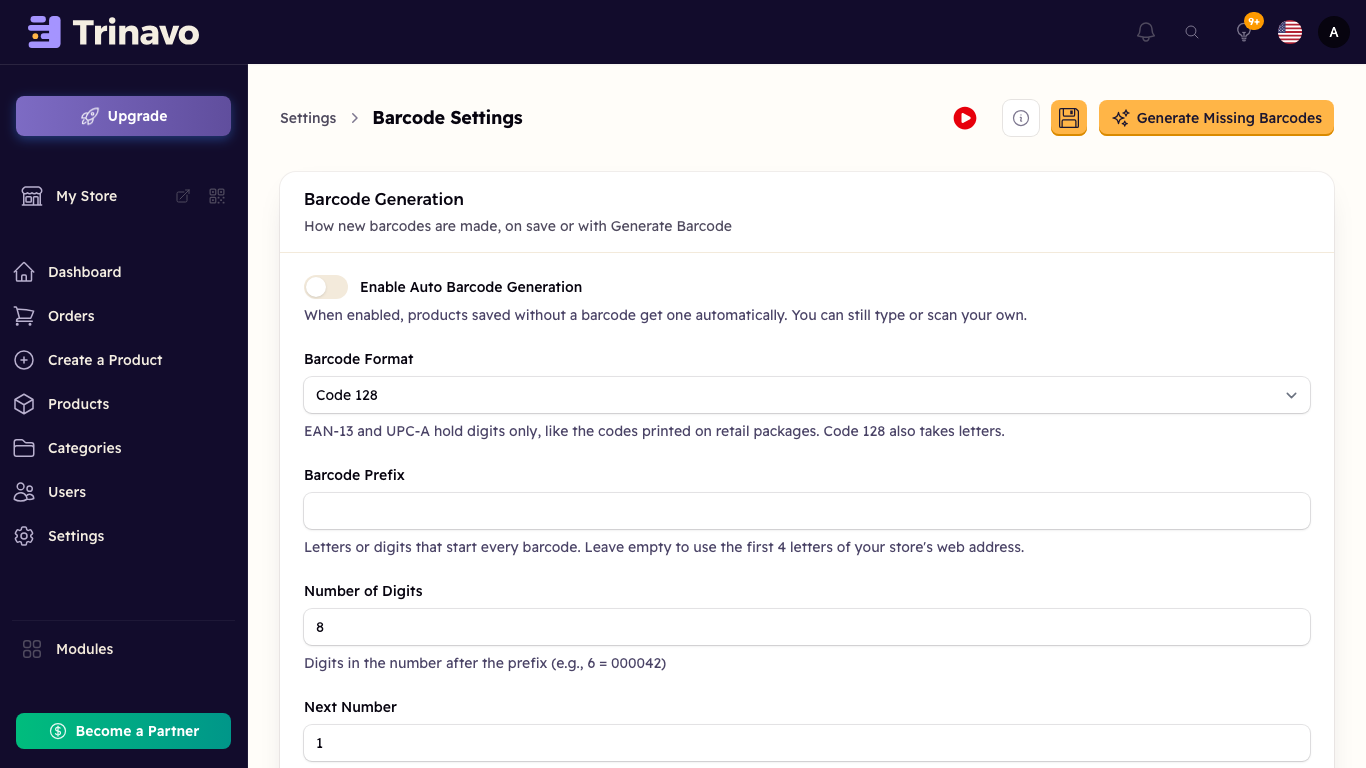
Choose the barcode type and numbering
These fields apply to every barcode the store makes: automatically, with Generate Missing Barcodes, and with the Generate Barcode button next to a product's Barcode field. Set them, check the result under Barcode Format Preview, and click Save.
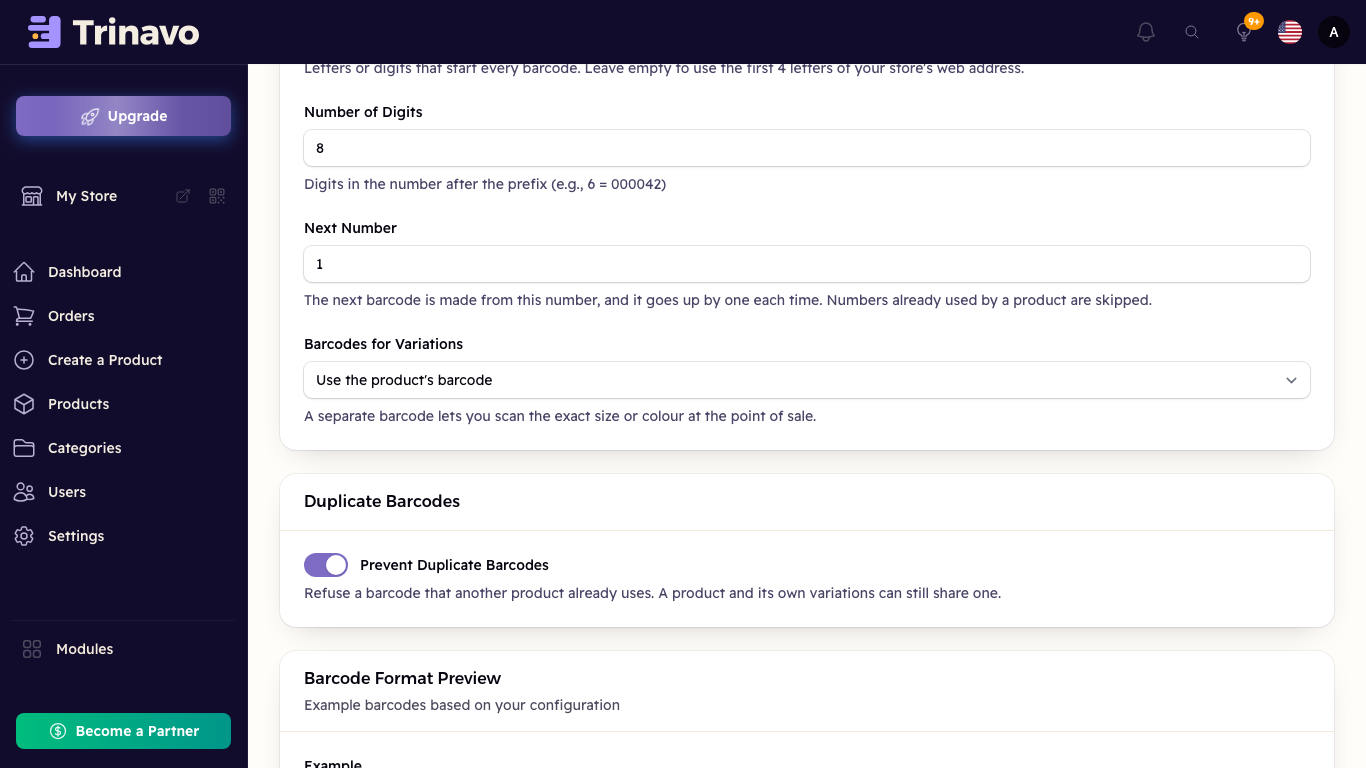
| Field | What it does |
|---|---|
| Barcode Format | The type new products start with. EAN-13 and UPC-A hold digits only, like the codes printed on retail packages. Code 128 and QR Code also take letters. Each product can still have its own Barcode Format. |
| Barcode Prefix | What every barcode starts with. For EAN-13 and UPC-A it is digits; codes starting with 20 to 29 are meant for use inside your own shop, for example 29. For Code 128 and QR Code it is letters or digits, and when left empty the first 4 letters of your store's web address are used. |
| Number of Digits | For Code 128 and QR Code: how many digits follow the prefix (6 gives 000042). EAN-13 always has 13 digits in all and UPC-A 12, the last one a check digit, so the page says so instead. |
| Next Number | The number the next barcode is made from. It goes up by one each time, and numbers a product already uses are skipped. |
| Barcodes for Variations | Use the product's barcode: options scan as their product. A separate barcode for each variation: each option gets its own, so the till knows the exact size or colour. |
Give new products a barcode automatically
Switch on Enable Auto Barcode Generation and click Save. A new product saved without a barcode then gets one. You can still type or scan your own.
Give barcodes to products that have none
- Click Generate Missing Barcodes at the top of the page.
- Click Generate to confirm.
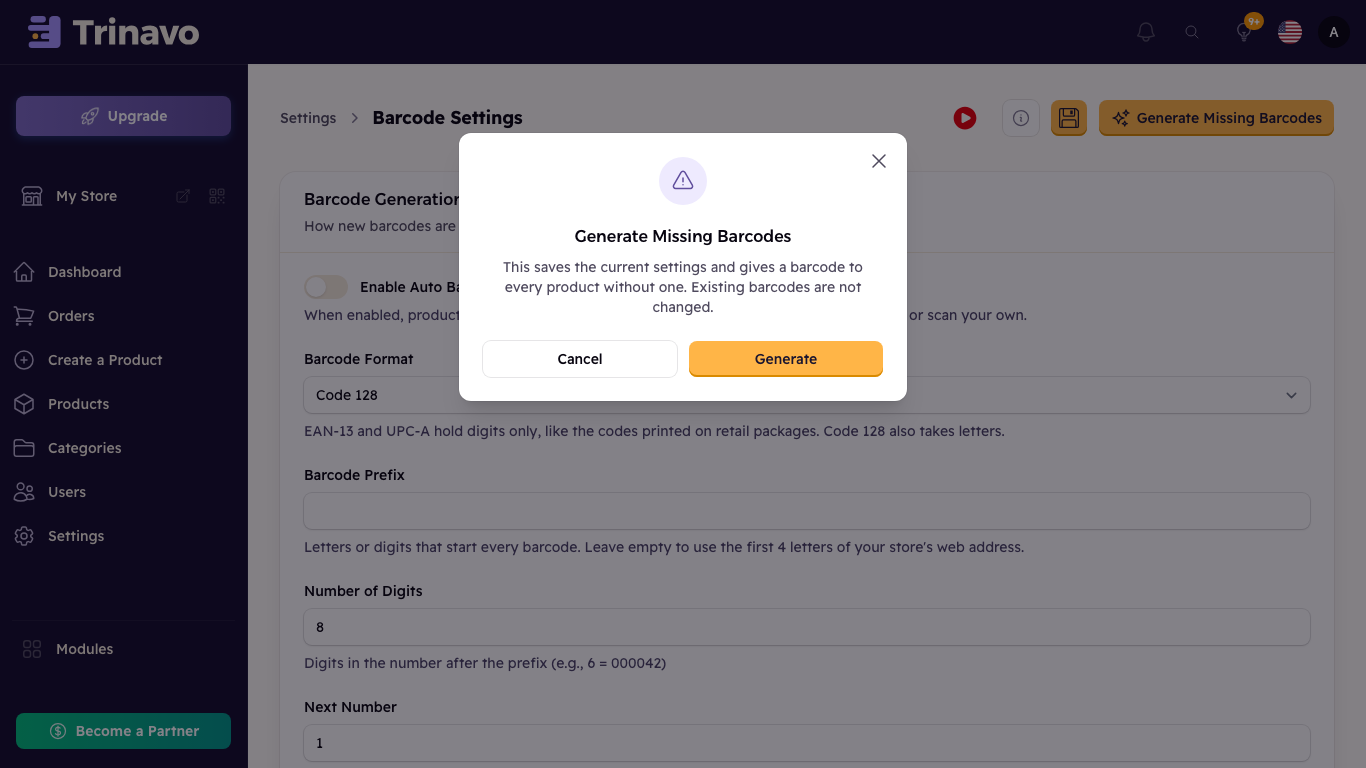
Your settings are saved first. Then every product without a barcode gets one, and so does every option when Barcodes for Variations is A separate barcode for each variation. Barcodes that already exist are not changed, because they may already be printed on labels.
Stop two products sharing a barcode
Prevent Duplicate Barcodes is on to start with: a barcode another product already uses is refused when a product is saved. A product and its own options can still share one. Switch it off and save to allow the same barcode on several products.