Translation Overrides
Your own wording for a piece of the store's built-in text, such as a button or a message, in one language. Wherever that text appears, in the store, its emails or the admin panel, your wording is shown instead.
Where to find it
Open Modules → System Settings → Translation Overrides.
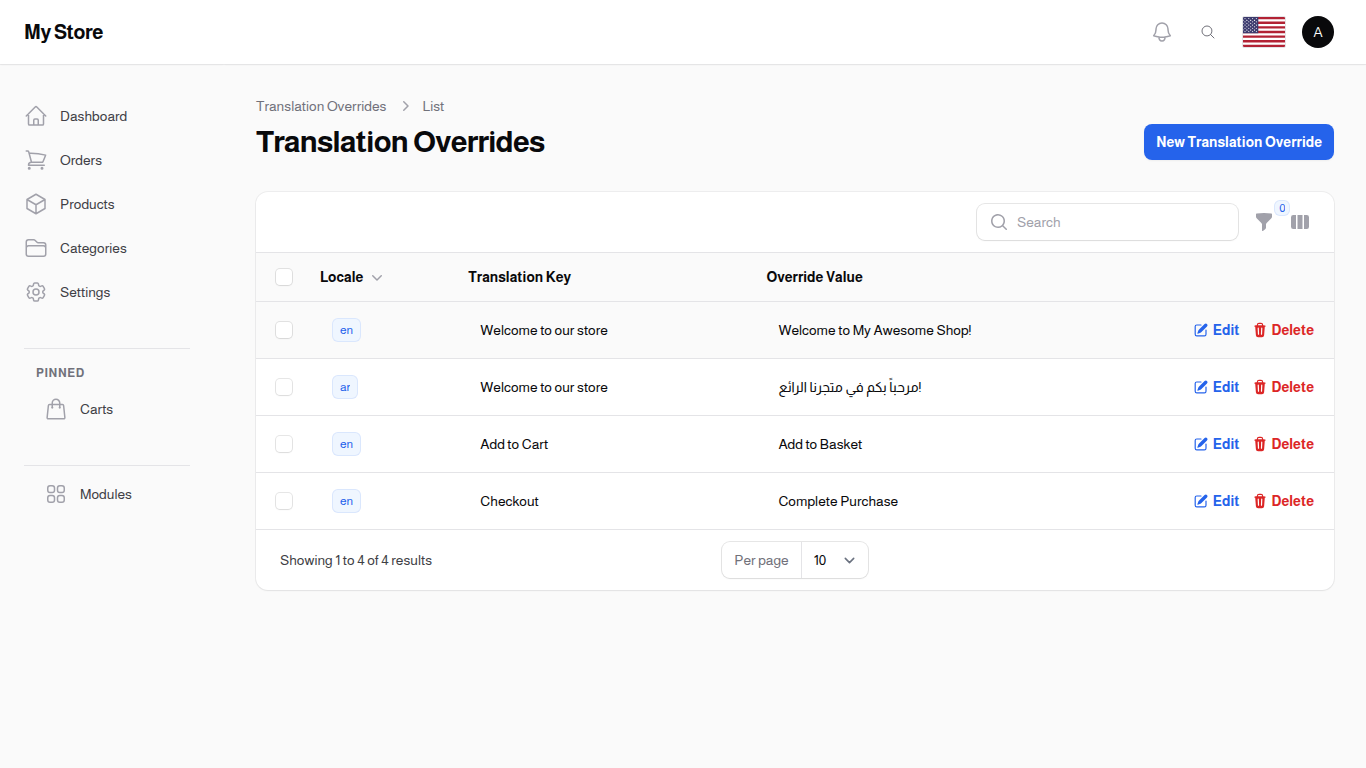
Each row is one replaced text: its Locale, its Translation Key and your Override Value. The newest change is at the top.
Replace a text
- Click + (New Translation Override).
- Choose the Locale: the language whose text you are changing.
- In Translation Key, search for the text. Each choice shows the key and the text it has now.
- Check the Original Value that appears, then type your wording in Override Value.
- Click Create.
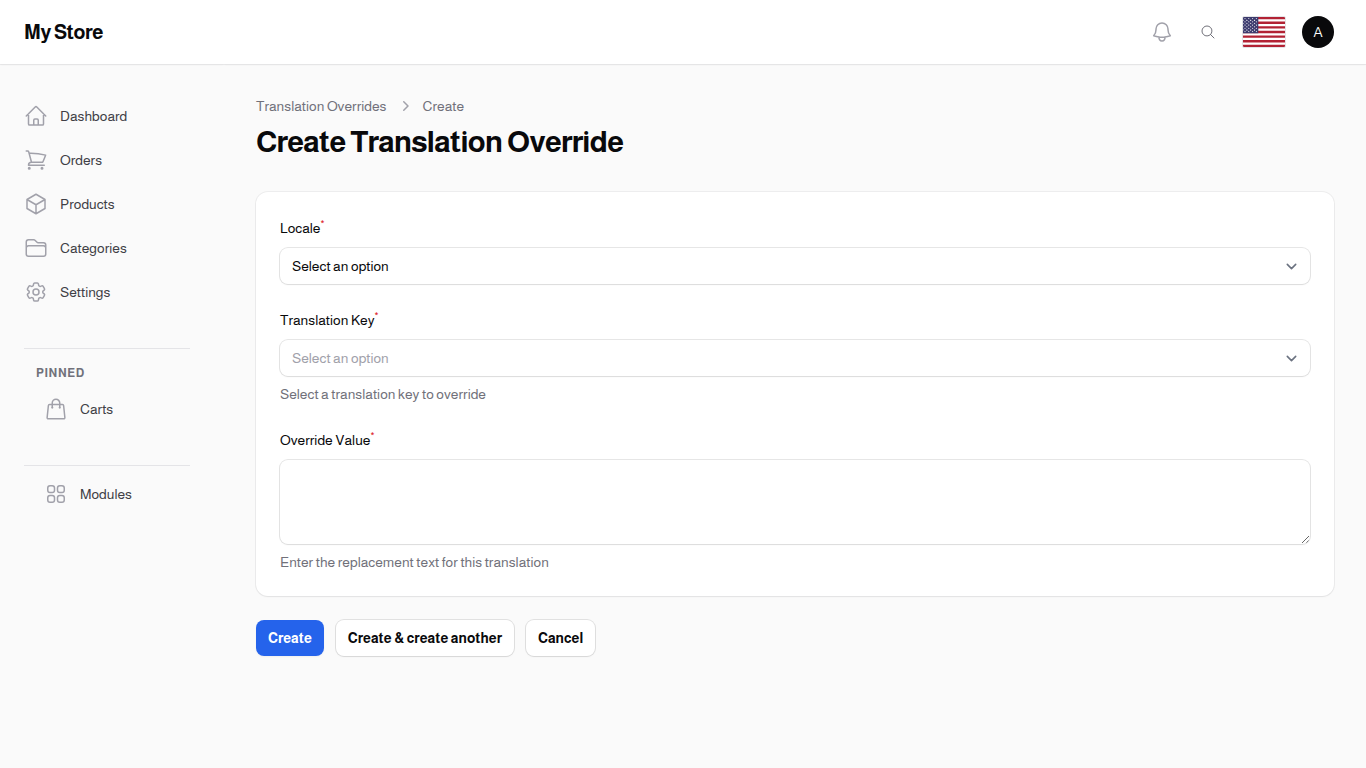
For example, choose Arabic and the key Buy Now, and type the wording you prefer for the button.
To change the same text in another language, add a second override with that Locale.
Change or remove an override
Click Edit on the row to change your wording, then Save changes. Click Delete to go back to the built-in text. To remove several, tick them and choose Delete from the bulk actions.