Expenses
Purpose
Expenses are the money your shop spends to keep running: rent, salaries, advertising, the courier bill, the bank's charges. Recording them is what turns the Financial report from "what I made on my products" into "what I actually made this month".
This is available to every store and does not need to be switched on.
Accessing Expenses
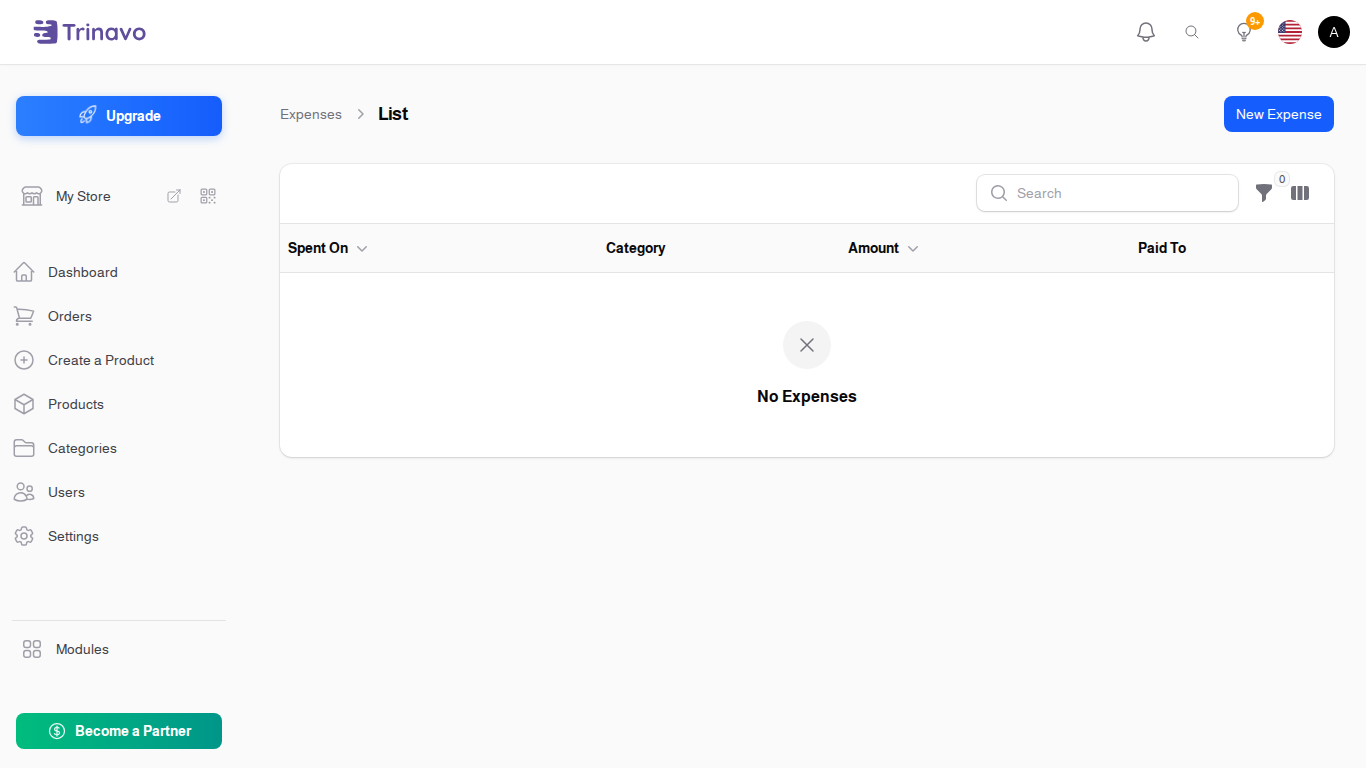
Click Modules → Expenses → Expenses
What does not belong here
Do not record stock you bought for resale as an expense.
The money you pay for products is already counted for you. It becomes a cost at the moment the product sells, and it appears as Cost on the Financial report. If you enter it here as well, the same money is subtracted twice and your profit will look far worse than it really is.
Stock you received belongs under Purchasing > Goods Receipts.
If you are looking for money you know you spent on stock and cannot find it in your profit, open the Financial report. It shows Stock bought this period for information, so you can see the amount without it being subtracted twice.
Recording an Expense
Click New Expense. A window opens over the list, so you never lose your place in it.
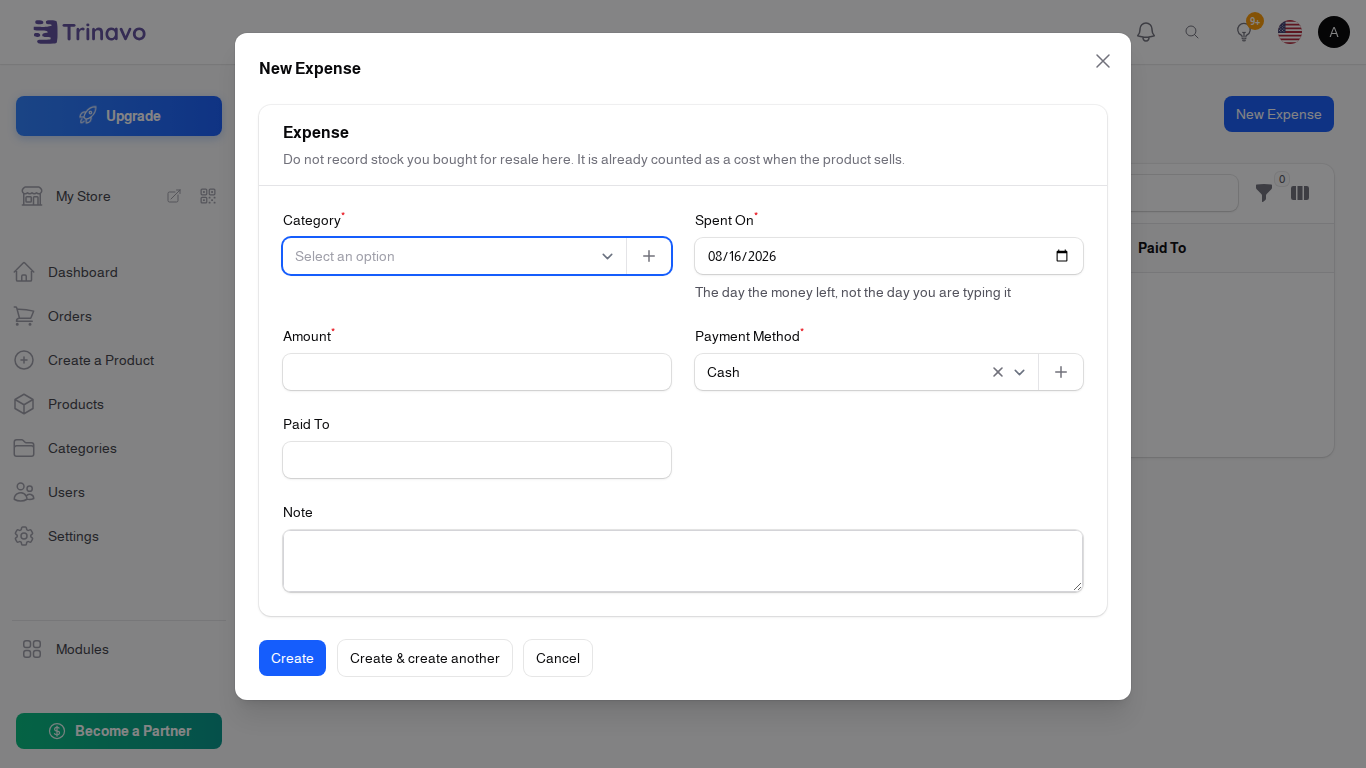
Fill in:
- Category: what the money was for. Pick one of the ready-made categories, or add your own without leaving the form
- Spent On: the day the money actually left, not the day you are typing it in. This is what decides which month it counts in, so a receipt entered late still lands in the right month
- Amount: how much was paid
- Currency: this only appears when your store has more than one currency. The exchange rate is saved with the expense and never changes afterwards, so an old expense always keeps the rate it had on the day
- Payment Method: how you paid. Cash, Bank Transfer, Card, Cheque and Other are ready to use, and you can add your own the same way you add a category, without leaving the form
- Paid To: who received the money, in your own words. It is free text, so you do not have to add a landlord or an employee anywhere first
- Note: anything else you want to remember
Categories
Ten categories are ready to use: Shipping & Courier, Bank & Payment Fees, Marketing & Advertising, Rent, Salaries & Wages, Utilities, Repairs & Maintenance, Supplies & Consumables, Taxes & Licences, and Other.
You can rename them, switch off the ones you never use, and add your own from the expense form itself. There is no separate screen for managing them: adding one asks for a Name, a Sort Order, and whether it is Active. Payment methods work exactly the same way.
Two are worth understanding, because they are the costs most often missed:
Shipping & Courier is what you pay the delivery company. This is not the same as the delivery charge you collect from your customer: what you collect is already counted in your sales, and what you pay is counted nowhere until you record it here. If you charge for delivery and never record what it costs you, your profit is overstated by the difference.
Bank & Payment Fees works the same way for the share the payment provider keeps.
Repeating an Expense Each Month
Rent and salaries come round every month. Instead of typing them again, find last month's row and click Duplicate. The same window opens already filled in, dated today. Check the amount, and save.
There is no automatic monthly posting on purpose: rent and salaries are exactly the amounts that change, and a figure posted automatically from last month would be wrong without anyone noticing.
Seeing Where the Money Went
Open Reports > Reports and choose the Financial report. It shows:
- Gross Profit: what you made on your products, before running costs
- Operating Expenses: what you recorded here for that period
- Net Profit: the real number
- Expenses by Category: the breakdown, largest first
The expense list itself also totals the Amount column, so you can filter to one category or one date range and read the total straight off the screen.