User Levels
Watch the video
Loyalty Levels
Purpose
User Levels (also called Loyalty Levels) allow you to create tiered benefits for your customers based on their monthly spending. This feature is part of the Loyalty Program and helps you reward your most valuable customers with exclusive perks such as discounts, bonus points, and special recognition.
Customers automatically move between levels based on their monthly purchase totals. Each level can offer different benefits including percentage discounts on products, points multipliers for earning loyalty rewards faster, and visual badges to recognize their status.
Accessing User Levels
Click Modules → Loyalty Program → User Levels
The User Levels management interface will appear, showing all configured loyalty levels in your store.
Prerequisites
Before setting up User Levels, ensure:
- The Loyalty Program is enabled in System Settings → Loyalty Program tab
- You have configured the base loyalty program settings (points per currency unit, registration bonus, review points)
- Note: The Loyalty Program is a premium feature and not available for free stores
User Levels List
The User Levels list displays all configured loyalty tiers in your store. Levels are sorted by their order (ascending), with lower numbers appearing first.
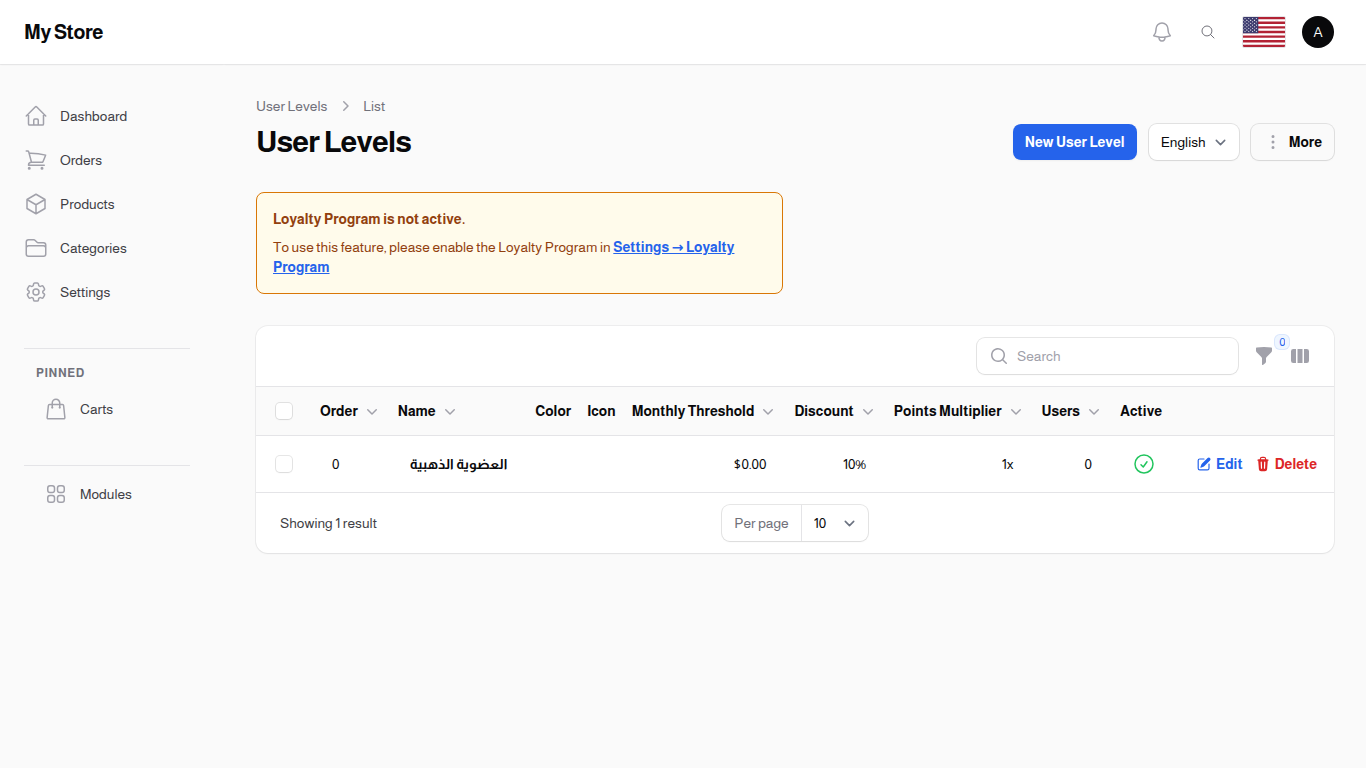
Available Columns
ID
- Format: Numeric
- Purpose: The store's own reference number for the level, handy to quote when you contact support
Display Order
- Format: Numeric
- Purpose: Display order of levels (lower numbers appear first in customer interface)
Name
- Format: Text (bold)
- Purpose: The name of the loyalty level displayed to customers (e.g., "Bronze", "Silver", "Gold", "Platinum")
Color
- Format: Color swatch
- Purpose: Badge/tag color used to visually represent this level in the interface
Icon
- Format: Icon
- Purpose: The icon chosen for this level, shown exactly as customers will see it
Monthly Threshold
- Format: Currency amount
- Purpose: Minimum purchases over the last 30 days required for customers to reach this level
Discount
- Format: Percentage
- Purpose: Discount percentage applied to products for customers at this level
Points Multiplier
- Format: Numeric with 'x' suffix
- Purpose: Multiplier for loyalty points earned at this level (e.g., 2x means double points)
Users
- Format: Numeric count
- Purpose: Number of customers currently at this level
Active
- Format: Boolean icon (checkmark/x)
- Purpose: Indicates if the level is active and can be assigned to users
Default Level
- Format: Checkmark or cross
- Purpose: Shows which single level customers fall back to when they have not reached any threshold
Special Pricing
- Format: Checkmark or cross
- Purpose: Shows whether fixed per-level product prices are switched on for this level. Hidden until you switch this column on from the column chooser
Created At / Updated At
- Format: Date and time
- Purpose: When the level was added and when it was last changed. Both are hidden until you switch them on from the column chooser
Creating a User Level
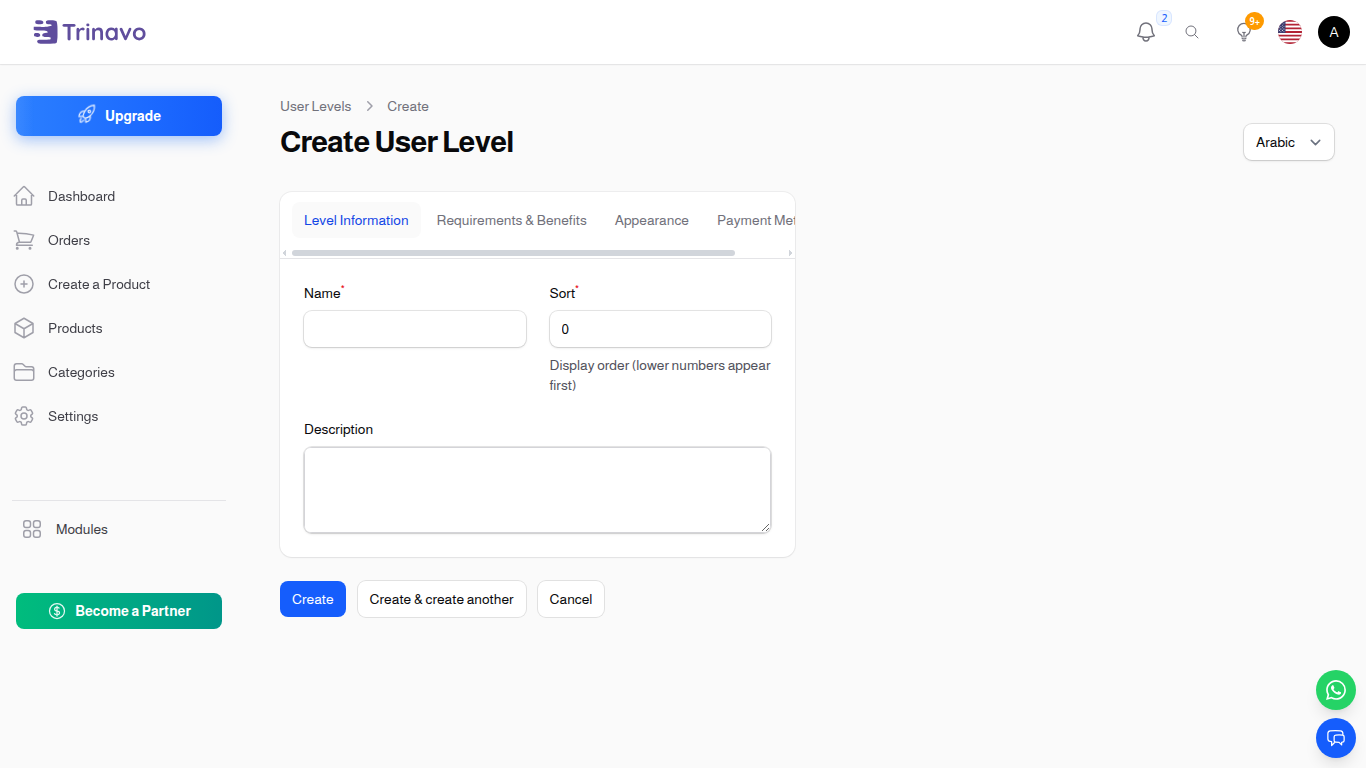
To create a new loyalty level:
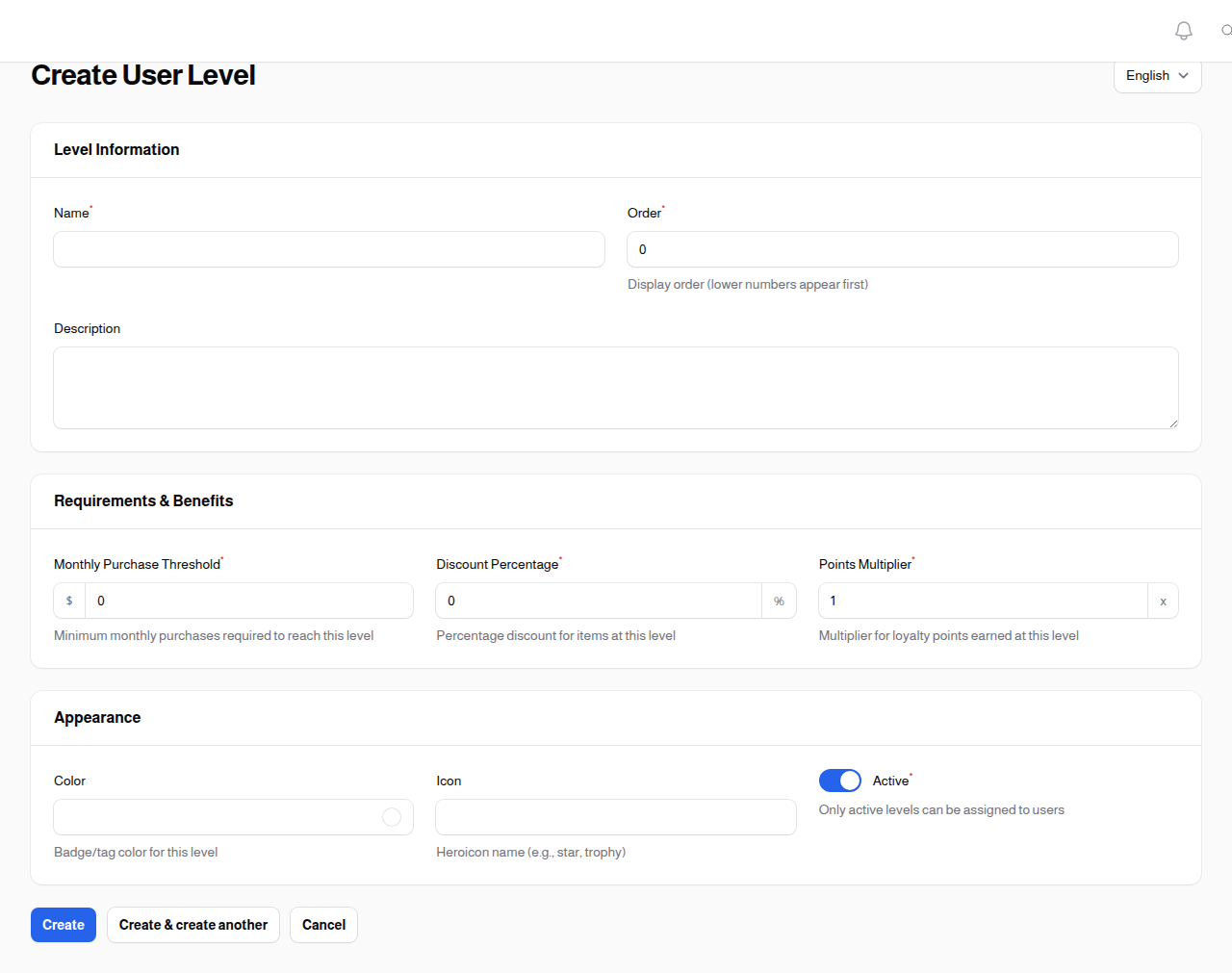
- Click the New User Level button in the top-right corner - the form opens in a dialog over the list
- Fill in the required information across all sections
- Click Create to save the level
Level Information Section
This section contains the basic identification details for the loyalty level.
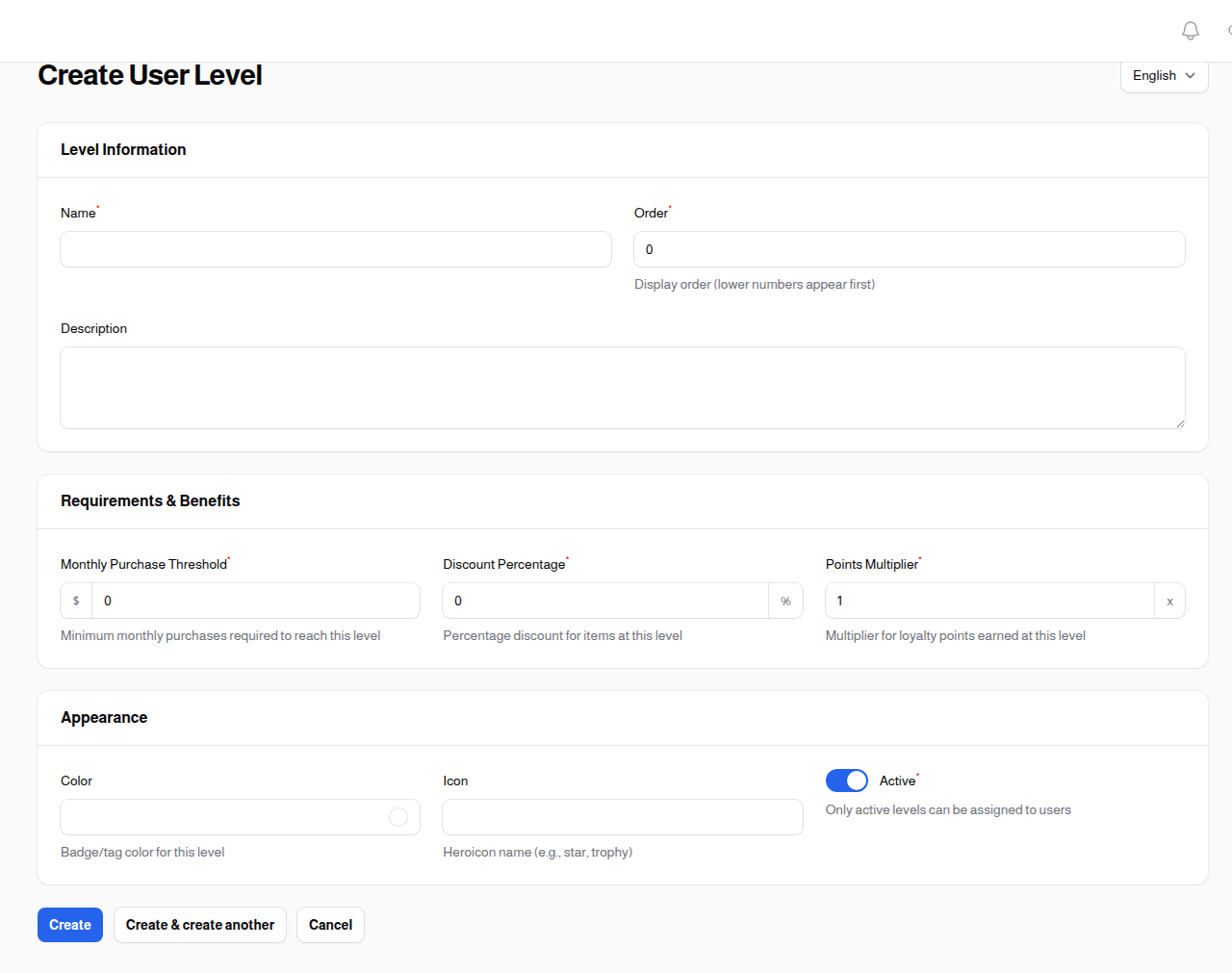
Name (Required)
The display name for this loyalty level that customers will see.
Examples: - Bronze, Silver, Gold, Platinum - Starter, Regular, VIP, Elite - Member, Preferred, Premium, Exclusive
Business Tip: Choose names that are aspirational and motivate customers to reach higher tiers.
Sort (Required)
Numeric value controlling the display order of levels. Lower numbers appear first.
Default: 0
Example Order Structure: - Bronze: 10 - Silver: 20 - Gold: 30 - Platinum: 40
Description (Optional)
A brief description of this level's benefits and what makes it special. This may be displayed to customers.
Example: "Our premium tier for loyal customers who spend $1,000+ monthly. Enjoy 15% off all products and earn double loyalty points!"
Requirements & Benefits Section
This section defines what customers need to achieve to reach this level and what rewards they receive.
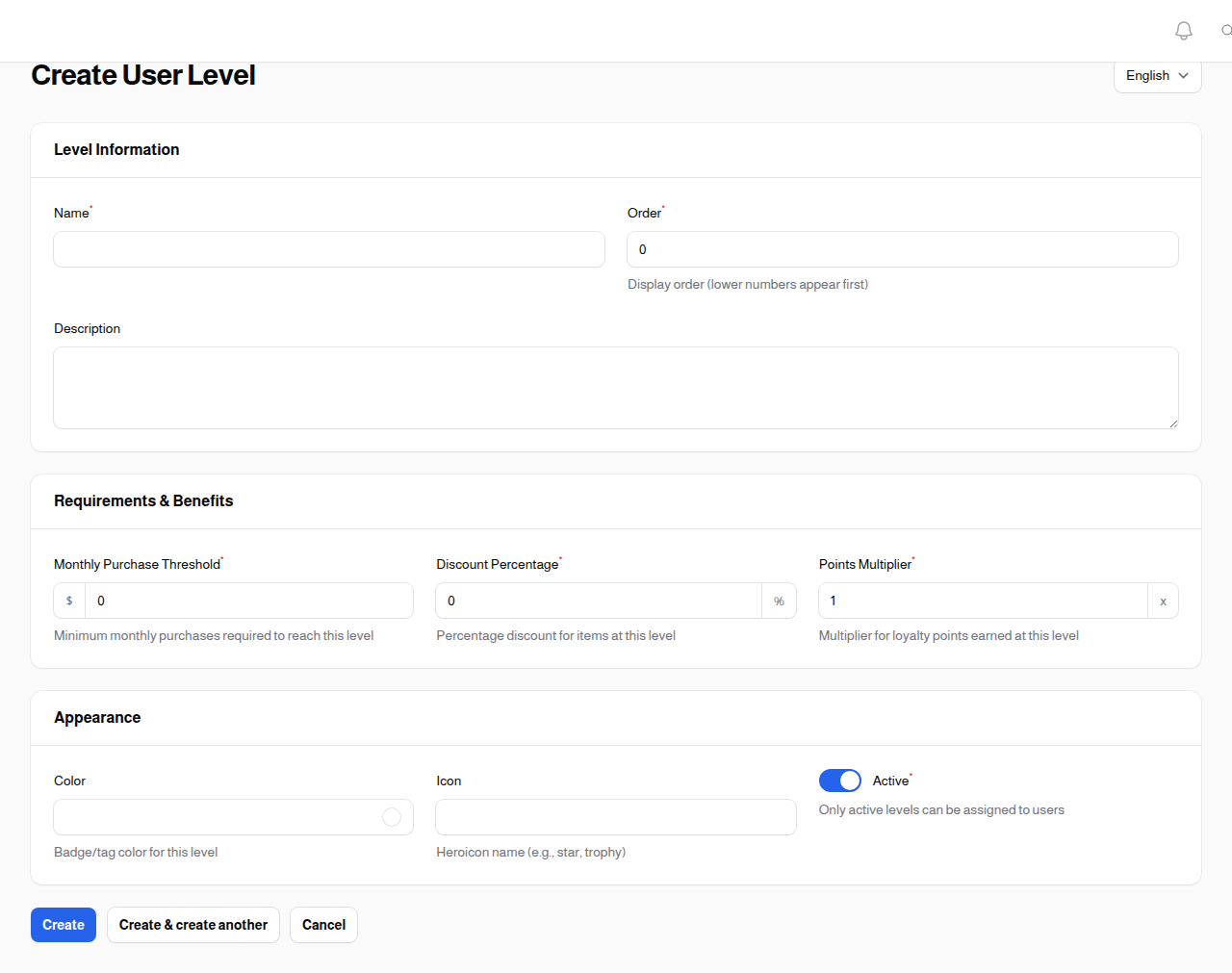
Monthly Purchase Threshold (Required)
The minimum amount customers must spend over the last 30 days to qualify for this level.
Default: 0
How It Works: - The store adds up each customer's paid orders from the last 30 days - Customers are automatically moved to the highest level whose threshold that total has reached - A level with a threshold of 0 is never awarded this way. Customers who have reached no threshold are placed on whichever level you marked as the default level - Levels are rechecked every night, so a customer whose recent spending falls away can move down the next day. Only customers left on automatic assignment are rechecked, a level you set by hand on a customer is left alone
Example Thresholds: - Bronze: $0 (entry level, and marked as the default level so customers actually land on it, because a threshold of 0 is never reached automatically) - Silver: $250 over the last 30 days - Gold: $500 over the last 30 days - Platinum: $1,000 over the last 30 days
Business Tip: Set realistic thresholds based on your average order values and target customer spending patterns.
Discount Percentage (Required)
The percentage discount applied to products for customers at this level.
Default: 0% Range: 0% - 100%
Examples: - Bronze: 0% (no discount) - Silver: 5% - Gold: 10% - Platinum: 15%
Note: This discount is applied automatically to qualified customers during checkout.
Points Multiplier (Required)
Multiplier for loyalty points earned on purchases at this level.
Default: 1x (normal rate) Minimum: 1x
How It Works: - Base points are set in System Settings (e.g., 10 points per $1) - This multiplier increases earning rate for higher tiers - Example: 2x multiplier means earning 20 points per $1 instead of 10
Examples: - Bronze: 1x (standard rate) - Silver: 1.25x (25% bonus) - Gold: 1.5x (50% bonus) - Platinum: 2x (double points)
Business Tip: Use multipliers to incentivize repeat purchases and level progression.
Has Special Pricing (Optional)
Turn this on when you want to set your own fixed prices for individual products and product options for customers at this level, instead of relying on the discount percentage alone. Once it is on, a price for this level can be entered on each product.
Default: Disabled
Business Tip: Use the discount percentage for a blanket reward, and fixed prices only where a particular product needs a price of its own for this tier.
Appearance Section
This section controls how the level is visually displayed in the customer interface, and which level customers start on.
Color (Optional)
Choose a color for the level badge/tag that appears next to customer names or in their profile.
Tips: - Use colors that match your level names (e.g., bronze = #CD7F32, silver = #C0C0C0, gold = #FFD700) - Ensure good contrast for readability - Keep brand consistency across your color scheme
Icon (Optional)
Pick an icon to show with this level.
Click the Select Icon button under the preview box to open the picker, then browse or search the available icons and click the one you want. You never type the icon name yourself. Three icon collections are offered, so you can pick a style that matches the rest of your store.
Ideas: - A star for entry levels - A trophy for achievement levels - Sparkles for VIP tiers - A flame for top spenders - A shield for exclusive members
Active (Required)
Toggle whether this level is active and can be assigned to users.
Default: Enabled (active)
When to Disable: - Temporarily retiring a level without deleting it - Testing new level structures - Seasonal or promotional levels that are currently inactive
Important: Inactive levels will not appear in customer interfaces and existing users at this level will need to be reassigned.
Default Level (Optional)
Marks this level as the one customers fall back to when they have not reached any threshold. It is also the level new customers start on.
Default: Disabled
Important: Only one level can be the default at a time, so turning it on here automatically turns it off for whichever level had it before. A level whose Monthly Purchase Threshold is 0 is never awarded automatically, so if you want every customer to start on your entry tier, that tier must be the one marked as the default level. If no level is marked as the default, or the level you marked is not active, customers who have reached no threshold are simply shown without a level.
Payment Methods Section
This section limits which payment methods customers at this level can use at checkout.
Allowed Payment Methods (Optional)
Tick the payment methods customers at this level are allowed to use. Leave every box unticked to allow all of them.
Business Tip: Use this to reserve a method such as cash on delivery for your higher tiers, and keep your entry tier on prepaid methods only.
Editing a User Level
To edit an existing level:
- Click the Edit action (pencil icon) next to the level in the list
- Modify any fields as needed
- Click Save changes to apply your changes
Important Considerations: - Changing the threshold will affect customer assignments at the next nightly recalculation - Changing benefits (discount, multiplier) applies immediately to all customers at this level - Deactivating a level does not automatically reassign existing users
Deleting a User Level
To delete a level:
- Click the Delete action (trash icon) next to the level
- Confirm the deletion
Warning: Deleting a level removes it permanently. Every customer who was on it loses their level straight away. Customers left on automatic assignment are placed on another level at that night's recalculation, but a customer whose level you set by hand shows no level until you assign one again, and the same is true for everyone while the loyalty program is switched off. Any fixed prices you set for this level, and any payment method restrictions, are deleted with it and cannot be recovered.
Best Practice: Consider deactivating instead of deleting if you might want to restore the level later.
Bulk Actions
Delete Selected
Remove multiple user levels at once by:
- Select the checkboxes next to levels you want to delete
- Click Delete in the bulk actions dropdown
- Confirm the deletion
Export
Export user level data to Excel:
- Select the levels you want to export (or select all)
- Click Export in the bulk actions dropdown
- The file will download with level details
To export every level at once without ticking anything, open the More menu at the top of the list and choose Export there instead.
Filters
Active Status Filter
Filter levels by their active status:
- All levels - Show both active and inactive levels
- Active only - Show only active levels that can be assigned
- Inactive only - Show only disabled levels
Setting Up a Complete Level System
Here's a recommended approach for setting up a 4-tier loyalty system:
1. Entry Level (Bronze)
- Name: Bronze Member
- Sort: 10
- Monthly Threshold: $0
- Discount: 0%
- Points Multiplier: 1x
- Color: #CD7F32 (bronze)
- Icon: star
2. Mid-Tier (Silver)
- Name: Silver Member
- Sort: 20
- Monthly Threshold: $250
- Discount: 5%
- Points Multiplier: 1.25x
- Color: #C0C0C0 (silver)
- Icon: trophy
3. Premium (Gold)
- Name: Gold Member
- Sort: 30
- Monthly Threshold: $500
- Discount: 10%
- Points Multiplier: 1.5x
- Color: #FFD700 (gold)
- Icon: sparkles
4. Elite (Platinum)
- Name: Platinum Member
- Sort: 40
- Monthly Threshold: $1,000
- Discount: 15%
- Points Multiplier: 2x
- Color: #E5E4E2 (platinum)
- Icon: fire
How Level Assignment Works
Understanding how customers are assigned to levels:
- Automatic Calculation: The store adds up each customer's paid orders from the last 30 days
- Best Match: The customer is moved to the highest level whose threshold that total has reached. If they have not reached any threshold, they fall back to the level you marked as the default level
- Nightly Updates: Level assignments are rechecked every night, so the 30-day window is always moving and a customer can move up or down the very next day. Only customers left on automatic assignment are rechecked, and nothing is rechecked while the loyalty program is switched off
- Immediate Benefits: Once assigned, customers immediately receive level benefits (discounts, multipliers)
- Visual Indicators: Level badge/color appears in customer profile and may appear at checkout
Customer-Facing Features
When the loyalty program is enabled, customers can see their level information in various places:
Profile Card Display
Customers can view their current level and progress on their profile page:
- Current Level Badge: Shows the level name and color badge
- Progress Indicator: Visual progress bar showing advancement to the next level
- Monthly Purchases: Total purchases made over the last 30 days
- Next Level Threshold: Amount needed to reach the next level
- Level Benefits: Discount percentage and points multiplier for their current level
This information helps customers understand their status and motivates them to increase their purchases to reach the next tier.
Product Pricing
Level discounts are automatically applied to product prices throughout the store:
- Original Price: Displayed with strikethrough when discount applies
- Discounted Price: Shown in the main price display
- Discount Badge: Visual indicator showing the discount percentage
- Applies To: All products unless specifically excluded
Customers see the discounted prices immediately upon logging in, making their benefits clear and encouraging purchases.
Business Tips
Progressive Benefits
Structure your levels with meaningful benefit increases to motivate progression: - Each tier should offer noticeably better rewards than the previous - The jump from one tier to the next should feel achievable but rewarding - Top tier should feel exclusive and aspirational
Balanced Thresholds
Set thresholds based on your business metrics: - Analyze your customer purchase patterns first - Entry level should be easy to achieve (welcome everyone) - Middle tiers should capture your regular customers - Top tier should be for your highest spenders (top 5-10%)
Communication
Make sure customers understand the loyalty program: - Clearly communicate level benefits on your website - Show customers how close they are to the next level - Celebrate when customers reach a new tier - Use email or push notifications to announce level ups
Testing & Adjustment
Monitor and adjust your level structure: - Track how many customers are in each level - Ensure no level is too crowded or too empty - Adjust thresholds seasonally if your business has seasonal patterns - Review discount percentages to ensure profitability
Related Sections
- Loyalty Transactions - View customer loyalty points history
- System Settings - Configure loyalty program base settings
- Users - View which level is assigned to each customer
- Fee Management - Additional ways to incentivize purchases
Need Help? For questions about configuring the loyalty program or optimizing your level structure, contact support.