Frontend Menus
The links customers use to move around your store. Your store has two menus: header, the main menu at the top of every page, and footer, the links at the bottom.
Where to find it
Open Modules → Marketing & Content → Frontend Menus.
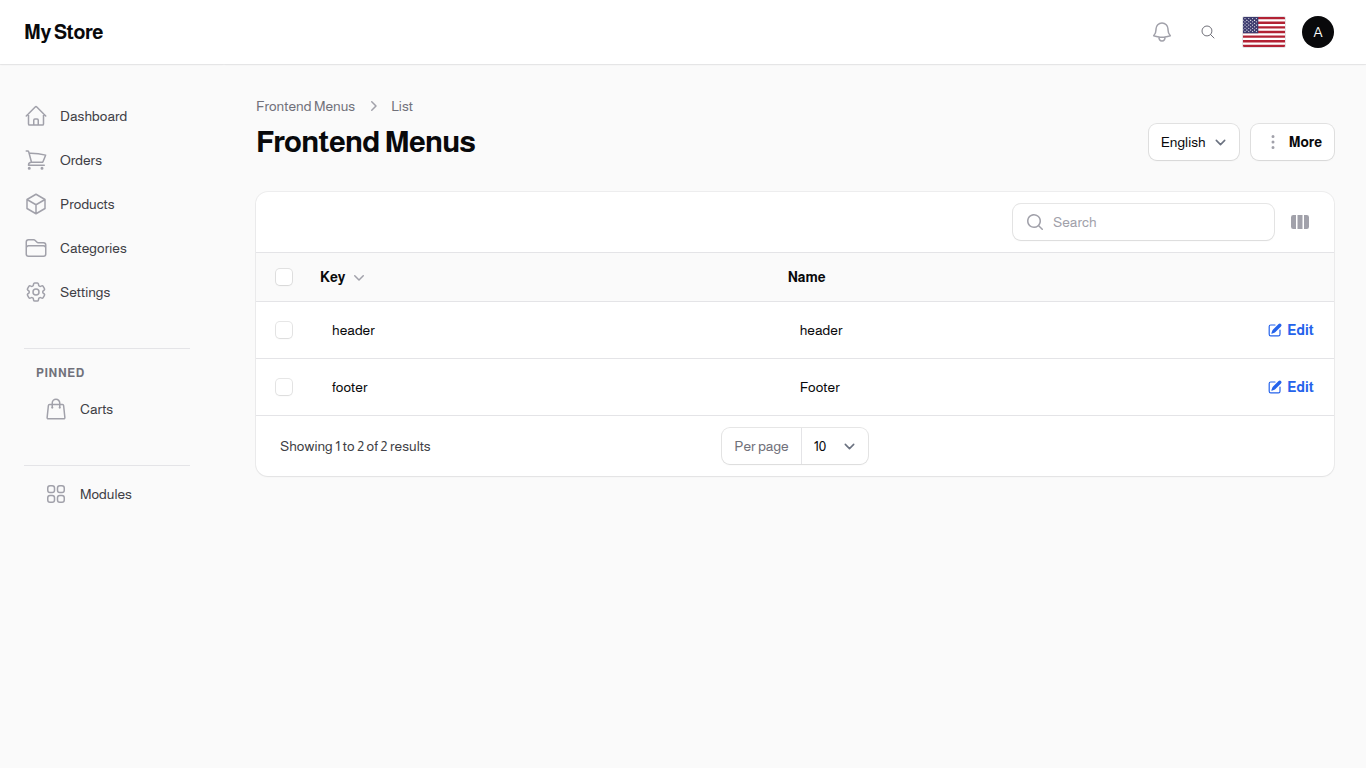
The Key column says which menu a row is. Menus are not added or deleted here: you change the links inside them.
Open a menu
- Click Edit on the menu's row.
- The Name is for your own reference. The links are in the Menu Items table under it.
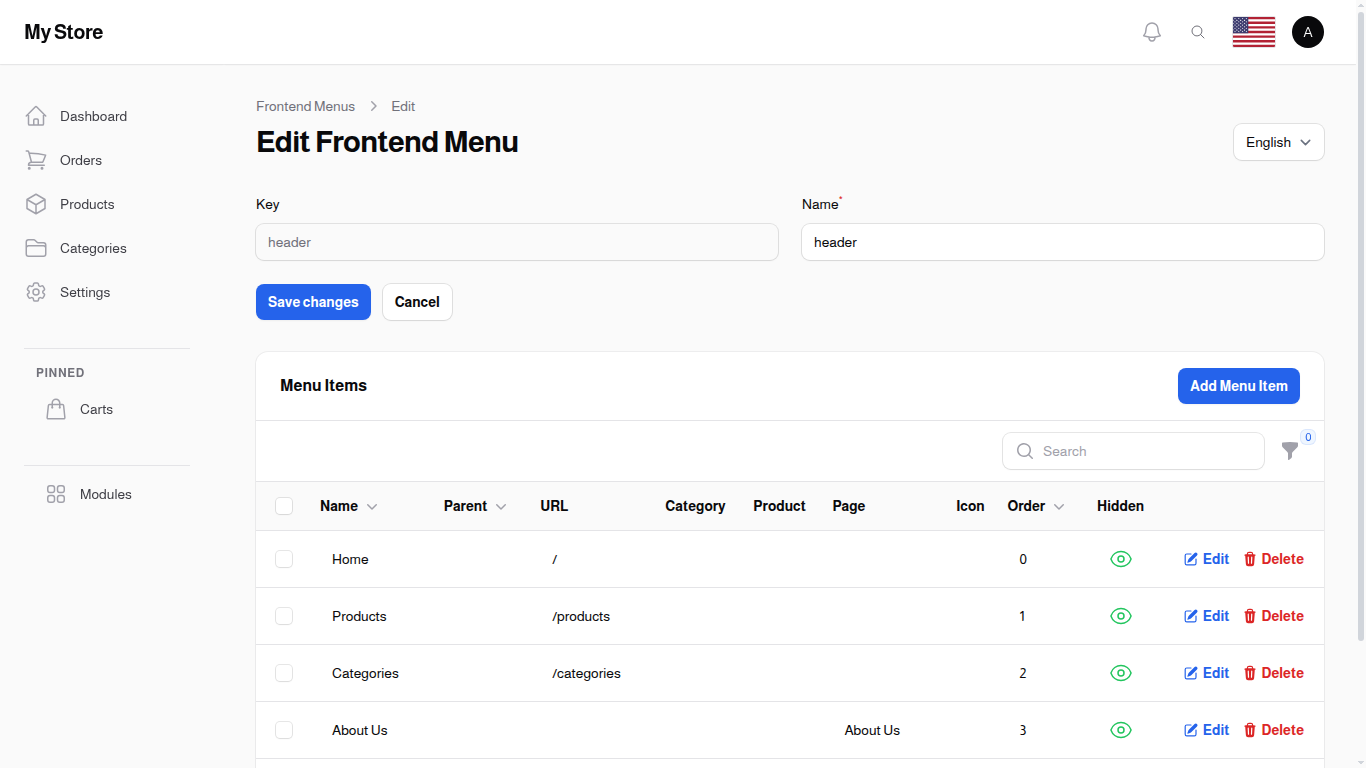
The Hidden column shows whether a link is on the storefront: click the eye to hide or show it. The Visibility filter lists only hidden or only visible links.
Add a link
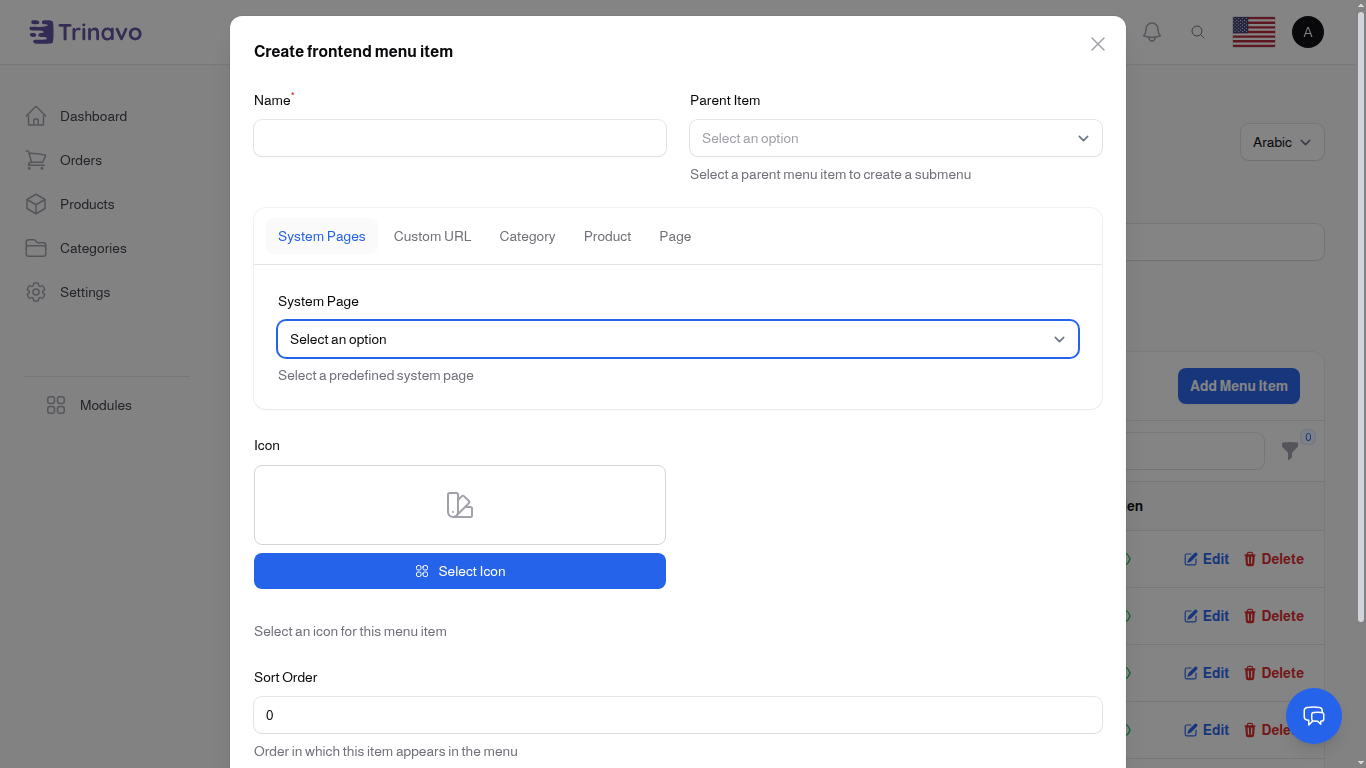
- In Menu Items, click + (Add Menu Item).
- Type the Name customers see.
- Choose where it goes, using one of the tabs:
- System Pages: a store page such as Home, Products, Cart, My Account or My Orders.
- Custom URL: any address. The magnifier (Choose a link) picks one of your own products, categories, pages, blog posts or brands for you.
- Category, Product or Page: one of yours, chosen from a list.
- Pick an Icon if you want one, then click Create.
| Field | What it does |
|---|---|
| Parent Item | Puts this link in the dropdown of another link, as a submenu. Empty makes it a top-level link. |
| Show Sub Categories | On the Category tab: the link opens a dropdown with the category's subcategories. |
| Hide | Keeps the link but takes it off the storefront. |
The footer shows only top-level links, as plain words: submenus and icons appear in the header menu.
Show a large dropdown
A top-level link in the header can open a wide panel of categories instead of a short list.
- Open the link with Edit, or add a new one.
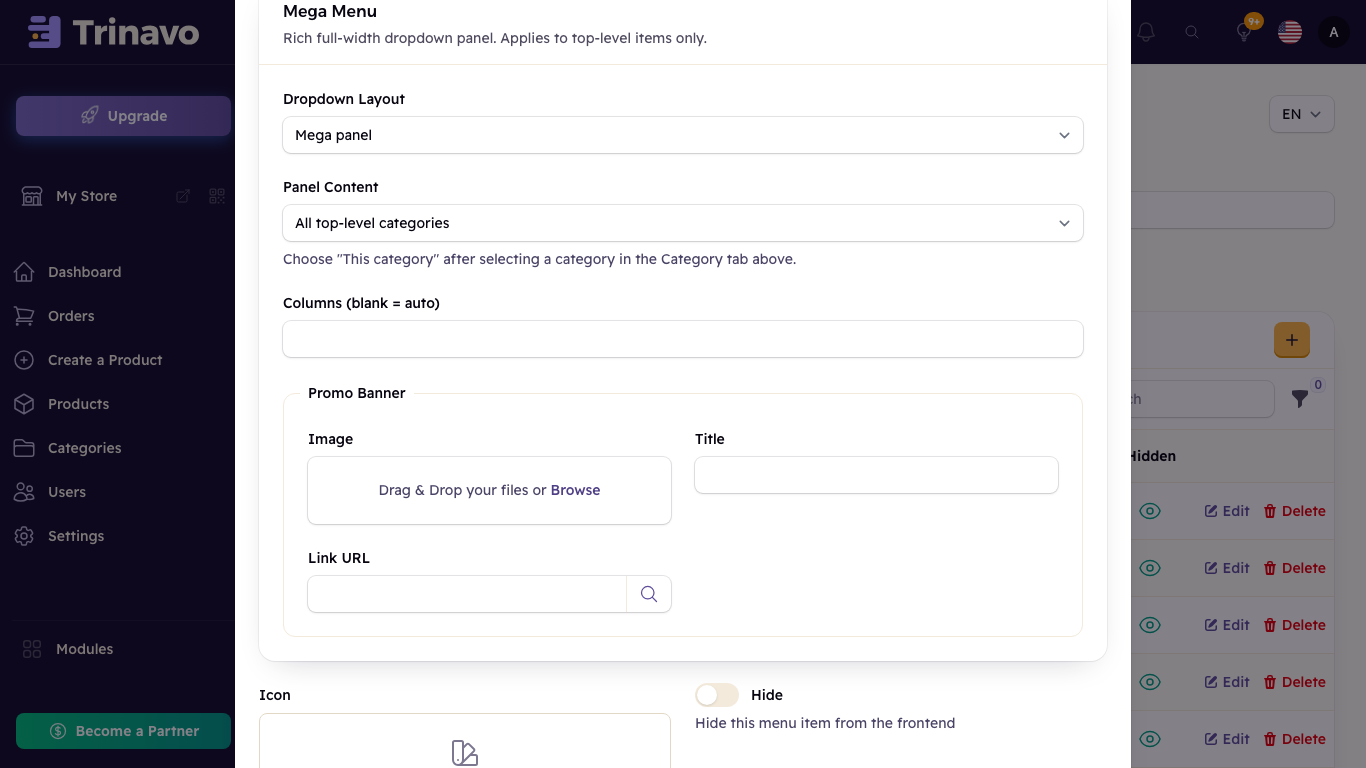
- In Mega Menu, set Dropdown Layout to Mega panel.
- Choose the Panel Content: All top-level categories, or This category (2 levels) when the link points to a category on the Category tab.
- Fill the rest if you need it, then save.
| Field | What it does |
|---|---|
| Columns (blank = auto) | How many columns the panel has, from 2 to 6. |
| Show Featured Products column | Adds a column with a few featured products of the linked category. Offered with This category (2 levels). |
| Promo Banner | A picture with a title and a link, shown in the panel. |
Change the order of links
- Click the up-and-down arrows button (Reorder records) above the Menu Items table.
- Drag the rows into the order you want.
- Click the button again (Finish reordering records).
Translate the links
The language switcher at the top of the menu's page changes which language you see and type in. Open each link in each language your store uses and fill its Name.
Edit or delete a link
Click Edit on the link's row to change it, or Delete to remove it. Tick several rows to delete them together.
You can also change both menus from your storefront: in edit mode, a gear appears beside the header menu and beside the footer links, and opens the same links.