Mail Settings
Connect your own email account, so the emails your store sends (order updates, password codes, reminders) come from your address. Until you do, they go out from Trinavo's mail server.
Where to find it
Click Settings in the sidebar, then the Mail Settings card. It is also under Modules → Settings → Mail Settings.
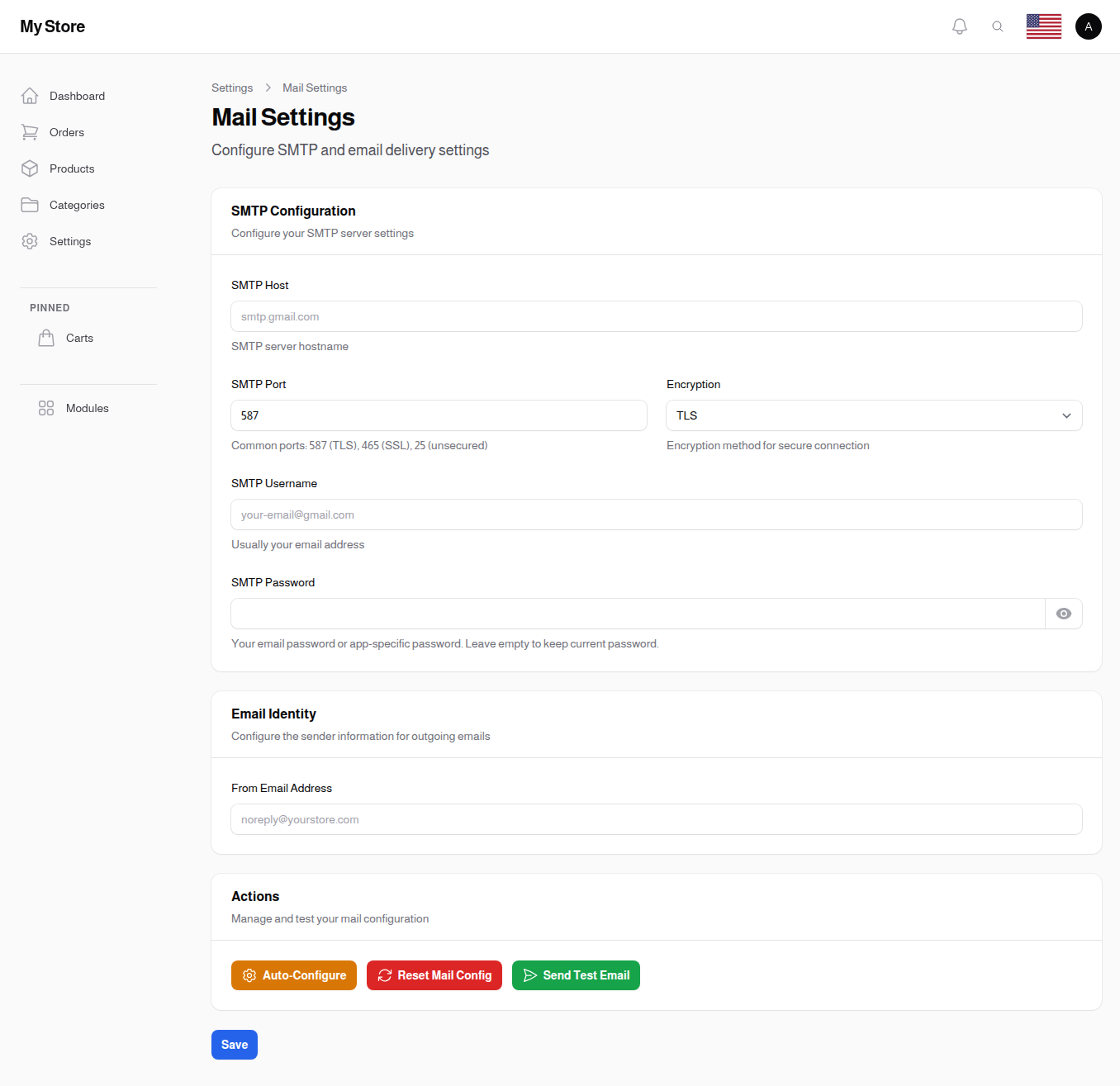
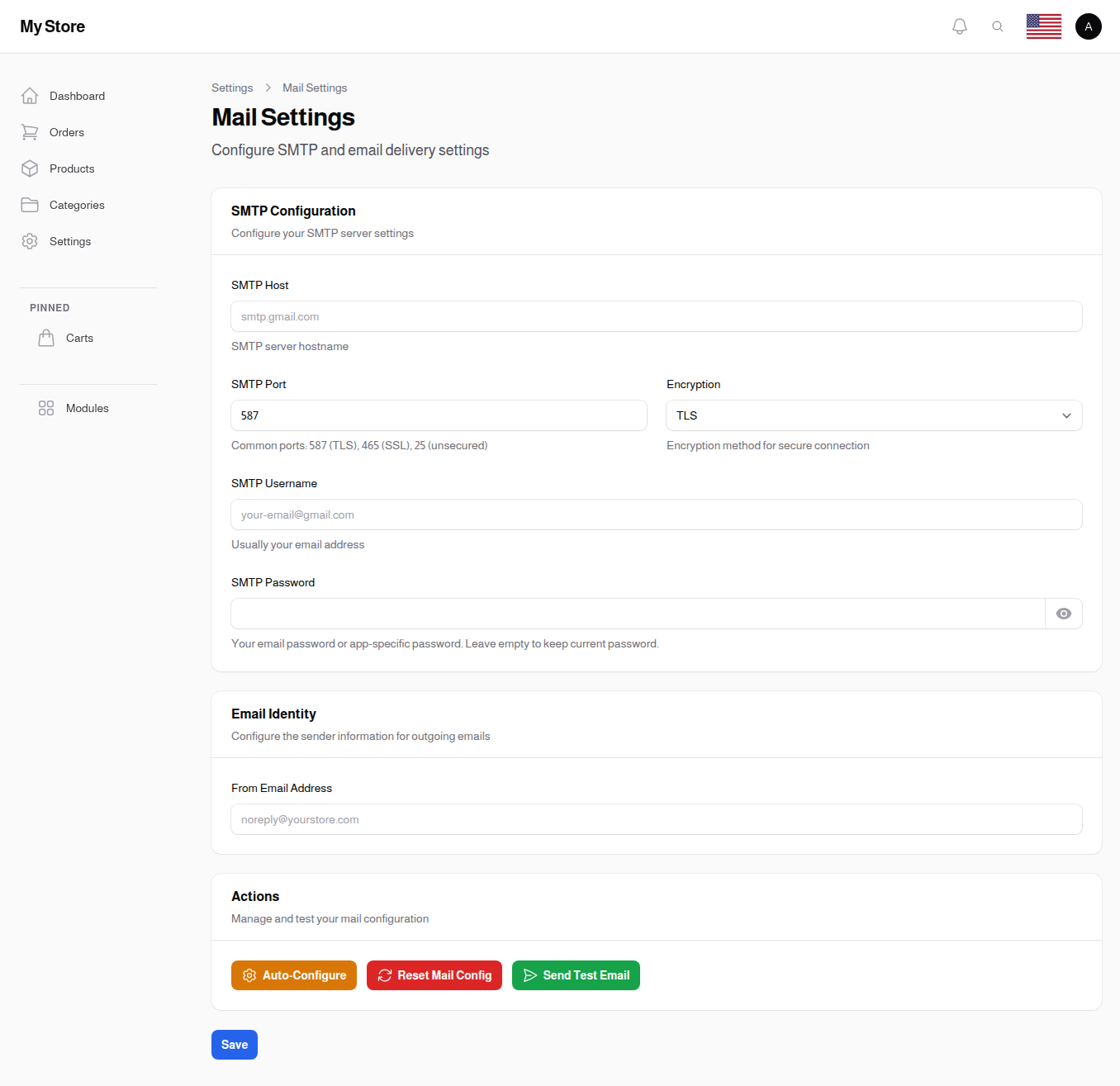
On the free plan the fields are greyed out and a note at the top offers an upgrade: your store keeps sending from Trinavo's mail server.
Connect your email account
Your email provider (your hosting company, Google Workspace, Zoho and the like) gives you the values below; look for "SMTP settings" in its help pages.
- Under SMTP Configuration, fill in the SMTP Host, the SMTP Port and the Encryption your provider gives. The port and encryption go together: 587 with TLS, 465 with SSL.
- Fill in the SMTP Username, usually your full email address, and the SMTP Password. Some providers, Gmail among them, want an app password made for this rather than your usual one.
- Under Email Identity, type the From Email Address your customers will see. Use an address of the same account.
- Click Save.
The emails carry your Shop Title from General Settings as the sender's name.
The SMTP Password field is always empty when you open the page. Leave it empty to keep the saved password; type in it only to change it.
Send a test email
The test uses the saved settings, so save first.
- Under Actions, click Send Test Email.
- Type the address to send to in Test Email Address, and submit.
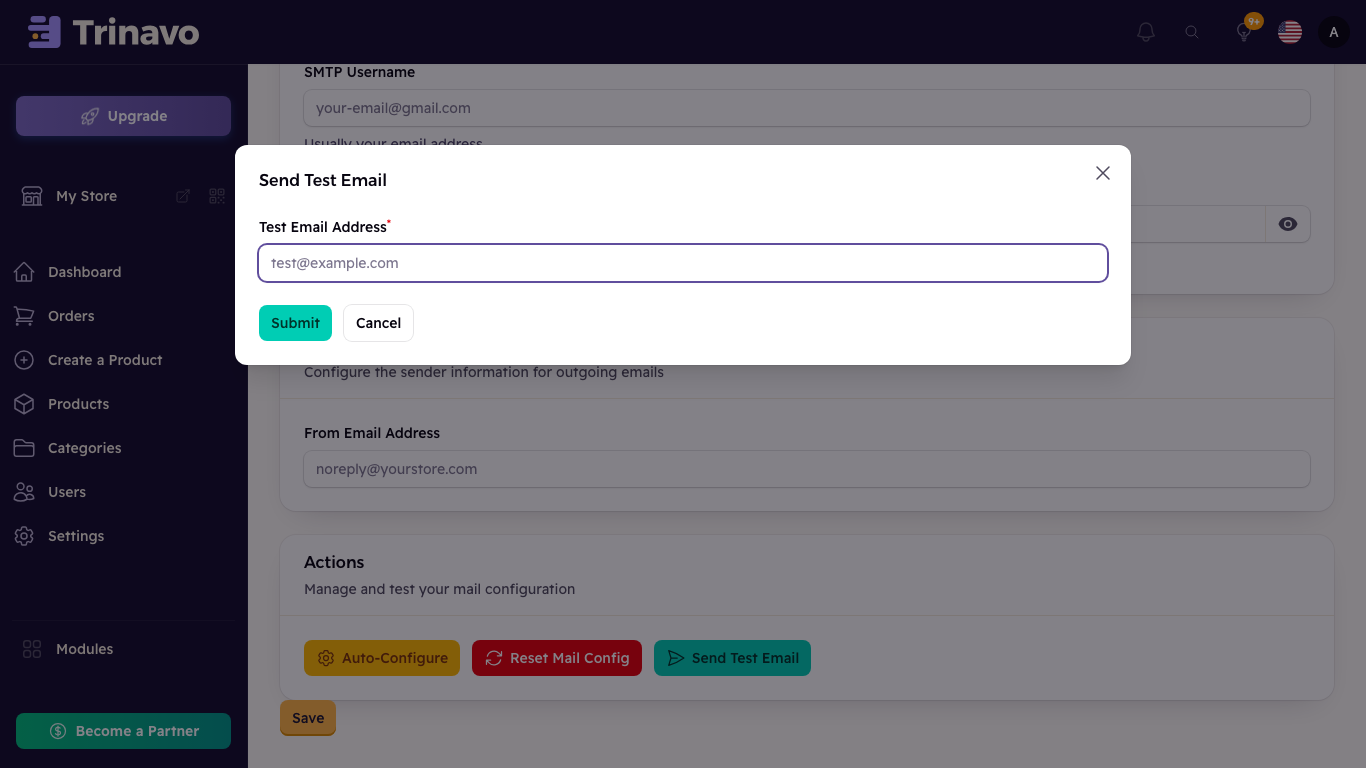
A message tells you the email was sent, or why the mail server refused it. Check that address's inbox, and its spam folder.
Once your store sends through your account, a mail server that starts refusing (a changed password, an expired account) is reported to your super admins in their notifications, at most once an hour.
Go back to Trinavo's mail server
- Under Actions, click Reset Mail Config.
- Confirm. Every field on the page is emptied and saved at once, and your store sends from Trinavo's mail server again.
The Auto-Configure button is shown only to the Trinavo team, who use it to set up a mailbox for your store.