Introduction
Your store has two sides: the storefront your customers shop in, and the admin panel where you run it. This page shows how to get around the admin panel and what to set up first.
Where to find it
- Open your store's address with
/adminat the end, for exampleyourstore.com/admin. - Sign in with your email and password. To sign in with your phone number instead, choose Login by mobile above the fields.
- You land on the Dashboard.
Find your way in the sidebar
The sidebar on the left (on the right in Arabic) holds the screens you open every day. Everything else is in the Modules panel.
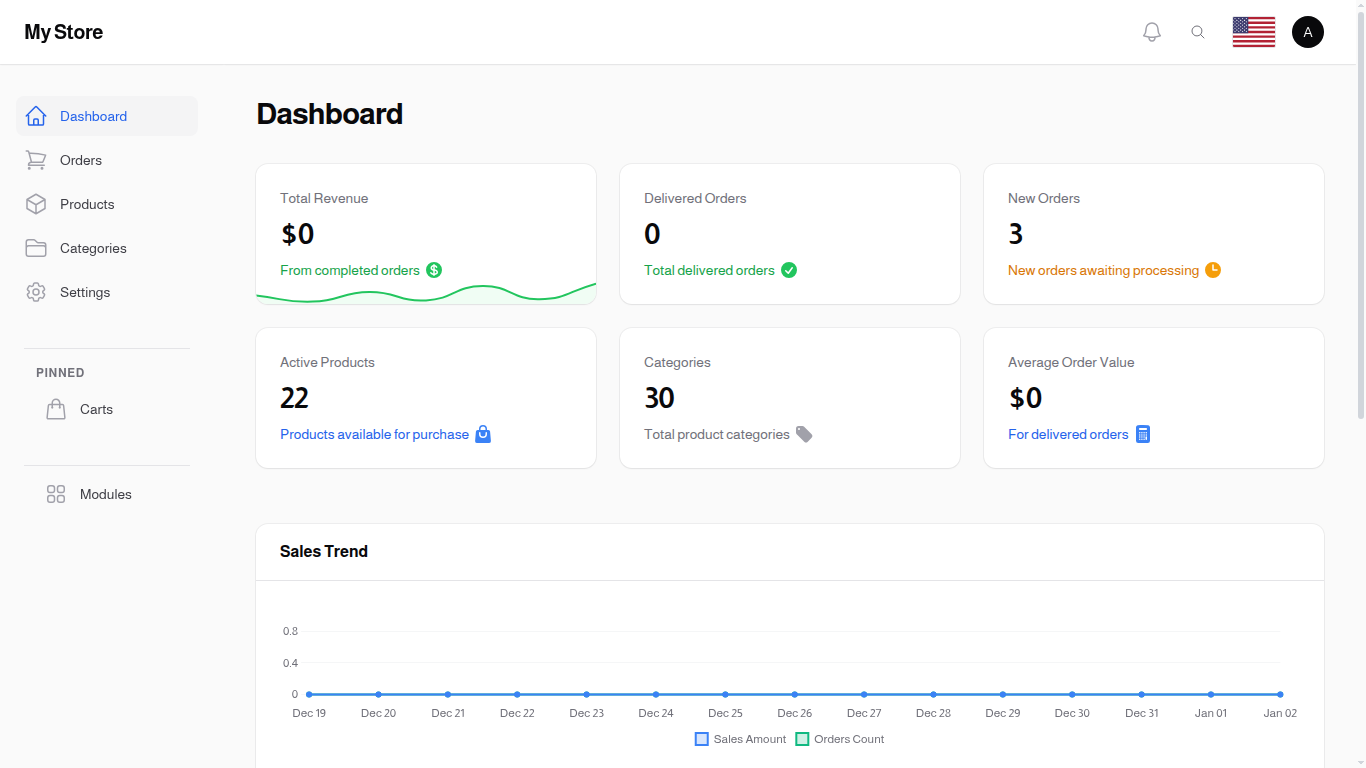
| Entry | What it opens |
|---|---|
| My Store | Your storefront, in a new tab. See Open your store. |
| Dashboard | Your numbers, latest orders and setup steps. See Dashboard. |
| Orders | Every order. See Orders. |
| Create a Product | A new product form. See Products. |
| Products | Your product list. |
| Categories | See Categories. |
| Users | Customers and staff. See Users. |
| Settings | All your store's settings on one screen. See Settings. |
| Pinned | The screens you pinned yourself. See Pin a screen to the sidebar. |
| Modules | Every other screen, grouped by subject. |
You only see the screens your role allows. On a phone, the sidebar opens from the menu button at the top of the screen.
Open any screen from Modules
- Click Modules at the bottom of the sidebar.
- Click a group to open it, then click the screen.
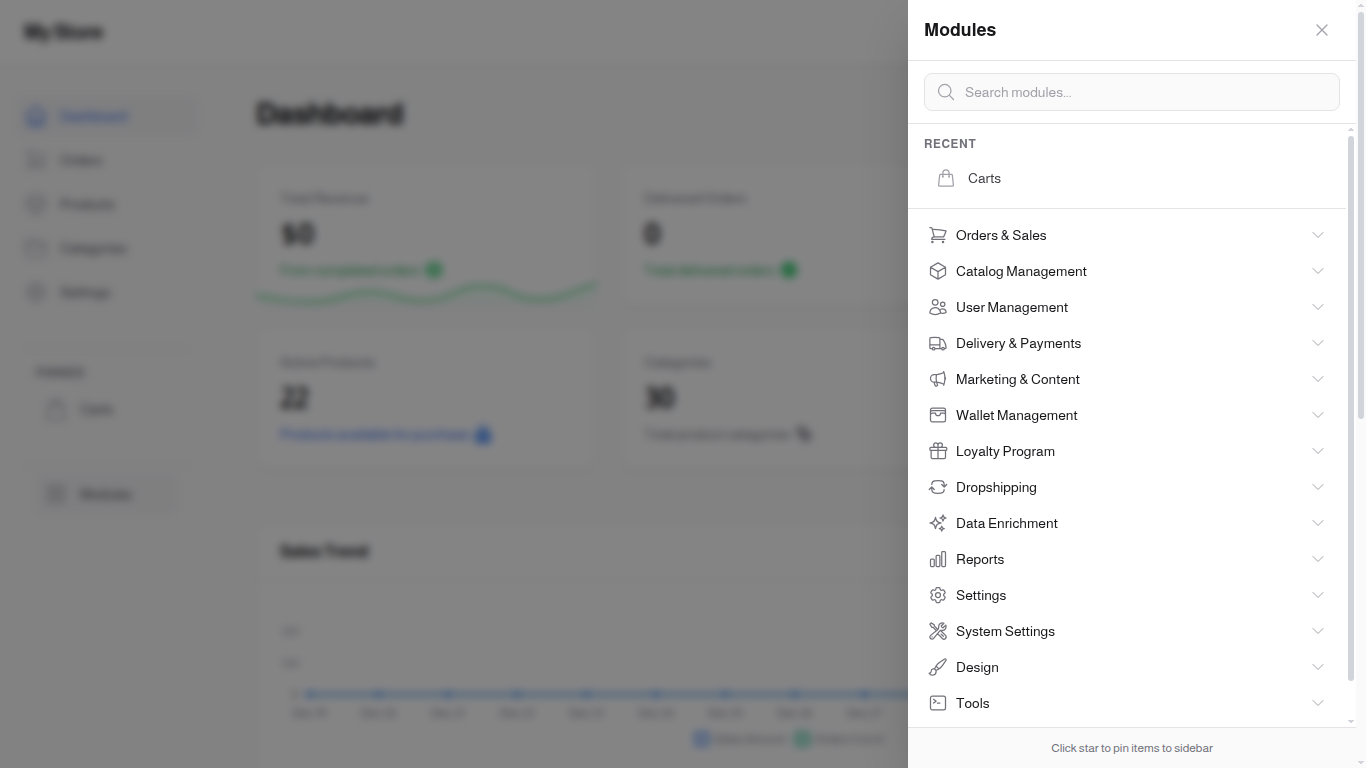
At the top of the panel:
- Most used: shortcuts to the screens owners open most after setting up, such as Delivery Methods, Payment Methods and Plugins.
- Recent: the last five screens you opened from the panel or from your pinned screens. The × next to one (Remove from recent) removes it from the list.
To find a screen without knowing its group, type part of its name in Search modules.... The groups and screens that do not match are hidden as you type.
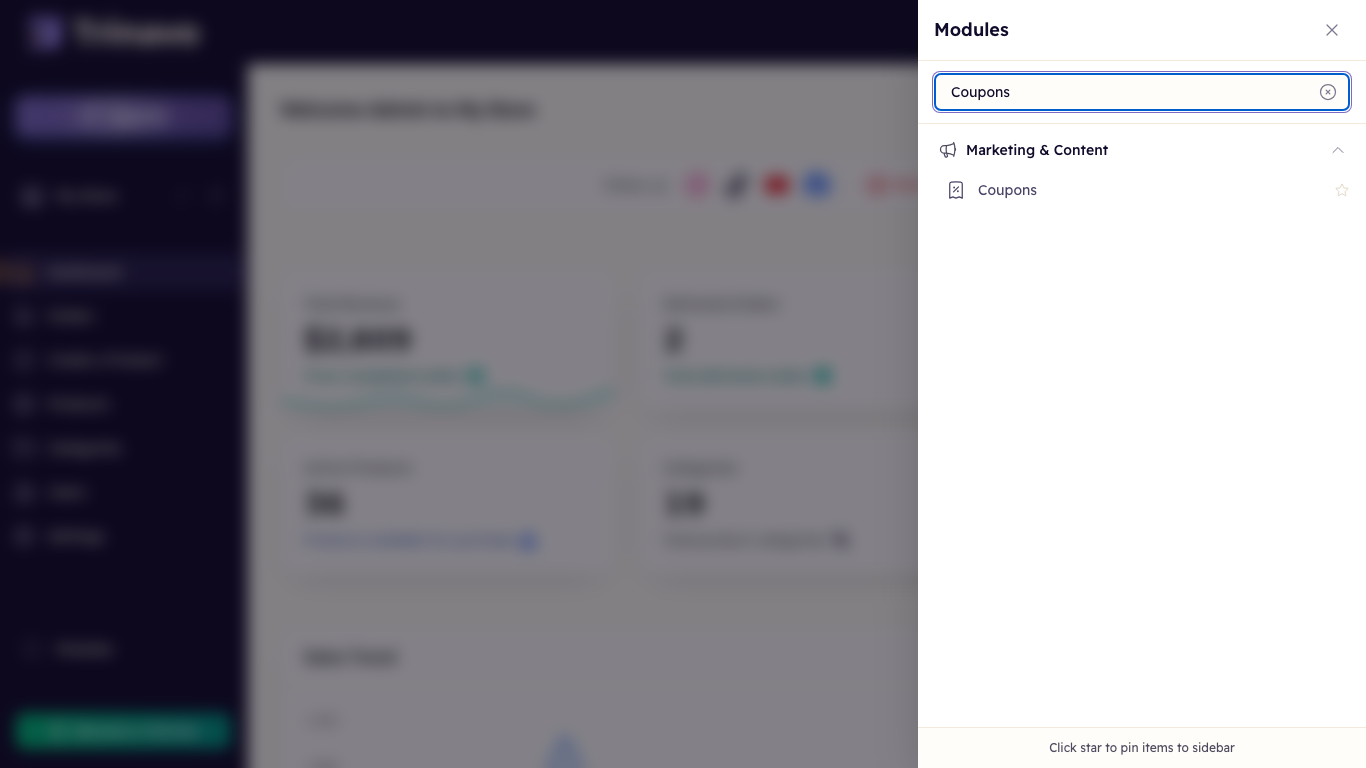
Pin a screen to the sidebar
- Click Modules.
- Find the screen, in its group or by searching.
- Click the star next to its name (Pin to sidebar).
The screen appears under Pinned in the sidebar right away. Pins are yours alone: other staff keep their own.
To unpin a screen, click its star again in the Modules panel, or point at it under Pinned and click the × (Unpin).
Open your store
Click My Store at the top of the sidebar to open your storefront in a new tab, as your customers see it.
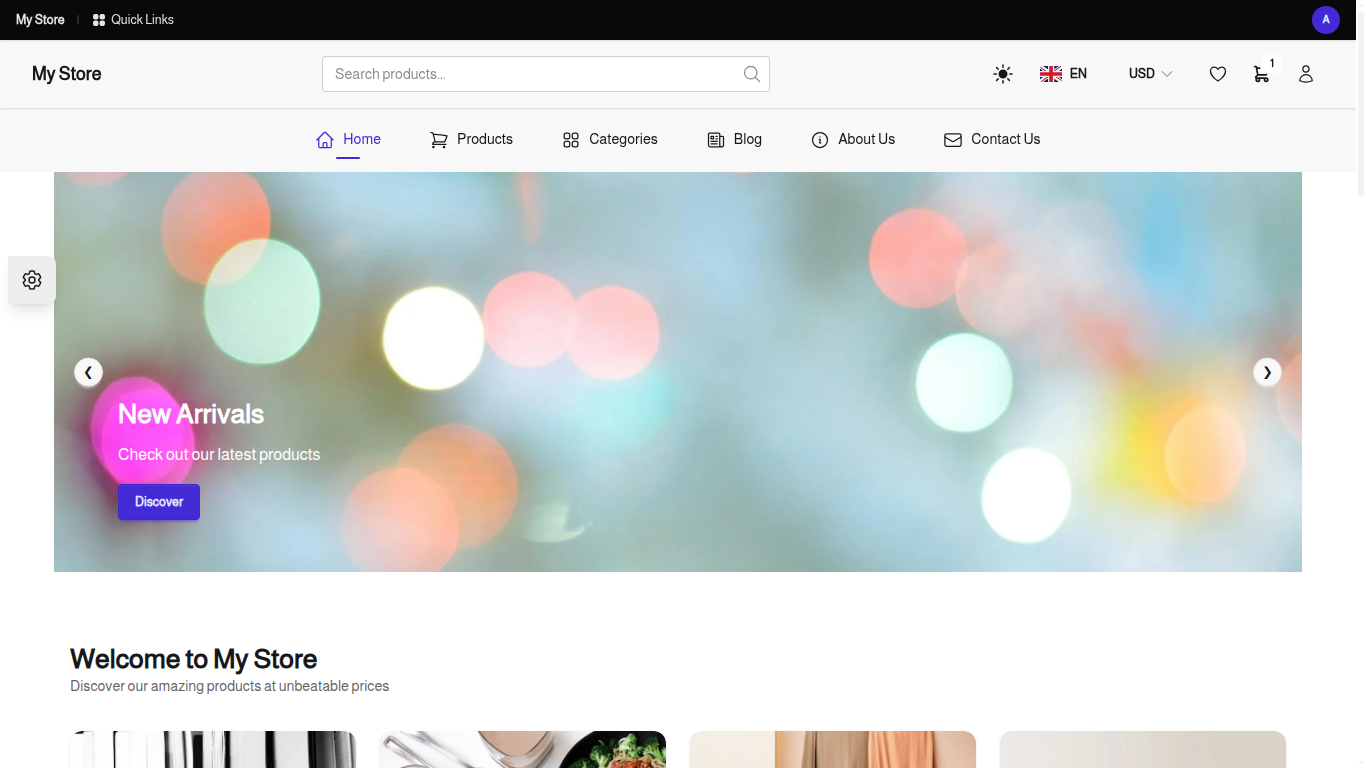
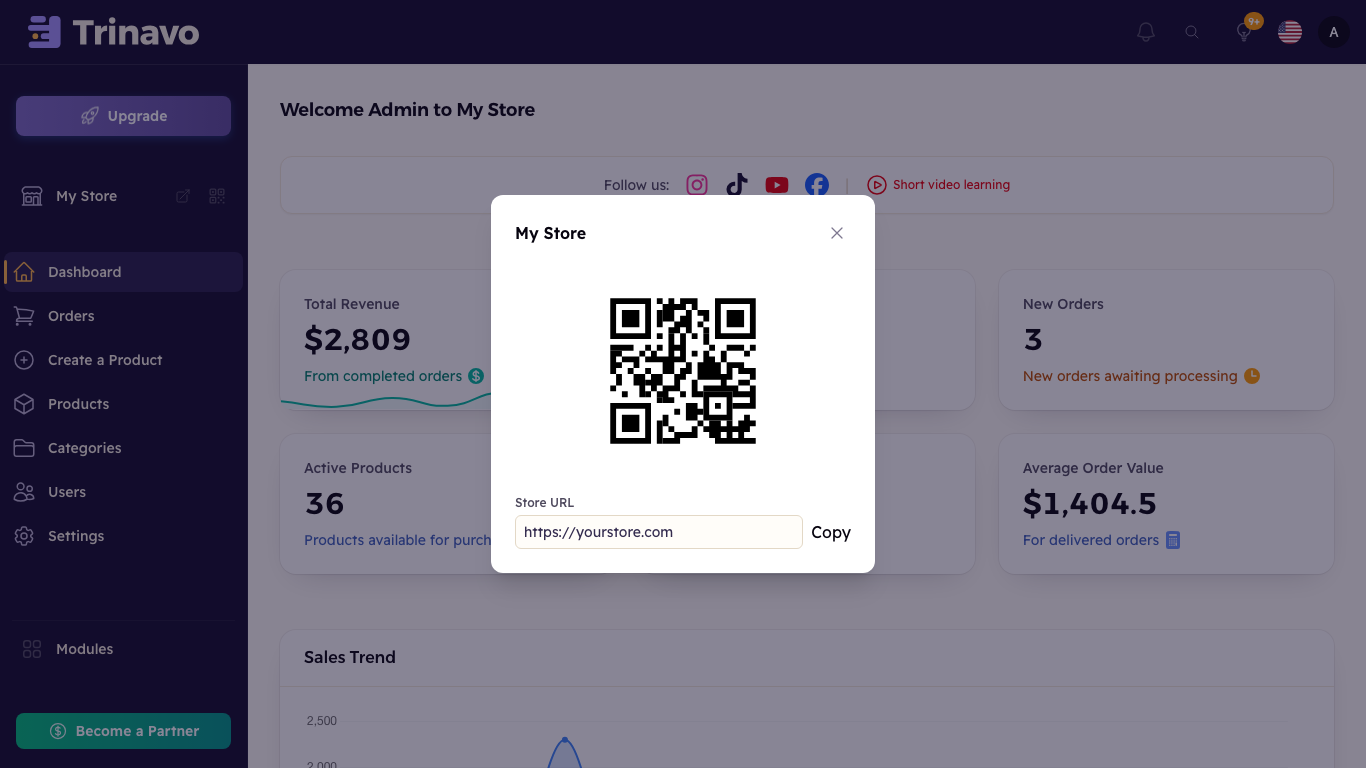
The QR button next to My Store opens your store's QR code and its Store URL. Print the code for your shop window or packaging, or click Copy to paste the address into a message.
Change the admin language
- Click the flag at the top of the screen (Change Language).
- In Choose your language, click a language.
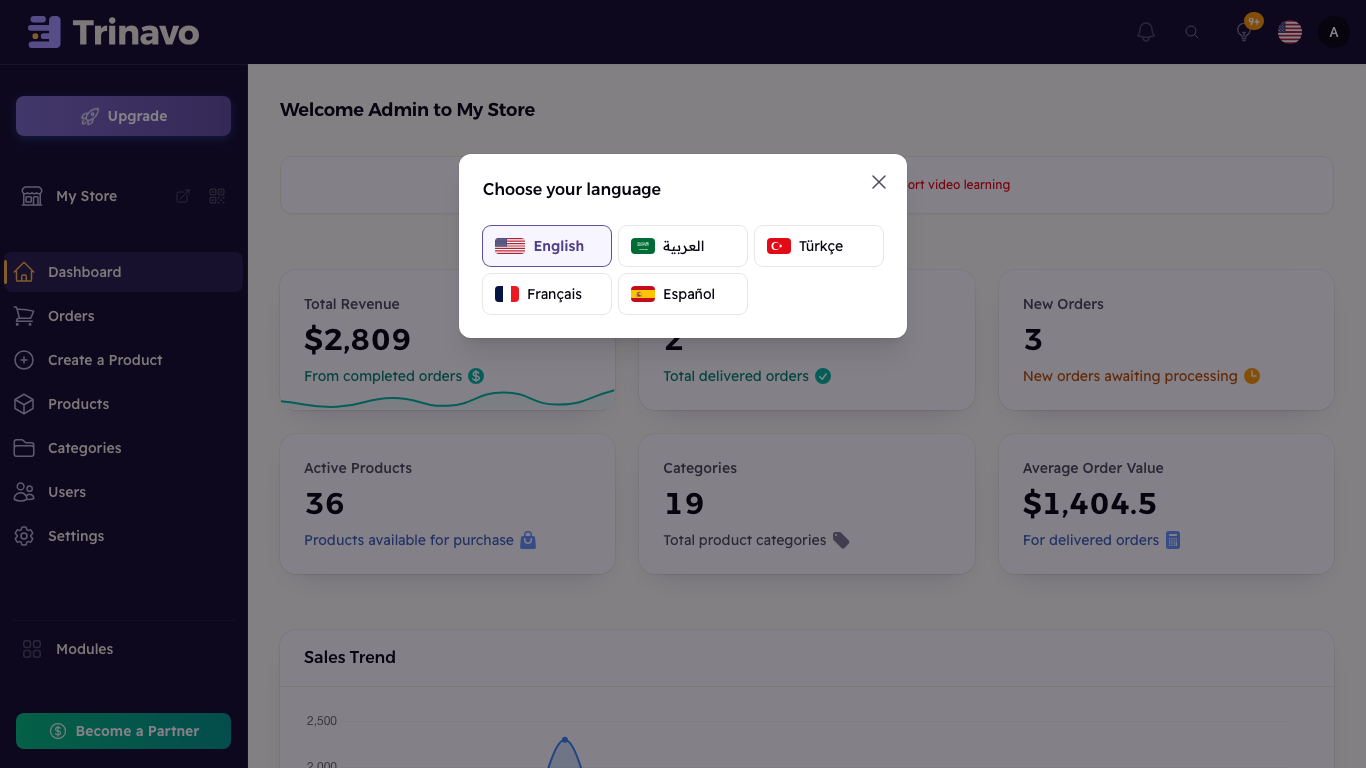
This changes the admin panel for you only. The languages your customers can pick in the store are set in Languages.
Use the top bar
Next to the flag:
- The magnifier (Quick Search, or Ctrl+K) finds any screen you can open by its name.
- The light bulb (Did you know?) shows a tip about a feature. Show another moves to the next tip, and Got it, don't show again hides that tip for good.
- The bell lists your notifications, such as a new order. Choose what reaches you in Notification Settings.
- Your picture opens your profile menu.
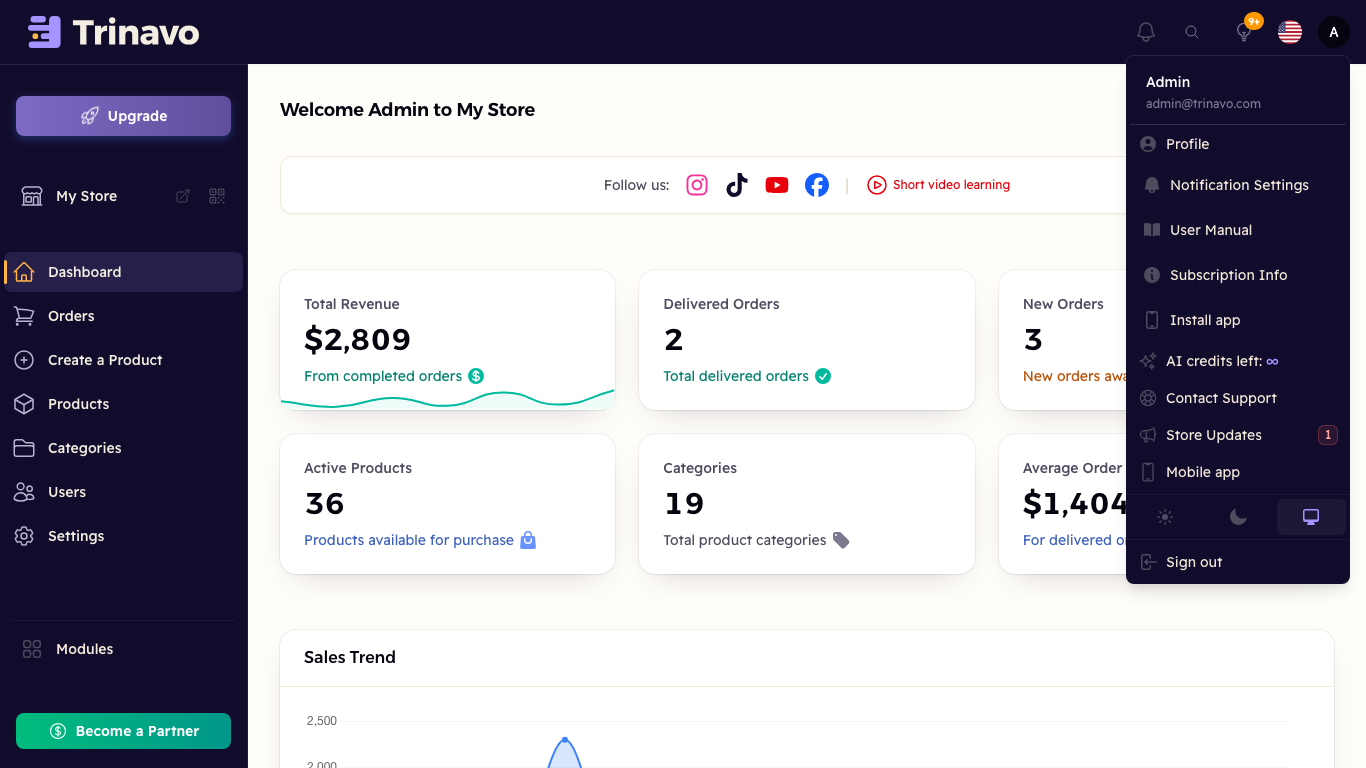
| Menu item | What it opens |
|---|---|
| AI credits left | How many AI credits you have left. See AI Credits. |
| Contact Support | A message to the Trinavo team. A red number shows replies you have not read. |
| Store Updates | What is new in your store. See Store Updates. |
| Mobile app | The phone app and a one-tap sign-in to it. |
| Notification Settings | Which notifications you receive, and how. |
| User Manual | This manual. |
| Subscription Info | Your plan's details. Only the store owner sees it. |
| Install app | Adds the admin panel to your phone's home screen or your computer, so it opens in one tap. Where the browser cannot install it directly, it tells you which menu to use. Hidden once the panel is installed. |
The same menu switches between light and dark mode, and signs you out (Sign out).
Set up your store
The Dashboard's Setup Guide ticks these off as you go:
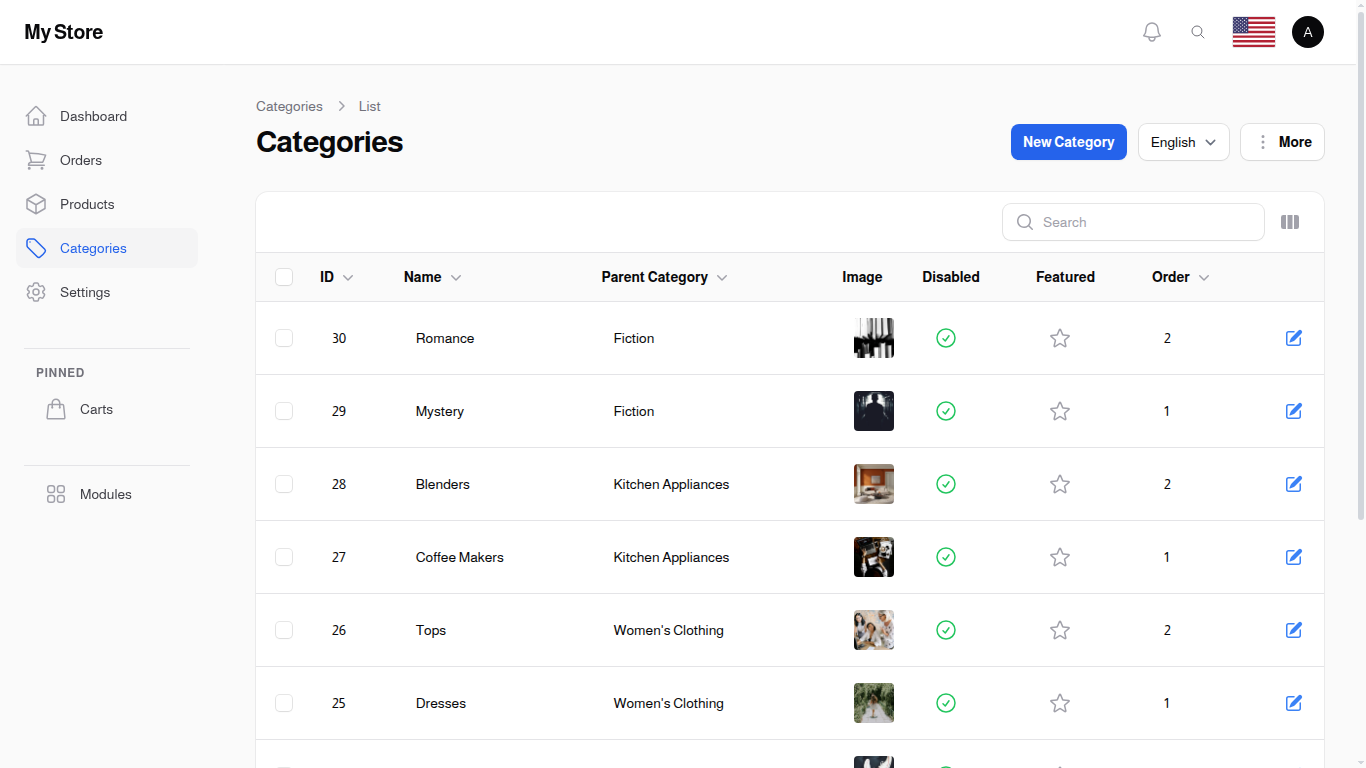
- Organise your products into Categories.
- Add your products in Products, or click Create a Product in the sidebar.
- Choose how orders reach customers in Delivery Methods.
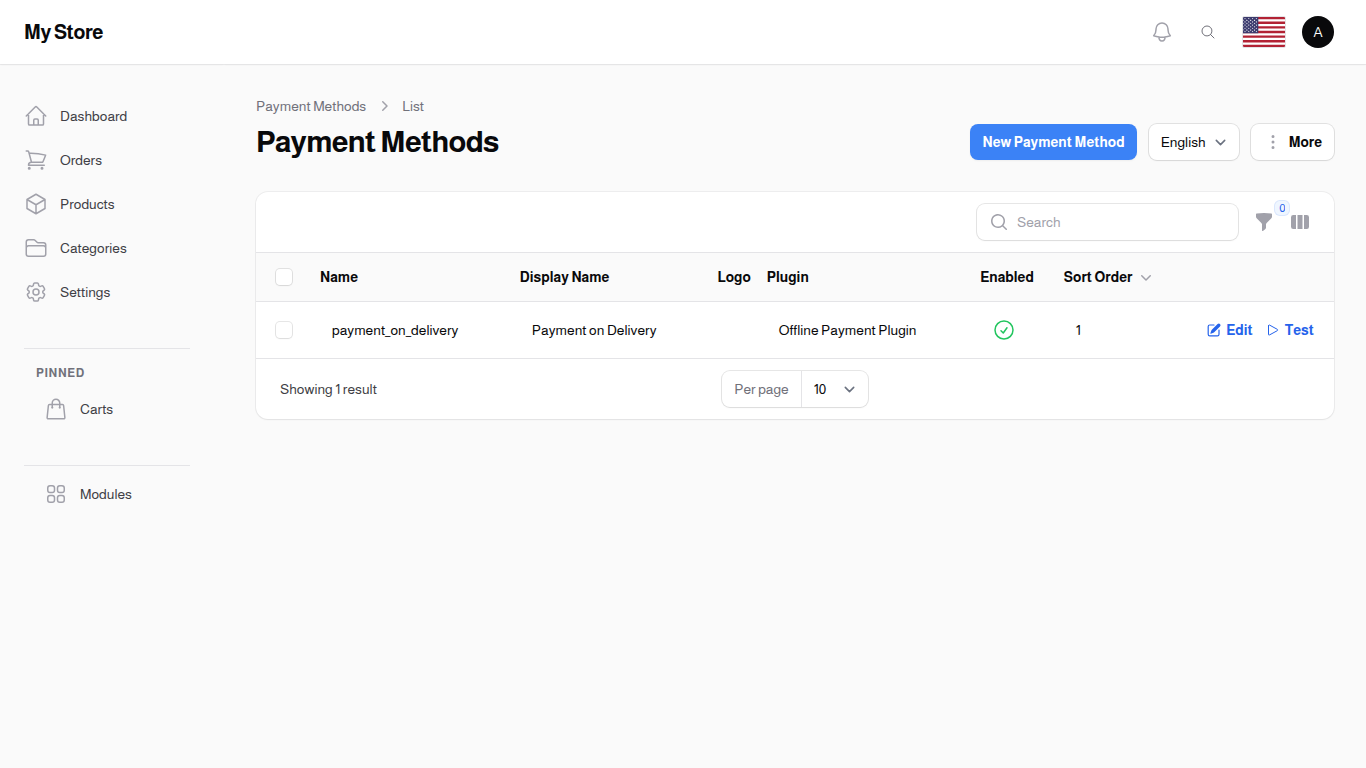
- Choose how customers pay in Payment Methods.
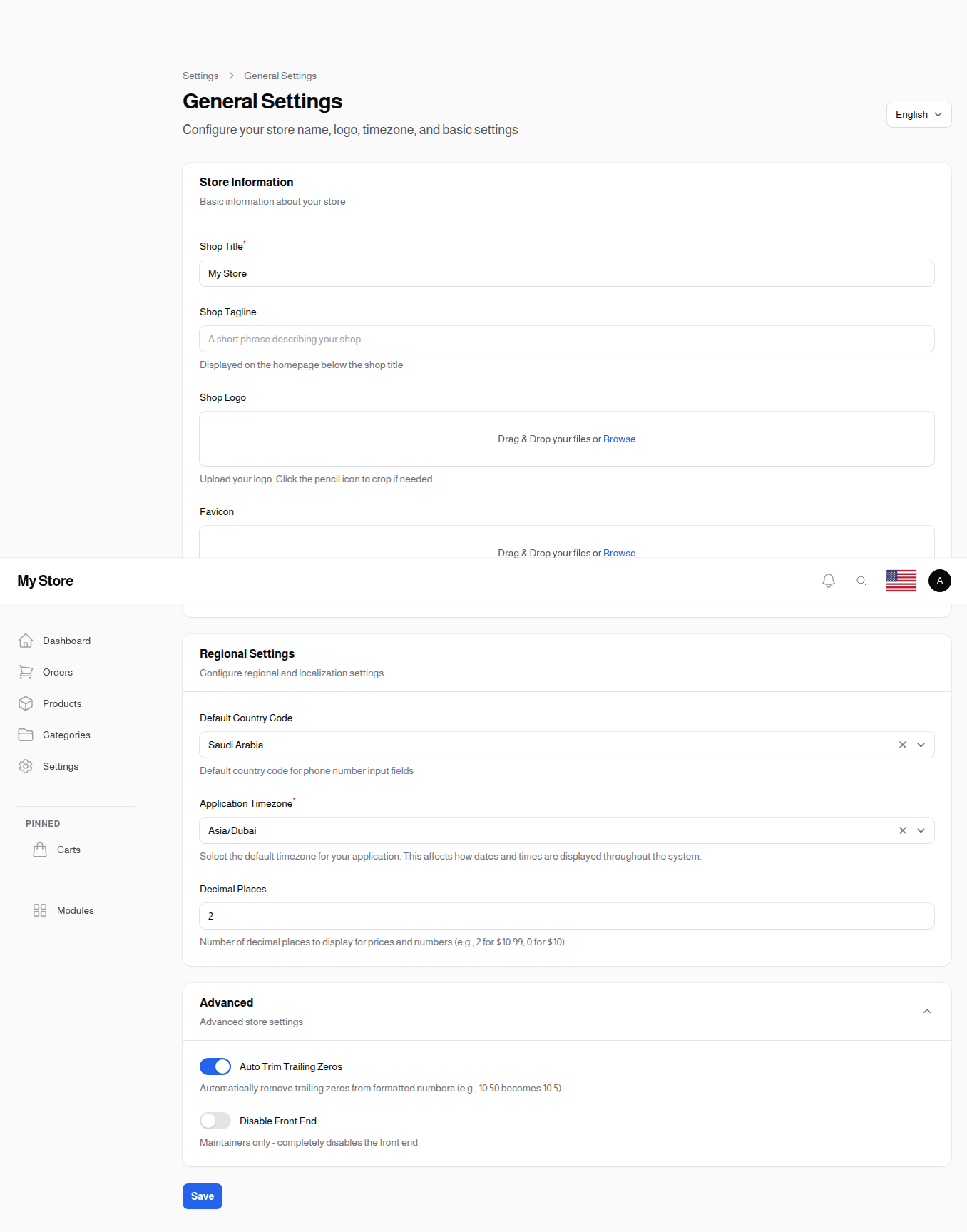
- Set your store name, logo, country and time zone in General Settings, and its look in Appearance Settings.
After your first orders
- Work through new orders in Orders.
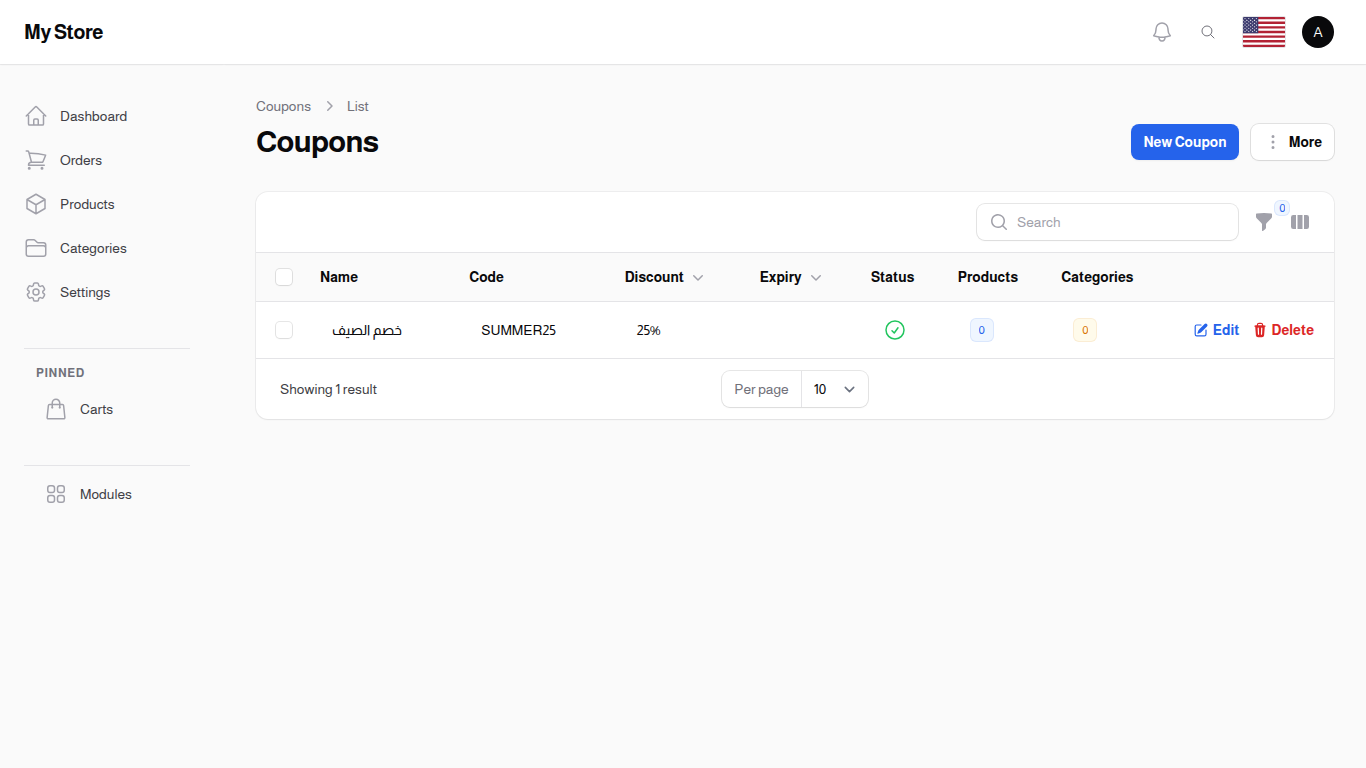
- Bring customers back with discount codes in Coupons.
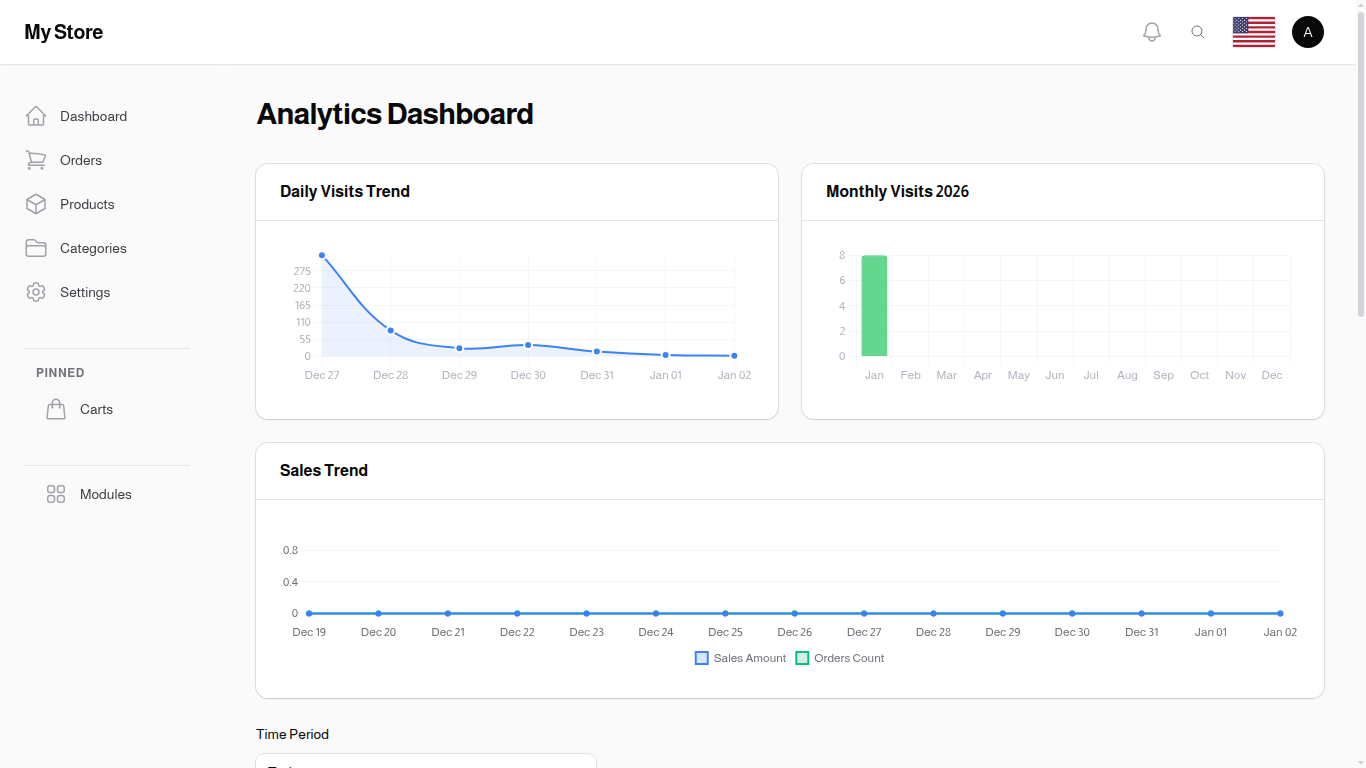
- See how many people visit, what they look at and how much you sell in Analytics.
Related
- Dashboard
- Settings
- Roles: what each staff member can see
- My Account