User Wallets
Watch the video
Wallet Payment
Watch the:
A wallet holds money a customer has with your store: deposits they made, refunds, transfers from other customers and credit you add by hand. They spend it at checkout. Every customer gets a wallet in your main currency the moment their account is created.
Where to find it
Open Modules → Wallet Management → User Wallets.
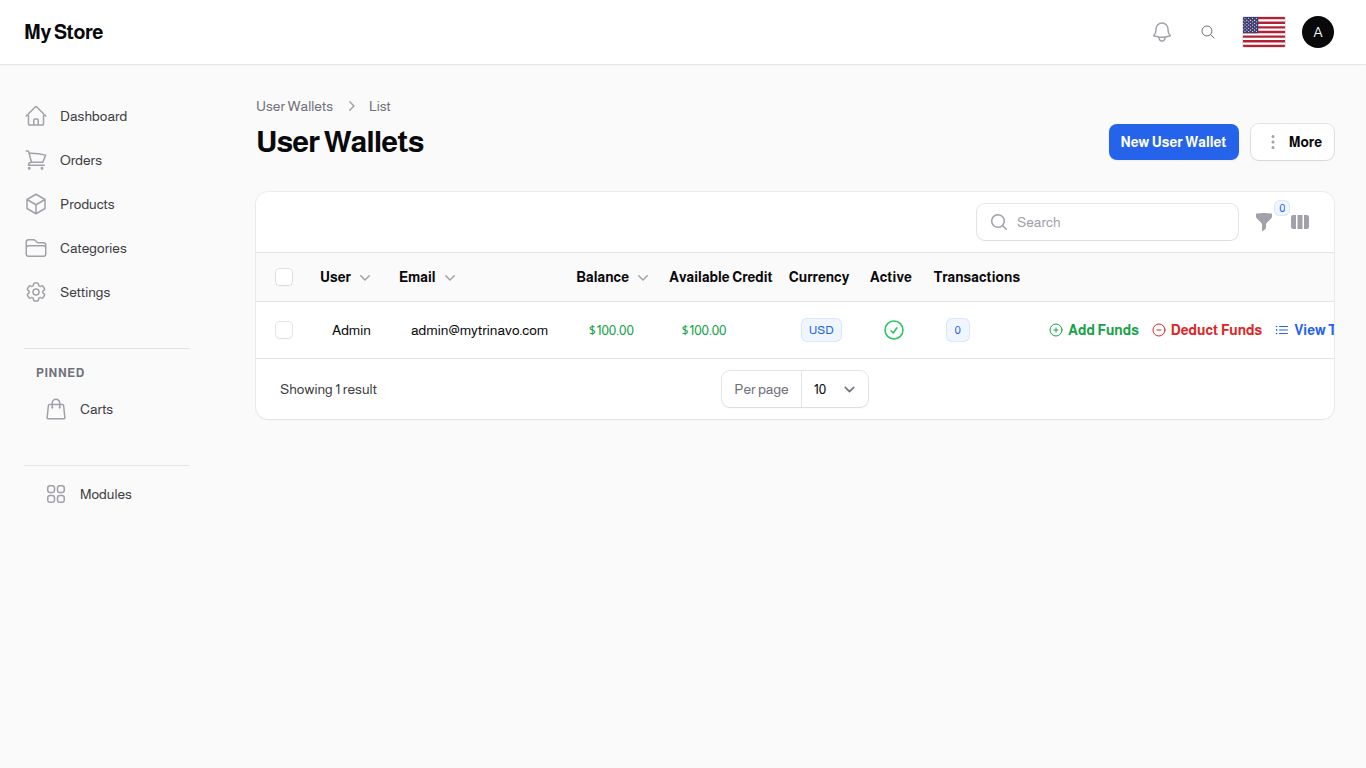
Balance is red below zero. Available Credit is what the customer can still spend: the balance plus any credit limit you gave them. The number in Transactions opens that wallet's history. Click the icon in Active to switch it.
Search by the customer's name, email, mobile or ID. The filters show Active or Inactive wallets, one Currency, one User, wallets that Has Balance above zero, and deleted wallets. The customer's Mobile, the Min Balance and the dates can be added from the columns button above the table.
The ⋮ menu (More) at the top holds Export, Related reports (the Wallets report) and Related settings (Wallet Settings).
Add or deduct money
- Click Add on the wallet's row, or Deduct to take money out.
- Type the amount and a Description: the reason, kept with the transaction.
- Attach a photo or PDF of the receipt in Attachment if you have one (up to 10 MB).
- Click Submit.
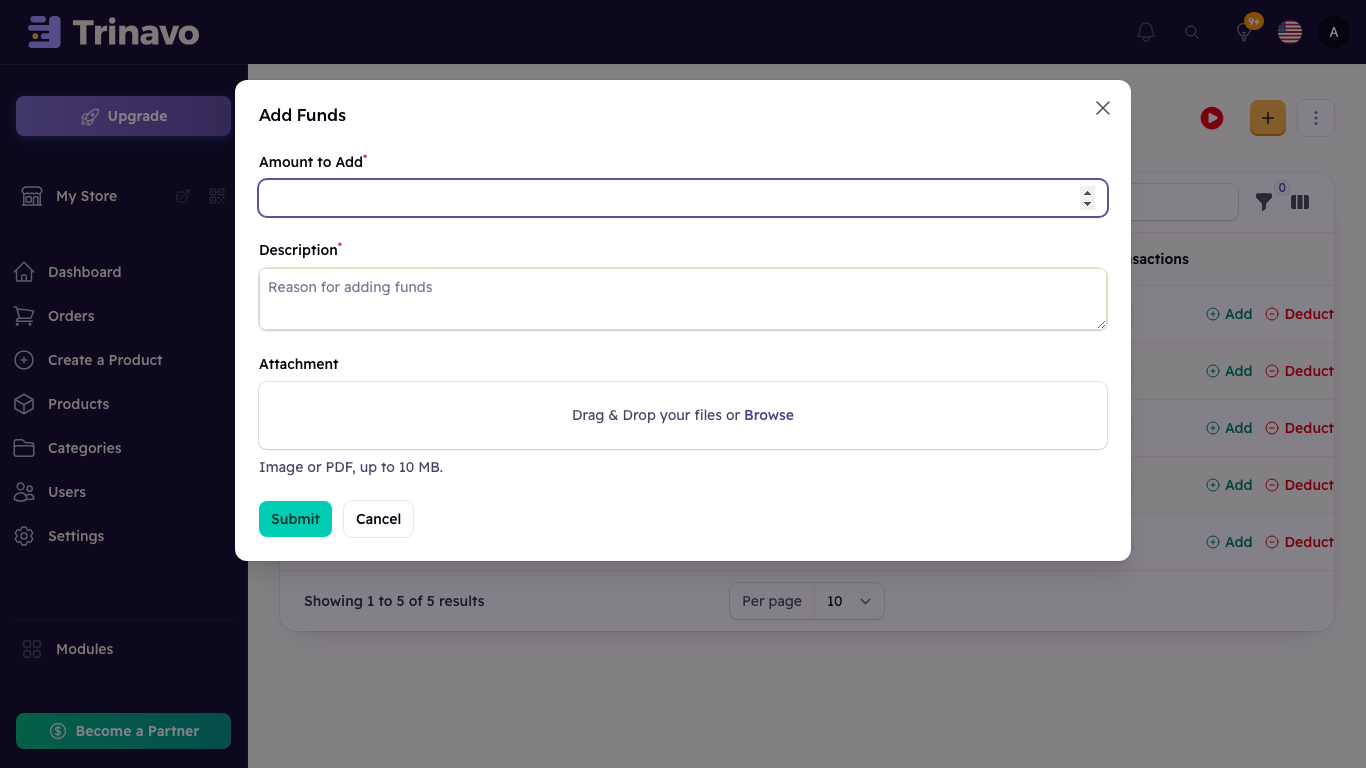
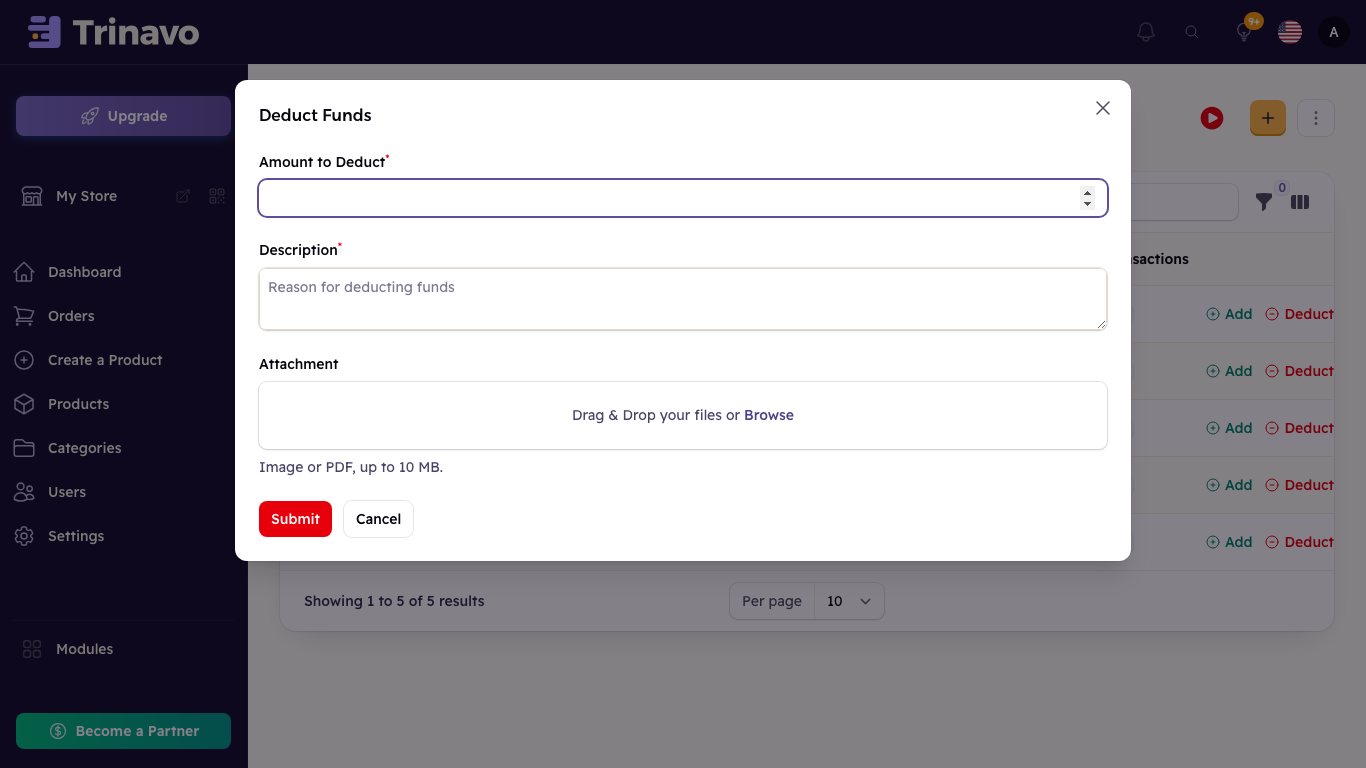
The balance changes at once and the line appears in Wallet Transactions as an Admin Adjustment. Deduct goes through even when it takes the wallet below zero, so check the amount before you confirm. The customer is not told; let them know yourself if it matters.
Attachment becomes required on both forms when Require Attachment on Balance Adjustments is on in Wallet Settings. Add Balance in a customer's row menu on Users adds money the same way, with the same rule.
Open a wallet by hand
You need this only for a second currency, or for a customer whose wallet was deleted.
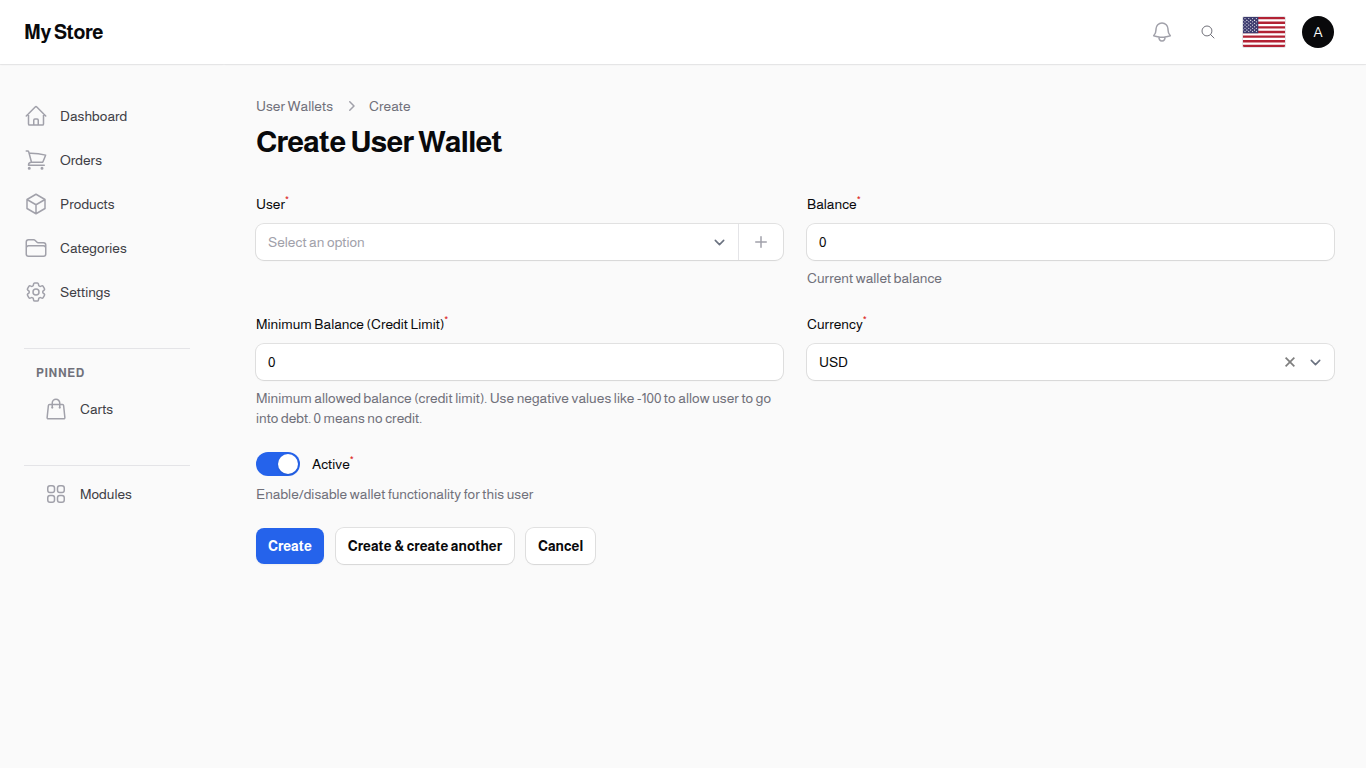
- Click + (New User Wallet).
- Pick the User, or click + beside it to add a new customer by name and email.
- Choose the Currency. Currencies the customer already has a wallet in are not offered.
- Fill in the rest (below) and click Create.
| Field | What it does |
|---|---|
| Opening Balance | Money the wallet starts with. It is written to the history as the wallet's first transaction. |
| Minimum Balance (Credit Limit) | How far below zero the customer may spend. 0 gives no credit; -100 lets them spend up to 100 more than they hold. Figures above 0 are refused. |
| Active | Shown in the list and in the Status filter. Switching it off does not stop the wallet being used. |
Change the credit limit
- Click the pencil (Edit) on the wallet's row.
- Change Minimum Balance (Credit Limit), the Currency, the User or Active.
- Click Save changes.
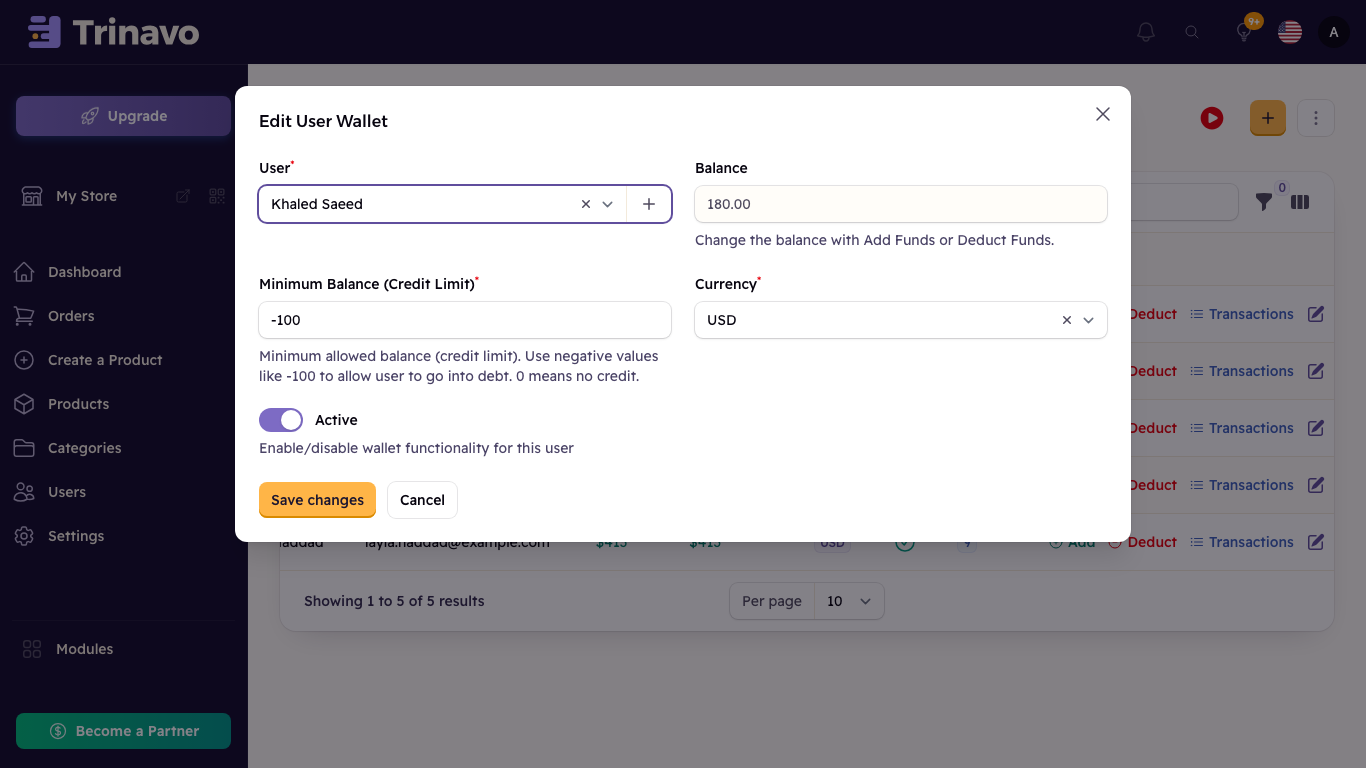
Balance is shown but cannot be typed over. Use Add or Deduct, so every change has a line in the history.
Delete and restore wallets
Tick the wallets and choose Delete selected from the bulk actions. Their transactions are hidden with them. To bring one back, turn on deleted records in the filters and click Restore: the wallet returns with its history and its balance. Force delete removes a deleted wallet for good, and works only on a wallet that has never had a transaction.
Wallets in several currencies
With Enable Multi-Currency Wallets off in Wallet Settings, each customer has one wallet in your main currency, and money in other currencies is converted into it. Turned on (a paid-plan feature), a customer gets a separate wallet for each currency they deposit, receive or are given money in, and the list shows one row per wallet.
Let customers pay with their wallet
Checkout offers the wallet once you add a payment method from the User Wallet provider in Payment Methods. The customer must be logged in and have enough available credit. When the order is in another currency, the wallet's money is converted. Customers see their balance, history and the deposit, withdrawal and transfer pages under My Wallet in their account, unless Hide Wallet from Customers is on in Wallet Settings.