Cancel Requests
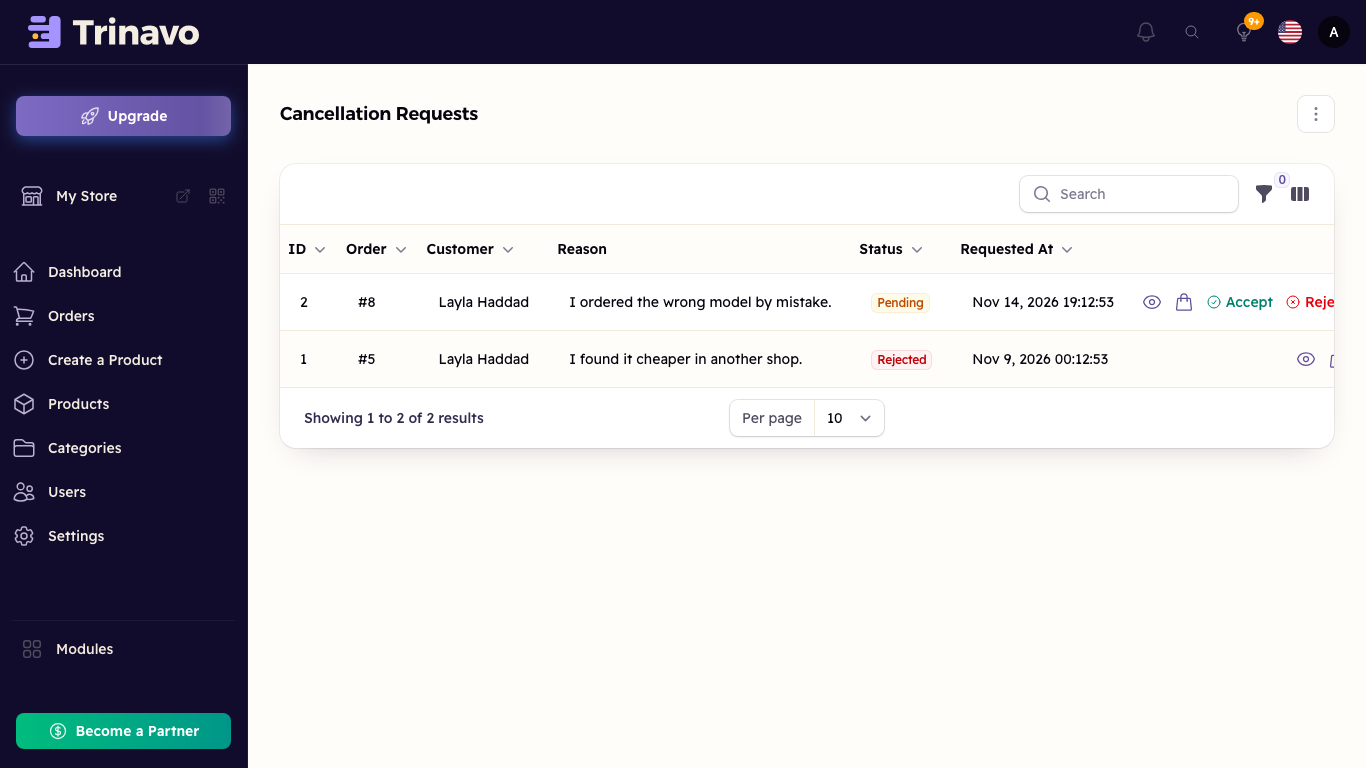
Customers who want to cancel an order that is already on its way, or already delivered, ask here, and you accept or refuse.
Where to find it
Modules → Orders & Sales → Cancel Requests. The number next to it in the menu is how many requests are waiting for you.
How customers cancel
Turn on Allow Order Cancellation in Order Cancellation Settings. Customers then get a cancel button on their order page, in the store and in the app:
- An order in New or Accepted is cancelled at once. You are notified; nothing comes to this screen.
- An order in In Delivery or Delivered becomes a request, with the customer's reason, and waits here for you.
Sales made at the till cannot be cancelled by the customer. When customers can ask for returns (Return Settings), a delivered order is returned rather than cancelled: see Returns.
Answer a request
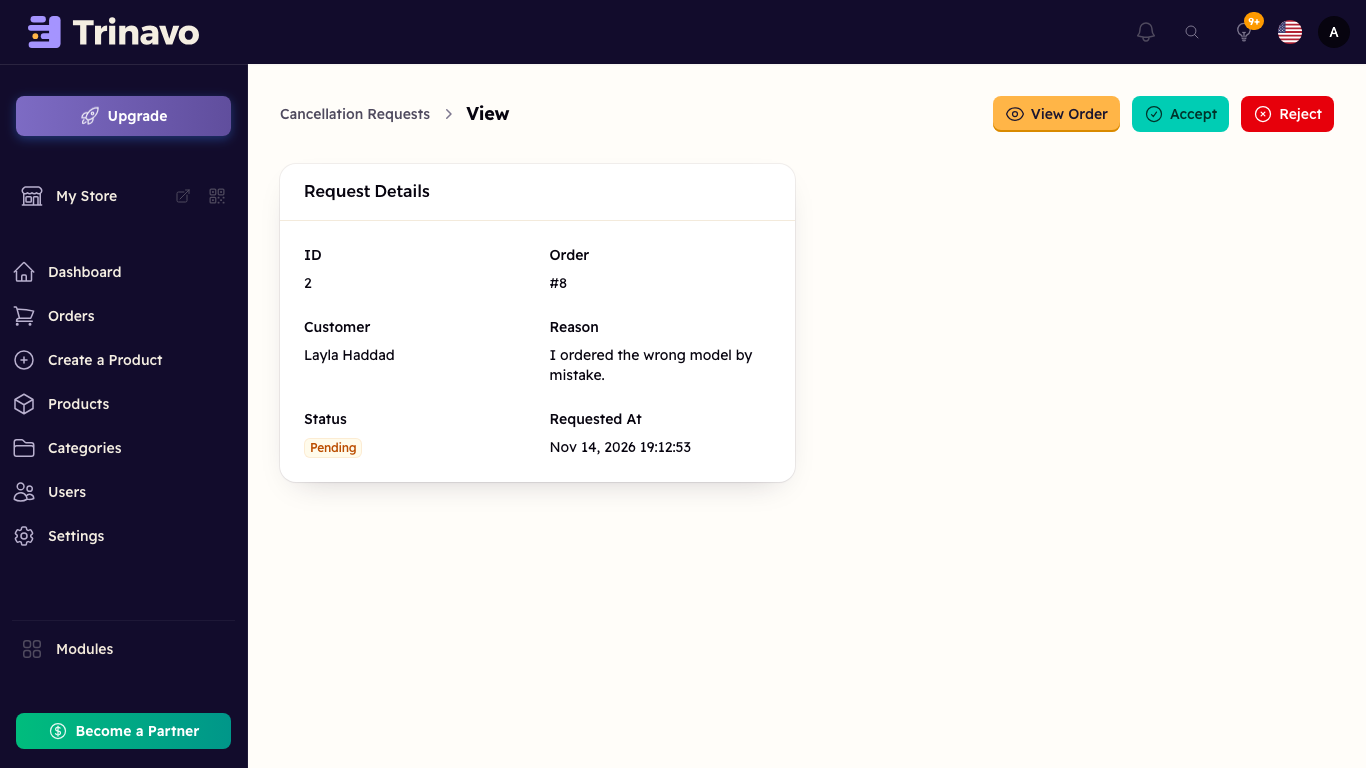
- Click the eye icon on the request to open it. It shows the order, the customer, the reason and when it was asked.
- Click View Order to see the order in a side panel.
- Click Accept and confirm to cancel the order. It moves to Canceled, with the same effect as changing its status yourself (see Change the status).
- Or click Reject, write the Rejection Reason and confirm. The customer sees this reason on their order page.
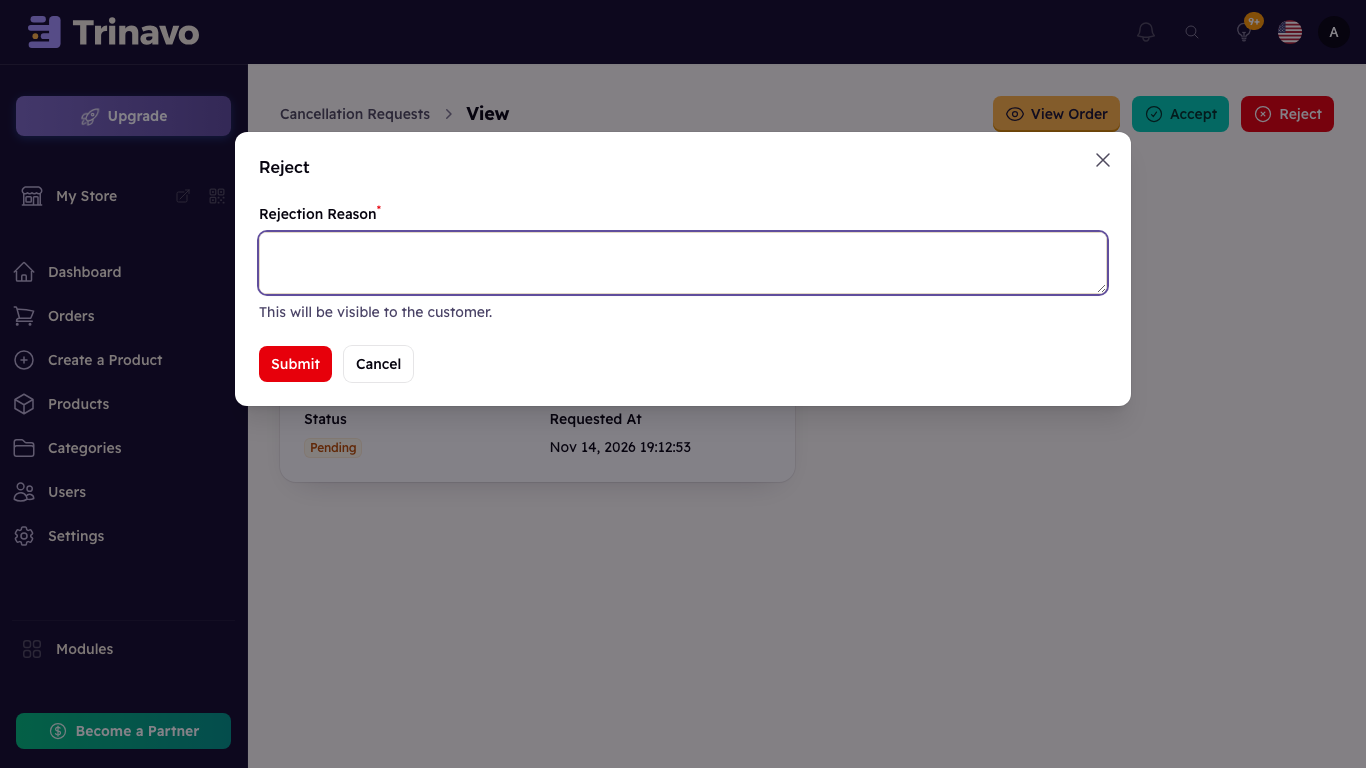
Accept and Reject are also on each row of the list while the request is Pending. The customer is notified either way.
Find past requests
Filter by Status (Pending, Accepted or Rejected). Click the order number to open the order. Reviewed By, Reviewed At and Admin Notes (your rejection reason) are hidden until you switch them on with the columns button.