Item User Fields
Watch the video
Item Custom Fields
Watch the:
Questions a customer answers on a product's page before adding it to the cart, such as a player ID for a game top-up, a size note or a name to engrave. The answers travel with the order, under the product they belong to.
Where to find it
Open Modules → System Settings → Item User Fields. To see one product's fields only, open the product's three-dot menu in the Products list and choose Item User Fields.
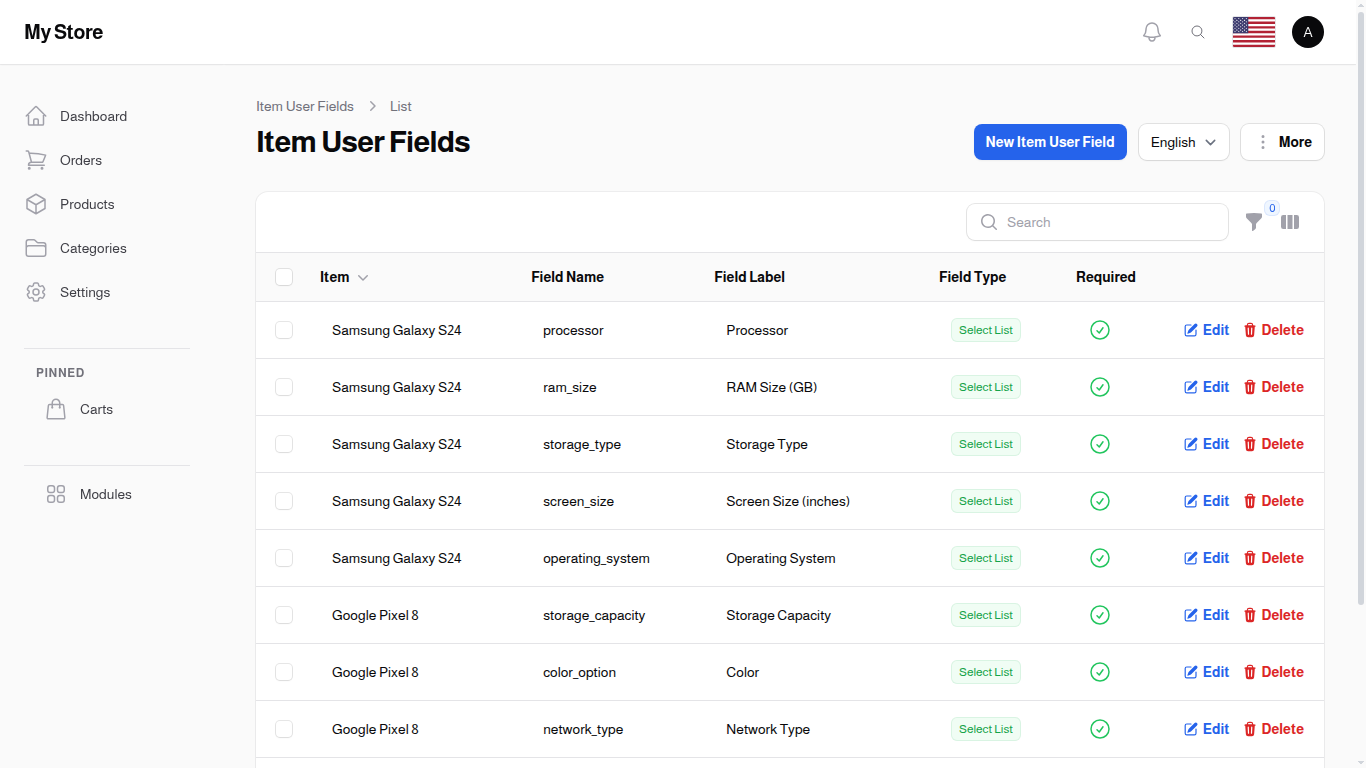
Each row is one question on one product. Click the icon in the Required column to switch a field between required and optional. The filters narrow the list to one Item, one Field Type, or required or optional fields.
Add a field to a product
- Click + (New Item User Field). When the list is filtered to one product, the dialog starts with that product chosen.
- Choose the Item.
- Type the Field Name and the Field Label.
- Choose the Field Type. For Select List, type the choices in Select Options, one per line. For File, tick the Allowed File Types.
- Turn on Required if the customer cannot add the product to the cart without answering.
- Click Create.
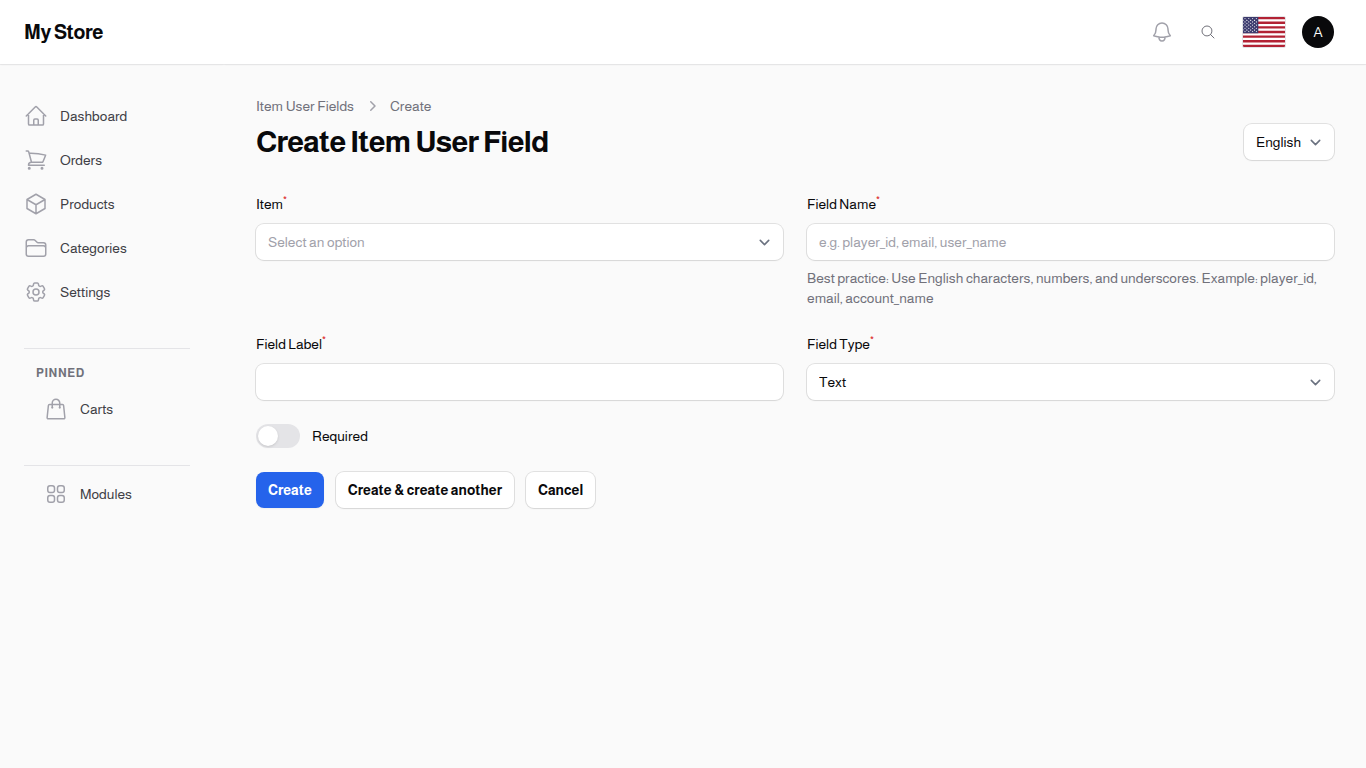
| Field | What it does |
|---|---|
| Field Name | An internal name in English letters, numbers and underscores, starting with a letter or underscore, such as player_id. Customers do not see it. If the product comes from a dropshipping supplier, use the name that supplier expects. The rule is checked when you add a field or change its name: a field brought in from a supplier keeps its name and saves as it is. |
| Field Label | The question the customer reads. Write it in each language with the language switcher at the top of the list. |
| Field Type | Text, Number, Select List (the customer picks one of your choices), Date, Time or File (the customer uploads a file). |
| Max File Size (MB) | For File only. Leave it empty to use the usual limit for the chosen file types. |
The customer's answers are saved with the order line and shown under the product on the order.
A field set on a category applies to every product in it (see Category User Fields). When a product has its own field with the same Field Name, the product's field is the one asked.
Edit or delete a field
Click Edit or Delete on the field's row. To delete several, tick them and choose Delete from the bulk actions.
To download the fields as a spreadsheet, choose Export from the ⋮ menu (More) at the top, or tick rows and choose Export from the bulk actions.