Stock Counts
Purpose
A stock count is the shelf check: you walk round with a list, write down what is actually there, and the store works out the difference against what it thought it had.
The difference is not silently applied. Applying the count creates a stock adjustment, so the correction is recorded with a reason and a value like any other, and you can see later exactly what the count changed.
Accessing Stock Counts
Click Modules → Inventory → Stock Counts
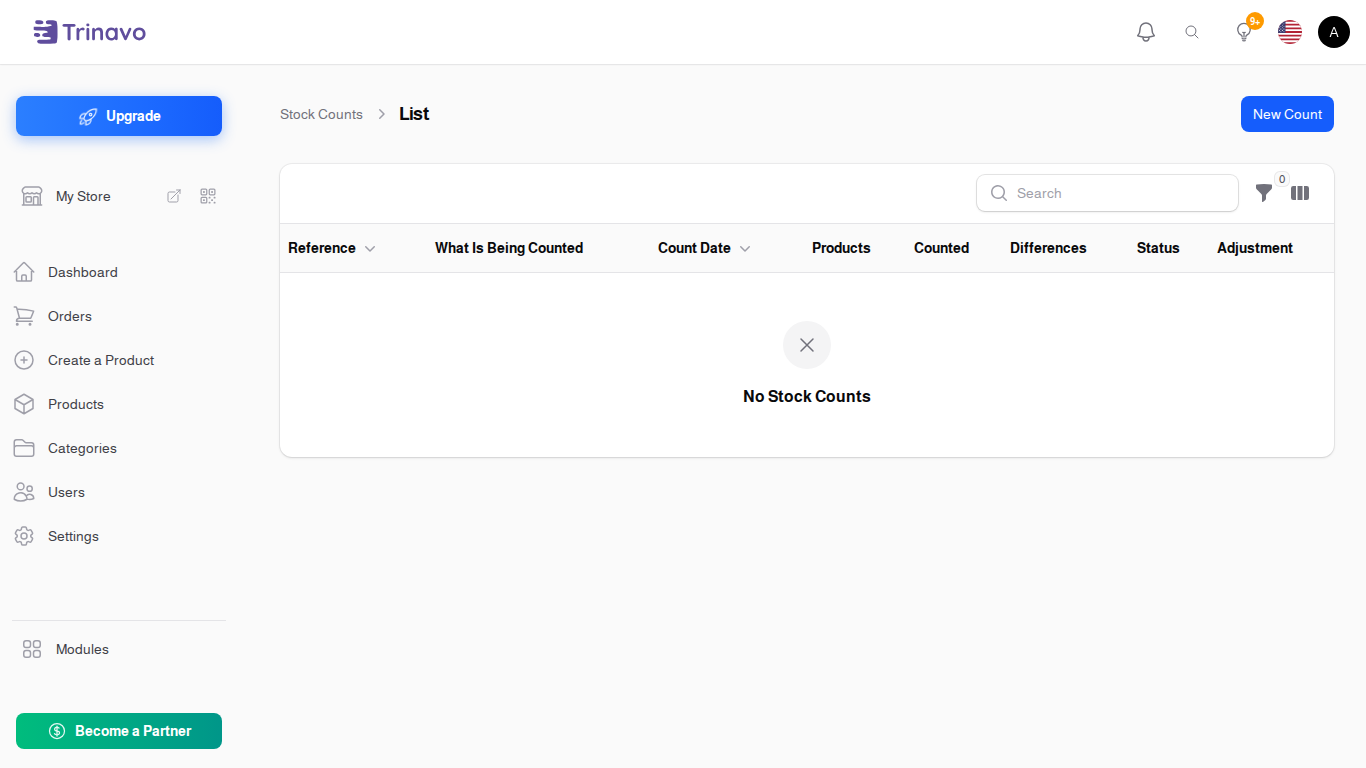
Starting a Count
Click New Count. The dialog asks for:
- What Is Being Counted: a name for this count, such as "Front shelves, March"
- Count Date: the day you are counting
- Hide System Quantity While Counting: see Blind counts below
Save it and the count opens as a page.
Adding the products
Click Add Products. You can pull them in by Category or by Brand rather than picking one at a time, which is what makes counting a whole section practical.
Then enter what you actually found against each line.
Blind counts
Hide System Quantity While Counting hides what the system expects while you are entering numbers.
It is worth switching on. When the expected figure is visible, it is very easy to glance at it, see roughly the right number of items on the shelf, and type the expected figure back in. A blind count gets you what is really there. The list marks these with a Blind Count icon.
Applying the Count
While you are working, the count sits at Counting, and the list shows how many lines are Counted and how many have Differences.
When you are done, click Apply Count. The status becomes Counted, and a stock adjustment is created for every line that differs. Open Adjustment on the count takes you straight to it, and the list carries an Adjustment column linking the two.
Nothing changes your stock until you apply it, so a count left half-finished overnight is safe.
Related Sections
- Stock Adjustments - what applying a count produces
- Inventory Management - current stock levels
- Stock History - the log, where the count's corrections appear
- Barcode Labels - printing labels makes a shelf easier to count