Order Statuses
The steps an order goes through, from New to Delivered, and the message the customer gets when their order reaches each one. The statuses are fixed: you can rename them and change their messages, but not add or delete them.
Where to find it
Open Modules → System Settings → Order Statuses.
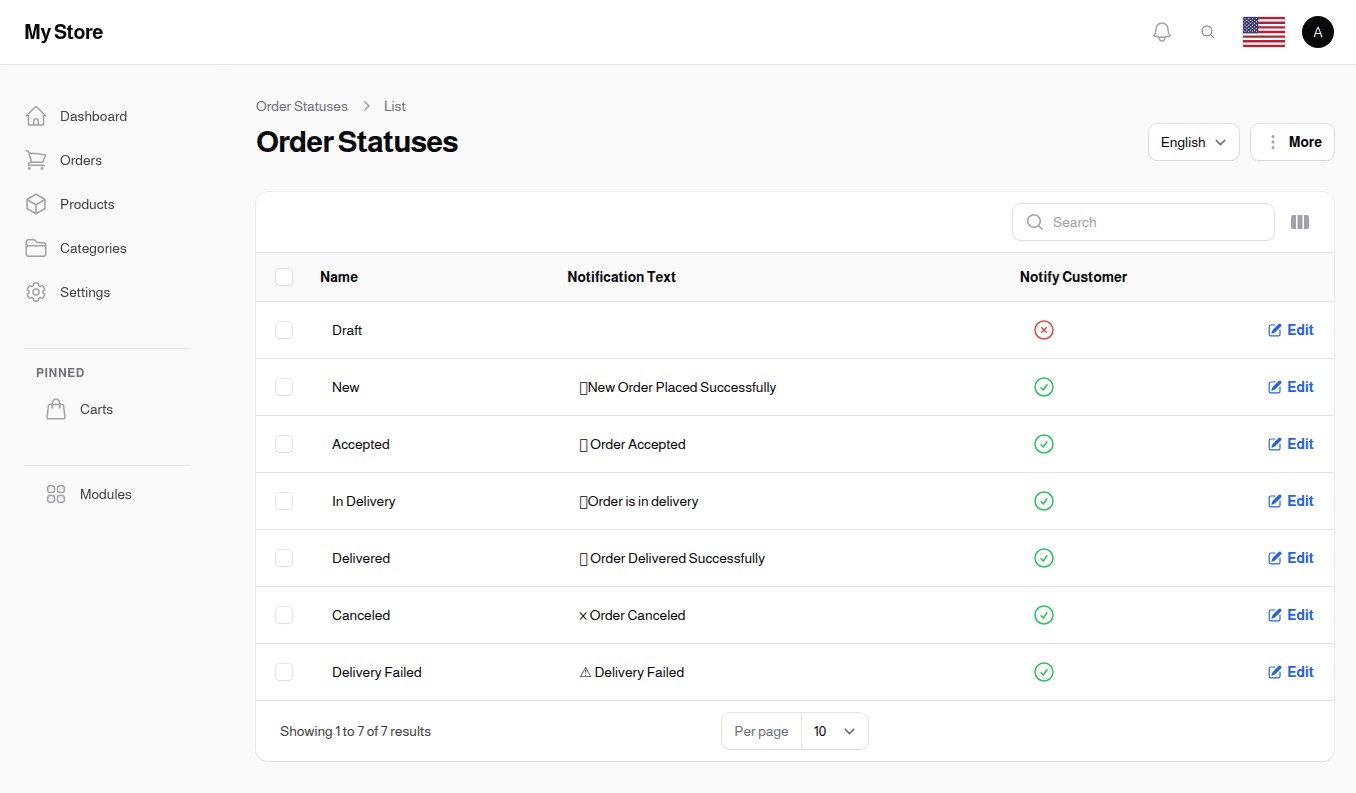
The eight statuses are Draft, New, Accepted, In Delivery, Delivered, Canceled, Delivery Failed and Pending Review. Click the icon in the Notify Customer column to switch a status's message on or off.
Change a status's name or message
- Click Edit on the status's row.
- Change the Name, the Notification Text, or switch Notify Customer.
- Click Save changes.
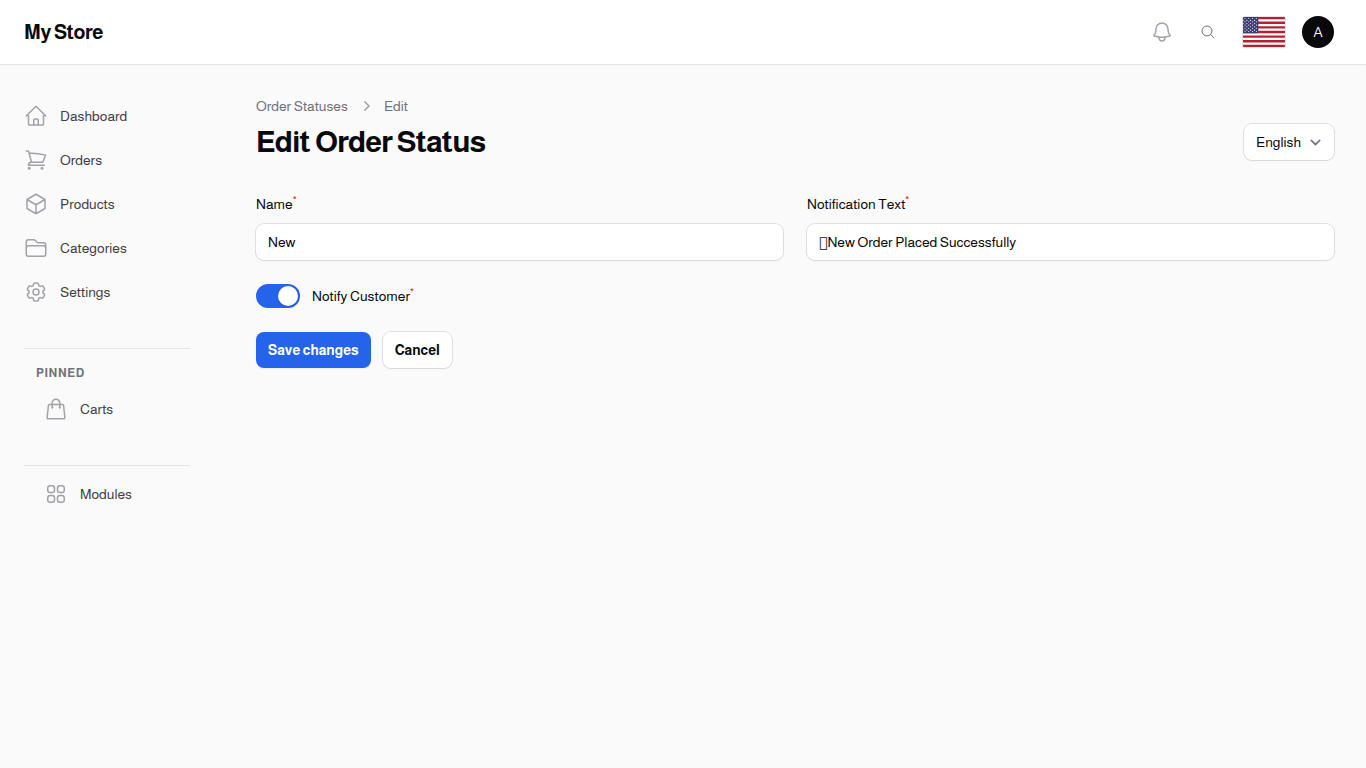
| Field | What it does |
|---|---|
| Name | What you and your customers see as the order's status. |
| Notification Text | The message the customer gets when their order moves to this status. Left empty, they get "Your order #(number) status has been updated to: (status name)". |
| Notify Customer | Sends that message. Off, the order changes status without telling the customer. |
When Notify Customer is on and an order moves to the status, the customer is told in their account's notifications, by email when the order has one, by app notification, and by WhatsApp or Telegram when one of those plugins sends customer messages. A Draft order never sends one, and neither does an order placed without a customer account.
Use the language switcher at the top of the list to write the name and message in each language. To download the statuses as a spreadsheet, choose Export from the ⋮ menu (More) at the top.