ChatGPT & Claude Access
Connect ChatGPT or Claude to your store and ask it about your business in plain words: how much you sold this month, what is running out, which orders have not shipped. It can also make changes for you, such as a new price or an order marked as paid, in the areas you allow. This screen shows every connection and lets you cut one off.
Where to find it
Open Modules → User Management → ChatGPT & Claude access. The number next to the menu item is how many connections are active.
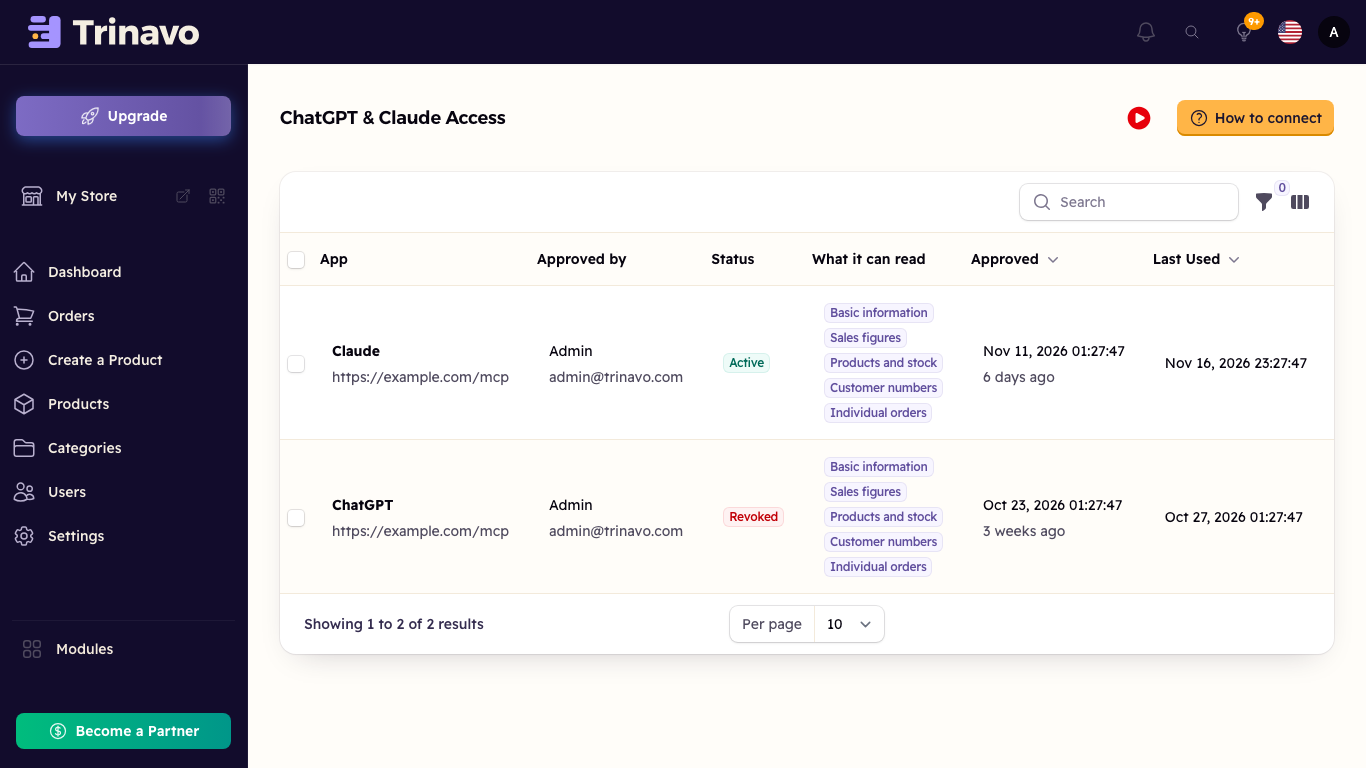
Each row is one approval: the App, who approved it (Approved by), its Status (Active, Revoked or Expired), What it can access, when it was approved and Last Used, and when its access ends (Access ends). Hover over What it can access for the full wording. Approved from, Device and Ended by can be shown from the column picker, which helps you recognise a connection you do not remember making.
Connect ChatGPT or Claude
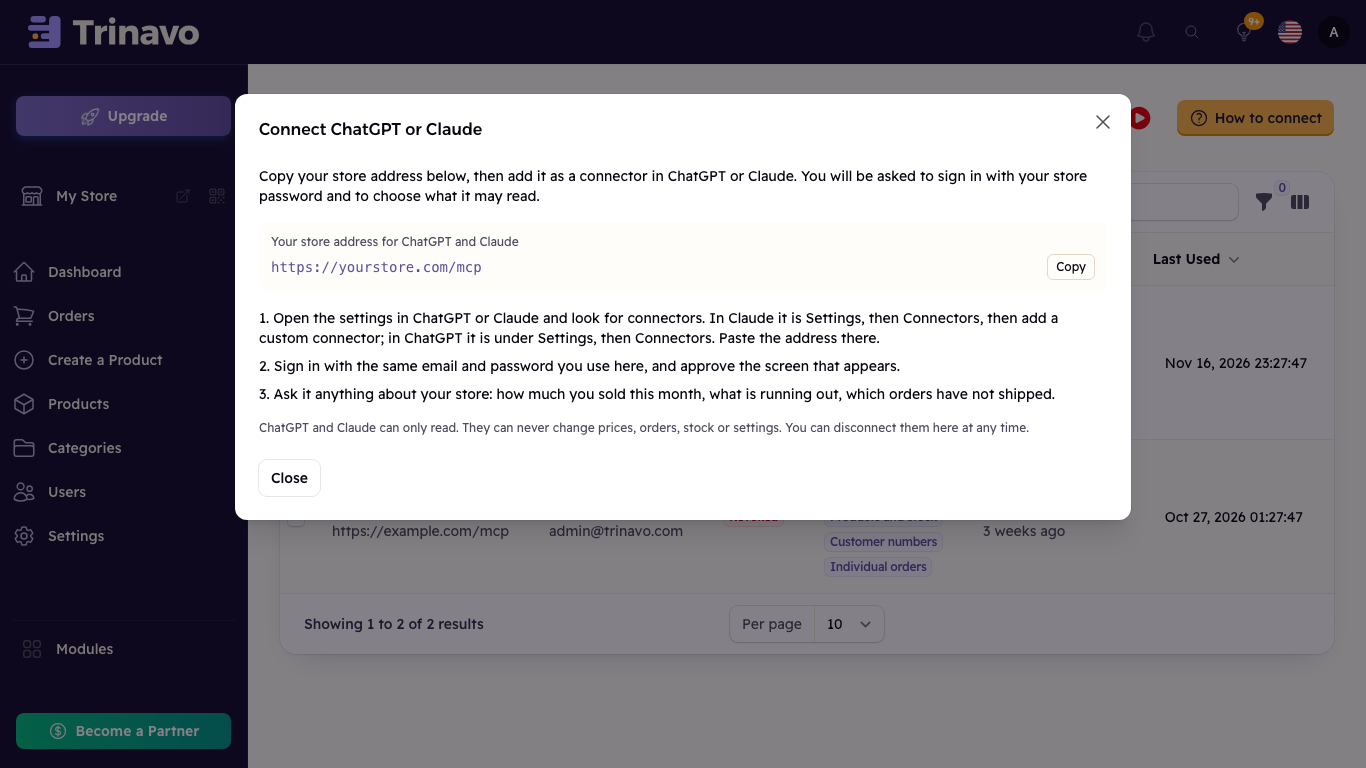
- Click How to connect at the top. The dialog shows your store's address for assistants; click Copy.
- In Claude, open Settings, then Connectors, then add a custom connector. In ChatGPT, open Settings, then Connectors. Paste the address there.
- Sign in with the same email and password you use for this admin panel, and approve the screen that appears. It lists what the assistant may read and what it may change; untick anything you do not want to allow.
- Ask your question in ChatGPT or Claude.
What you can let it read:
| Choice | What it covers |
|---|---|
| Basic information | Your currency, time zone and which features you use. Always included. |
| Sales figures | Revenue, number of orders, average order value and profit. |
| Products and stock | Stock levels, categories, best and worst sellers. |
| Customer numbers | How many customers are new and how many come back. |
| Individual orders | Each order, what was bought and what it came to. |
| Customer details | Customer names, phone numbers, emails and addresses. |
What you can let it change:
| Choice | What it covers |
|---|---|
| Products | Add and edit products, prices, stock, categories, brands and coupons. |
| Store content | Slides, pages, menus, testimonials, logos, social links and the blog. |
| Design | The template, colours, fonts and the blocks of each page. |
| Settings | Store details, currencies, delivery, payment methods and plugins. |
| Orders | Accept, change status, mark as paid, send to delivery and refund. |
It can only do what your own role allows in this control panel, and it asks you before anything that cannot be undone, such as deleting or refunding.
A Super Admin, such as the store owner, can always connect. Other staff need Connect ChatGPT or Claude ticked in their role (see Roles). Vendors cannot connect.
Disconnect an assistant
- Open the connection's ⋮ menu and choose Disconnect.
- Confirm.
It loses access to your store at once. To use it again, connect it and approve it once more. To cut off several, tick them and choose Disconnect selected from the bulk actions.
A connection is never deleted from this list, so you keep a record of what was approved, by whom and when. When its access ends it shows as Expired, and you approve it again from ChatGPT or Claude to carry on.