Vehicles
If you sell car parts, these four screens hold the cars your parts fit: the makes, their models, the engines, and the model years. Shoppers then pick their car on your store and see only the parts that fit it, and each part's page lists the cars it fits under Compatible Vehicles.
Where to find it
Open Modules → Vehicles & Parts. The group has five screens: Vehicle Brands, Vehicle Models, Engines, Vehicles and Part Models.
They build on each other: a model belongs to a make, an engine belongs to a model, and a vehicle is a model over a range of years, with or without an engine. Add them in that order.
How products get their vehicles
You do not choose vehicles on the product form. A product is linked to the cars it fits in two ways:
- Enricher Sources: a parts provider looks up each product (by its OE code, for example) and fills in the cars it fits. Makes, models, engines and vehicles it does not find here are added for you.
- The Auto Parts starter catalogue in Database Re-installer comes with six makes, their models and vehicles, and parts already linked to them.
The Items Count column on Vehicles shows how many products fit each vehicle. On the Products list, the Has Vehicles filter and the Vehicles column (turn it on from the columns button) show which products have cars linked.
Add a vehicle brand
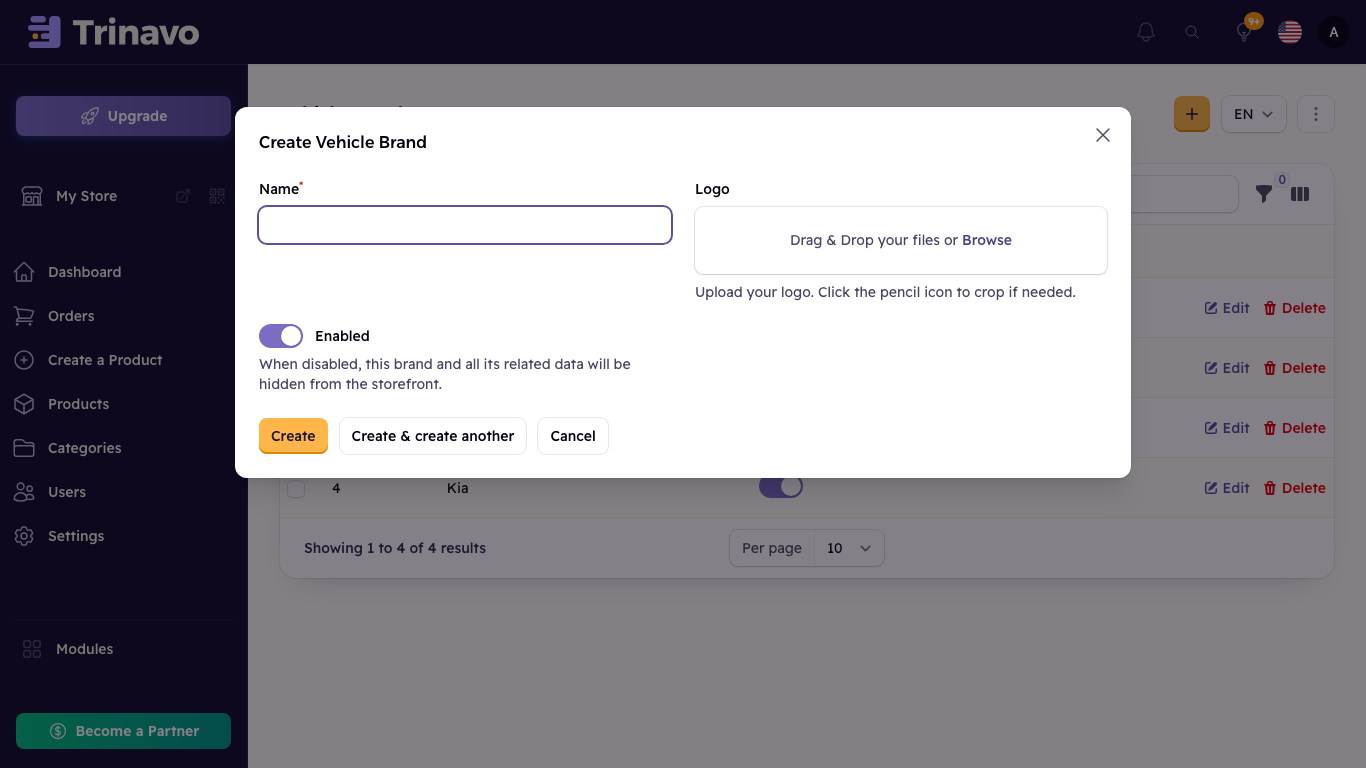
- Open Vehicle Brands and click + (New Vehicle Brand).
- Type the Name, for example Toyota.
- Upload its Logo if you have one. The Vehicle Brands Grid block on your store shows it.
- Click Create.
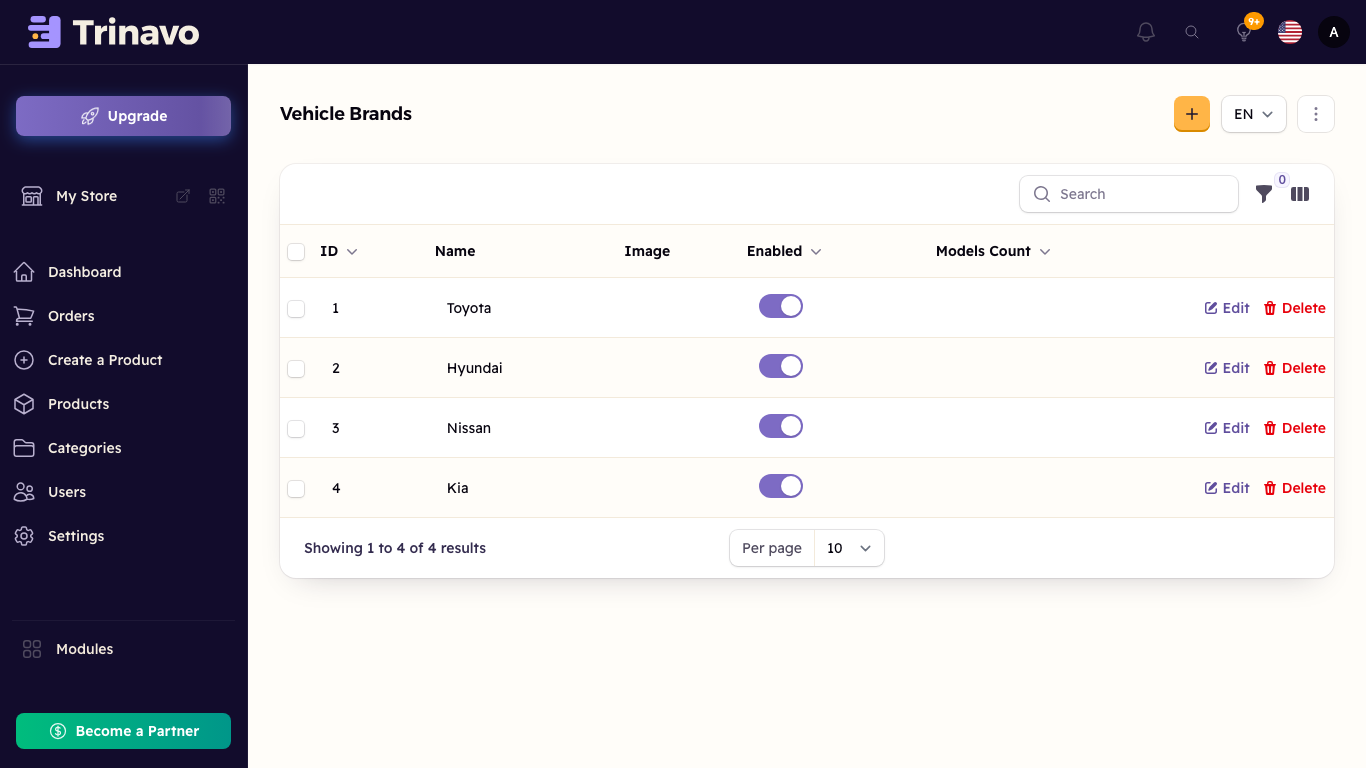
The Models Count column shows how many models each make has.
Add a vehicle model
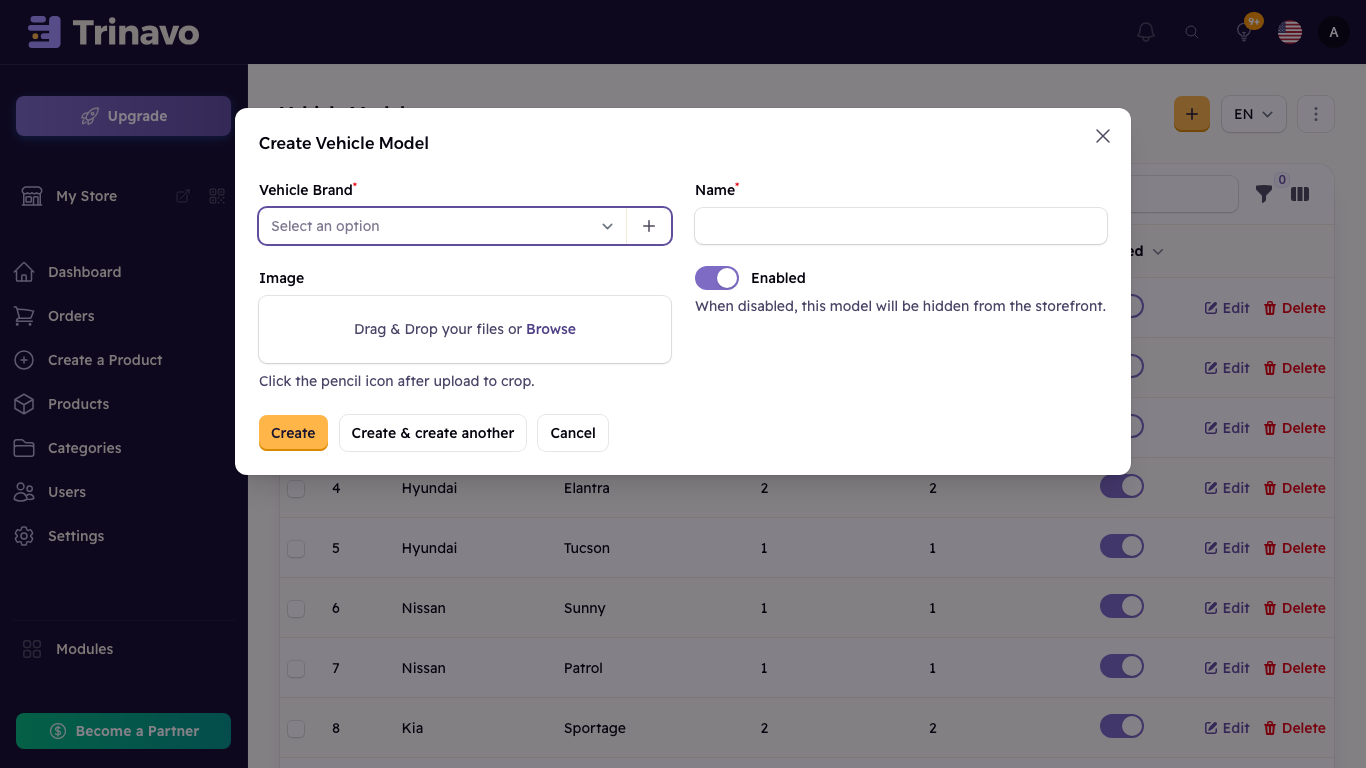
- Open Vehicle Models and click + (New Vehicle Model).
- Choose the Vehicle Brand. If the make is not there yet, click + next to the field to add it without leaving the dialog.
- Type the Name, for example Corolla, and upload an Image if you want.
- Click Create.
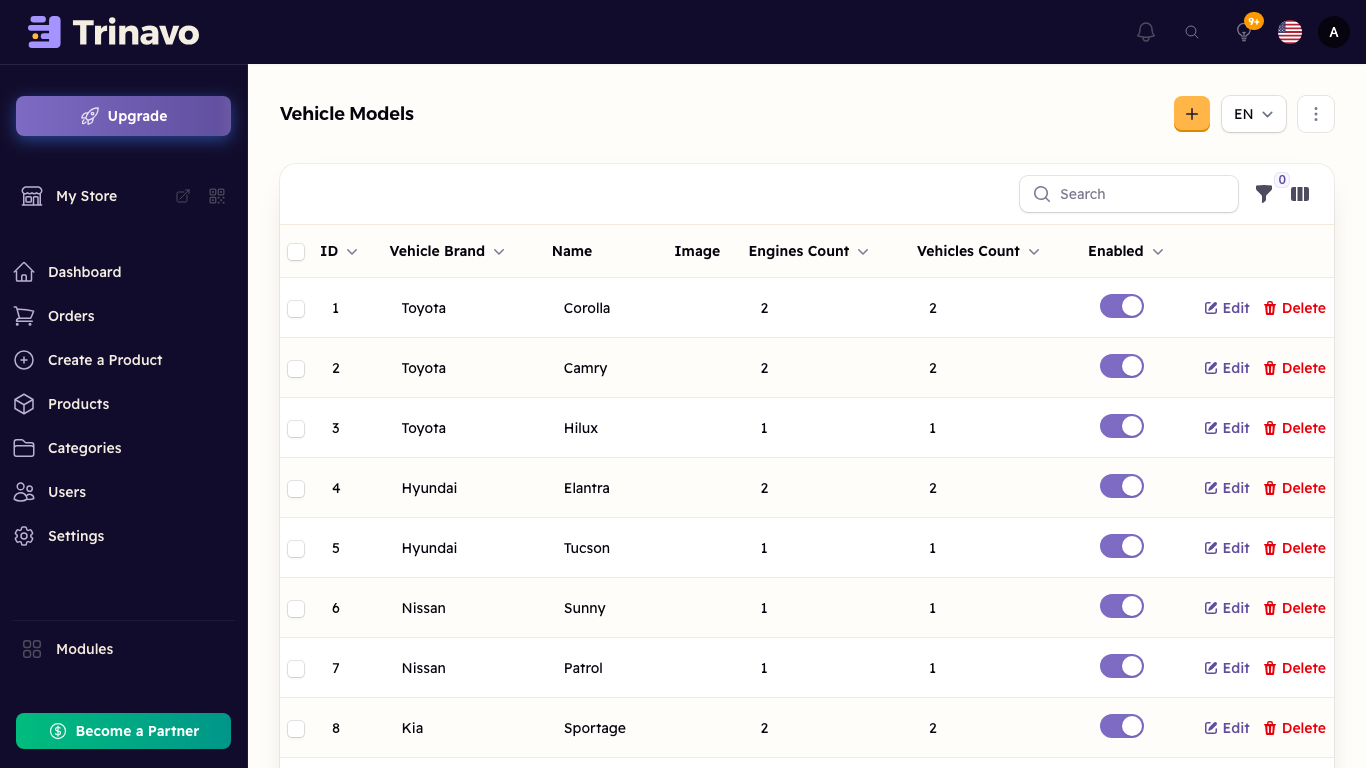
The list shows how many engines and vehicles each model has, and filters by Vehicle Brand.
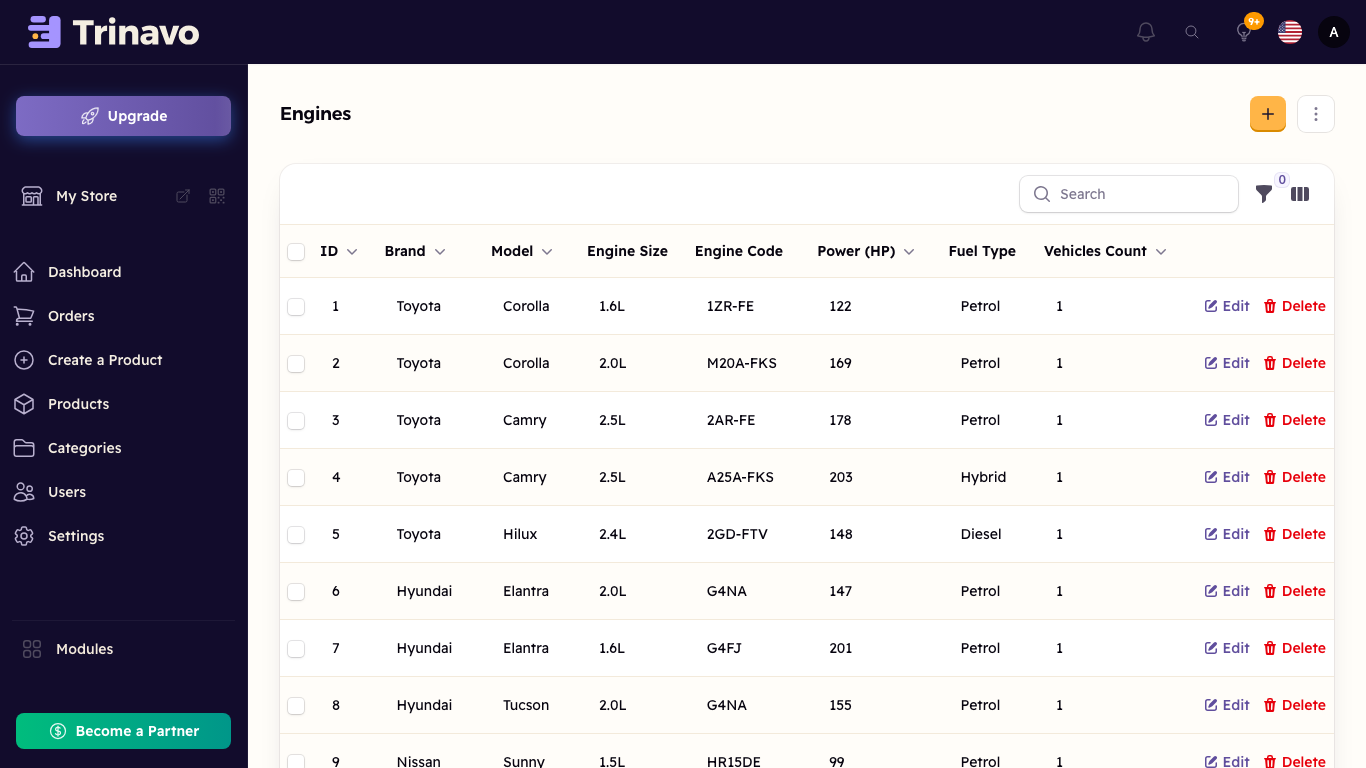
Add an engine
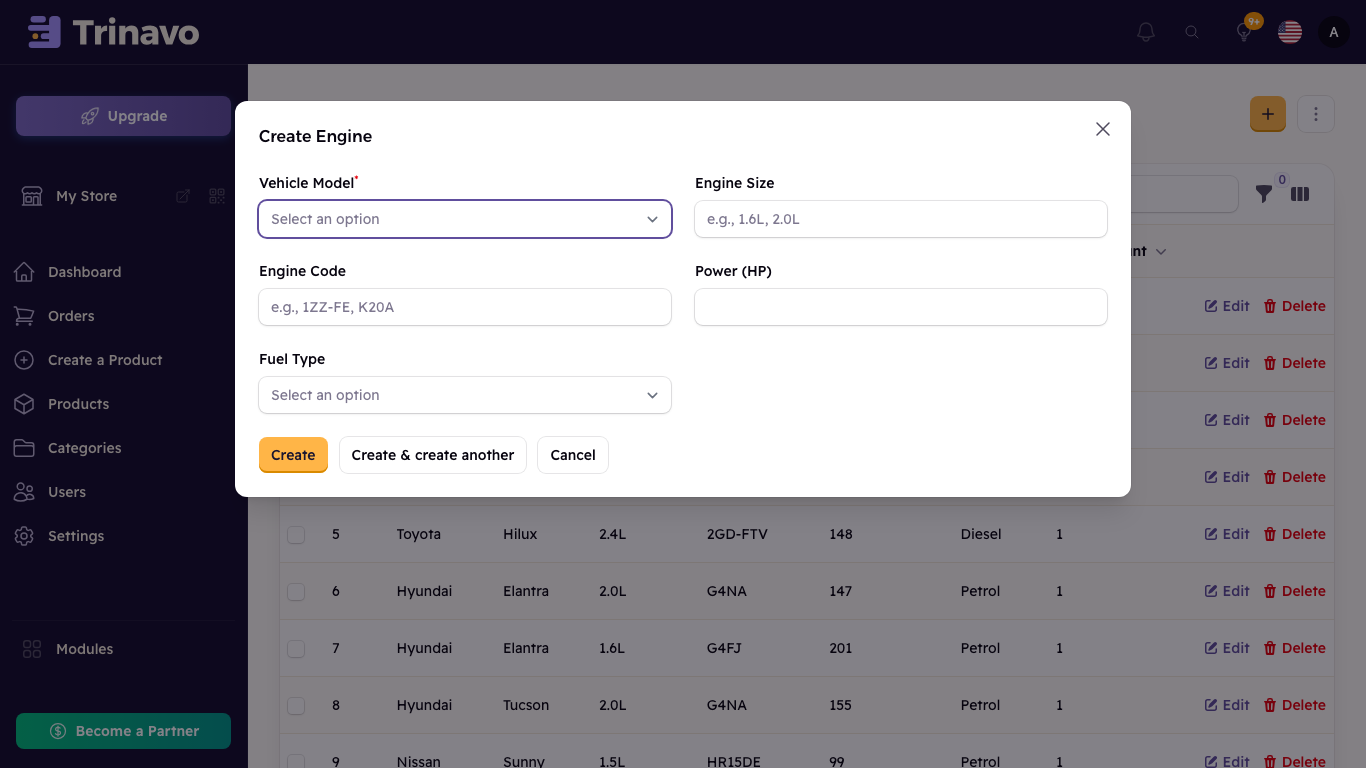
- Open Engines and click + (New Engine).
- Choose the Vehicle Model it belongs to.
- Fill in what you know: Engine Size (1.6L), Engine Code (1ZR-FE), Power (HP) and Fuel Type (Petrol, Diesel, Electric, Hybrid, LPG or CNG). All four are optional.
- Click Create.
Add a vehicle
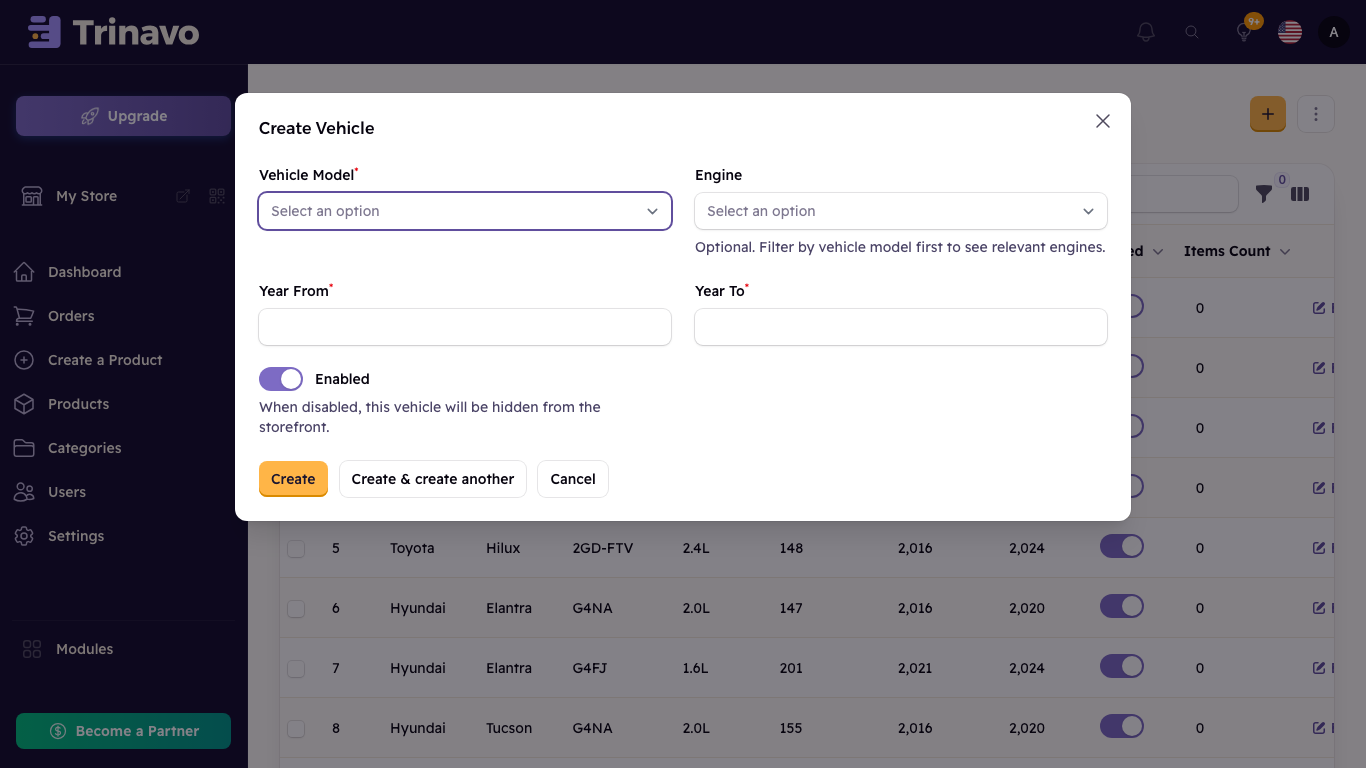
A vehicle is one generation of a model: the years it was made, and the engine it had.
- Open Vehicles and click + (New Vehicle).
- Choose the Vehicle Model.
- Choose the Engine if you want. Once a model is chosen, only its engines are offered.
- Type Year From and Year To, for example 2014 and 2019.
- Click Create.
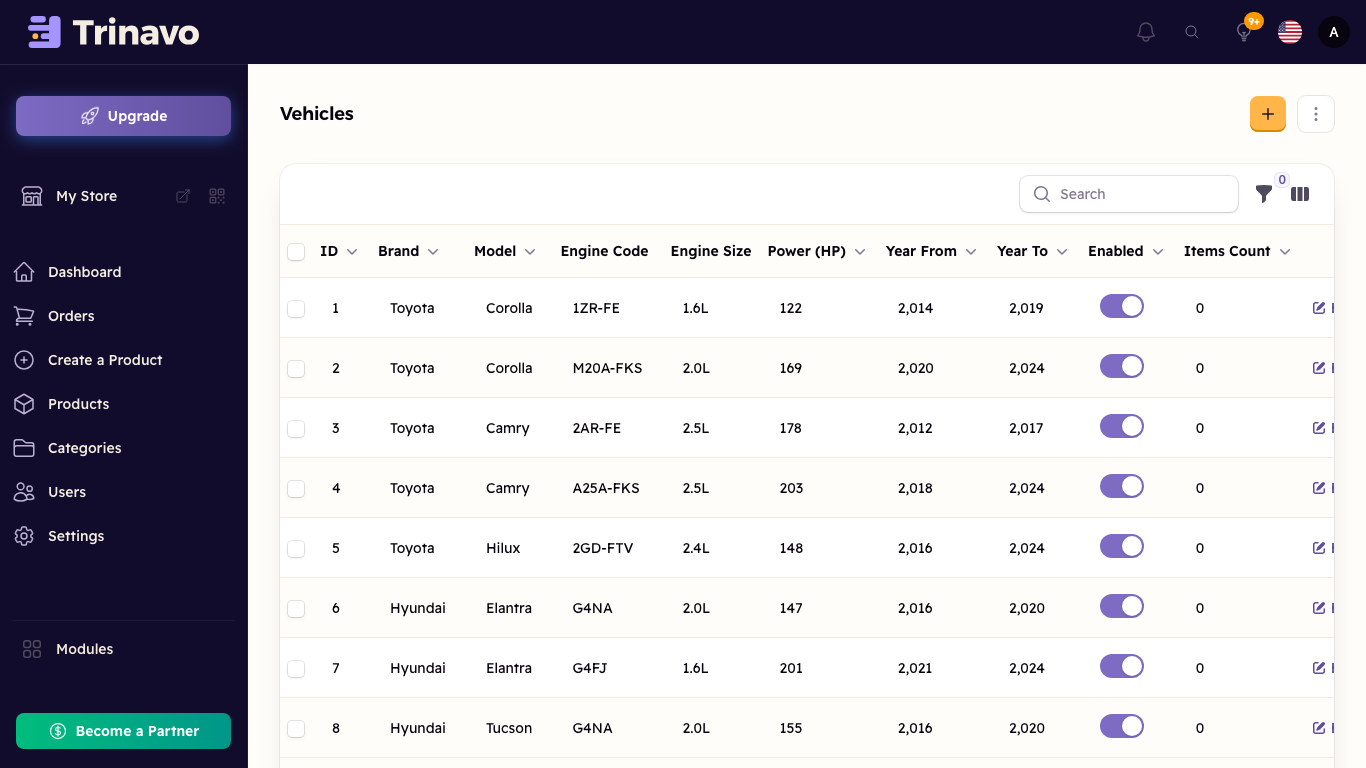
The filters on this list find vehicles by brand, model, a year they cover, Year From or Year To compared with a year, fuel type, engine size or engine, and whether they have an engine or any products.
Hide a make, model or vehicle from your store
Switch off Enabled on its row, or in its dialog. A hidden make hides its models and vehicles too, and a product no longer lists them under Compatible Vehicles. To hide several at once, tick their rows and choose Disable from the bulk actions (Enable brings them back). Engines have no switch of their own: hide the vehicle instead.
Change or delete
Click Edit on a row to change it, then Save changes. Makes, models and part models have names in each language your store uses: the language switcher at the top of their lists changes which language you type in.
Deleting removes more than the row:
- Vehicle brand: if it still has models, the dialog asks whether to move them to another make or delete them.
- Vehicle model: its engines and vehicles are deleted with it.
- Engine: the vehicles that use it are deleted with it.
- Vehicle: products stop listing it.
To download a list as a spreadsheet, open the ⋮ menu (More) at the top and choose Export, or tick rows and choose Export from the bulk actions.
On your store
Two blocks in the Page Builder use these lists:
- Vehicle Search shows Find Parts for Your Vehicle: the shopper picks the brand, model, year and engine, then clicks Search Parts to see the parts that fit.
- Vehicle Brands Grid shows the logos of your makes; each opens a page of the parts for that make.
Only enabled makes, models and vehicles appear.