Update Images by SKU
Add pictures to many existing products at once, without opening them one by one: you name each picture after the product's SKU, put them in one zip file, and the store matches them for you.
Where to find it
Open Products and choose More → Update Images by SKU.
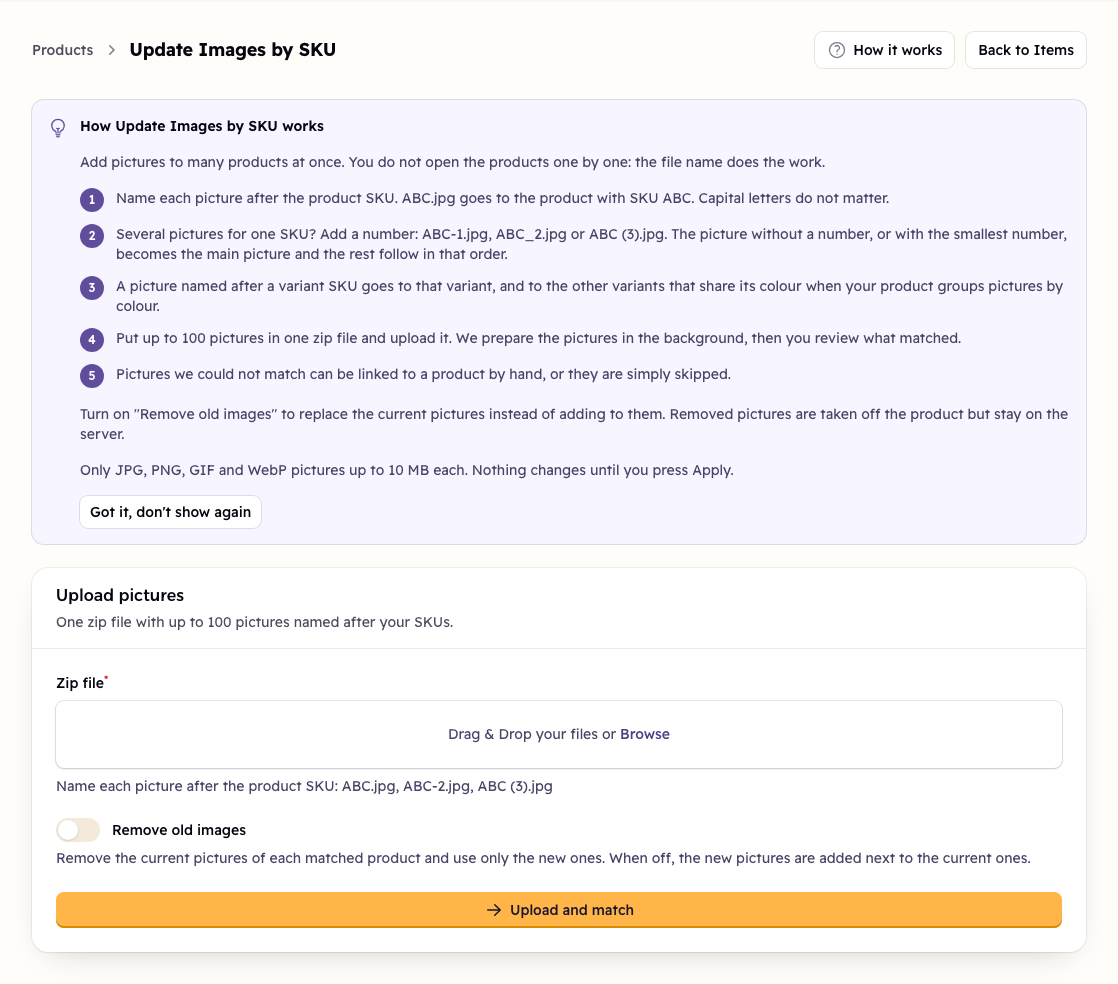
A short explanation stays at the top until you click Got it, don't show again. How it works at the top of the page shows it again whenever you need it.
Name your pictures
- Name each picture after the product's SKU:
ABC.jpggoes to the product whose SKU is ABC. Capital letters do not matter. - For several pictures of one product, add a number:
ABC-1.jpg,ABC_2.jpgorABC (3).jpg. The picture without a number, or with the smallest number, becomes the main picture, and the rest follow in that order. - A picture named after a variation's SKU goes to that variation, and to the other variations of the same colour when the product's pictures follow its colours.
- JPG, PNG, GIF and WebP pictures, up to 10 MB each and 100 in one zip file.
Upload and apply
- Put the pictures in one zip file.
- Drop it into Zip file under Upload pictures.
- Turn on Remove old images to replace each matched product's current pictures. Leave it off to add the new pictures next to the current ones.
- Click Upload and match. The pictures are prepared in the background; keep the page open, it can take a minute.
- Review the matches. Each product shows its current picture and the new ones.
- Needs your choice: the SKU belongs to more than one product. Click Choose product and pick the right one. Tick Use this choice for every picture with the same SKU to settle them all at once.
- No product found: no product has that SKU. Link the picture to a product with Choose product, or leave it and it is skipped.
- Unlink takes a picture off the product it was matched to; it is skipped unless you link it again. Remove takes it out of the batch.
- Click Apply and confirm.
Nothing changes on your products until you click Apply. The summary then shows how many products and variations were updated, and lists the files that were skipped and why, such as a file that is not a picture or is too large. Upload another zip starts again.
Only one batch can be open at a time. To give up on one, click Cancel this batch.