Webhooks
A webhook makes your store tell another system the moment something happens: an order is placed or paid, a product or its stock changes, a customer signs up. Your accounting software, warehouse app or automation tool gives you an address, and the store sends each event there by itself.
Where to find it
Open Modules → User Management → Webhooks.
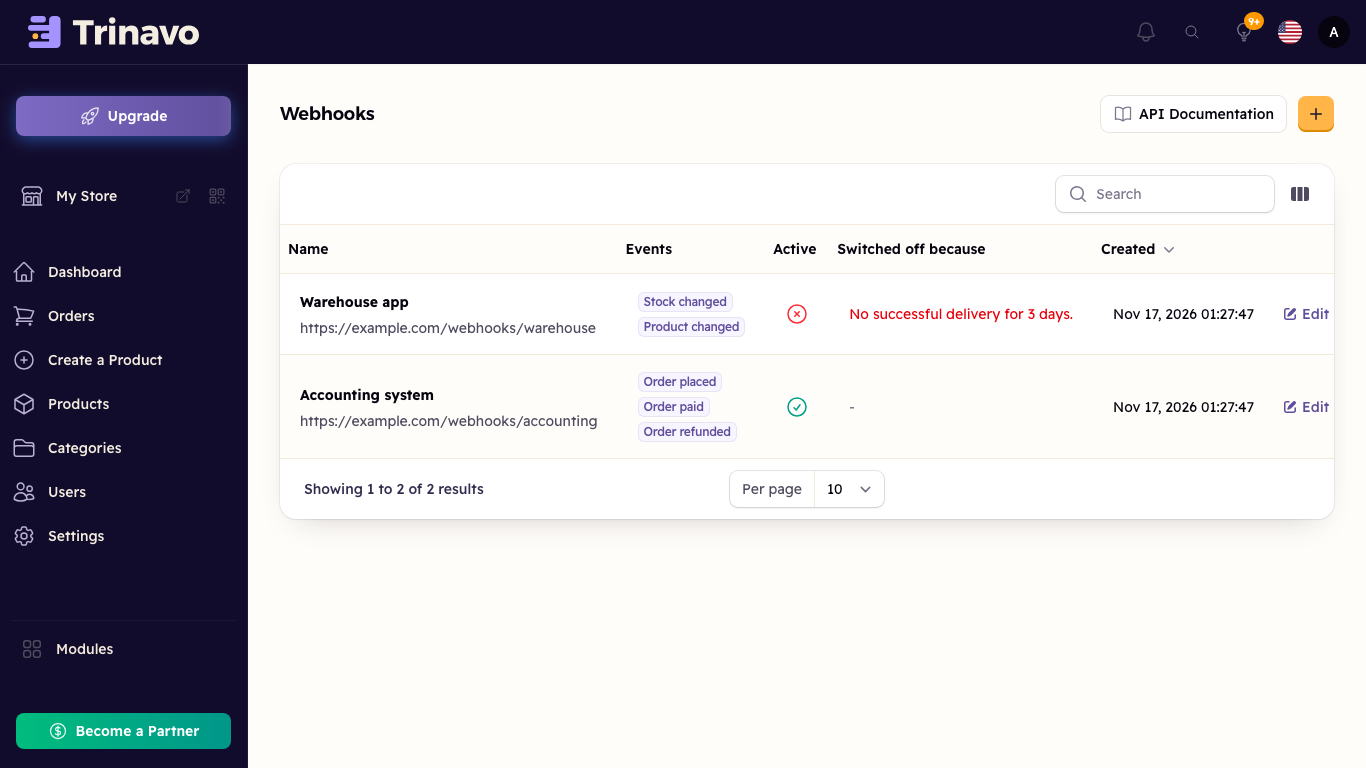
Under each name is the address it sends to, and the Events column shows what it listens for. Switched off because explains a webhook the store turned off on its own (see below).
Webhooks are sent on paid plans. On another plan the line under the title says so; the webhooks you set up are kept but nothing is sent. API Documentation at the top opens the reference the receiving system's developer needs.
Add a webhook
- Click + (New Webhook).
- Give it a Name you will recognise, such as the system it feeds.
- Paste the Address (URL) the other system gave you. It must start with https:// and be a public address.
- Tick the Events to send, and leave Active on.
- Click Create.
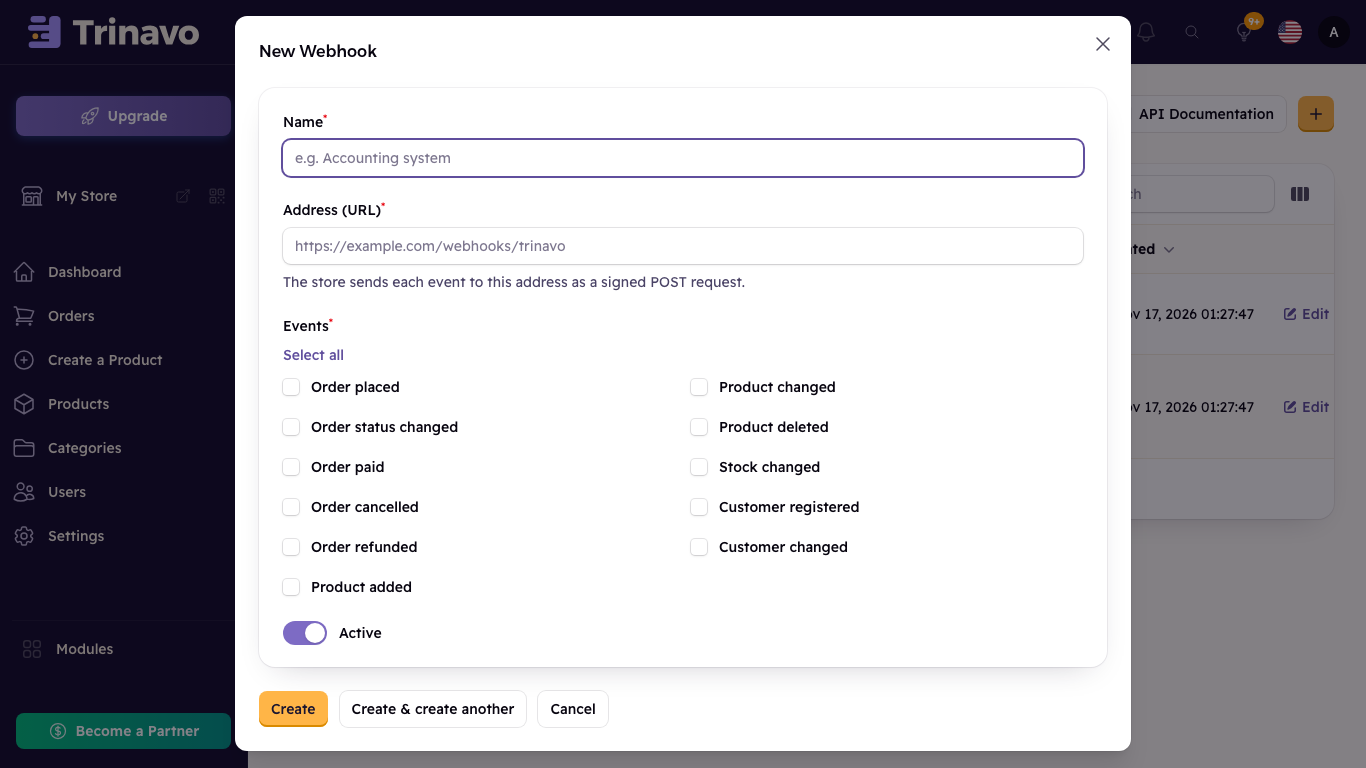
The events you can choose: Order placed, Order status changed, Order paid, Order cancelled, Order refunded, Product added, Product changed, Product deleted, Stock changed, Customer registered and Customer changed.
To check the connection, open the webhook's ⋮ menu and choose Send test event. It appears in the deliveries within a few seconds.
Give the other system its signing secret
Every message is signed, so the receiving system can be sure it came from your store. Open the webhook's ⋮ menu and choose Signing secret, copy it, and hand it to whoever set up the receiving system.
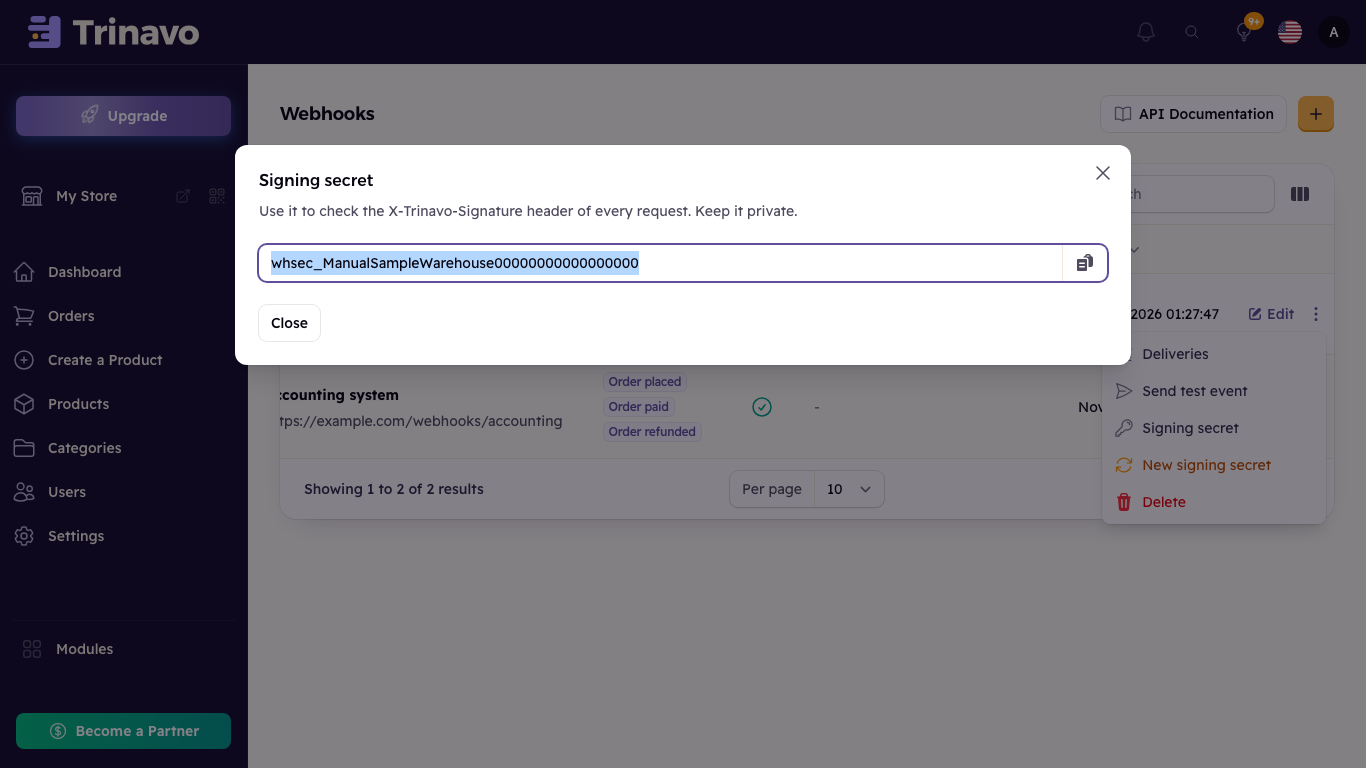
If the secret has leaked, choose New signing secret in the same menu. The old one stops working at once, so update the receiving system straight away.
When a webhook stops sending
When the receiving system does not answer, the store tries the same event again several times, waiting longer each time, for almost two days. After that the delivery stays Failed until you resend it. If nothing has gone through for 3 days, or the receiving system says the address no longer exists, the store switches the webhook off: Active goes off and Switched off because gives the reason. Failures in a row can be shown from the column picker.
Fix the address with Edit (or ask the other system's owner to fix their side), then turn Active back on and save. The failure count starts again from zero.
See what was sent
Open the webhook's ⋮ menu and choose Deliveries. The list shows every message of the last 30 days for that webhook: when it was sent, which Event, its Status (Pending, Delivered or Failed), the Answer code the other system gave, how many Attempts it took, and when the Next try is.
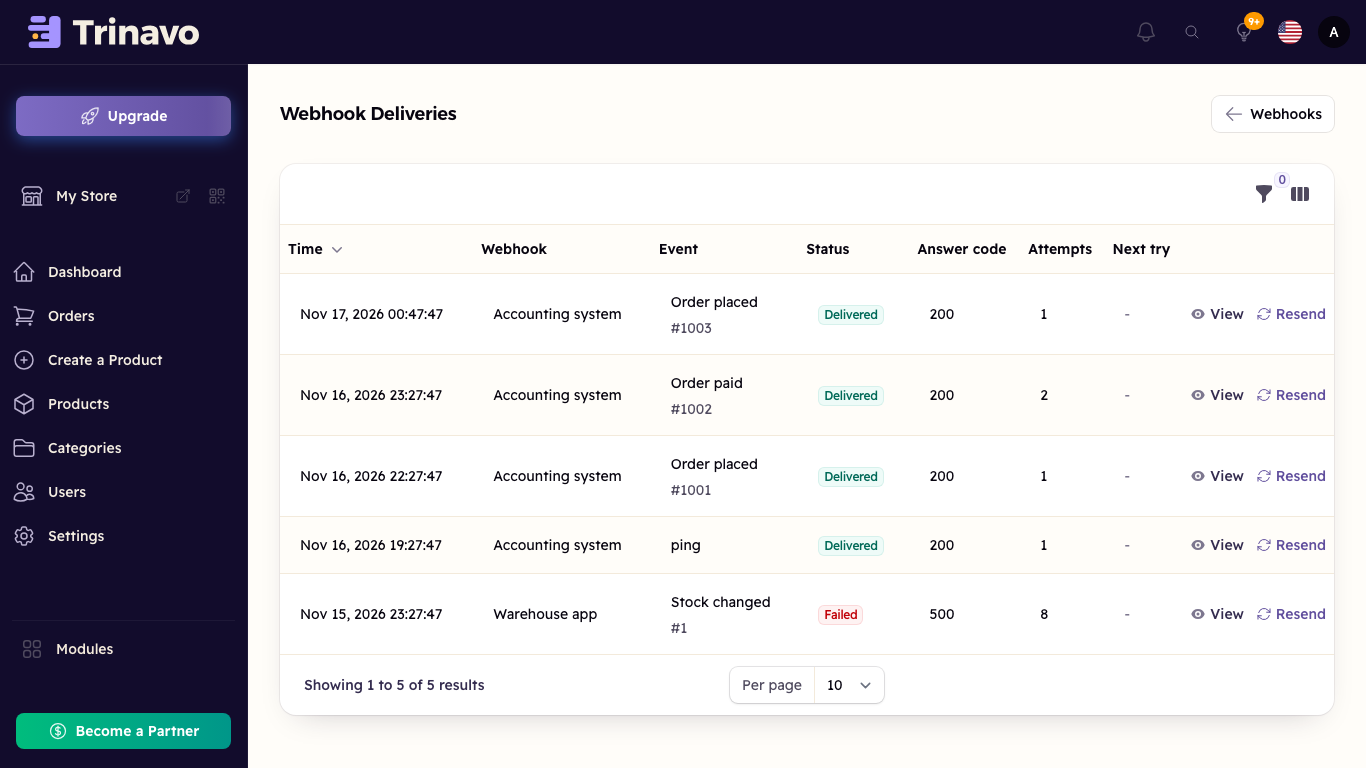
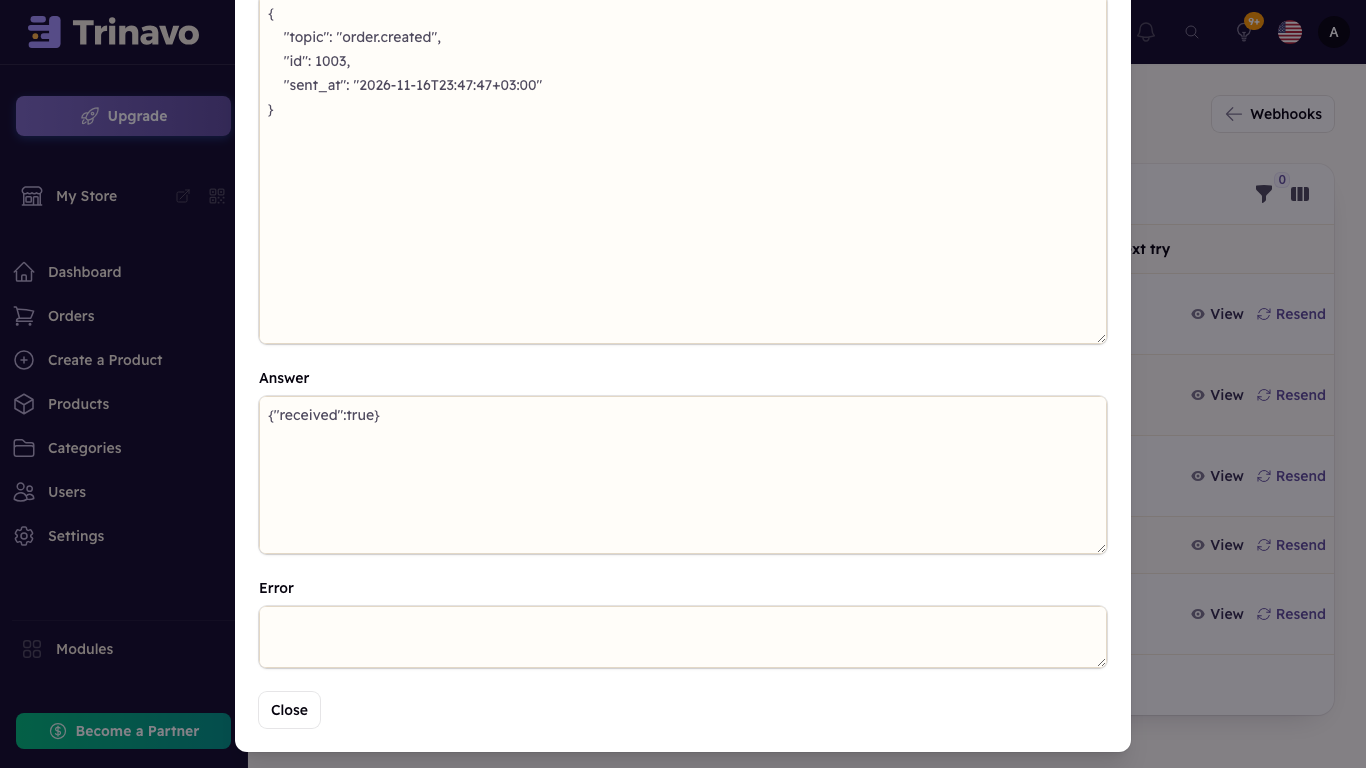
Click View on a row to see what was Sent, the Answer, and the Error if there was one. Resend sends the same message again, for example once the other system is fixed. The filters narrow the list by Webhook, Status and Event, and Webhooks at the top takes you back.
Remove a webhook
Choose Delete in the webhook's ⋮ menu. To pause it instead, turn Active off in Edit.