AI Translation
Translates your products, categories and brands into the other languages of your store. Products imported from a supplier often carry the same English text in every language; this is the fastest way to fix them.
Watch the video
Translate Products
Watch the:
Where to find it
Open Modules → Data Enrichment → AI Translation, or start from a list (see From the lists).
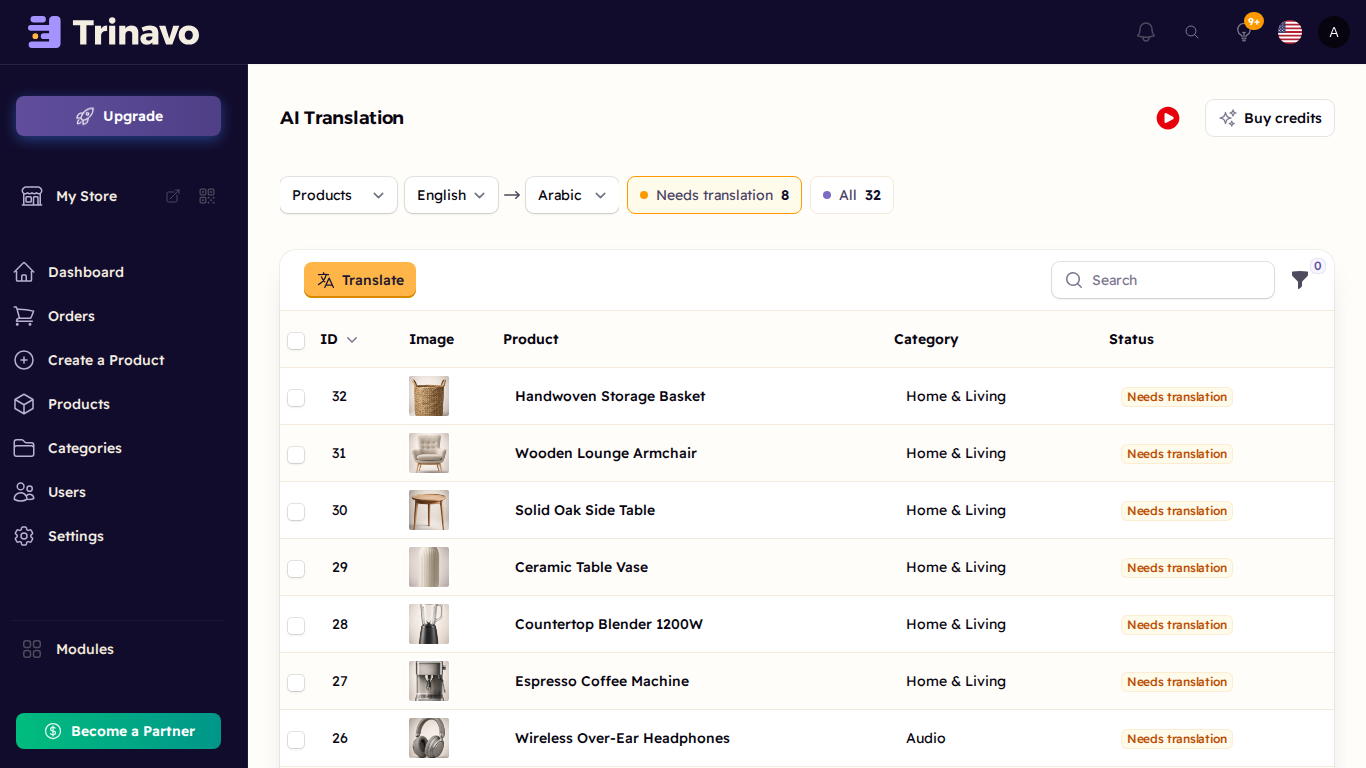
The top row sets what you are translating: Products, Categories or Brands, then the From and To languages. The arrow between them swaps the two. Needs translation and All switch the list and count what each holds.
The list shows a picture and category for products, the parent category for categories, and the category for brands, with how many products each category or brand holds. Status says Needs translation or Translated. Filter products by Category or Brand, categories by Parent Category, brands by Category. The button at the top right shows your credits (Buy credits when they cannot be read) and opens the credit packages. On a plan without AI, the screen offers an upgrade instead.
What "needs translation" means
A record needs translating when its text in the To language is empty, is the same as the From text (copied over during an import), or, for languages with their own letters such as Arabic, is not written in those letters.
You can also translate a language into itself, for example Arabic to Arabic. Use it when the Arabic slot holds English text: the AI rewrites it in Arabic.
Translate
- Tick what to translate, or tick the box at the top of the list to take the whole page.
- Click Translate in the search row.
- Under Fields, tick what to translate. For products, Name, Short description and Description are ticked to start with; you can add SEO title, SEO description, SEO keywords and Search terms. Categories and brands have Name and the three SEO fields.
- Add Instructions for the AI (optional), for example "keep brand names in English" or "use a friendly tone".
- Check Credits needed against Your credits, then click Next.
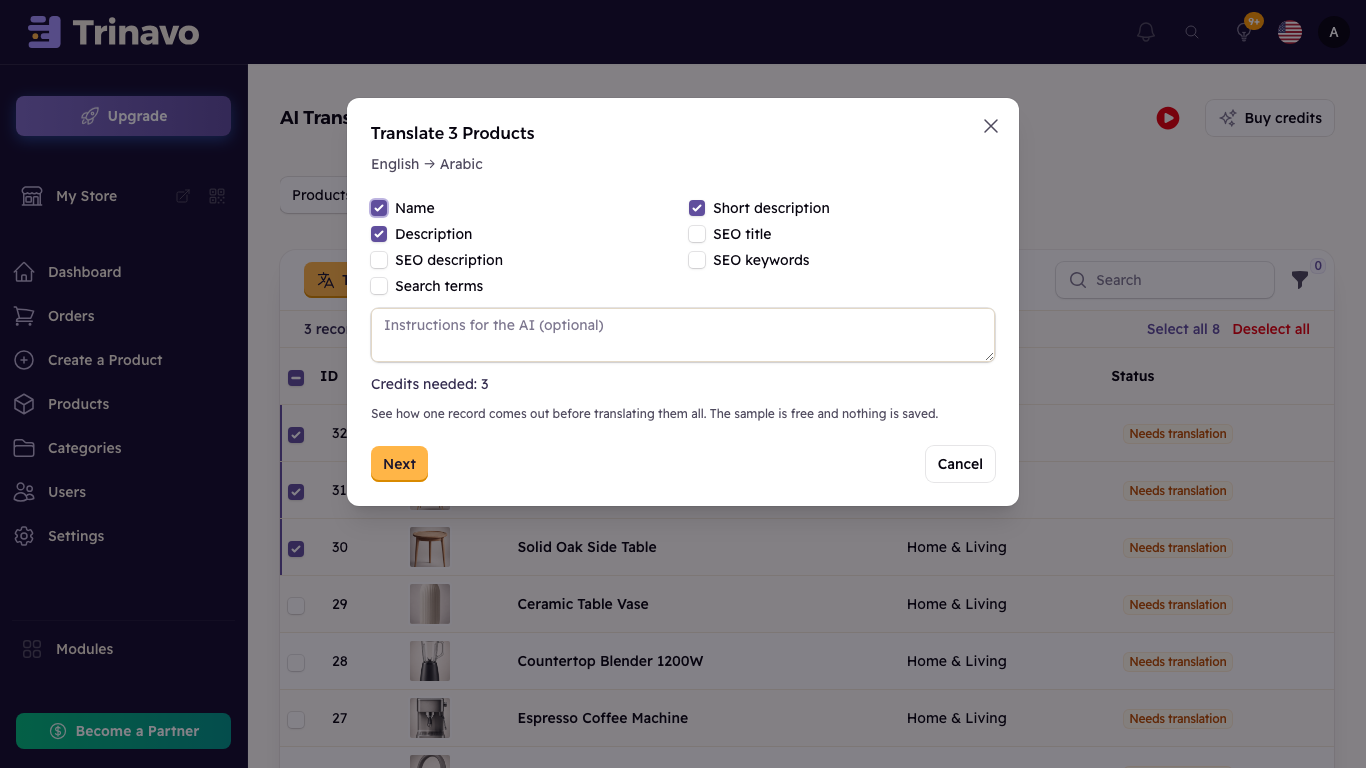
Each record costs 1 credit, with all its chosen fields together. When you do not have enough for all of them, the dialog says so: buy more, or start anyway and it stops when your credits run out.
Check the sample
Next translates the first record you picked as a sample, shown as the original text next to its translation. The sample is free and nothing is saved, so a wrong language or a bad instruction shows up here, not after a thousand products.
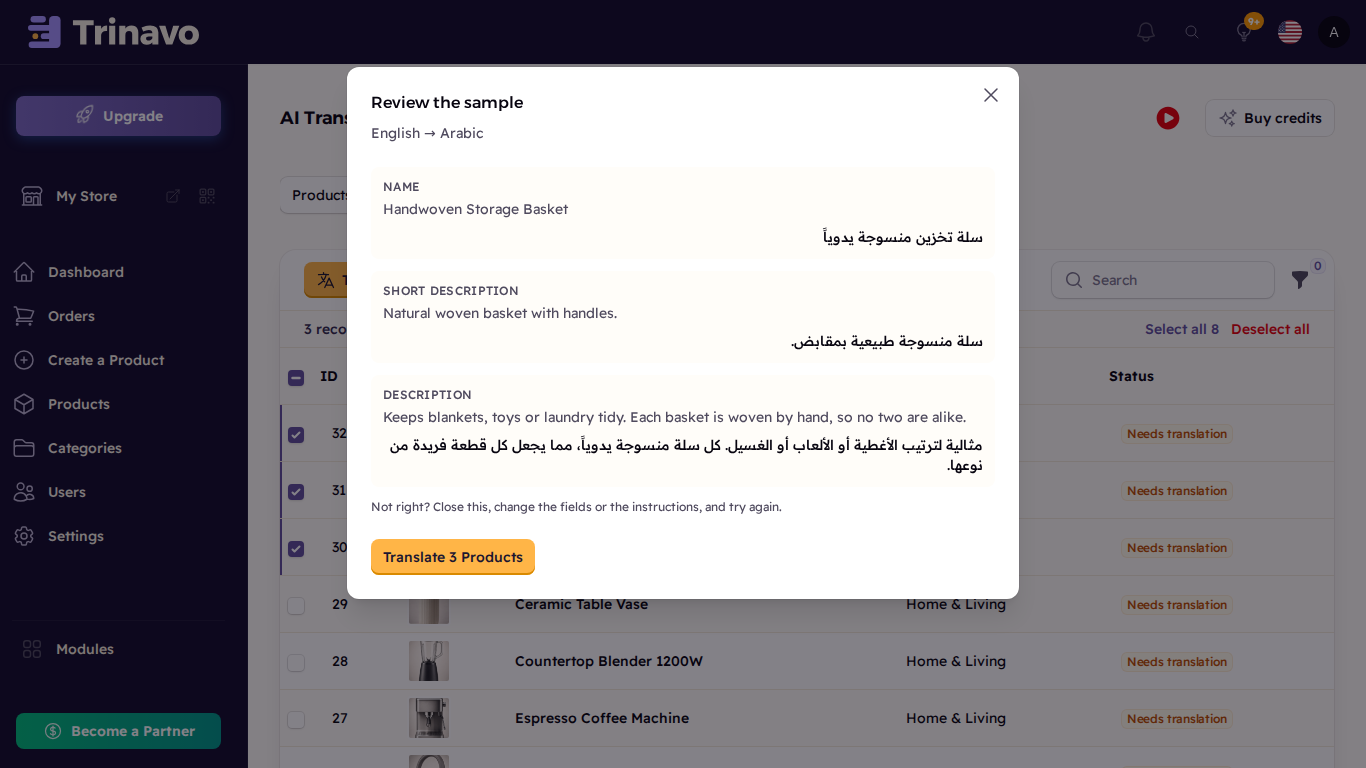
Happy with it, click Translate N Products (the button names how many). Not right? Close the dialog, change the fields or the instructions, and click Translate again.
While it runs
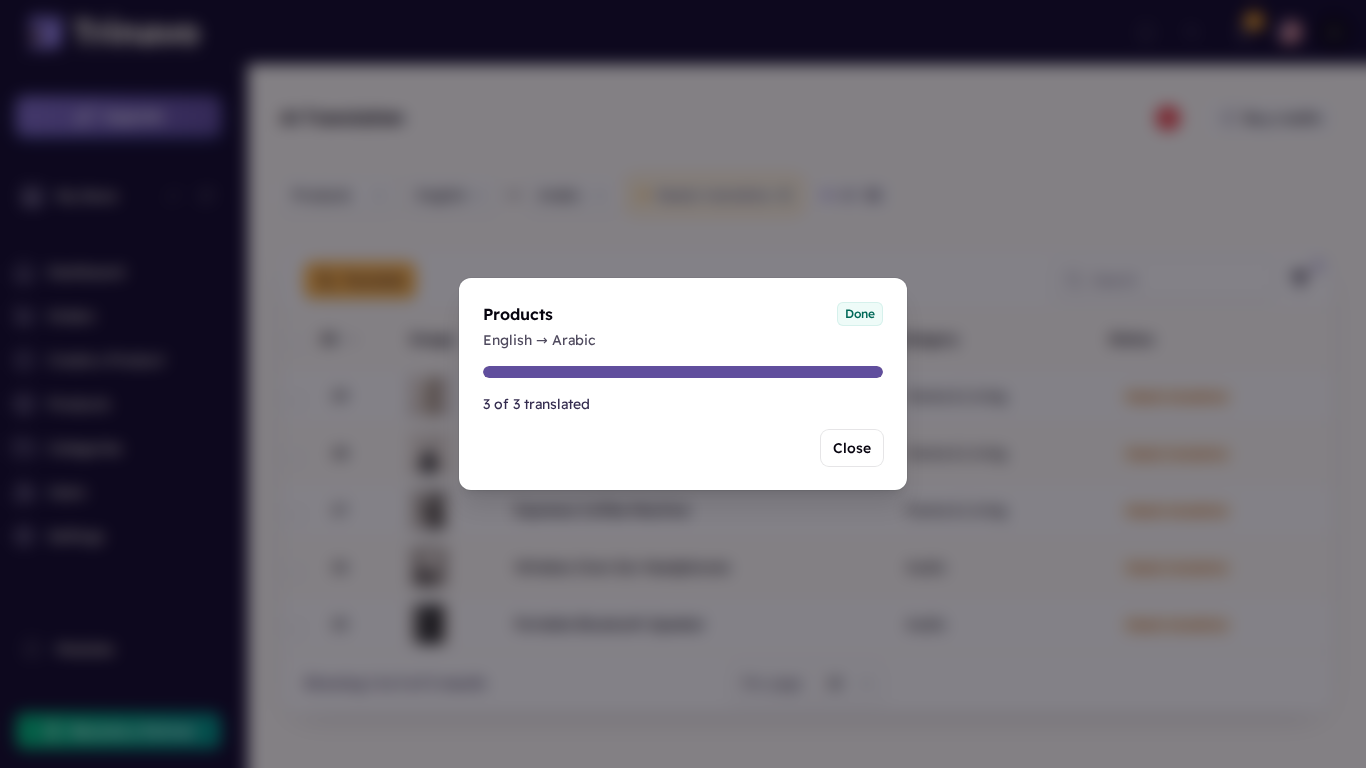
A box over the page shows how many are translated, and how many could not be. The work goes on if you leave the page, and coming back shows the box again. Cancel stops it. One run takes up to 5,000 records.
If your credits run out, the translation stops and keeps everything done so far. Buy more, then click Translate the remaining N. Close hides the box once the run is over.
From the lists
- On Products, Categories and Brands, tick the ones you want and choose Translate with AI from the bulk actions. You land here with them already ticked and a Filtering chip; click its × to see everything again.
- To translate one record right away, use Translate with AI in the product page's ⋮ menu (More), or in the actions menu on a category's or brand's row. Pick From, To, the Fields and any instructions, then click Translate. It uses 1 credit. On the product page your changes are saved first; switch the language at the top of the form to see the result.