Customer Referral Settings
Overview
Customer Referral Settings control the customer-side referral programme — the one that lets your existing customers invite friends and earn rewards. This is separate from the Partner Program (B2B affiliate scheme); these settings only configure the consumer-facing flow.
Accessing Customer Referral Settings
Navigate to: Modules → Settings → Customer Referrals.
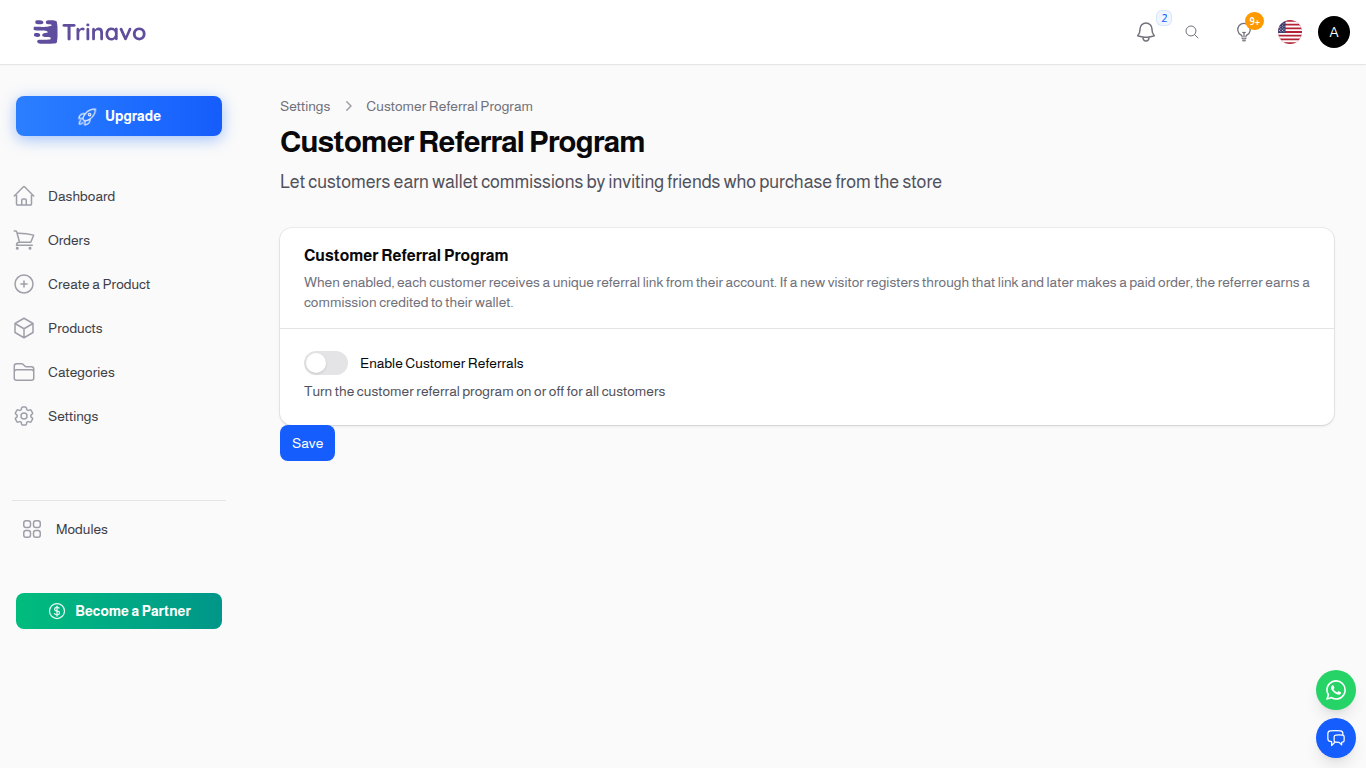
Settings
Enable Customer Referral
- Type: Toggle switch (On/Off)
- Default: Off
- Purpose: Master switch that turns on the referral programme. When off, the share-with-friends widget and reward logic are completely hidden — even if individual customers still hold valid referral codes from before.
Reward Per Successful Referral
- Type: Number input (currency, base currency)
- Purpose: Amount credited to the referrer's wallet when their referee completes the qualifying action.
- Best practice: Pick a number that won't be eroded by your average margin. Pair this with a minimum-order threshold below.
Qualifying Action
- Type: Single-select dropdown
- Options:
- First Order Placed — credits the referrer the moment the referee submits their first order.
- First Order Delivered — waits for the order to reach Delivered status before crediting (recommended; protects against cancellations and refunds).
- Purpose: Defines when the reward is paid out.
Minimum Referee Order Amount
- Type: Number input (currency)
- Default: 0 (no minimum)
- Purpose: The referee's qualifying order must be at least this value for the reward to fire. Use this to prevent self-referral abuse with $1 orders.
Remember Referral For (Days)
- Type: Number input (days)
- Default: 15 days
- Purpose: How long a referral link is remembered after a visitor first clicks it. During this window the visitor counts as referred even if they browse, leave, and come back later. If they place an order any time inside the window — whether they register an account first or check out as a guest — that order is credited to the referrer. After the window passes, the link is forgotten and a new order is no longer linked to the referrer.
- Best practice: A longer window gives shoppers more time to decide and rewards the referrer for slower conversions; a shorter window keeps attribution tight.
Show Share Buttons
- Type: Toggle switch (On/Off)
- Purpose: When on, the customer's account page exposes social-share buttons (WhatsApp, Telegram, native share sheet) that prefill the referral URL. When off, customers can still copy the referral code manually but the visual share UI is hidden.
How It Works
- Each customer has a unique referral code generated automatically when their account is created.
- The customer shares the link
https://yourstore.com/register?ref=CODE. - A new visitor opens the link. The store remembers the referral for the number of days set in Remember Referral For (Days).
- Inside that window the visitor can either register an account or simply check out as a guest — both are linked to the referrer.
- When the resulting order is paid, the commission is credited to the referrer's wallet in your store's base currency. If the order is later cancelled or marked unpaid, the commission is automatically removed again.
- The referrer can spend the wallet balance like any other store credit.
Best Practices
- Set a minimum order amount to discourage self-referrals with throwaway accounts.
- Prefer First Order Delivered as the qualifying action — it filters out cancellations.
- Combine with Registration Settings → require email or mobile verification, so each referred account is harder to fake.
- Watch the Customer Referrals dashboard periodically for unusual patterns (one IP, many invites).
Related Sections
- Customer Referrals dashboard — view live referral activity and per-customer counts.
- Partner Program — for the B2B / affiliate variant where partners drive paid traffic.
- User Wallets — where referral rewards land.