Fee Management
Watch the video
Manage Fees
Watch the:
Fixed charges added to every new order, such as a service fee. Each enabled fee appears as its own line, with its name, in the customer's cart and on the order.
Where to find it
Open Modules → System Settings → Fee Management.
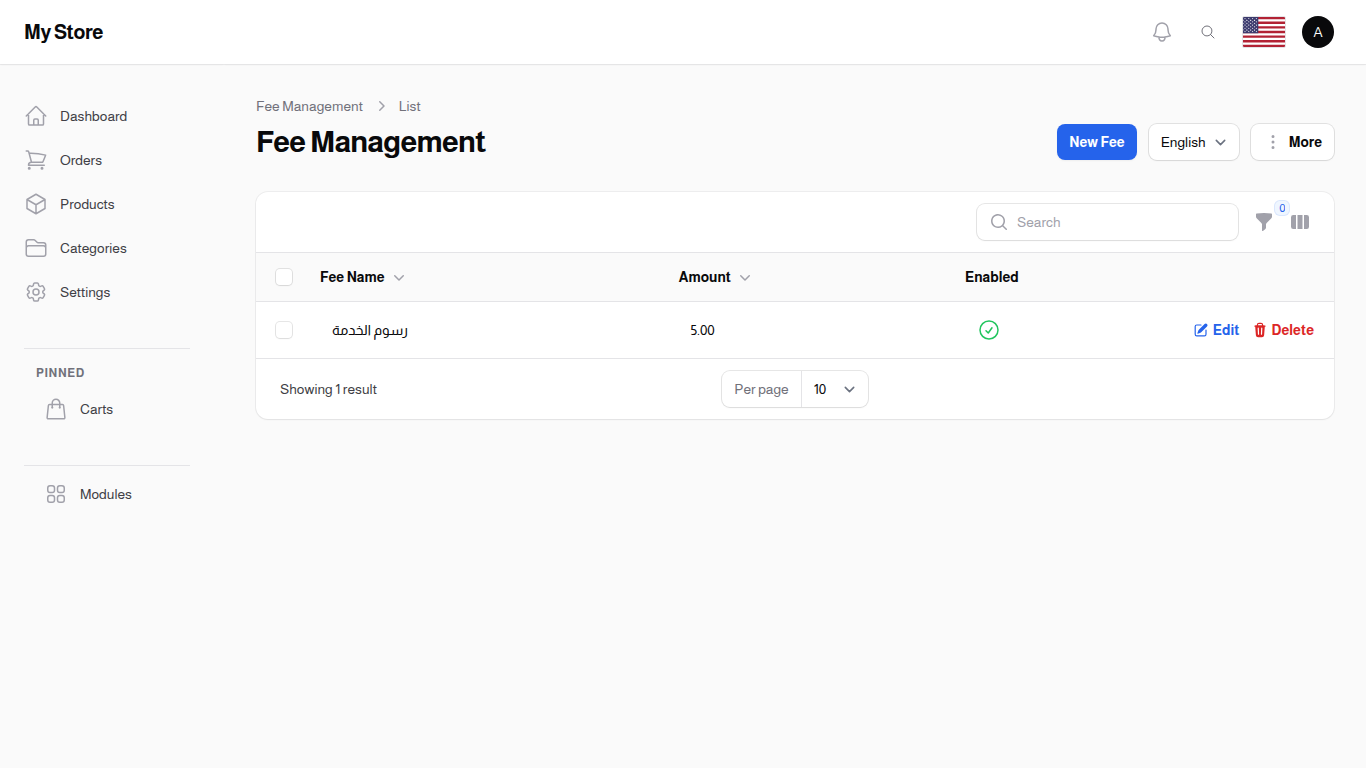
Click the icon in the Enabled column to switch a fee on or off. The Status filter shows only enabled or only disabled fees.
Add a fee
- Click + (New Fee).
- Type the Fee Name. Customers see it in the cart and on their order and invoice.
- Type the Amount: a fixed sum, the same on every order whatever its size.
- Leave Enabled on to start charging it on new orders.
- Click Create.
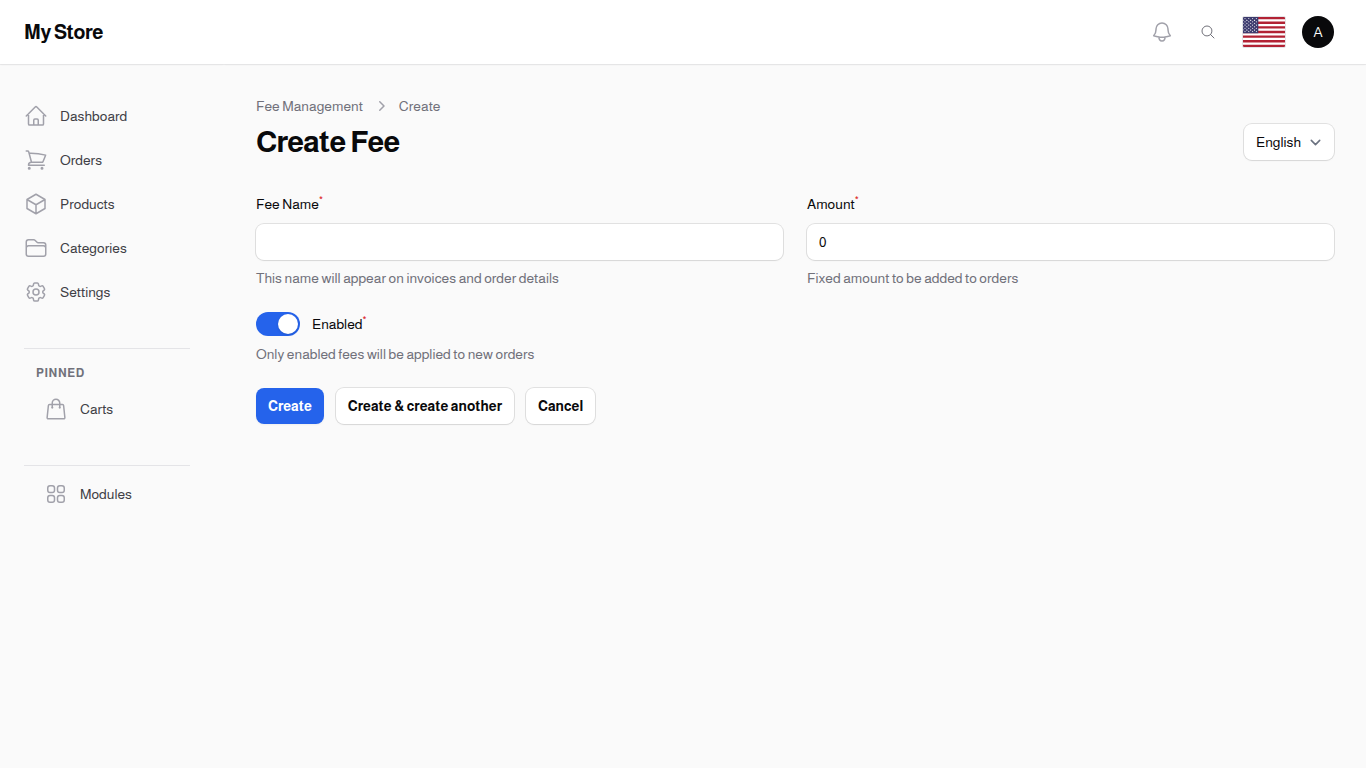
Every enabled fee is added once to each new order placed on your store or app. Sales at the Point of Sale do not get them.
The fees are written into the order when it is placed. Changing, disabling or deleting a fee later does not change orders already placed. On the order's page, the Fee Breakdown section lists the fees that order was charged.
Edit, switch off or delete fees
- Click Edit on the fee's row to change its name or amount, then Save changes. Use the language switcher at the top of the list to write the name in each language.
- Click Delete on the row to remove a fee.
- To act on several at once, tick them and choose Enable, Disable, Delete or Export from the bulk actions.
To download all fees as a spreadsheet, choose Export from the ⋮ menu (More) at the top.