Reviews
Signed-in customers can rate a product from one to five stars and leave a comment, once per product. A review stays hidden until you approve it here.
Where to find it
Open Modules → User Management → Reviews. The number next to the menu item is how many reviews are waiting.
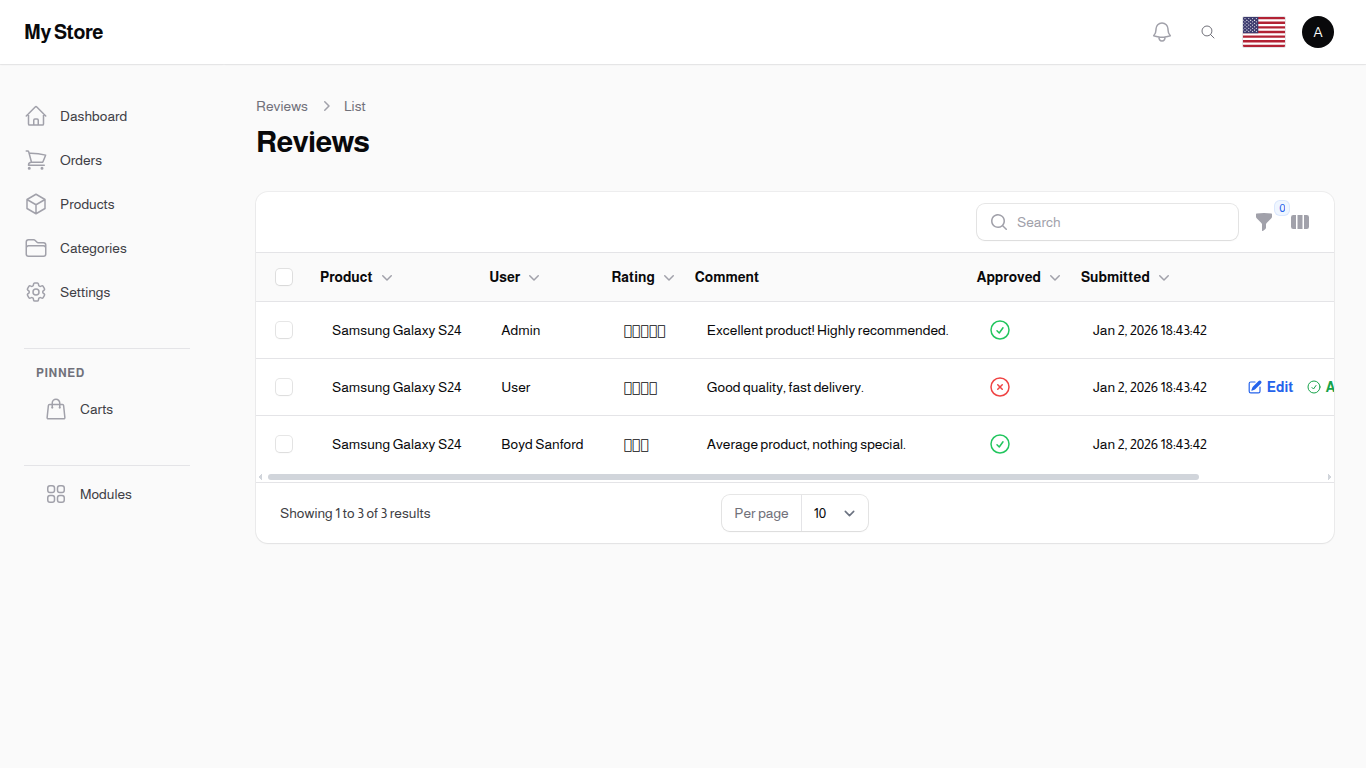
The list opens on the reviews waiting for approval. Change the Approval Status filter to see the approved ones, use Rating to find the low scores, and Reported to find reviews customers have flagged.
Reviews must be switched on with Enable Reviews in Product Display Settings. The ⋮ menu (More) at the top links there and to the loyalty settings.
Approve reviews
Click Approve on the review's row and confirm. To approve several, tick them and choose Approve Selected from the bulk actions.
Approving shows the review on the product page, updates the product's star rating, and gives the customer the Review Points set in Loyalty Program Settings.
To hide an approved review again, click the tick in its Approved column. The rating is updated; the points the customer received are not taken back.
Read a review
- Click Edit on the review's row.
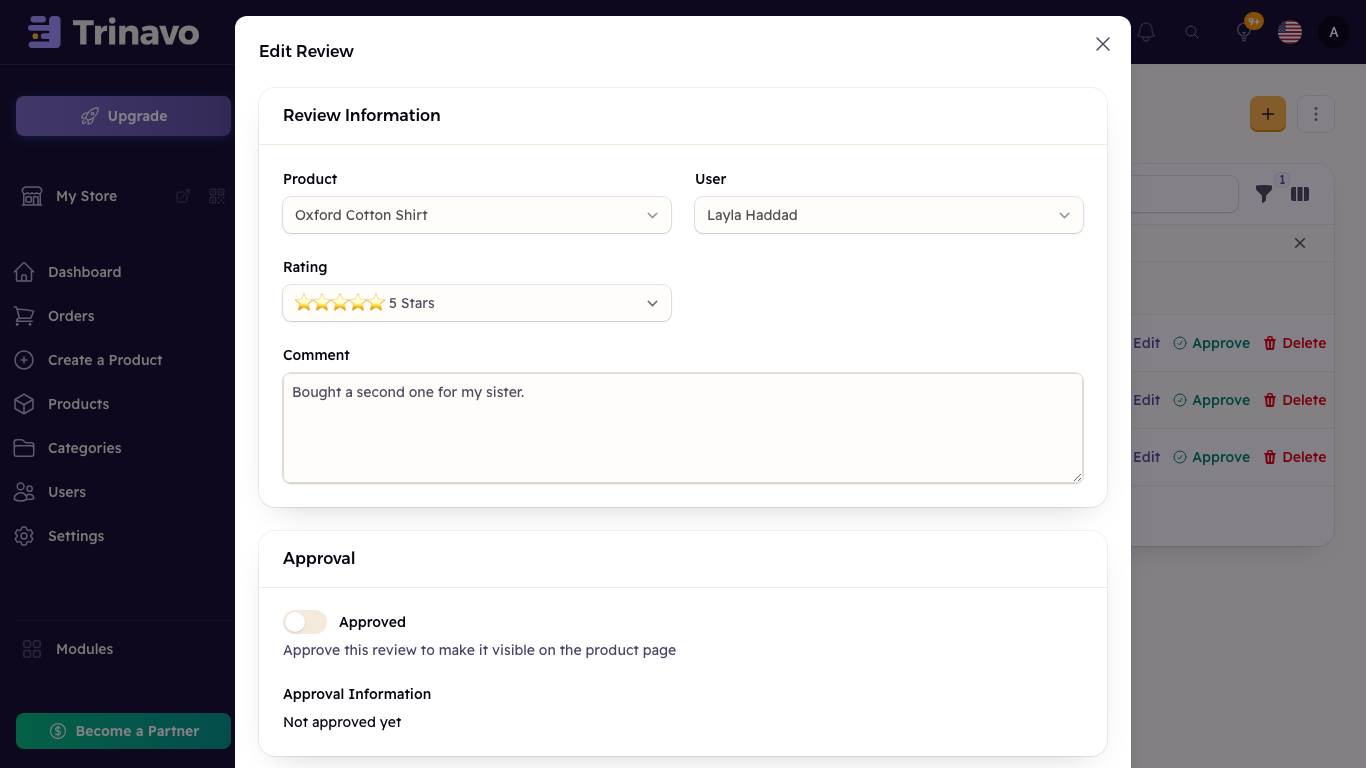
- The dialog shows the product, the customer, the rating and the comment. These cannot be changed.
- Turn on Approved to publish it, and click Save changes. Approval Information shows who approved it and when.
Check reported reviews
Customers can report an approved review from the mobile app. The Times reported column counts the reports, and everyone who receives New Review notifications is told (see Notification Settings).
- Set the Reported filter to show reported reviews.
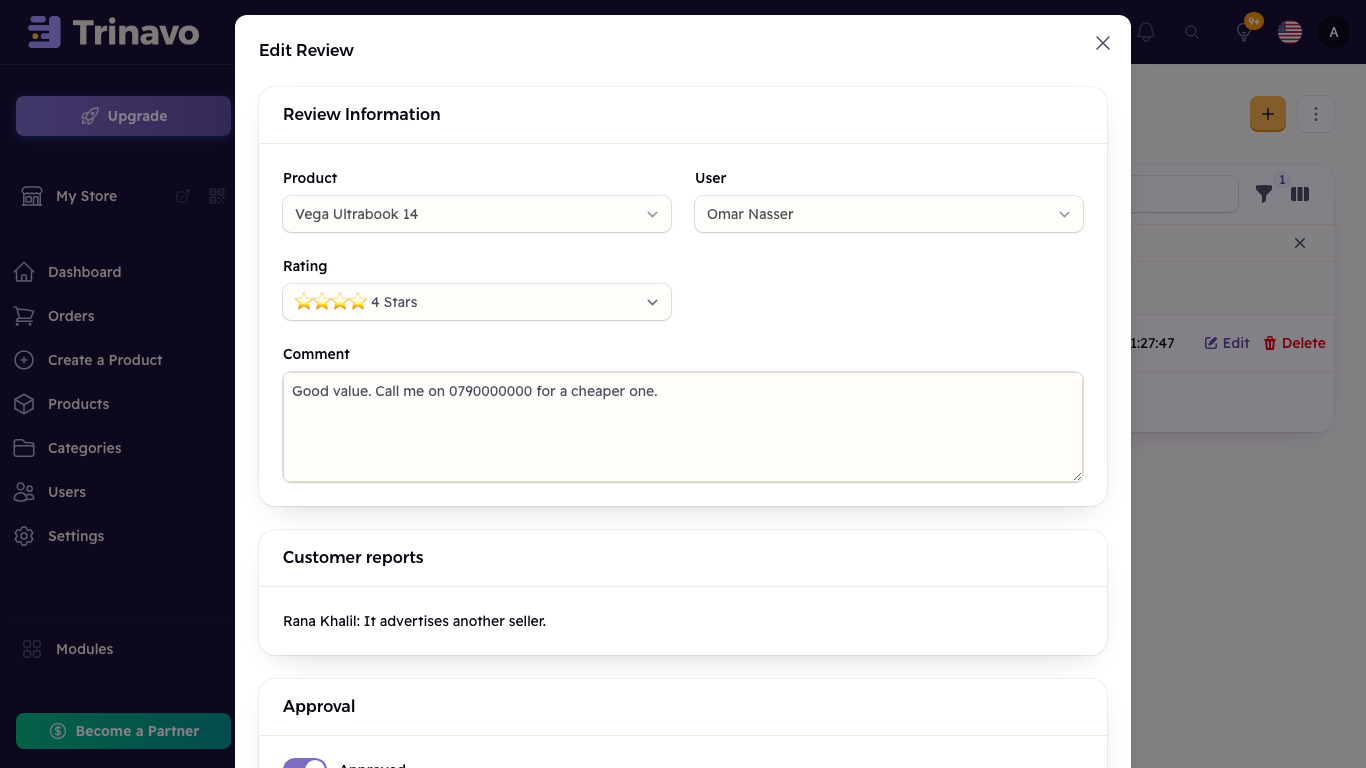
- Click Edit on one. Customer reports lists who reported it and why.
- Turn off Approved to take it off the product page, or delete it.
Delete a review
Click Delete on the review's row and confirm, or tick several and delete them from the bulk actions. A deleted review cannot be brought back.