Stock History
Purpose
Stock History is a read-only log of every change that happens to an item's stock numbers. Every time a product's stock or held quantity changes — because a customer added the item to their cart, an order was placed, or you edited the stock manually — a new row is written here. If a customer ever asks "why did the available quantity change?", or if a number looks wrong and you want to investigate, this is the first place to look.
Accessing Stock History
You can reach the Stock History page from three places:
- Sidebar → Reports → Stock History — shows the full log across your whole catalog.
- Products list → open the row menu (three dots) → click Stock History — opens the log pre-filtered to that product.
- Product edit page → click the more actions dropdown (top right) → Stock History — same pre-filtered view.
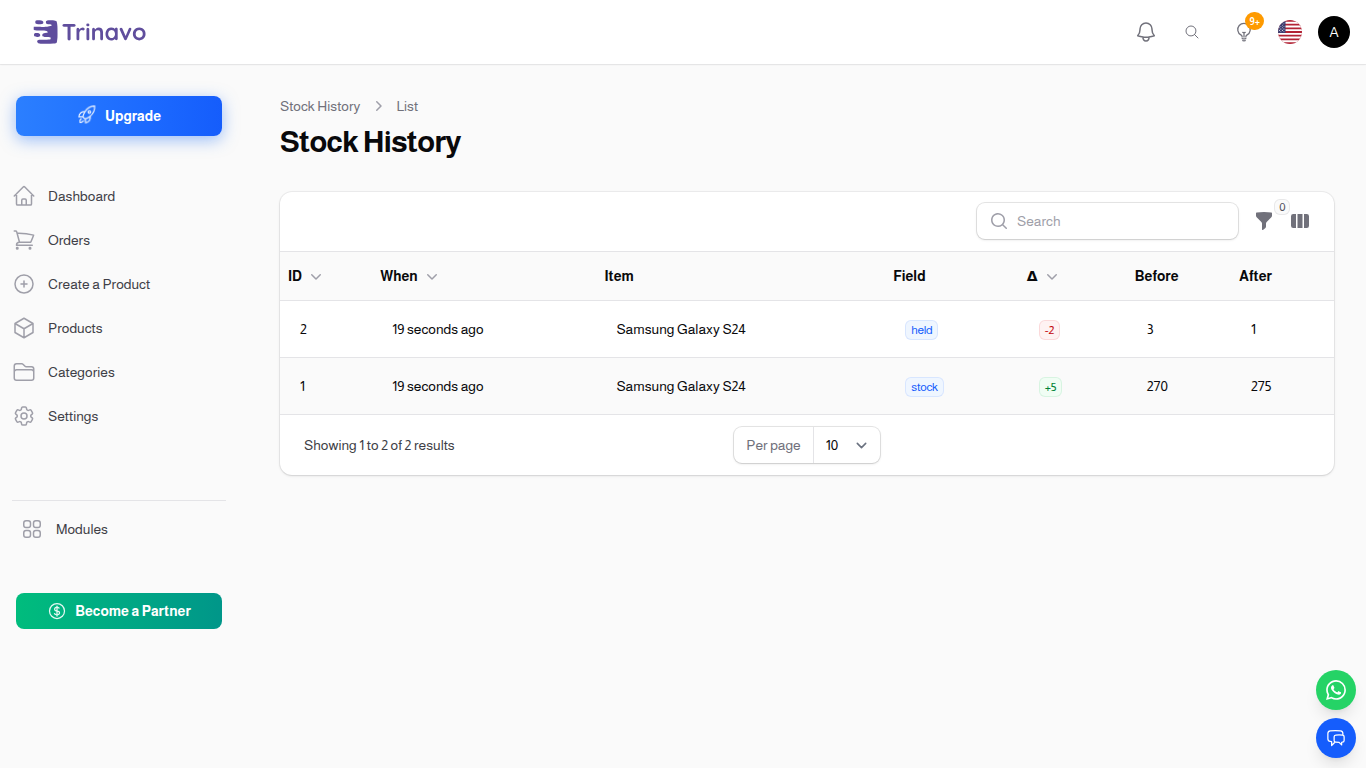
The Stock History page showing recent stock and held-quantity changes
Reading the Table
Each row is one change to one number on one item or variation. The columns are:
When
- Format: Relative time (e.g. 3 hours ago), hover to see the exact timestamp
- Purpose: Lets you match up a change with something that happened around the same time — an order, a cart activity, or an admin edit
Item
- Format: Product name, clickable
- Purpose: Identifies which product the change belongs to. Clicking opens the product edit page in a new tab
Variation
- Format:
#IDfor variations, or Main when the change is on the parent product itself - Purpose: Shows which variation changed (e.g. size Large, color Red)
Field
- Format: Colored tag — either Stock (blue) or Held (yellow)
- Purpose: Tells you which number changed:
- Stock = the real inventory count you control (what you actually have in the warehouse)
- Held = the number currently reserved inside active customer carts — these units are not for sale to other customers
- Together, Available = Stock − Held
Δ (Change)
- Format: Green
+Nfor increases, red−Nfor decreases - Purpose: The size and direction of the change at a glance
Before / After
- Format: Number
- Purpose: The value before the change and the value after it. Useful when you need the exact numbers, not just the delta
Filters
Use the filter panel above the table to narrow down what you see:
Item
Searchable dropdown — type a product name to see only changes for that product. This is the most common filter.
Field
Keep only Stock rows, or only Held rows.
- Pick Stock to see admin stock edits and order-driven decrements (ignoring the noise of cart adds/removes).
- Pick Held to see cart activity (adds, removes, expirations).
Variation ID
Type the numeric ID of a variation to see only changes on that specific variant.
Date range
Pick a From and/or To date to see changes from a specific period (e.g. just this week, or just yesterday).
Last 24 hours
A one-click shortcut to see everything that happened in the past day.
Free vs Paid Plans
Free stores see only the 3 most recent stock events with a banner inviting them to upgrade. Your full history is still being recorded — once you upgrade, it becomes visible immediately. Nothing is ever deleted.
Paid stores see the complete history, with all filters active.
When viewing the page on a free plan, an upgrade banner appears above the table summarising the limit and linking to the upgrade flow.
When the System Blocks a Stock Reduction
Stock History works together with a safety guard on the product form. If you try to lower an item's stock below the number of units currently held in customer carts, the save is blocked and a red notification appears:
Cannot reduce stock below held quantity — You tried to set stock to X, but Y units are already held in active customer carts. Release the holds first, then try again.
The notification includes an Open carts holding this item button. Click it to jump straight to the Carts list pre-filtered to the customers who are holding this product. From there you can:
- Contact the customers and ask them to complete their order, or
- Remove the items from their carts yourself — which releases the holds — and then try the stock reduction again.
This safety net is always on and does not have a toggle. It protects you from over-committing to an order you can't fulfil.
Common Use Cases
A customer asks "why did availability drop?"
- Open the product, click Stock History in the row menu.
- The list is already filtered to that product — the newest change is at the top.
- Read the Field column (Stock vs Held), the Change (how much), and When.
- Match the timestamp against recent orders or cart activity to explain the change.
"This number looks wrong — what happened this week?"
- Open Reports → Stock History from the sidebar.
- Set Date range to the past week.
- Filter by the product in question.
- Read the rows top to bottom to rebuild the full story.
I only want to see admin edits, not cart activity
- Open Stock History.
- Set the Field filter to Stock.
- You now see only rows where the inventory count itself changed — admin edits, order-driven decrements, restocking. Cart-driven "held" noise is hidden.
Related Sections
- Inventory Management — the dashboard view of stock levels, low-stock alerts, and held totals
- Carts — see and manage the customer carts that are holding stock right now
- Orders — cross-reference stock drops with the orders that caused them