Manual Payment Methods
Purpose
Manage manual payment methods for wallet deposits and withdrawals. Configure bank transfers, cash deposits, checks, Western Union, and other manual payment methods that customers can use to add funds to their wallets or receive withdrawals.
Accessing Manual Payment Methods
Click Modules → Wallet Management → Manual Payment Methods
List View
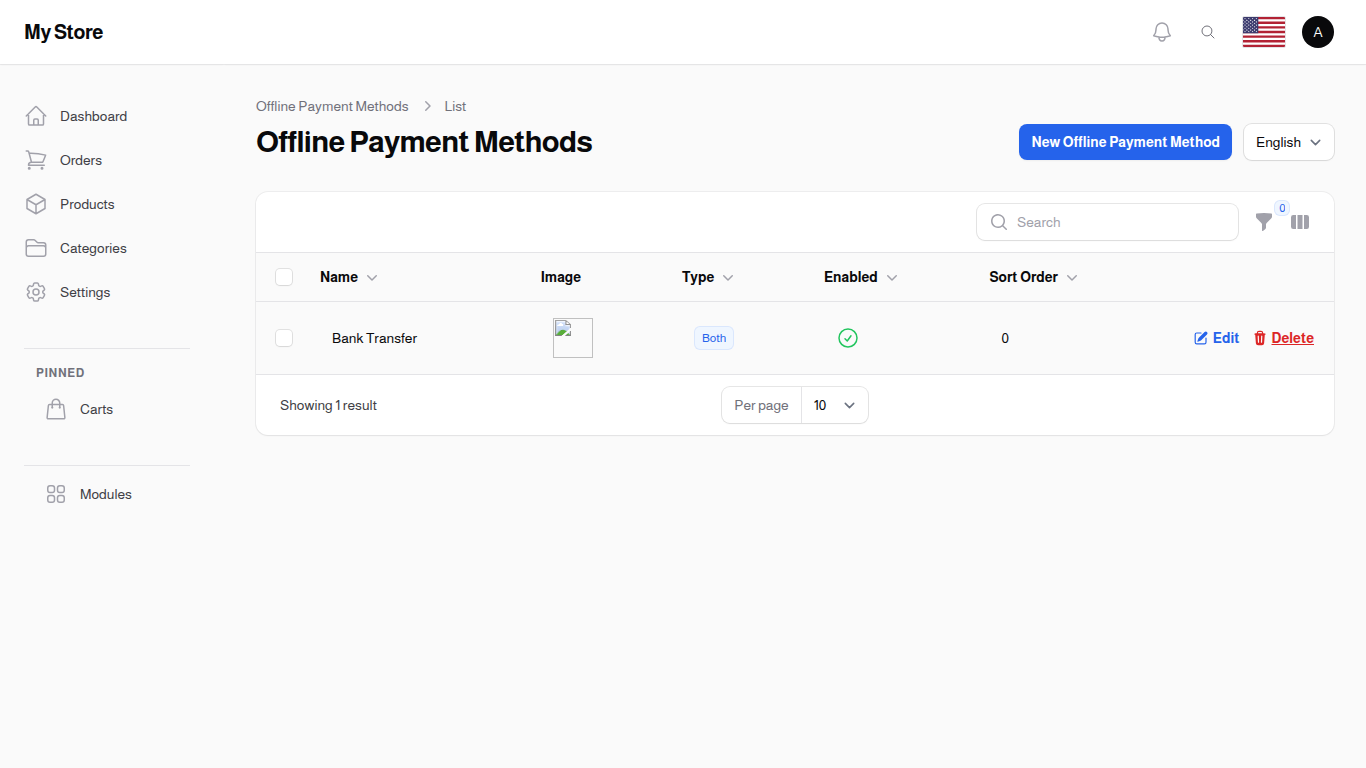
The list displays all configured manual payment methods with their availability and status.
Table Columns
Name
- Format: Text (translatable)
- Purpose: Payment method name displayed to customers
- Languages: Shown in the language picked with the language switcher above the list. Switch language there to read and edit the names and notes in another language, the form only ever shows one language at a time. The same header also holds a shortcut to the wallet settings.
Image
- Format: Small square picture
- Purpose: The logo shown next to the method, so customers recognize it at a glance
Type
- Format: Badge
- Purpose: Payment method usage type
- Options:
- Deposit Only: Can only be used for adding funds to wallet
- Withdrawal Only: Can only be used for withdrawing funds from wallet
- Both: Can be used for both deposits and withdrawals
Withdrawal Fee / Deposit Fee
- Format: Percentage
- Purpose: What you charge on a withdrawal or a deposit made through this method
- Note: Both columns start hidden. Switch them on from the column chooser above the table.
Enabled
- Format: Icon badge (checkmark = enabled, X = disabled)
- Purpose: Whether this payment method is currently available to customers
Display Order
The list is already in the order your customers see. To change it, use the reorder button above the table and drag the rows into the order you want, there is no number to type in.
Row Actions
- Edit: Open the method's settings in a dialog over the list
- Delete: Remove the method. Be careful: removing a method also removes the deposit and withdrawal requests made through it, including ones still waiting for your approval. Switch the method off instead of deleting it whenever you want to keep that history.
Bulk Actions
- Delete: Remove several payment methods at once
- Enable: Switch the ticked methods on, so customers can use them
- Disable: Switch the ticked methods off, hiding them from customers while keeping their settings
Creating a Manual Payment Method
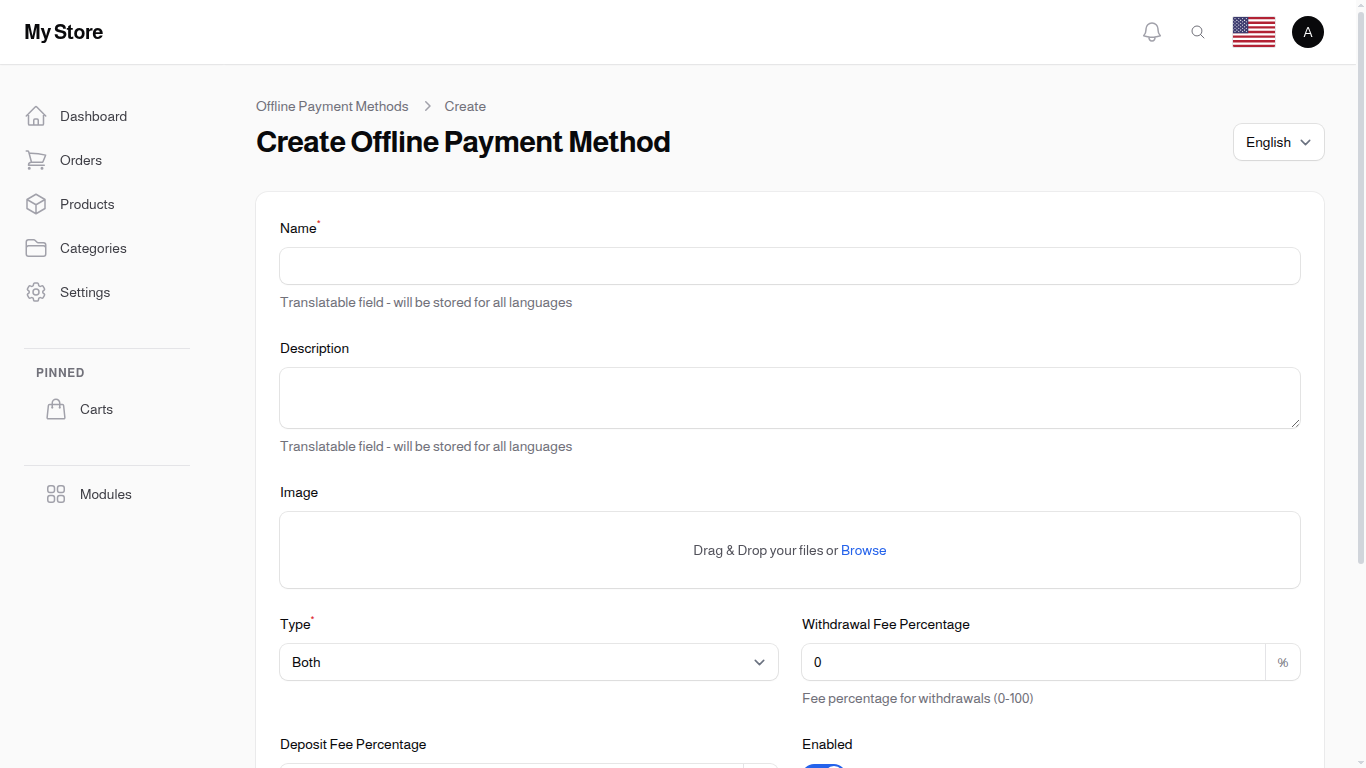
Click the "New Manual Payment Method" button to configure a new payment option. The form opens in a dialog over the list, so you keep the search and filters you were working with.
Form Fields
The form is split into three tabs: Basic, Payment Details and Settings.
Name Required
- Type: Translatable text input
- Purpose: Payment method name shown to customers
- Languages: Written one language at a time. Use the language switcher above the list to fill in the others.
- Examples:
- English: "Bank Transfer", "Cash Deposit", "Western Union"
- Arabic: "تحويل بنكي", "إيداع نقدي", "ويسترن يونيون"
- Validation: Required, maximum 255 characters per language
User Notes
- Type: Rich text editor with formatting, on the Basic tab
- Purpose: The notes shown to the customer when they pick this payment method
- Languages: Written one language at a time. Use the language switcher above the list to fill in the others.
- What to Include:
- Step-by-step instructions
- What the customer should send you along with the payment
- Processing time expectations
- Example for Bank Transfer:
``` Transfer the amount to our bank account, then upload the receipt with your deposit request.
Please include your membership number in the transfer notes.
Processing time: 1-2 business days ```
- Tip: Put values the customer has to copy, such as an account number or an IBAN, in the Payment Details tab instead. They get a copy button there, so nothing is mistyped.
Type Required
- Type: Dropdown selection
- Purpose: Define how this payment method can be used
- Options:
- Deposit Only: Customers can only use this to add funds to wallet
- Withdrawal Only: Customers can only request withdrawals via this method
- Both: Can be used for both operations
- Default: Both
Examples by Type:
- Deposit Only: Cash deposit at branches, gift cards
- Withdrawal Only: Check payment, direct bank transfer to customer
- Both: Bank transfer, Western Union, MoneyGram
Enable WhatsApp Contact Button
- Type: Toggle switch (On/Off), on the Basic tab
- Default: Off
- Purpose: Shows a WhatsApp button under your notes, so the customer can message you about this payment. Their membership number is already written into the message.
WhatsApp Number Required when the button is on
- Type: Phone number
- Purpose: The number the customer's message is sent to
- Format: International format, for example +962790000000
- Note: The field only appears once the WhatsApp button is switched on
Payment Details
- Type: A repeating list on the Payment Details tab, each line holding a Label and a Value, both required
- Purpose: The details the customer needs in order to pay you. Each one appears with a copy button, so nothing is mistyped.
- Examples: Label "IBAN" with your IBAN, Label "Bank Owner Name" with the account holder, Label "USDT token" with the wallet address
- Tip: Use Add Payment Detail for each new line. Drag the lines to reorder them, and collapse the ones you are not editing.
Enabled
- Type: Toggle switch (On/Off), on the Settings tab
- Default: On (enabled)
- Purpose: Control availability to customers
- When Disabled: Payment method hidden from deposit/withdrawal forms
Image, Fees and Supported Currencies
The rest of the Settings tab:
- Image: A picture for the method, up to 5 MB
- Withdrawal Fee Percentage and Deposit Fee Percentage: A number from 0 to 100, starting at 0, which means no fee
- Supported Currencies: Tick the currencies this method accepts, or leave every box empty to accept them all
Display Order
The order customers see is not set in this form. Once the method is saved, use the reorder button above the list and drag it into place, the top of the list is the first option your customers see.
Editing a Manual Payment Method
Click Edit on any payment method to modify its configuration:
Editable Fields
- Name and user notes, one language at a time
- Type (Deposit Only, Withdrawal Only, Both)
- Payment details shown to the customer
- WhatsApp contact button and number
- Image, up to 5 MB
- Withdrawal fee and deposit fee, each a percentage between 0 and 100 (0 means no fee)
- Supported currencies: tick the currencies this method accepts, or leave every box empty to accept them all
- Enabled status
Display order is not part of the form, drag the rows in the list instead.
Things to Watch
- Every field stays editable, even while deposit or withdrawal requests are still waiting for your approval. Changing the payment details or the fees while a customer is midway through paying can leave them confused, so make such changes when nothing is pending.
- There is no archive. To retire a method while keeping its history, switch Enabled off and leave it in the list.
Payment Method Types Explained
Deposit Only Methods
Use Cases:
- Cash deposits at physical branches
- Gift card redemption
- Voucher deposits
- In-person payments
Customer Flow:
- Customer selects method on deposit page
- Follows instructions to make payment
- Uploads receipt/proof
- Admin verifies and approves
- Funds credited to wallet
Withdrawal Only Methods
Use Cases:
- Check mailed to customer
- Direct bank transfer to customer account
- Cash pickup at location
Customer Flow:
- Customer selects method on withdrawal page
- Provides necessary account details in notes
- Funds immediately deducted from wallet (held pending)
- Admin processes withdrawal
- Upon approval, transfer is completed
- Upon rejection, funds refunded to wallet
Both Deposit and Withdrawal
Use Cases:
- Bank transfers (customer can send or receive)
- Western Union / MoneyGram (bidirectional)
- Mobile money services
Benefits:
- Single method for all operations
- Consistent customer experience
- Easier method management
Best Practices
Clear Instructions
Always provide:
- Account Details: Bank account, wallet ID, reference number, each one added on the Payment Details tab so the customer can copy it
- Required Information: What customer needs to include (order ID, phone number)
- Processing Time: How long approval takes
- Support Contact: Who to contact for issues
Appropriate Types
Choose the correct type:
- Deposit Only: When you receive money but don't send
- Withdrawal Only: When you send money but don't receive
- Both: When the method works bidirectionally
Enable/Disable Strategy
- Temporarily Unavailable: Disable instead of delete
- Seasonal Methods: Disable during off-season
- Testing: Create as disabled, test internally, then enable
- Deprecation: Disable old methods while keeping history
Method Order
Drag the rows into this kind of order, most useful first:
- Most Popular: Bank transfer
- Fast Methods: Mobile payment
- Standard: Cash deposit
- Specialized: Western Union
- Rarely Used: Check payment
Managing Existing Methods
Viewing Details
Click Edit to see everything a method holds: its name and notes, its payment details, its fees, its image and the currencies it accepts. To see the requests made through a method, open Wallet Deposit Requests or Wallet Withdrawal Requests and filter by payment method there.
Modifying Methods
Safe to change:
- ✅ Name and user notes improvements
- ✅ The order of the list
- ✅ Enable/disable status
Be careful changing:
- ⚠️ Type (Deposit/Withdrawal/Both) - may confuse customers
- ⚠️ Payment details and fees - a customer midway through paying is following the old ones
Deleting Methods
What happens when you delete:
- Nothing stops the deletion, even when requests are still waiting for approval
- Every deposit and withdrawal request made through the method is deleted with it, so that history is gone for good
Recommended Approach:
- Switch the method off so no new requests can be made through it
- Finish processing the requests that are still open
- Leave the method switched off as your record of what happened
Only delete a method that was created by mistake and never used.
Common Payment Methods Setup
In each example below, the user notes go on the Basic tab. Any account number, IBAN or similar value is better added on the Payment Details tab, where the customer gets a copy button for it.
Bank Transfer
Name: Bank Transfer
Type: Both
User Notes:
Transfer funds to our bank account:
- Bank: [Your Bank Name]
- Account: [Account Number]
- IBAN: [IBAN Code]
- Reference: Include your user ID in transfer notes

Processing: 1-2 business days
Cash Deposit
Name: Cash Deposit
Type: Deposit Only
User Notes:
Visit any of our authorized branches:
- Branch 1: [Address]
- Branch 2: [Address]

Present your user ID when making deposit.
Receipt will be issued immediately.

Processing: Same day (within business hours)
Western Union
Name: Western Union
Type: Both
User Notes:
Send or receive money via Western Union.

For Deposits:
- Receiver Name: [Your Business Name]
- Location: [City, Country]
- Provide MTCN number when submitting request

For Withdrawals:
- You will receive MTCN via email after approval
- Collect funds at any Western Union location

Processing: 2-4 hours during business hours
Check Payment
Name: Check Payment
Type: Withdrawal Only
User Notes:
Receive withdrawal via mailed check.

Delivery Time: 7-10 business days
Minimum Amount: $100

Provide your complete mailing address in the withdrawal notes.

Check will be mailed to registered address unless
otherwise specified.
Manual Payment Methods Filters
Use filters to find specific methods:
- Type Filter: Show Deposit Only, Withdrawal Only, or Both
- Enabled Status: Filter by enabled/disabled
- Name Search: Search by payment method name
Key Information
- Customer Visibility: Only enabled methods shown to customers
- Type Restrictions: Deposit methods only appear on deposit page, withdrawal methods only on withdrawal page, "Both" appears on both
- Method Order: The order you drag the list into is the order customers see
- Multilingual: All names and user notes translatable
- Request Association: Methods linked to deposit/withdrawal requests for tracking
- Audit Trail: Deleting a method also deletes the deposits and withdrawals made through it, so switch a method off rather than deleting it whenever you want to keep the record
- Admin Control: All requests require admin approval regardless of payment method
Related Configuration
Configure wallet features in System Settings:
- Enable Wallet Deposits - Allow customers to request deposits
- Enable Wallet Withdrawals - Allow customers to request withdrawals
- Withdrawal Limits - Set minimum/maximum withdrawal amounts
Related Sections
- Wallet Deposit Requests - Process customer deposit requests
- Wallet Withdrawal Requests - Process customer withdrawal requests
- User Wallets - Manage wallet balances
- System Settings - Configure wallet features