Roles
A role is a set of permissions you give to staff, so each person sees and changes only their part of the store. Your store comes with ready-made roles, and you can change them or build your own.
Where to find it
Open Modules → User Management → Roles.

The Permissions column counts what each role is allowed. The eye button on a row (Details) shows, in plain words, what someone with that role can do.
See what each role can do
Click Role Guide at the top of the list. The left side lists every role; pick one to read what its users can do.
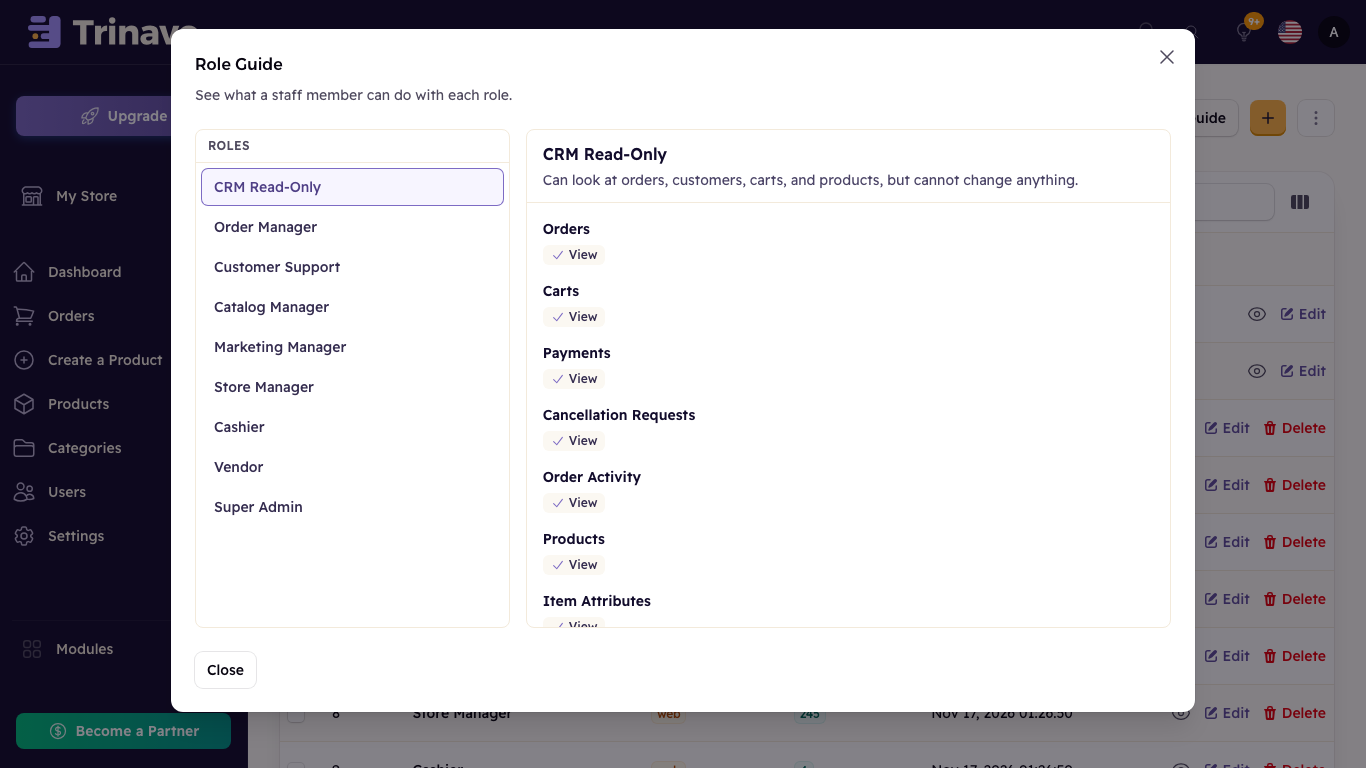
The ready-made roles:
| Role | What it is for |
|---|---|
| Super Admin | Full access to everything, including settings, billing and roles. The store owner has it. |
| Store Manager | Runs day-to-day work across products, orders and customers. Cannot manage roles, settings or billing. |
| Order Manager | Turns carts into orders and follows them up: status, fulfilment and payments. Cannot edit products. |
| Customer Support | Updates order status and handles cancellations. Cannot mark orders paid or edit products. |
| Catalog Manager | Builds the catalogue: products, categories, brands and stock. Can only view orders. |
| Marketing Manager | Runs promotions and content: discounts, blog and pages. Views products and orders. |
| CRM Read-Only | Looks at orders, customers, carts and products without changing anything. |
| Cashier | Sells at the Point of Sale only, and cannot open the admin panel. |
| Vendor | Manages only their own products and the orders for them. Needs the multi-vendor add-on. |
To give someone a role, pick it on the Advanced tab of their user page. See Users.
Create a role
- Click + (New Role).
- Type the role's Name.
- Tick the permissions on each tab (below), or turn on Select All to grant everything.
- Click Create.
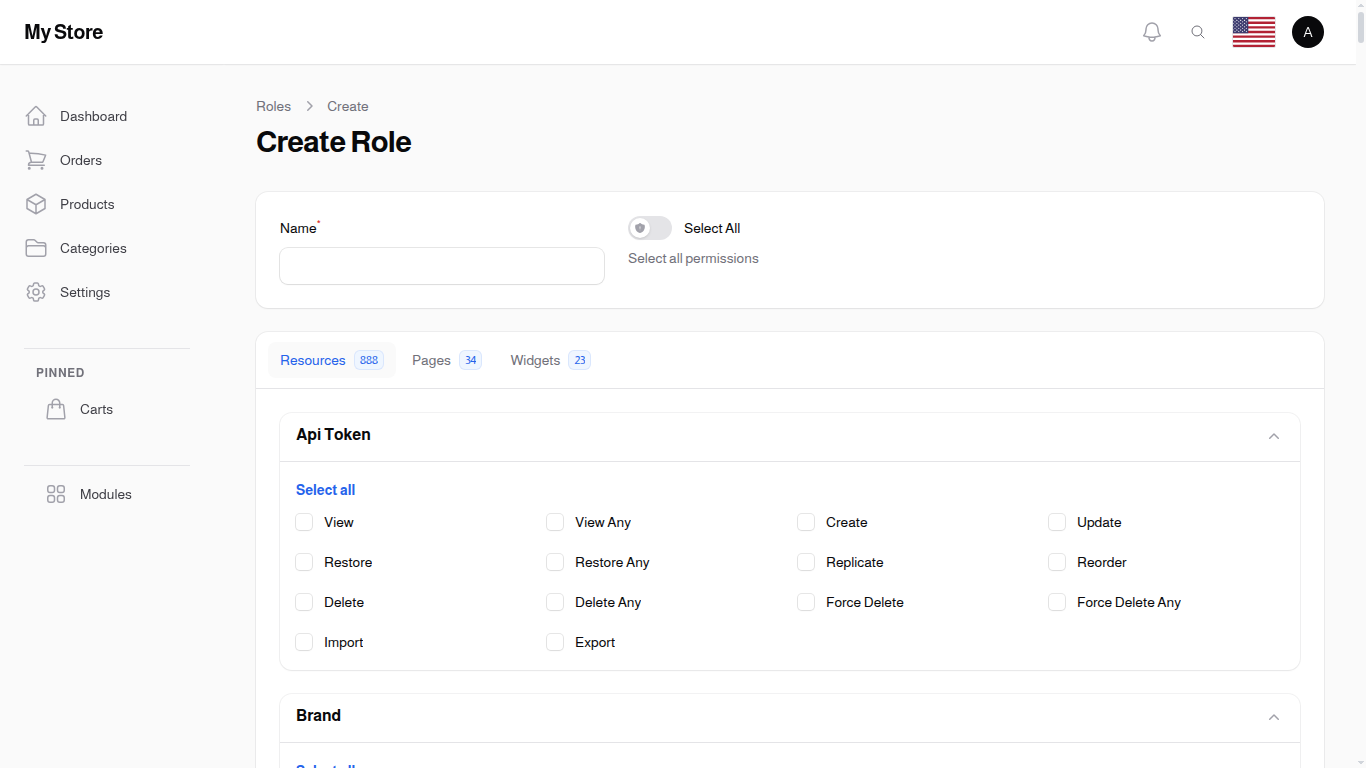
- Resources: one box per screen, with a tick for each thing that can be done there: view, create, update, delete and so on.
- Pages: screens that are not lists, such as reports and settings pages.
- Widgets: the boxes on the dashboard.
- Custom Permissions: abilities that are not tied to one screen.
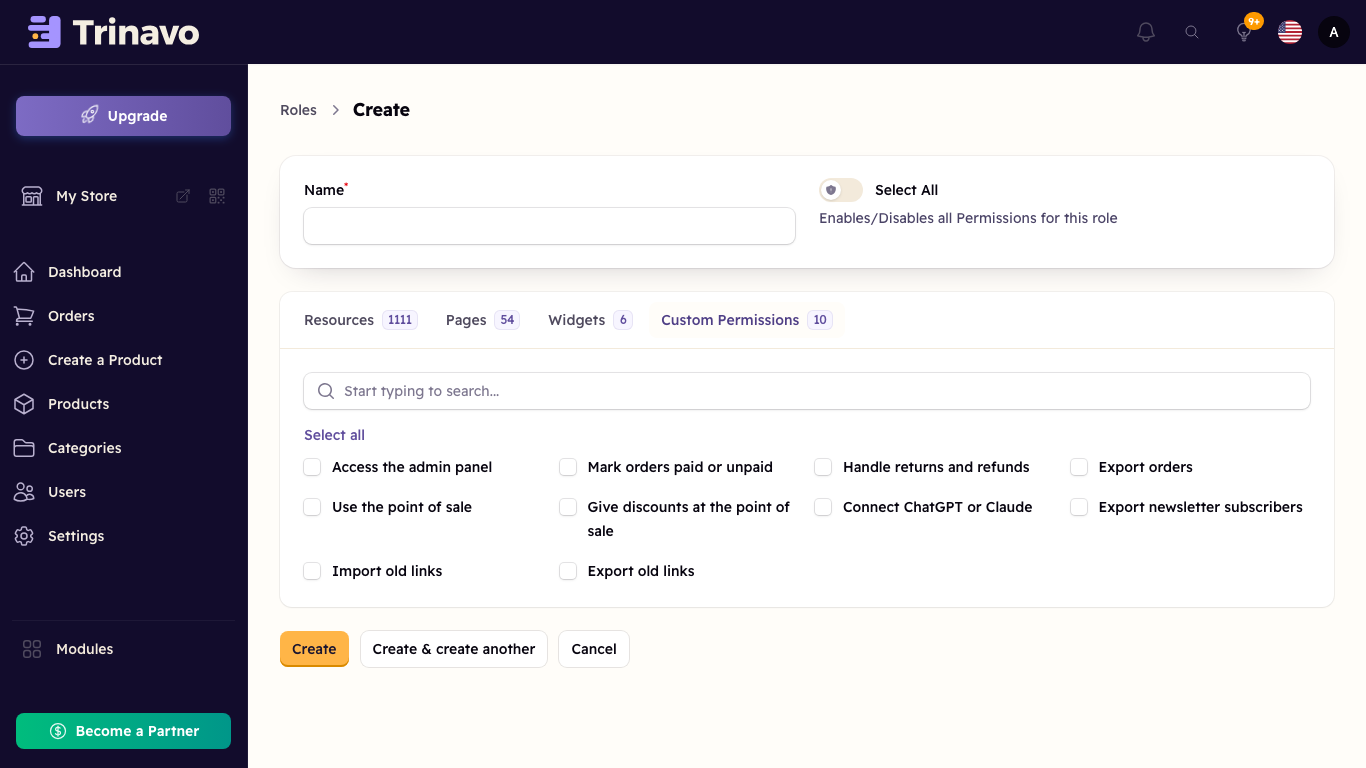
| Permission | What it does |
|---|---|
| Access the admin panel | Lets the user sign in to this admin panel at all. Every staff role needs it, except a cashier who only uses the point of sale. |
| Mark orders paid or unpaid | Changing an order's payment state, kept apart from editing orders. |
| Handle returns and refunds | Taking a return, approving or declining a request, and refunding. |
| Use the point of sale | Opening the point of sale register. Give discounts at the point of sale is a separate tick. |
| Connect ChatGPT or Claude | Approving an AI assistant to read the store's figures. See ChatGPT & Claude Access. |
Change or delete a role
- Click Edit on the role's row.
- Tick or untick permissions and click Save changes.
Everyone with the role gets the change at once. Delete on the row removes a role you no longer need.
The Super Admin and Vendor roles cannot be deleted, and the Vendor role cannot be renamed. A vendor never gets point of sale, purchasing or dropshipping: saving the Vendor role, or any role a vendor holds, with those permissions is refused with Role not saved.
The ⋮ menu (More) at the top holds Export, to download the roles as a spreadsheet.