Slider Items
Watch the video
Manage Slider
Watch the:
The slides that play in the big picture slider of your store, such as the one at the top of the home page. Each slide is a picture with an optional title, text and button.
Where to find it
Open Modules → Marketing & Content → Slider Items.

The slides play in the order of this list. Switch Enabled off to take a slide out of the slider without deleting it. The Enabled filter lists only enabled or only disabled slides.
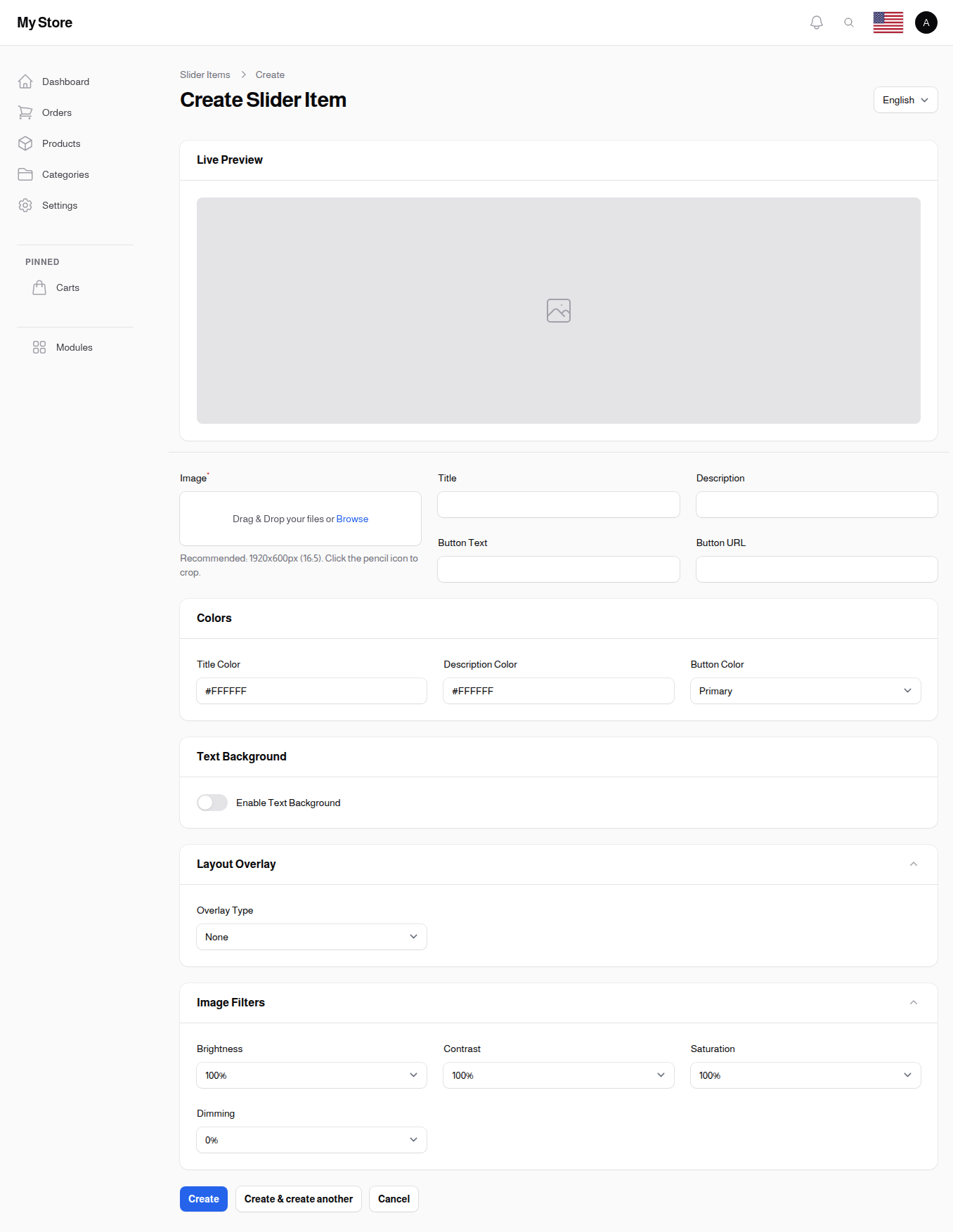
Add a slide
- Click + (New Slider Item).
- Upload the Desktop Image. Add a Mobile Image too if the wide picture does not read well on a phone; without one, phones and tablets show the desktop image. The help text under each gives the size your design expects.
- Fill the Text section if the slide should carry words or a button.
- Watch the Live Preview at the top: it changes as you fill the form.
- Click Create.
The sparkle button (Magic AI) beside each picture makes a picture with AI, or improves the one you uploaded.
| Field | What it does |
|---|---|
| Slide Link | Clicking anywhere on the slide opens this link. The magnifier (Choose a link) picks one of your products, categories, pages, blog posts or brands. |
| Button Text, Button URL | A button on the slide and where it goes. Leave them empty for no button. |
| Device Visibility | Shows the slide only on the Mobile, Tablet or Desktop screens you leave on. |
Style a slide
Below the text, the form changes how the slide looks. Every change shows in the Live Preview.
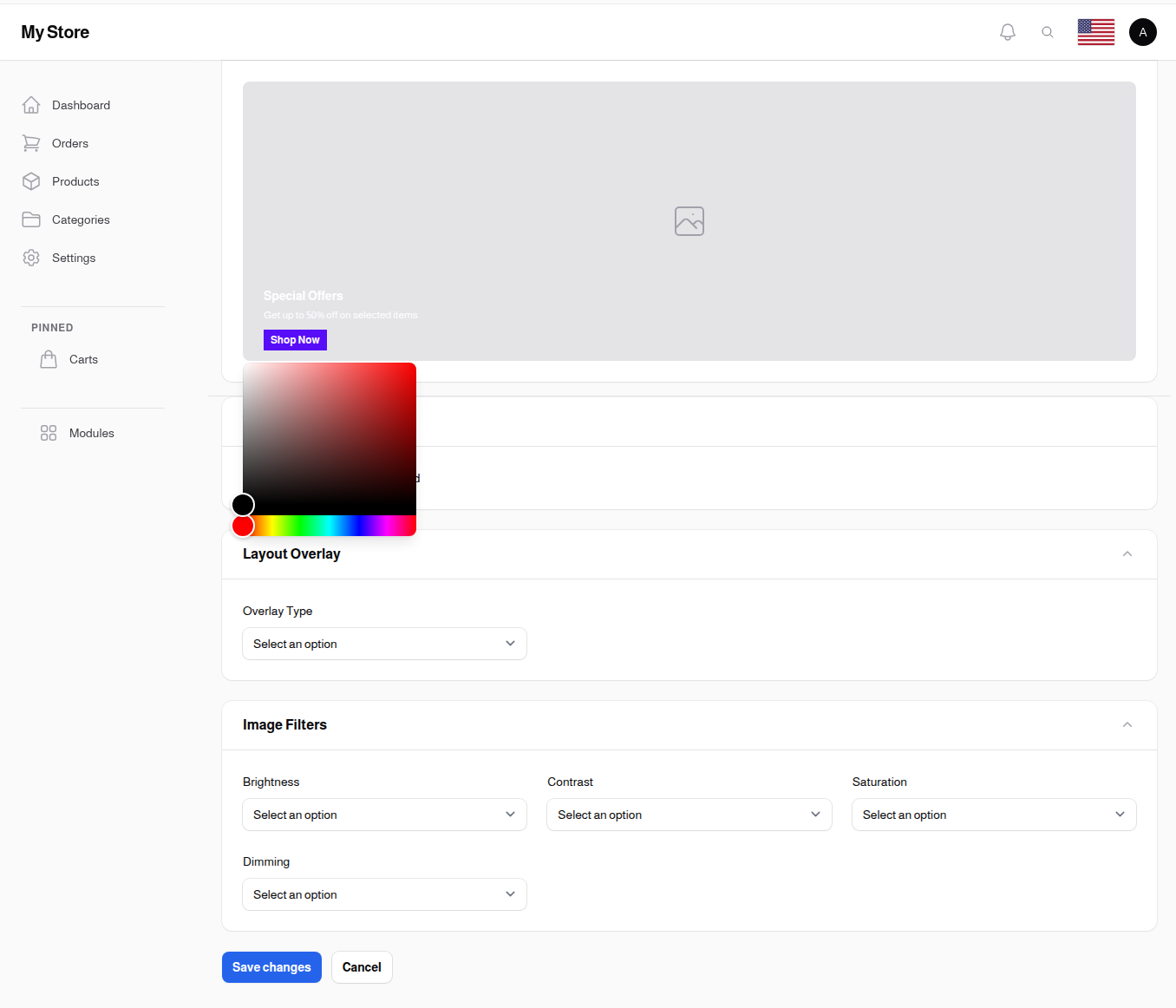
| Section | What it does |
|---|---|
| Colors | The color of the title and the description, and the Button Color, which follows your store's colors (Primary, Secondary, Accent and so on). |
| Text Background | A colored box behind the words, with its own Background Opacity, so they stay readable on a busy picture. |
| Layout Overlay | A shade over the picture: a gradient, a vignette, a wave, a diagonal or a triangle. New slides start with Gradient (Linear). |
| Image Filters | Brightness, Contrast and Saturation of the picture, and Dimming to darken it with a color. |
| Border Radius | How round the slide's corners are, in the Image section. |
Change the order of slides
- Click the up-and-down arrows button (Reorder records) above the table.
- Drag the rows into the order you want.
- Click the button again (Finish reordering records).
Translate a slide
The language switcher at the top of the form changes which language you type the Title, Description, Button Text and Button URL in. Fill them in each language your store uses. The pictures and the Slide Link are the same in every language.
Edit or delete a slide
- Click Edit on the slide's row.
- Change what you need and click Save changes.
To delete it, open the ⋮ menu (More) at the top of the slide's page and click Delete. To delete or export several, tick them in the list and use the bulk actions.
When you install a theme that brings its own slides, your slides are switched off, not deleted: turn Enabled back on to use them again.