Locations
Purpose
Manage neighborhood/area locations within cities for granular geographic organization. Locations enable precise delivery zones and regional targeting.
Accessing Locations
Click Modules → Delivery & Payments → Locations
List View
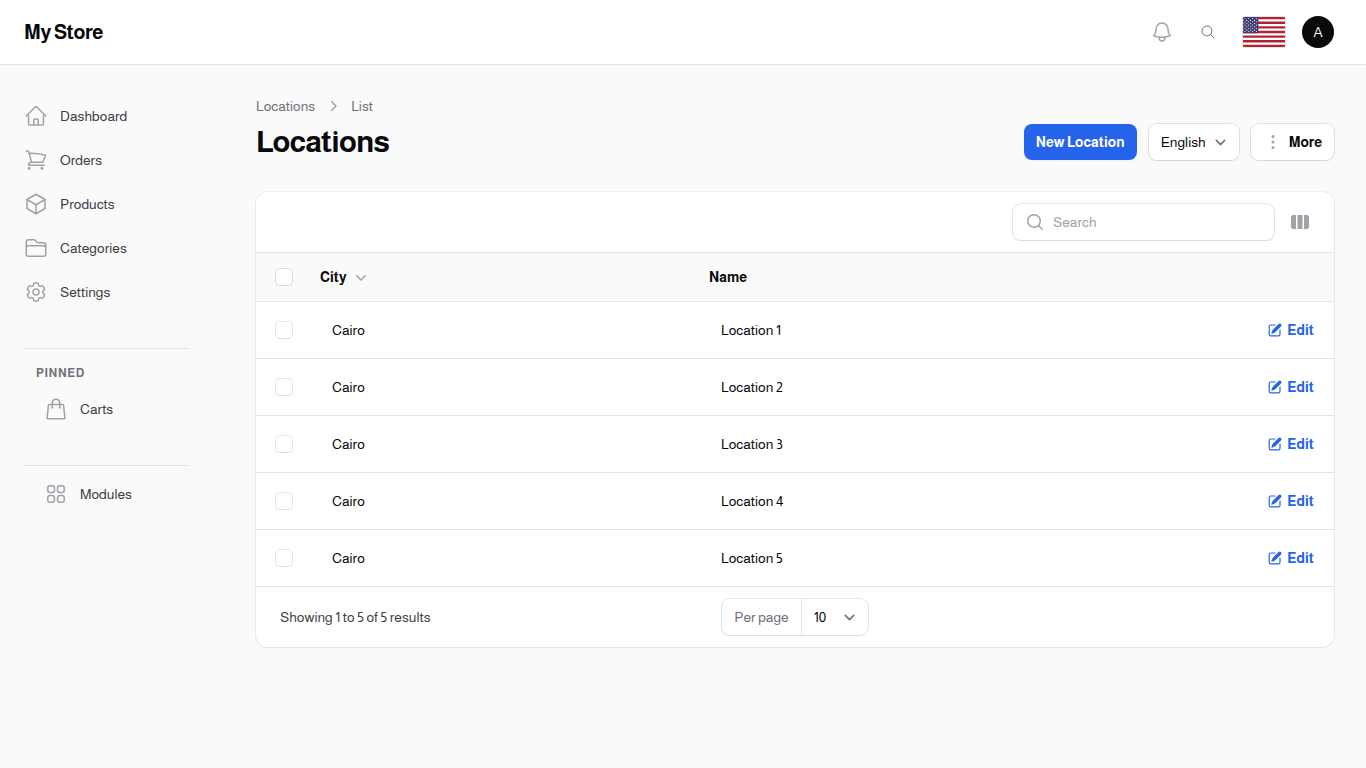
The list displays all available locations organized by city.
Table Columns
ID
- Format: Number
- Purpose: The reference number the system gives each location, shown by default and searchable, handy when you compare an exported file with the list on screen
City
- Format: Text
- Purpose: City that contains this location/neighborhood
Name
- Format: Text (up to 50 characters, translatable)
- Purpose: Location/neighborhood name displayed in the system
Row Actions
- Edit: Modify location details
- Delete: Remove location record
Bulk Actions
- Delete: Remove multiple locations
- Export: Export location data to Excel/CSV
Note: You can also export without ticking anything. Open the More menu at the top of the list and choose Export to download the whole location list in one file.
The gear button at the top of the list takes you straight to Checkout Settings, where you choose which address fields customers fill in when they order.
Creating a Location
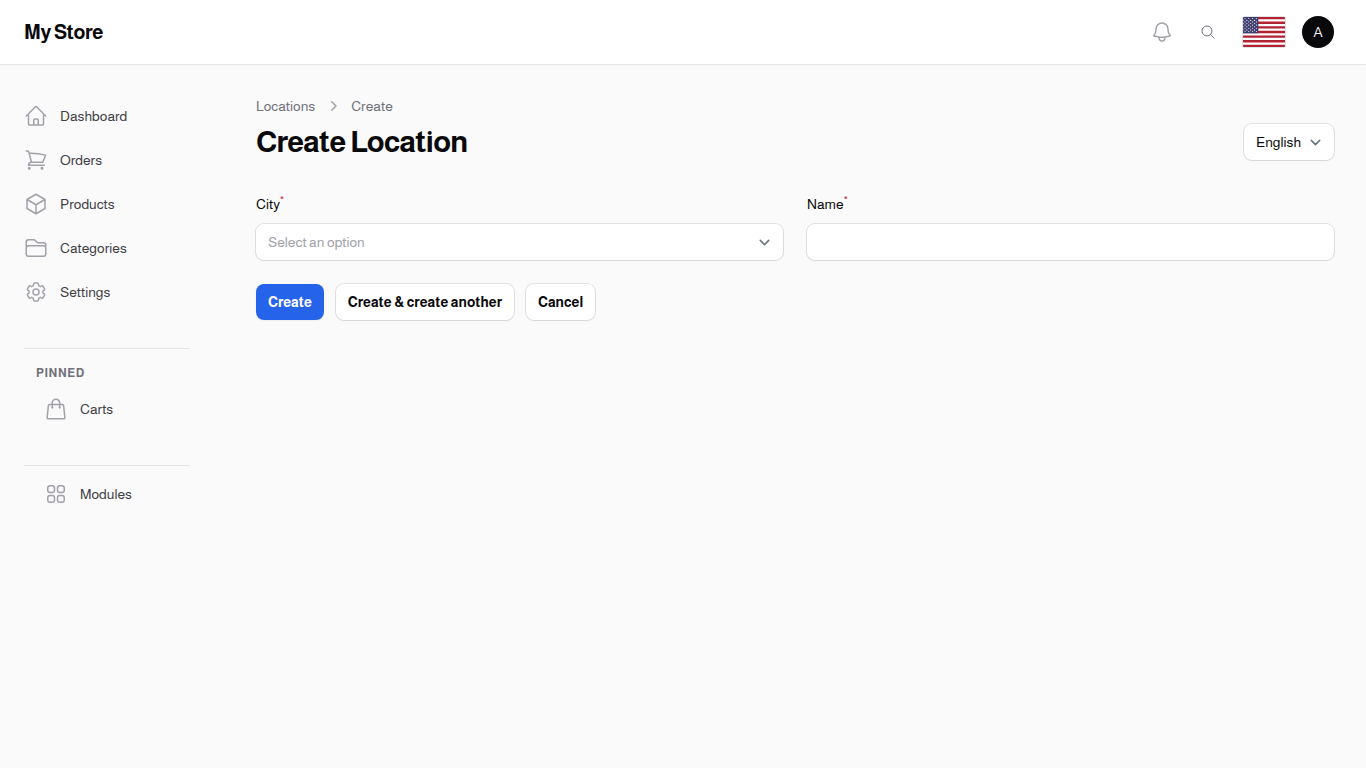
Click "New Location" to add a new neighborhood or area within a city. The form opens in a dialog over the list, so you keep the search and filters you were working with.
Form Fields
City Required
- Type: Searchable dropdown
- Purpose: Select which city this location belongs to
- Options: All available cities in the system
Name Required
- Type: Text input (max 50 characters)
- Purpose: Location/neighborhood name
- Translatable: Yes - use Locale dropdown for other languages
- Examples: "Downtown", "North District", "Al Manara", "Marina", "Old Town"
Create Actions
- Create: Save and return to list
- Create & Create Another: Save and open blank form for next entry
- Cancel: Discard changes
Editing a Location
Click the Edit icon to modify a location name or translations.
Changes affect all systems using this location (delivery zones, orders, etc.).
Geographic Hierarchy
Locations fit within the overall geographic structure:
Country
  └─ State
      └─ City
          └─ Location (Neighborhood/Area)
Example Hierarchy: - United States - California - Los Angeles - Downtown LA - Santa Monica - Long Beach
Using Locations
Locations are used in:
Delivery Targets
Set delivery costs at neighborhood level for maximum precision in urban areas. See Delivery Targets
Customer Addresses
Customers can select locations when entering delivery addresses for accurate shipping cost calculation
Order Management
Order fulfillment can be optimized by location-based operations
Key Information
- Nested Structure: Locations belong to cities (city selection required)
- Translatable: Support multiple language names for locations
- Delivery Zones: Used to set area-specific delivery costs
- Customer Selection: Enables granular address selection for customers
- Regional Targeting: Supports complex delivery scenarios in large cities
- You Add Them Yourself: Your store starts with no locations, so add the neighborhoods and areas you deliver to before using them for delivery costs or customer addresses
Related Sections
- Cities - Cities that contain locations
- Delivery Targets - Set delivery costs by location
- Countries - Top-level geographic division
- States - State-level geographic division