Currencies
Watch the video
Exchange Rate
Purpose
Choose which currencies your store accepts, and decide which one is your base currency: the currency your prices are entered in, and the one every other currency is converted from. The conversion rates themselves are set on the Exchange Rates screen.
Accessing Currencies
Click Modules → Delivery & Payments → Currencies
List View
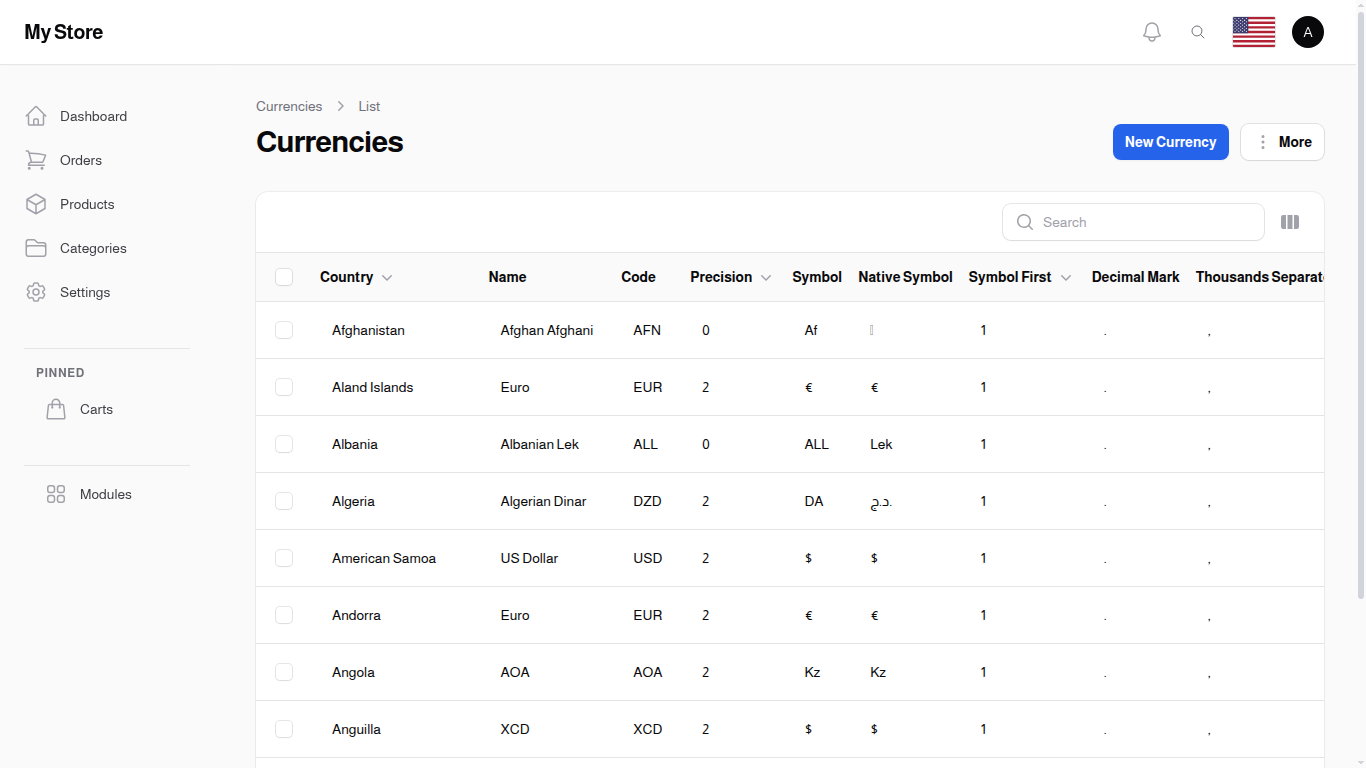
The list displays every currency your store accepts, and shows which one is currently the base currency.
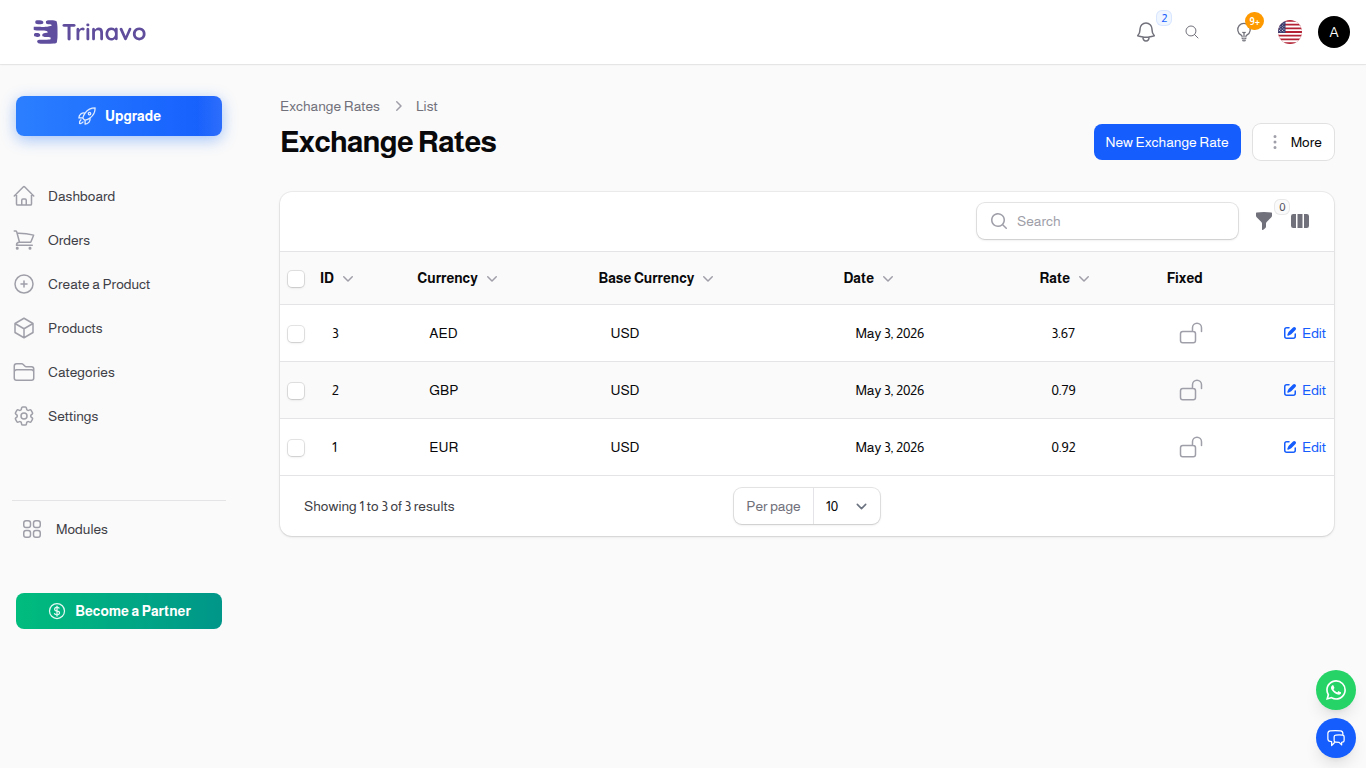
Table Columns
Currency
- Format: Text
- Purpose: The currency you added, shown as its short code with its symbol (for example "USD ($)")
Base Currency
- Format: Tick or cross
- Purpose: Marks the one currency your prices are based on. Click the mark on any row to move the base to that currency, and the currency that held it before loses the mark. You cannot remove the mark from your only base currency, and the store tells you so if you try.
Created at / Updated at
- Format: Date and time
- Purpose: When the currency was added, and when it was last changed. Both stay hidden until you switch them on from the column chooser.
Row Actions
- Edit: Change the currency, or make it the base currency
- Delete: Remove the currency from your store. If the currency is still in use, by wallets, deposit or withdrawal requests, transfers, exchange rates or payments, the store refuses and tells you exactly what is using it, so nothing is lost by accident.
- You can also click the tick in the Base Currency column to move the base to that currency without opening the form
Bulk Actions
- Delete: Remove several currencies at once. The same protection applies: if any of them is still in use, nothing is deleted and the store lists every currency it refused to remove.
- Export: Export currency data to Excel/CSV
Creating a Currency
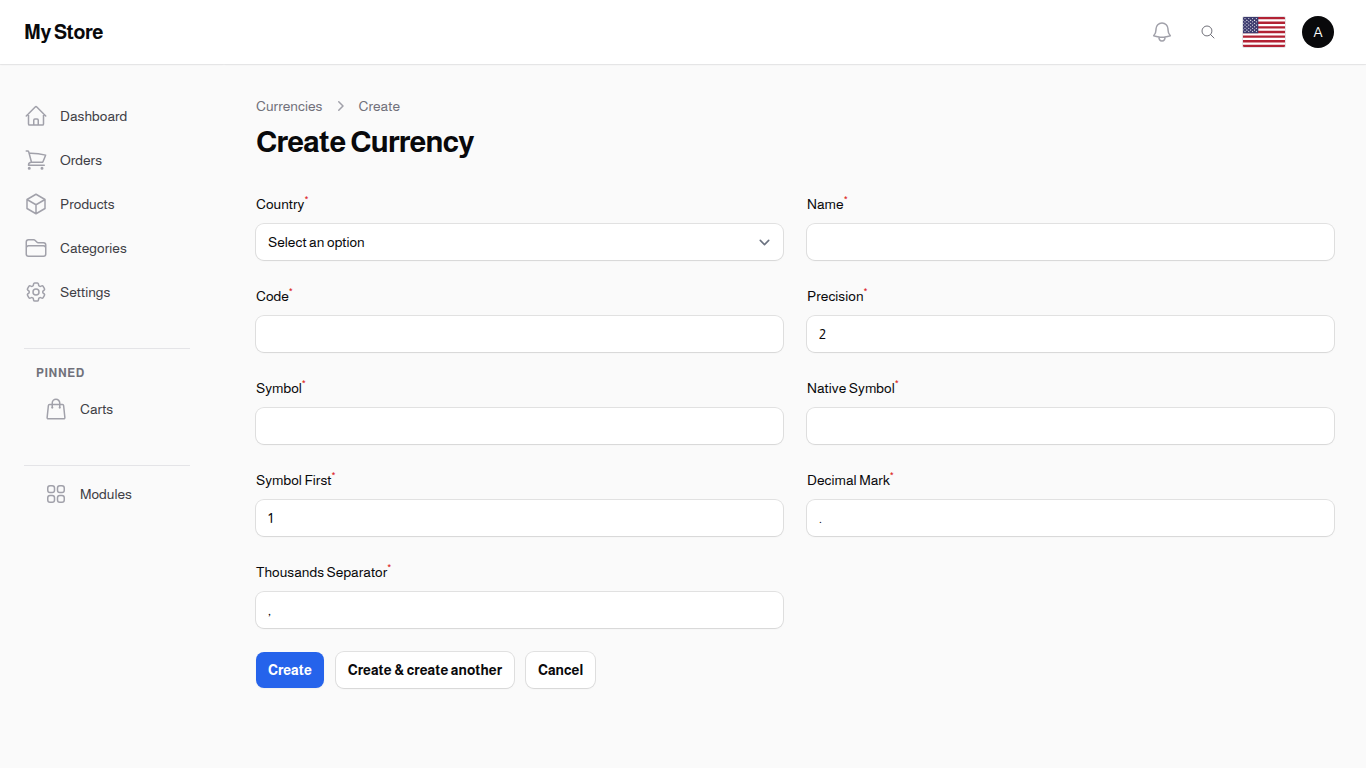
Click "New Currency" to add a new currency to your store. The form opens in a dialog over the list, so you keep the search and filters you were working with.
Form Fields
Currency Required
- Type: Searchable dropdown
- Purpose: Pick the currency you want your store to accept
- Options: Every currency in the master list, shown as its full name followed by its short code (for example "US Dollar (USD)")
- Tip: If the currency you need is missing, or its name or symbol needs correcting, use the Click here link under the field to open the master currency list, make the change there, then come back and pick it
Base Currency
- Type: Toggle switch (On/Off)
- Default: Off
- Purpose: Turn this on to make this the currency your prices are based on. Only one currency can be the base at a time, so switching it on here takes it away from the currency that had it.
Create Actions
- Create: Save and return to list
- Create & Create Another: Save and open blank form for next entry
- Cancel: Discard changes
Editing a Currency
Click the Edit icon to swap a row for a different currency, or to make it your base currency. The dialog holds the same two choices as the New Currency form. To change the symbol a currency is shown with, use the Click here link under the Currency dropdown to open the master currency list.
How Amounts Are Written
Amounts are always written with the currency symbol first and the number after it: $1,234.56 for the US dollar, AED 1,234.56 for the UAE dirham. Only the plain keyboard symbols such as $ sit tight against the number. Everything else gets a space after it, including symbols that look like a single character to you, such as €, £ and ر.س. A dot always separates the decimals and a comma always separates the thousands, whichever currency the customer is shopping in. How many decimals are shown is the same for every currency and comes from Decimal Places in Modules → Settings → General Settings.
If a currency shows the wrong symbol in your store, open the master currency list with the Click here link under the Currency dropdown and correct its symbol there. To show more or fewer decimals, change Decimal Places in the general settings instead.
Key Information
- Store Currencies: The currencies listed here are the ones customers can shop and pay in
- One Base Currency: Exactly one currency is the base at any time. Making another one the base moves it automatically, and your last base currency cannot be unset.
- Conversion Rates: Prices in every other currency are worked out from the base currency, using the rates on the Exchange Rates screen
- Safe Removal: A currency already used by wallets, deposits, withdrawals, transfers, exchange rates or payments cannot be deleted
- Written Format: The symbol comes from the master currency list, reachable from the link inside the currency form. The number of decimals comes from Decimal Places in the general settings and applies to every currency.
- System Integration: The currencies you accept apply throughout the store
Related Sections
- User Wallets - Wallets use currency settings
- Payment Methods - Accept various currencies
- Countries - Country-currency relationships