Wallet Settings
Watch the video
Wallet Setup
Watch the:
What your customers can do with their wallet: add money, take it out, send it to each other, and the limits and fee on each.
Where to find it
Click Settings in the sidebar, then the Wallet card. It is also under Modules → Settings → Wallet.
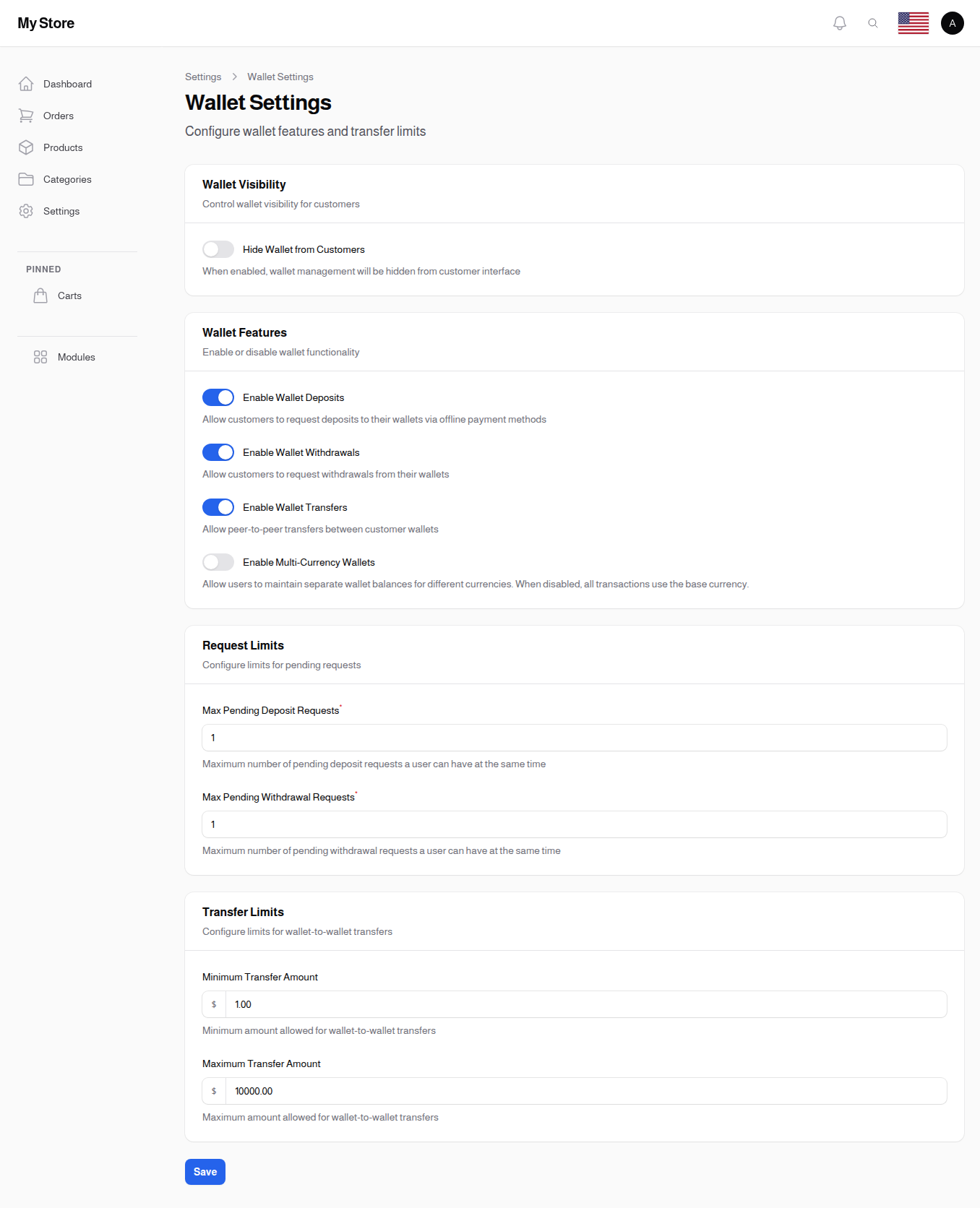
Hide the wallet from customers
Turn on Hide Wallet from Customers when you do not offer a wallet: customers then see neither their wallet nor the referral program. You still manage wallets in User Wallets.
Choose what customers can do
| Field | What it does |
|---|---|
| Enable Wallet Deposits | Customers can ask to add money by paying through one of your manual payment methods, such as a bank transfer. You approve each one in Wallet Deposit Requests. |
| Enable Wallet Withdrawals | Customers can ask to take money out. You handle each one in Wallet Withdrawal Requests. |
| Enable Wallet Transfers | Customers can send money to each other, see Wallet Transfers. Turning it on shows Transfer Limits below. |
| Enable Multi-Currency Wallets | Customers keep a separate balance in each currency. Off, every wallet is in your main currency. Available on paid plans. |
| Require Attachment on Balance Adjustments | Your staff must attach a receipt or document each time they Add or Deduct money in User Wallets. |
Let customers add funds by paying online
- Turn on Enable Adding Funds Online. The customer's New Deposit page then offers Automatic Payment: they pay online, and the money is added to their wallet once the payment succeeds, with nothing for you to approve.
- In Payment Methods for Adding Funds, tick the methods customers can pay with.
- Click Save.
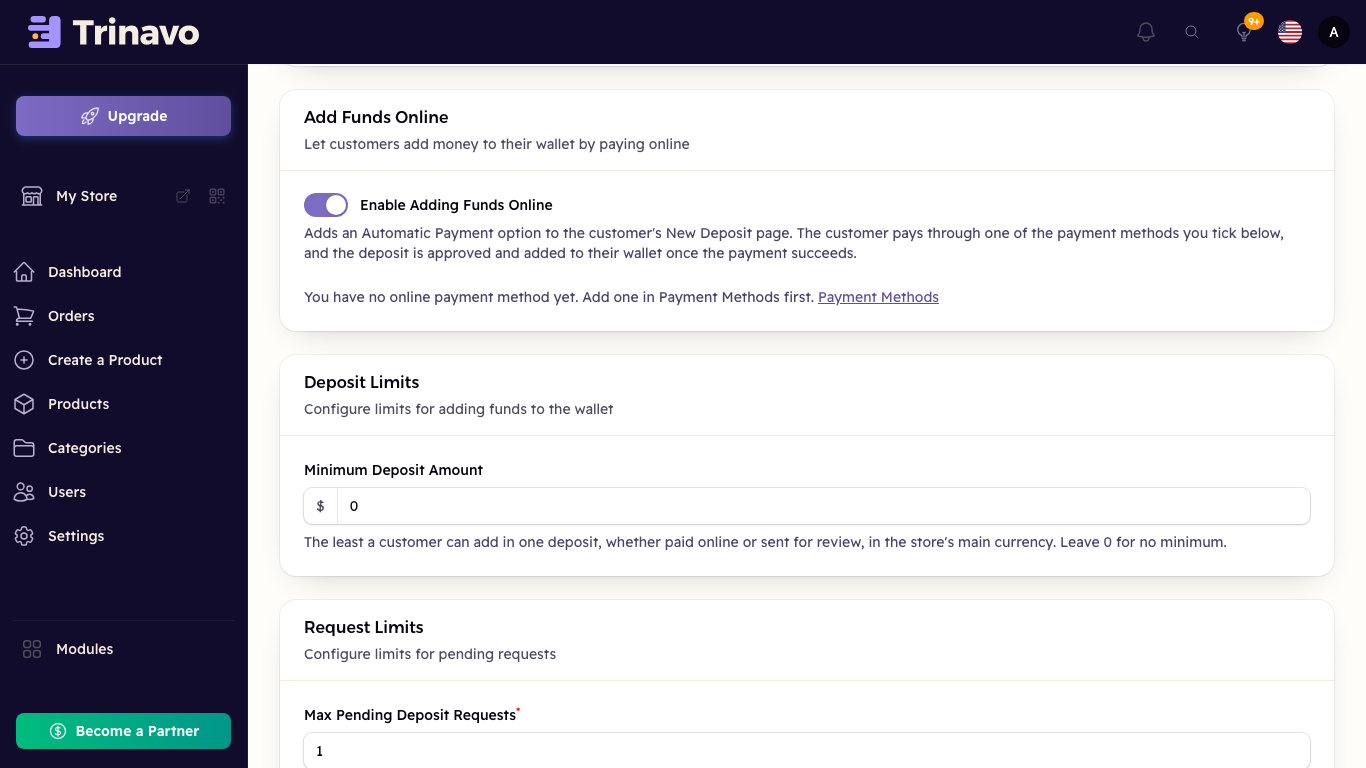
Only online payment methods are listed: cash on delivery and other manual methods cannot be used, since no money arrives when a customer picks them. Without any online method, the section says so and links to Payment Methods. To offer a method here but not at checkout, turn off its Available for Purchase.
Set deposit and request limits
| Field | What it does |
|---|---|
| Minimum Deposit Amount | The least a customer can add in one deposit, paid online or sent for your review, in your main currency. Leave it at 0 for no minimum. |
| Max Pending Deposit Requests | How many deposit requests one customer can have waiting for you at the same time. |
| Max Pending Withdrawal Requests | The same for withdrawal requests. |
Transfer Limits
Shown while Enable Wallet Transfers is on. Minimum Transfer Amount and Maximum Transfer Amount are the smallest and largest amount a customer can send in one transfer.
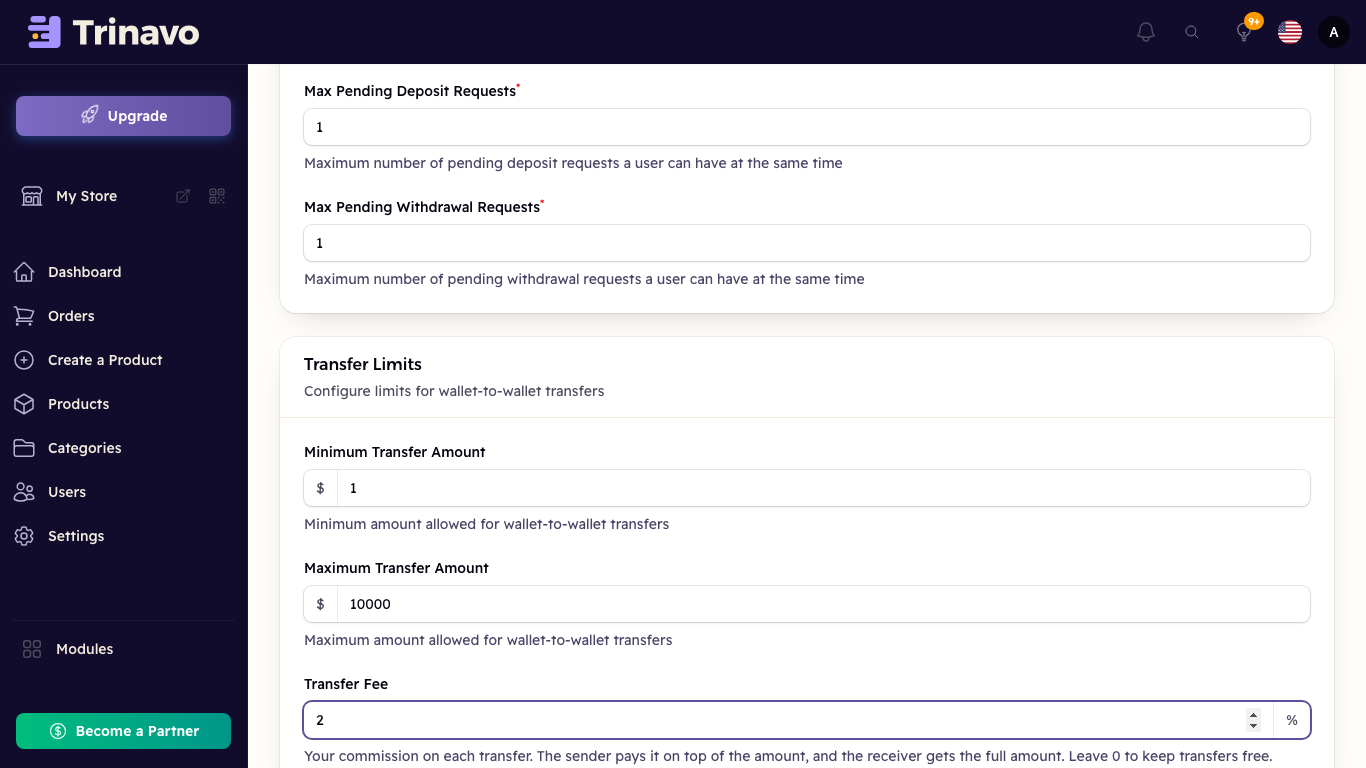
Transfer Fee
Your commission on each transfer, as a percentage of the amount sent. The sender pays it on top of the amount, and the receiver always gets the full amount. With a 2% fee, a customer who sends 100 is charged 102 and the receiver gets 100.
Leave it at 0 to keep transfers free. What you earn shows in Commission Earned on the Wallets report and is added to your profit on the Financial report.