Staff
The people who carry out your bookable services: stylists, trainers, therapists. Every appointment goes to one of them, and customers are offered only the times when one of them is working and free. These are not login accounts: people who work in your admin are added in Users.
Where to find it
Open Modules → Bookings → Staff. It is there once bookings are switched on in Booking Settings. The first time you open it, a short note explains the difference from users; click I understand and it does not come back on that browser.
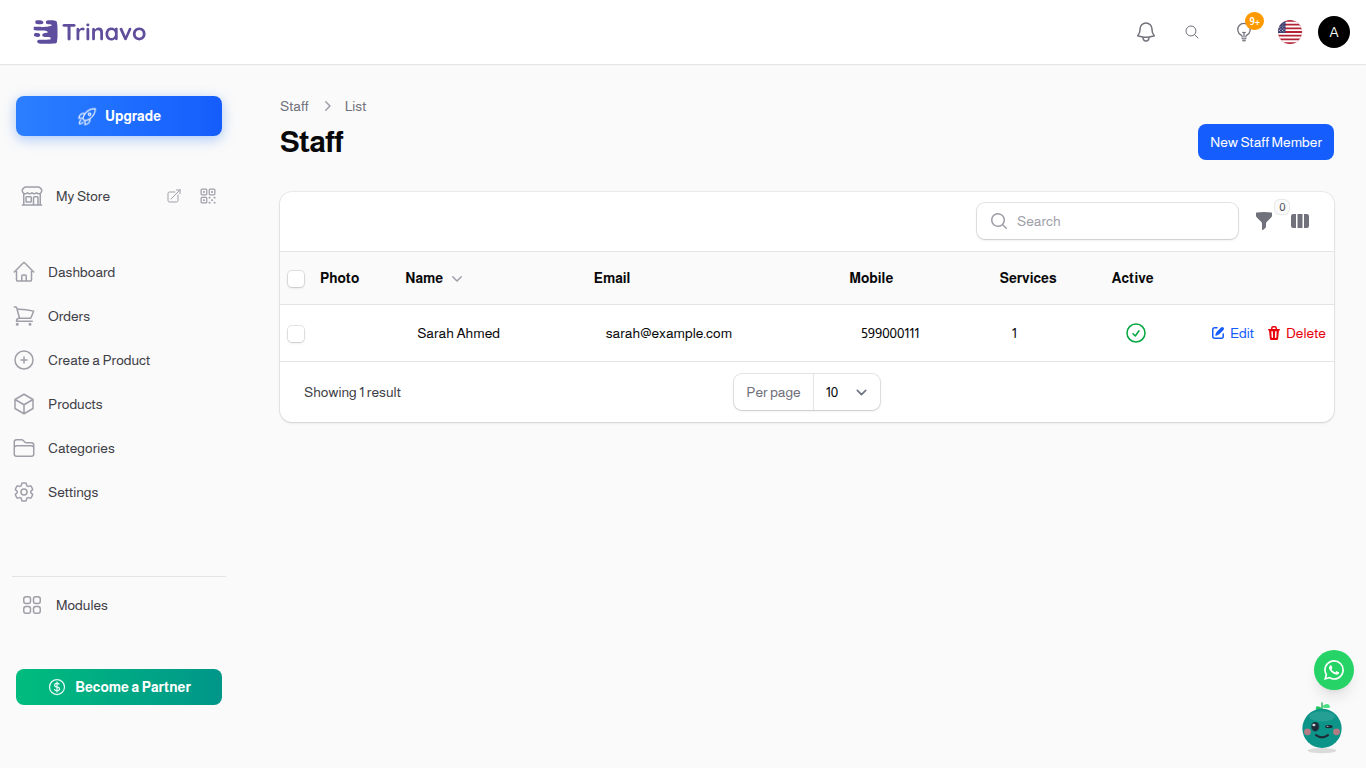
Each row shows the ID, Photo, Name, Email, Mobile, how many Services the person does, and whether they are Active. The list follows Sort Order, which can be turned on as a column from the columns button. Filter by Active to see only active or inactive staff.
Add a staff member
- Click + (New Staff Member).
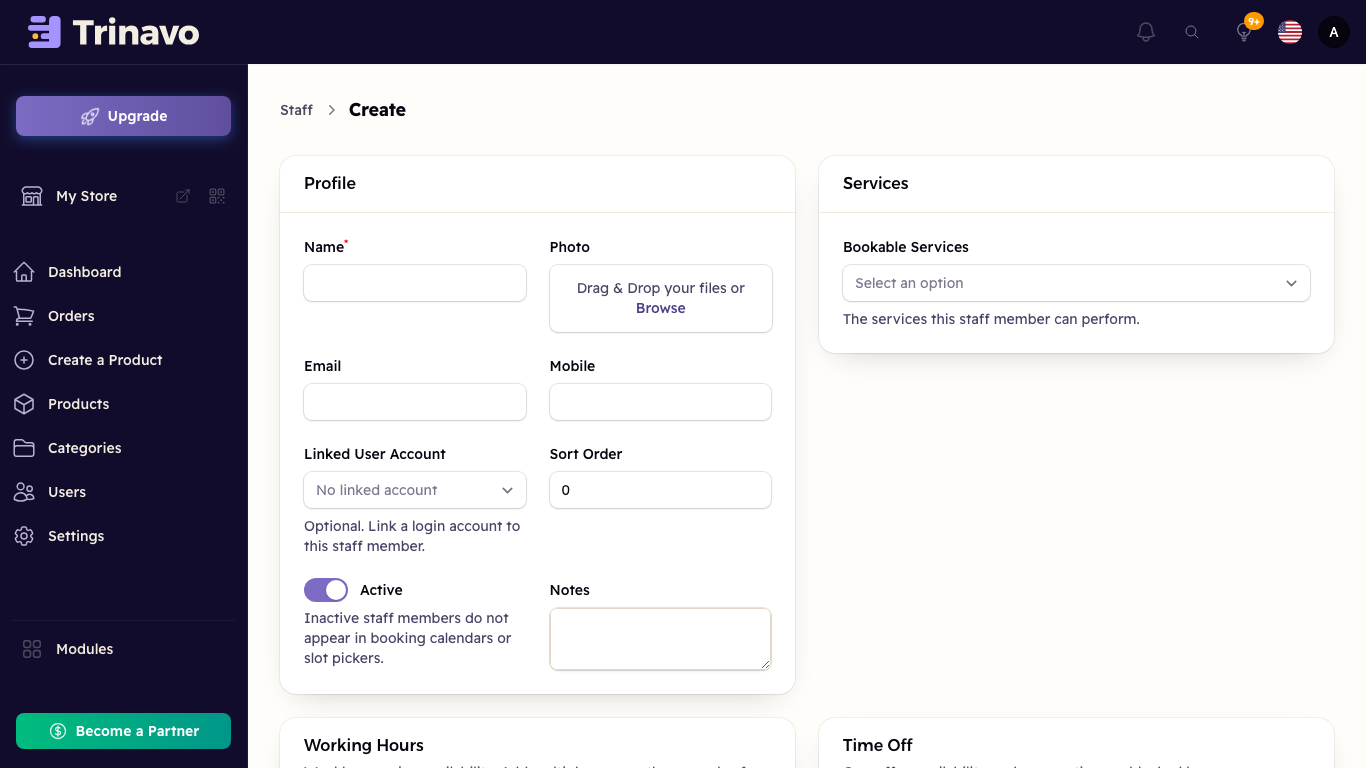
- Under Profile, type the Name. Photo, Email, Mobile and Notes are for your own use.
- Under Services, choose the Bookable Services this person does. You can also choose staff from the product's Booking tab: both ways set the same thing.
- Under Working Hours, add their week (below).
- Under Time Off, add any days they are away (below).
- Click Create.
| Field | What it does |
|---|---|
| Linked User Account | Optional: the person's login account, if they also sign in to your admin. It is only a link; what they can open is set by their role in Users. |
| Sort Order | The order staff are listed in: here, in the calendar's Staff view, and in the staff choice on the product page. |
| Active | Switched off, the person drops out of the calendar's Staff view and the product page and cannot be booked. Their appointments stay. |
Set working hours
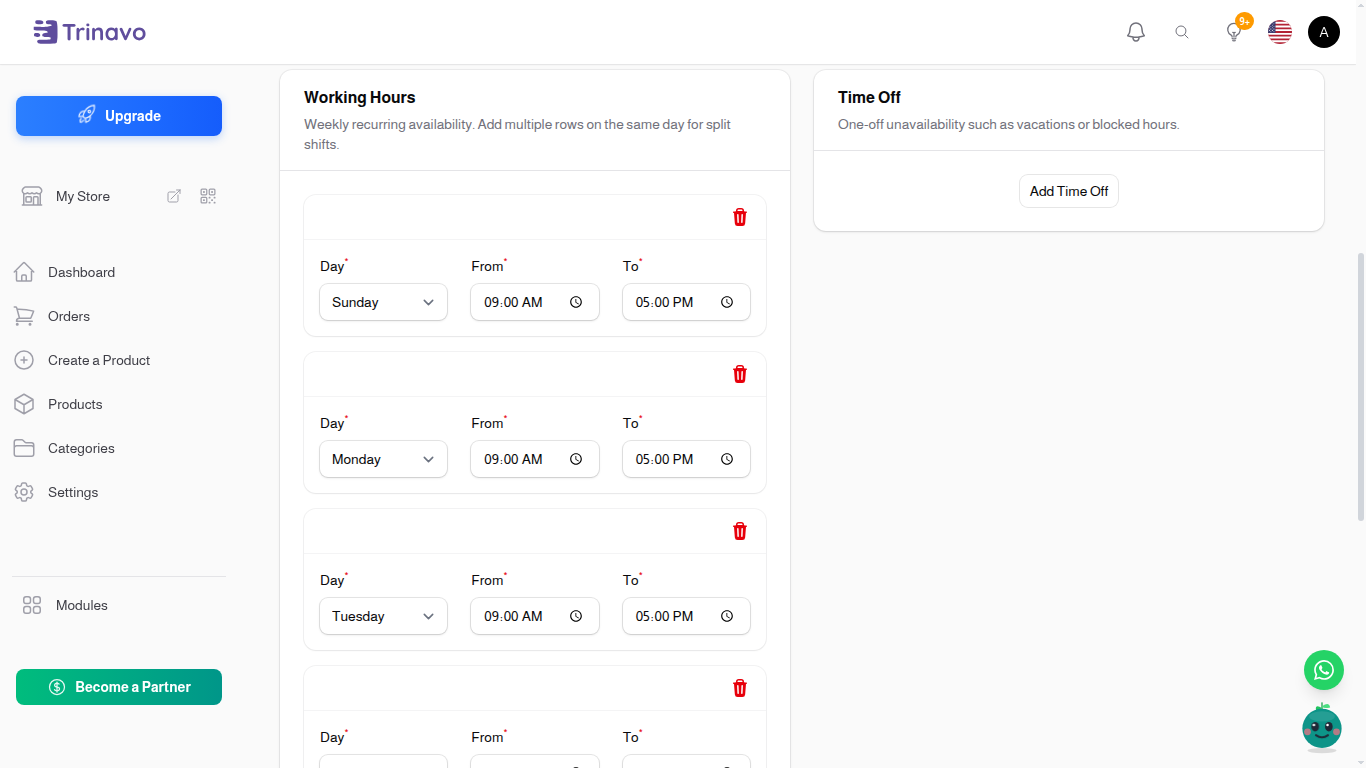
- Click Add Working Hours.
- Choose the Day, then the time From and To.
- Add a row for every day the person works. For a split day, such as 10:00 to 14:00 and 16:00 to 20:00, add two rows for the same day.
A day with no row is a day off: nobody can book this person on it.
Add time off
For a holiday, a course or a few blocked hours:
- Click Add Time Off.
- Set From and To, a date and a time each.
- Type a Reason if you want, for yourself.
No appointment can be made during time off, even inside the working hours. Appointments already booked in that time are not moved: reschedule them from the Booking Calendar.
Change or remove a staff member
Click Edit on the row, change what you need and click Save changes. A new working hour or time off counts for appointments made from then on.
To remove someone, click Delete on the row. When they have appointments, the window asks what to do with them: Remove association (set to none) keeps them with no staff member (the choice already selected), Move to another record gives them to the staff member you pick under Move to, and Delete related records deletes them. To stop new bookings while keeping the person, switch off Active instead.