Item Attributes
Purpose
Create reusable product attributes/specifications (e.g., Color, Size, Brand, Material) with predefined values. Attributes are used across products to standardize options.
Accessing Item Attributes
Click Modules → System Settings → Item Attributes
List View
The list displays all attributes with the number of predefined values for each.
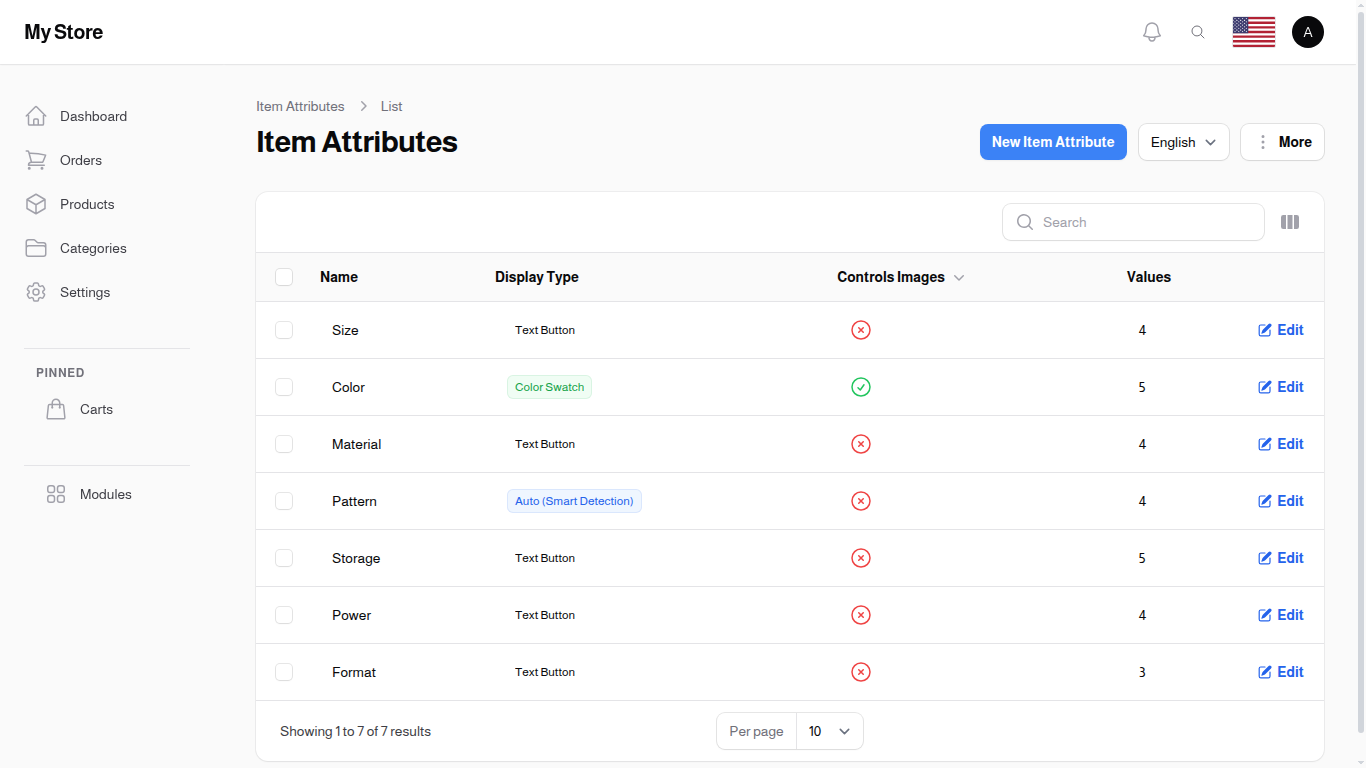
Table Columns
Name
- Format: Text (up to 50 characters)
- Purpose: Attribute name displayed in product forms (translatable)
Show on Shared Images
- Format: Check or cross icon
- Purpose: Whether this attribute's values appear on product images customers share
- Click to switch: Click the icon, confirm, and the attribute is added to or removed from shared images right away
Values
- Format: Count (number)
- Purpose: Number of predefined values for this attribute
Row Actions
- Edit: Modify attribute details and manage values
- Delete: Remove attribute (use bulk actions)
Bulk Actions
- Delete: Remove multiple attributes
- Export: Export attribute data to Excel/CSV
Creating an Item Attribute
Click "New Item Attribute" to create a new attribute.
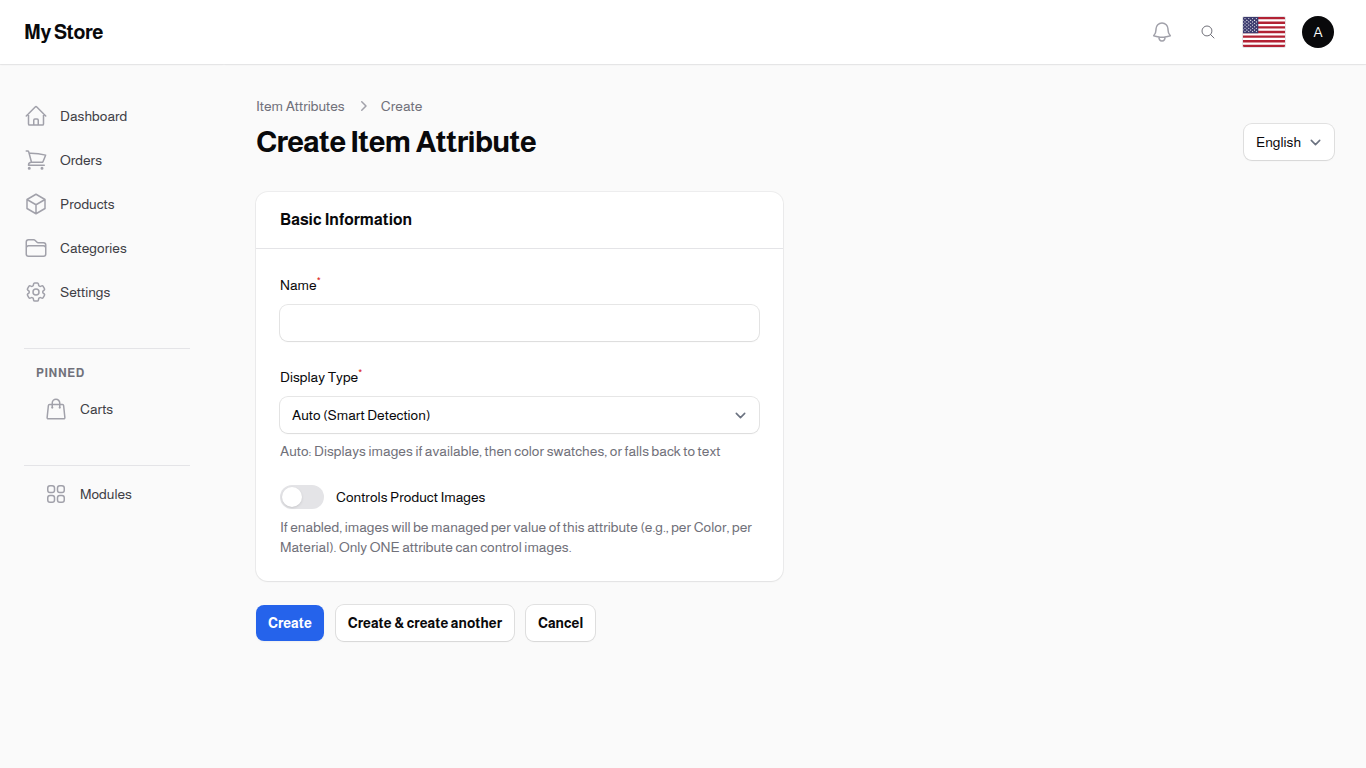
Form Fields
Name Required
- Type: Text input (max 50 characters)
- Purpose: Attribute name for product selection
- Translatable: Yes - use Locale dropdown for other languages
- Examples: "Color", "Size", "Memory", "Storage Capacity", "Processor"
Display Type
- Type: Select
- Purpose: How this attribute's values appear to the customer on the product page
- Options:
- Auto (Smart Detection): the system picks a suitable style based on the values
- Image Thumbnail: each value shows as a small image
- Color Swatch: each value shows as a colored circle, which makes Color Code required on every value
- Text Button: each value shows as a button with its text, which suits sizes
Controls Product Images
- Type: Toggle switch (On/Off)
- Purpose: when on, the product images change according to the value the customer picks. Normally used with Color
- Important: only one attribute in the store can control images. Turning it on here turns it off on every other attribute
SKU Code
- Type: Text field
- Purpose: a short abbreviation for the attribute, used when generating variation SKUs
Show on Shared Images
- Type: Toggle switch (On/Off)
- Default: On
- Purpose: Show this attribute's values on the product images customers share from the store
When On:
- The attribute and its available values are printed on the shared picture, for example "Size: S M L"
When Off:
- The picture is shared without this attribute, useful for details that only clutter the image such as Material or Pattern
- The attribute still appears normally on the product page, only the shared picture changes
You can also switch this from the list page: click the icon in the Show on Shared Images column and confirm.
Create Actions
- Create: Save and return to list
- Create & Create Another: Save and open blank form
- Cancel: Discard changes
Managing Attribute Values
After creating an attribute, add its values from the Values tab on the edit page.
Fields on each value:
| Field | Description |
|---|---|
| Value | The text the customer sees (e.g. Red, XL). Translatable |
| Color Code | The swatch color. Only shown, and required, when Display Type is Color Swatch |
| SKU Code | The value's abbreviation used in SKU generation |
Values can be reordered by dragging, and that order controls how they appear on the product page.
Common Value Examples: - Color: Red, Blue, Green, Black, White - Size: XS, S, M, L, XL, XXL - Memory: 4GB, 8GB, 16GB, 32GB, 64GB - Material: Cotton, Polyester, Leather, Wood
Editing an Attribute
Click the Edit icon to modify: - Attribute name - Whether the attribute appears on shared images - Attribute values (add, edit, or remove values) - Translations for other languages
Changes affect all products using this attribute.
Key Information
- Reusable: Create once, use on multiple products
- Standardized: Ensures consistent product options
- Translatable: Attribute names and values can be localized
- Flexible: Add/remove values as needed
- Product Integration: an attribute is applied to a specific product from the Variation Manager (the Variations icon on the product row), not from the product form itself
- Shared across products: attributes and their values are not per-product, so any value you add becomes available to every product in the store
Related Sections
- Products - Assign attributes to products
- Categories - Category-specific attributes
- Item Statuses - Product condition categorization
- Sharing Settings - Turn shared images and their details on or off for the whole store