Social Media Links
The icons in your store's footer that take customers to your pages on Facebook, Instagram, WhatsApp and other platforms.
Where to find it
Open Modules → Marketing & Content → Social Media Links.
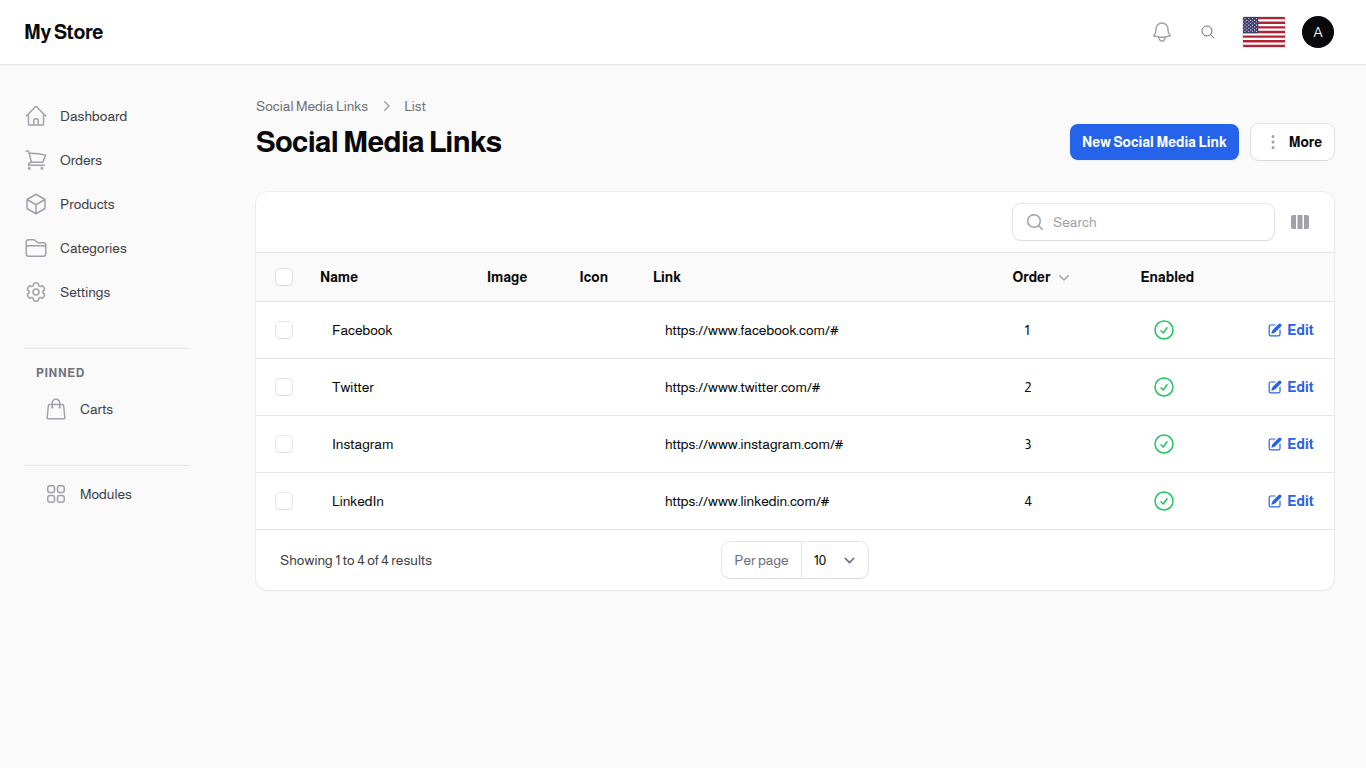
Only links with Enabled on are shown on the storefront, in the order of Display Order. Click the icon in Enabled to switch a link on or off.
Add a link
- Click + (New Social Media Link).
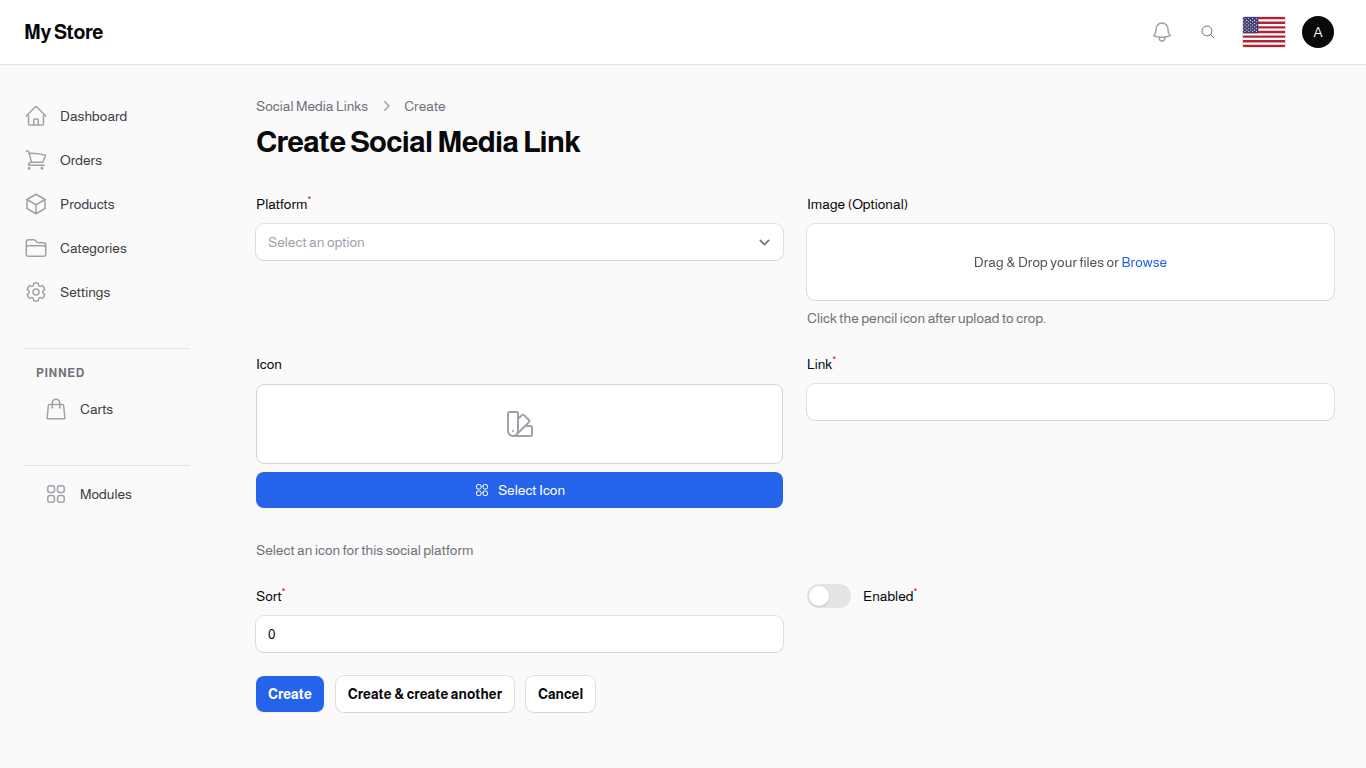
- Choose the Platform. Its Icon fills in for you; pick another one if you prefer.
- Paste the full address of your page in Link.
- Set the Sort number: smaller numbers come first.
- Turn on Enabled, then click Create. A link left switched off is saved but not shown.
| Field | What it does |
|---|---|
| Platform | Facebook, Twitter, Instagram, LinkedIn, YouTube, TikTok, WhatsApp, Telegram or Snapchat. |
| Image (Optional) | Shown in this list only. The storefront shows the Icon. |
| Link | The whole address, starting with https://. It opens in a new tab. |
The icons appear in the footer, and in any Social Links block your store's design has. While signed in, you can also change them from the storefront: in edit mode, a gear beside the icons opens the same links.
Edit or delete a link
Click Edit on the link's row to change it, or Delete to remove it. To delete or export several, tick them and use the bulk actions. Export in the ⋮ menu (More) downloads the whole list as a spreadsheet.