Quick Add from Photos
The fastest way to add a lot of products: start from their photos. One photo becomes one product, and for each one you type only the name, category, price and quantity.
Where to find it
Open Products and choose More → Quick Add from Photos.
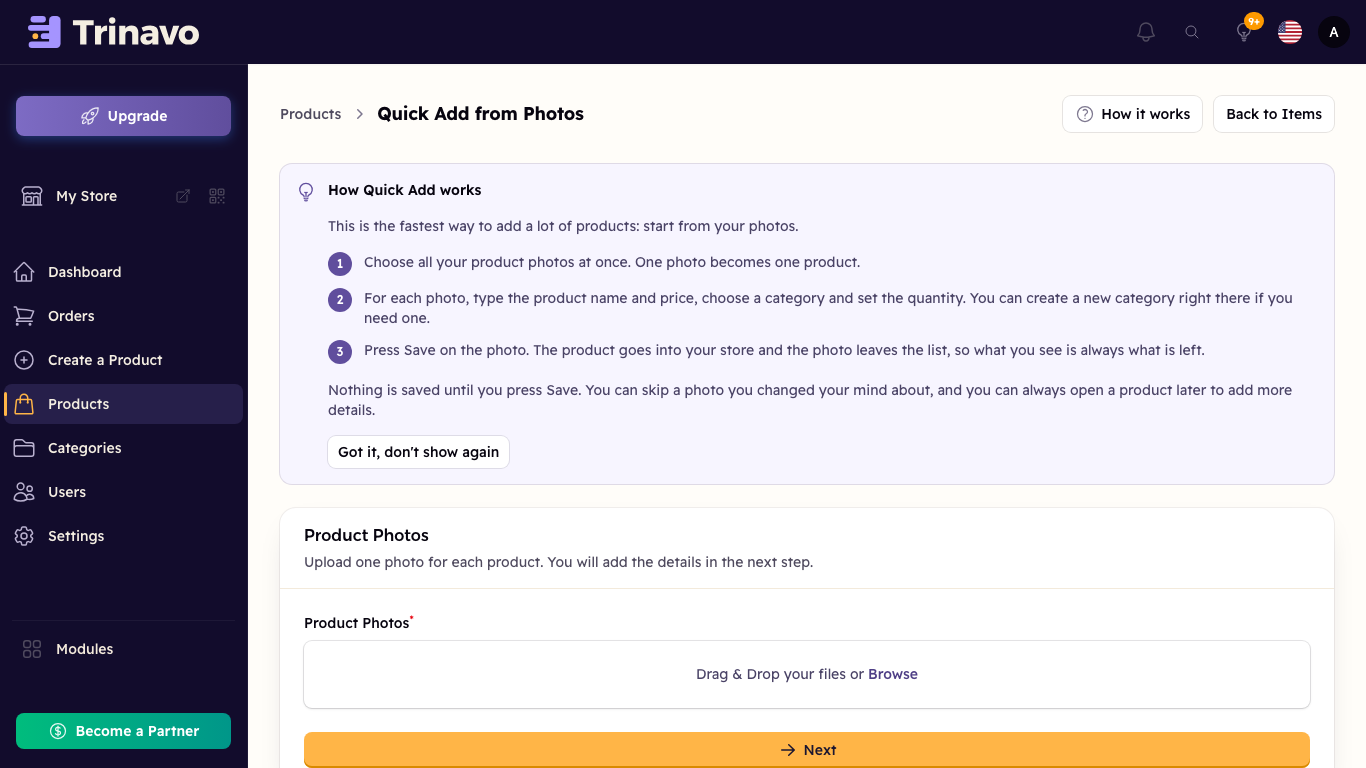
A short explanation stays at the top until you click Got it, don't show again. How it works at the top of the page shows it again whenever you need it.
Add products from photos
- Under Product Photos, choose all your product photos at once, up to 60.
- Click Next. Each photo now has its own card.
- On each card, type the Product Name, choose the Category (you can create a new one from the list), and enter the Price and Quantity.
- Click Save on the card. The product goes into your store and the card leaves the list, so what you see is always what is left.
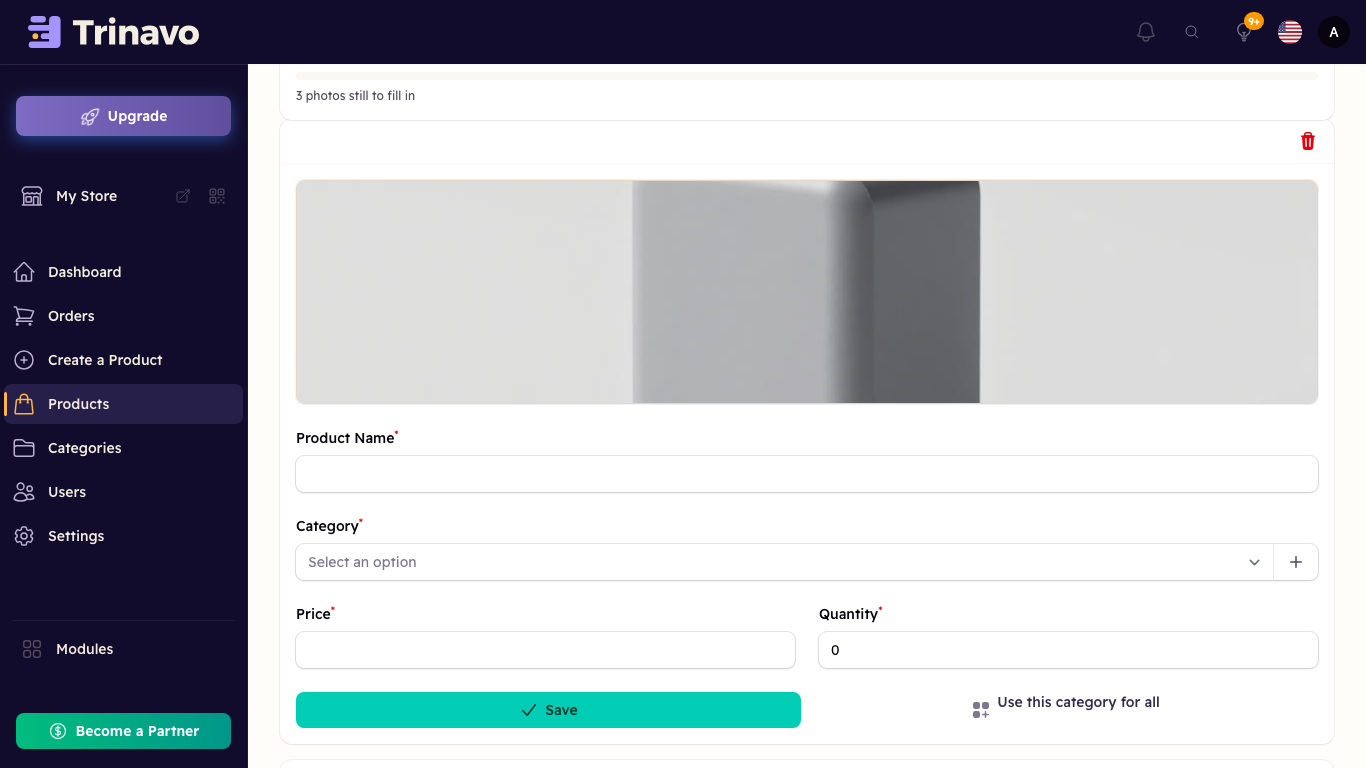
- Use this category for all gives every other card the category chosen on this one.
- Skip this photo removes the card without creating a product.
- Nothing is saved until you click Save on a card.
While you work, Products added at the top counts the saved cards. When every card is saved, a message says All your products have been added. Add more photos starts again; Back to Items returns to the products list.
The photo becomes the product's main picture, and an SKU is made for it when automatic SKUs are on. Open the product later to add a description, variations or more pictures.