Mobile Bottom Navigation
The bar of buttons fixed to the bottom of the screen when customers shop on a phone. Here you choose its buttons, their order, icons and colors.
Where to find it
Open Modules → Marketing & Content → Mobile Bottom Navigation.
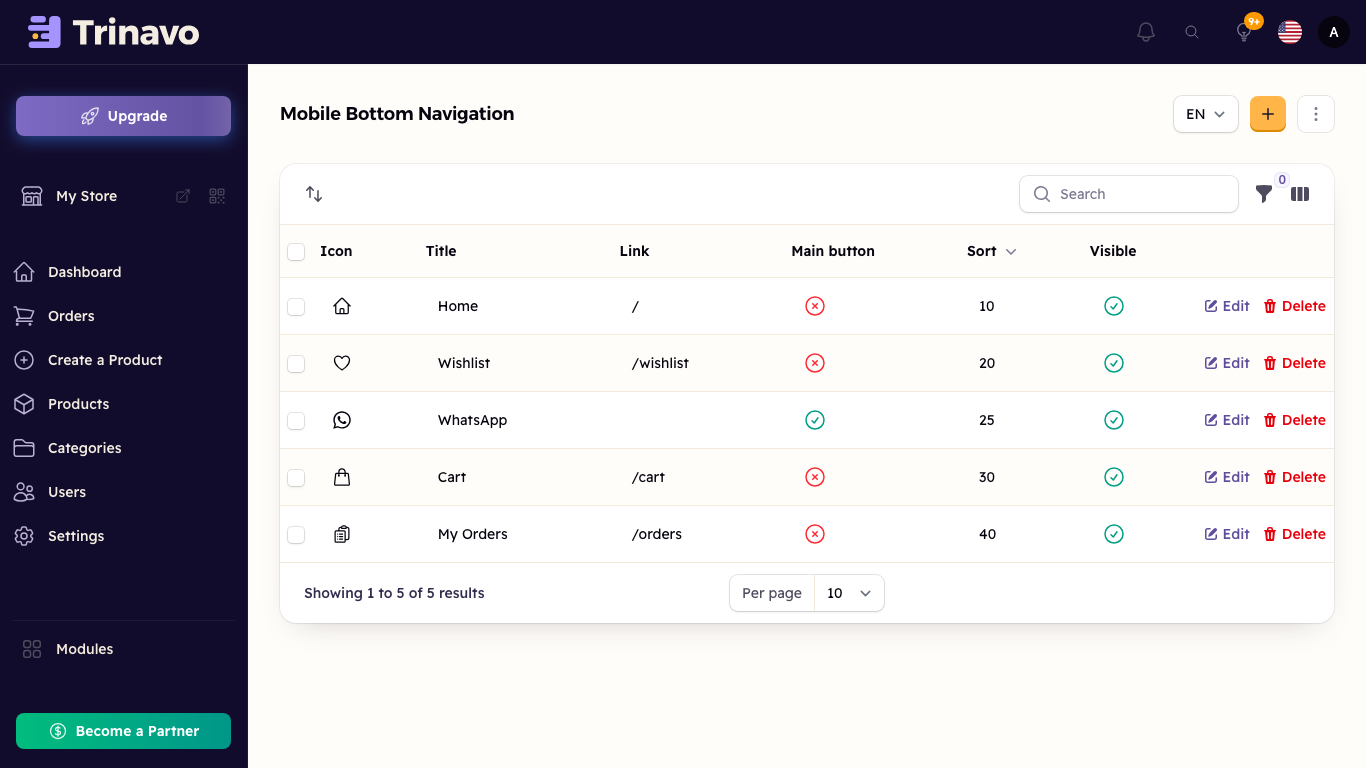
A new store starts with five buttons: Home, Wishlist, WhatsApp (the raised one in the middle), Cart and My Orders. Click the icon in Visible to hide or show a button. The Visible filter lists only visible or only hidden buttons.
The bar as a whole is turned on and off with Enable Mobile Bottom Navigation in Appearance Settings. Related settings in the ⋮ menu (More) opens that page.
Add a button
- Click + (New Mobile Bottom Bar Button).
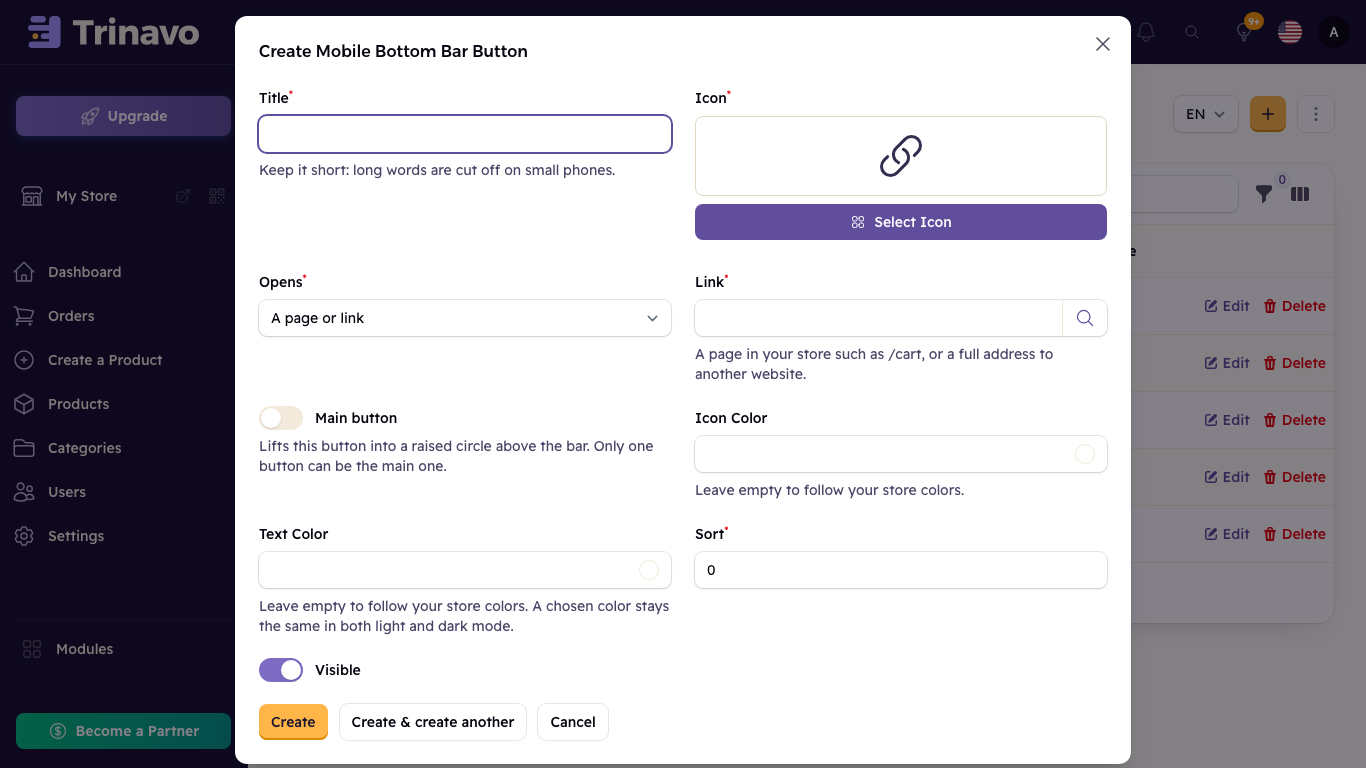
- Type the Title shown under the icon, and pick the Icon.
- In Opens, choose A page or link and fill the Link, or choose WhatsApp chat.
- Click Create.
| Field | What it does |
|---|---|
| Link | A page of your store, such as /cart, or a full address of another website. The magnifier (Choose a link) picks one of your products, categories, pages, blog posts or brands. |
| WhatsApp chat | Opens a chat with the number set in the WhatsApp Floating Button plugin. While no number is set there, the button is not shown. |
| Main button | Lifts the button into a raised circle above the bar. Only one button can be the main one: turning it on here turns it off on the other. |
| Circle Color, Icon Color, Text Color | Empty follows your store colors. A color you choose stays the same in light and dark mode. Circle Color is offered for the main button. |
| Sort | The order of the buttons, smallest first. |
The bar shows up to six buttons. To show a seventh, hide another one first.
A button that opens the cart is left out of the bar while Cart Settings switch the cart off or skip it for single items.
Change the order of buttons
- Click the up-and-down arrows button (Reorder records) above the table.
- Drag the rows into the order you want.
- Click the button again (Finish reordering records).
Translate the titles
The language switcher at the top of the list changes which language you see and type the Title in. Fill it in each language your store uses.
Edit or delete a button
Click Edit on the button's row to change it, or Delete to remove it. Tick several rows to delete them together.