Push Notifications
Send a message that pops up on the phones and computers of customers who allowed notifications from your store's website or app, and see how many received it.
Where to find it
Open Modules → Marketing & Content → Push Notifications.
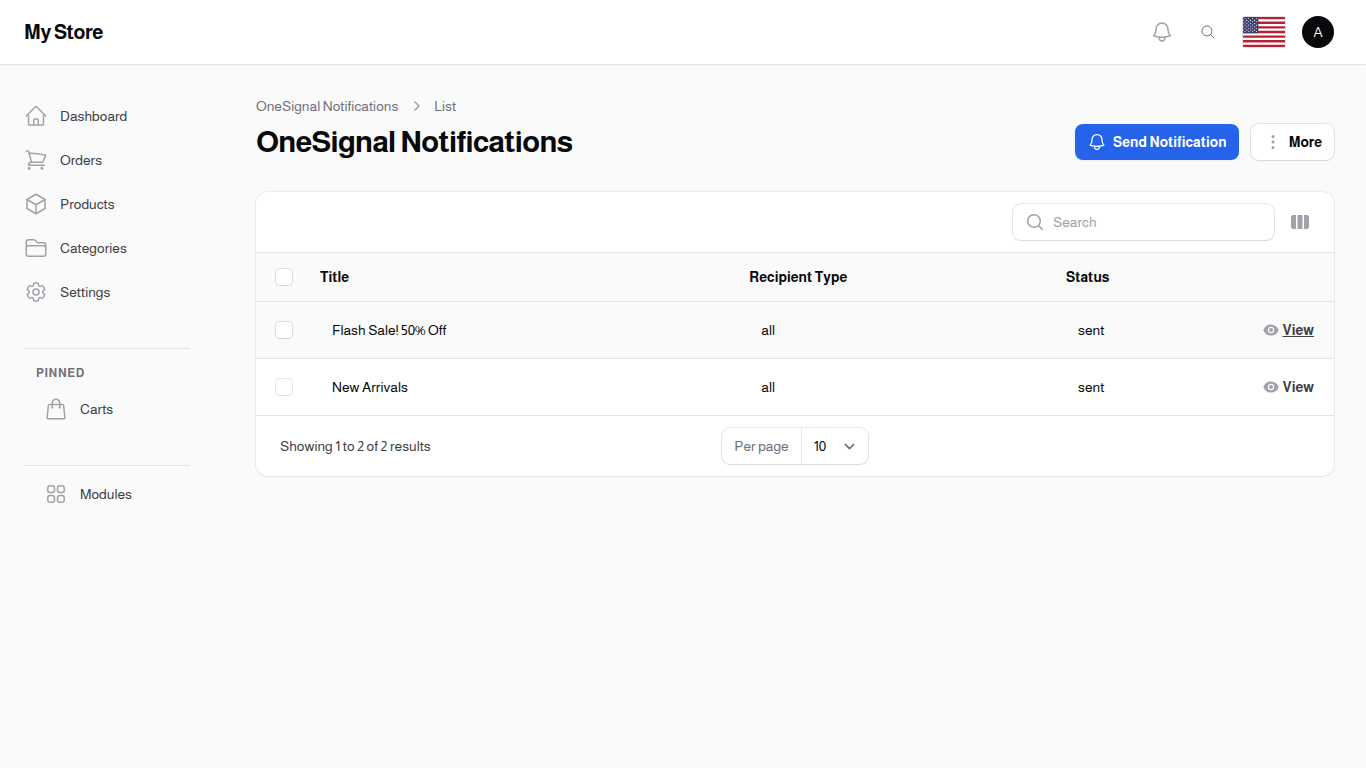
The counters at the top show who you can reach:
| Counter | What it shows |
|---|---|
| Subscribed Devices | Devices a message to everyone reaches now. It says Local count when the notification service could not be asked, and shows the devices your store has recorded instead. |
| Registered Devices | Every device your store has recorded, split by website and app. |
| Linked to Accounts | Devices signed in to a customer account. The rest are visitors who never signed in. |
Each row is a notification you sent, with its Recipient Type and Status: sent, partial (only part of it went out) or failed.
Push notifications have to be set up once before they work. See Push Notification Settings; Related settings in the ⋮ menu (More) opens that page.
Send a notification
- Click Send Notification.
- Type the Title and the Message.
- Choose the Recipient Type:
- All Users: everyone who allowed notifications. Narrow it with Gender and Countries if you want.
- Specific Users: search for customers by name, email or mobile in Users and pick them.
- Check Estimated Recipients, then click Send.
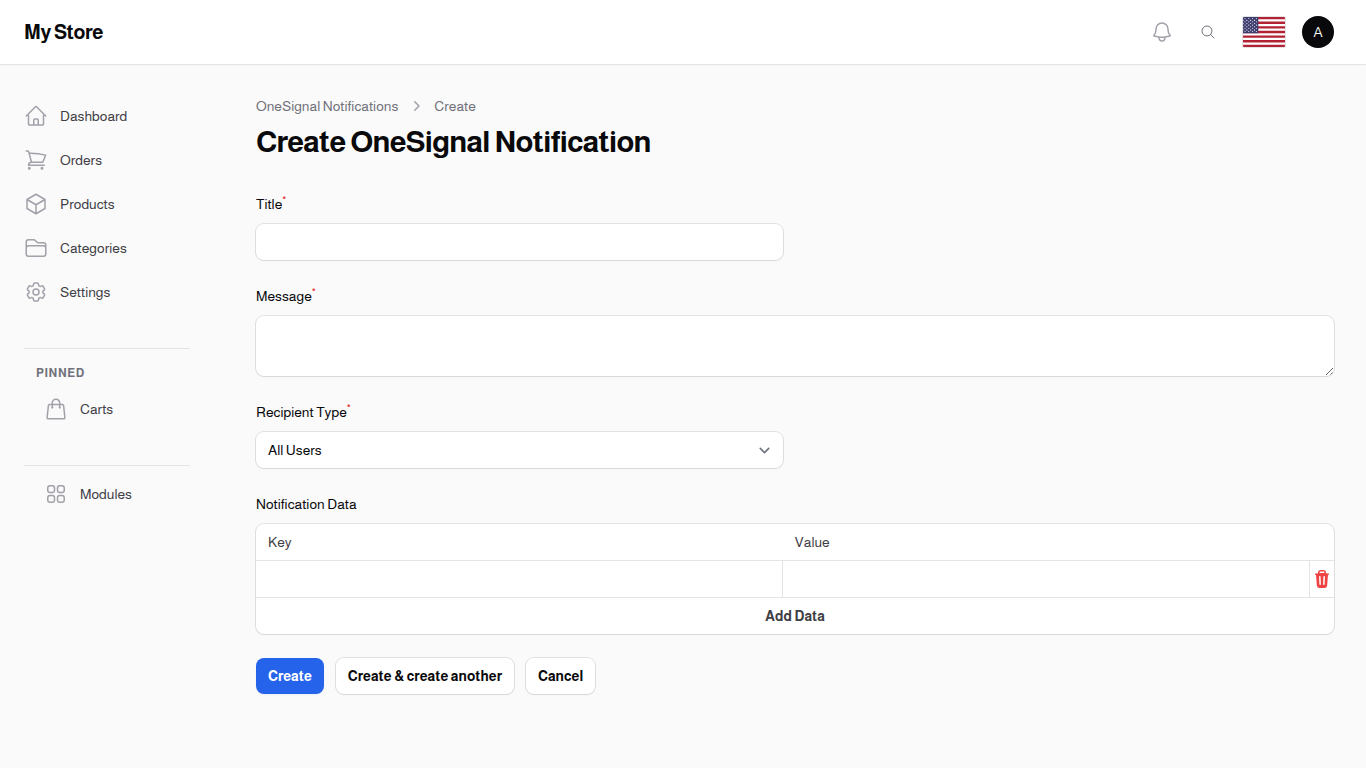
The message goes out at once. A green Notification sent confirms it; Notification failed to send says why it did not.
Visitors who never signed in are reached only by a message to All Users with no gender or country chosen: the filters work on customer accounts. The Countries list offers the countries of customers who can receive notifications.
See how a notification did
- Click View (or Stats) on the notification's row.
- Click Update Stats at the top to fetch the latest numbers. You can update them again after 45 seconds.
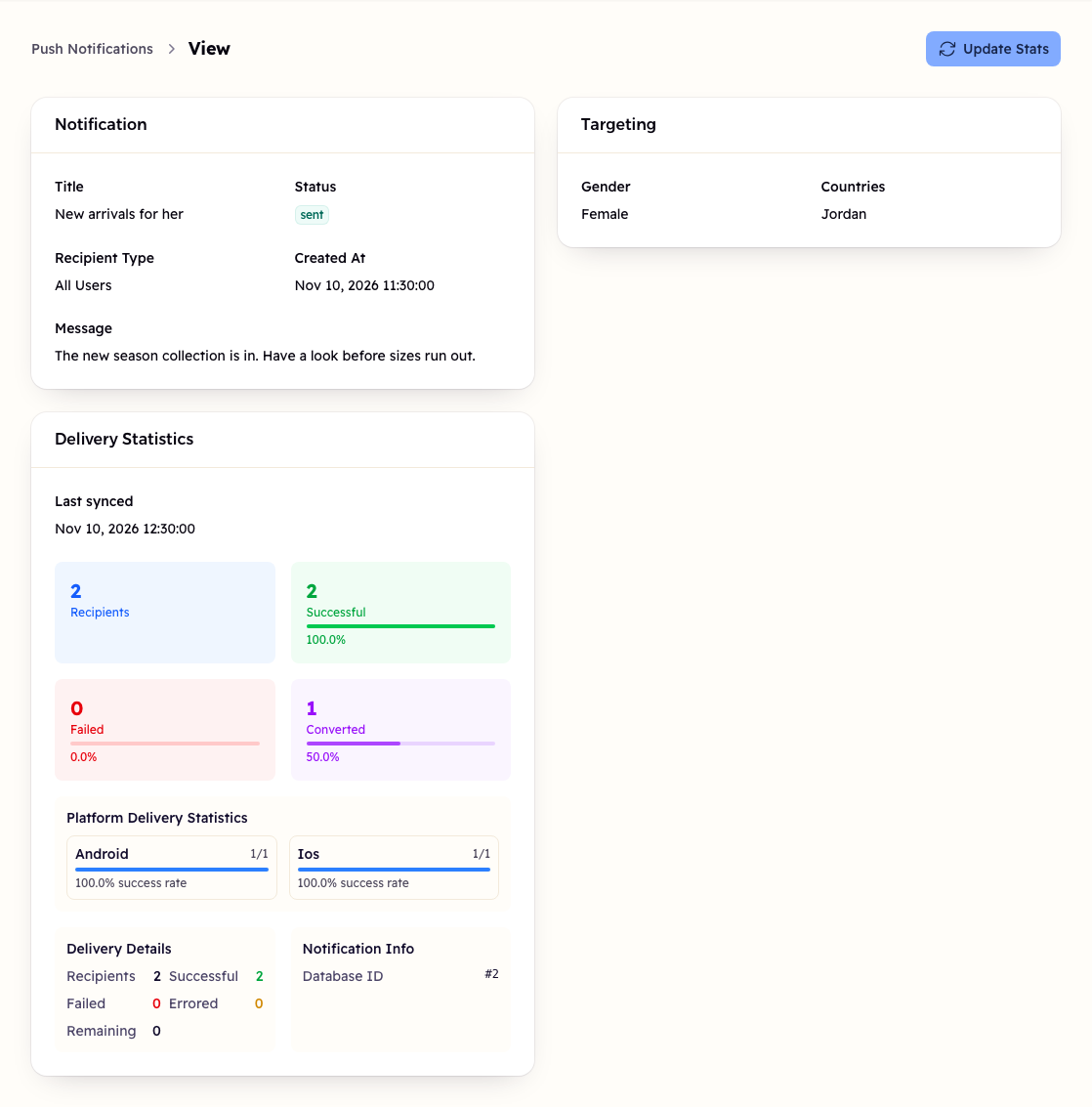
Recipients is how many devices it was sent to, Successful how many received it, Failed how many could not, and Converted how many people opened it. The Targeting section shows the gender and countries you chose, when you chose any.
Export or delete notifications
Export in the ⋮ menu (More) downloads the list as a spreadsheet. To delete notifications from the list, tick them and choose Delete selected from the bulk actions. Deleting does not take a message back from customers' devices.