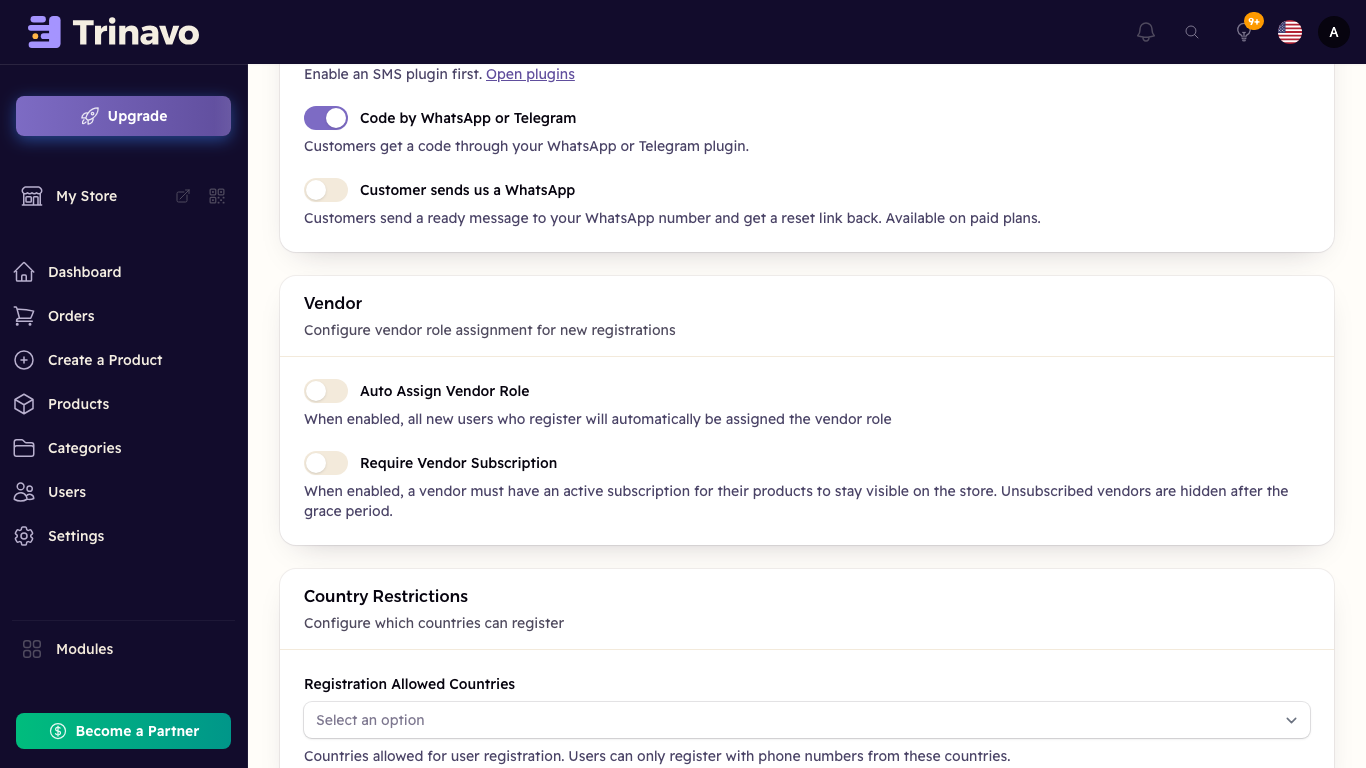
Registration Settings
What customers fill in when they create an account, whether they must confirm their email or mobile, the ways they can sign in and reset a forgotten password, and which countries can sign up.
Where to find it
Click Settings in the sidebar, then the User Registration card. It is also under Modules → Settings → User Registration.
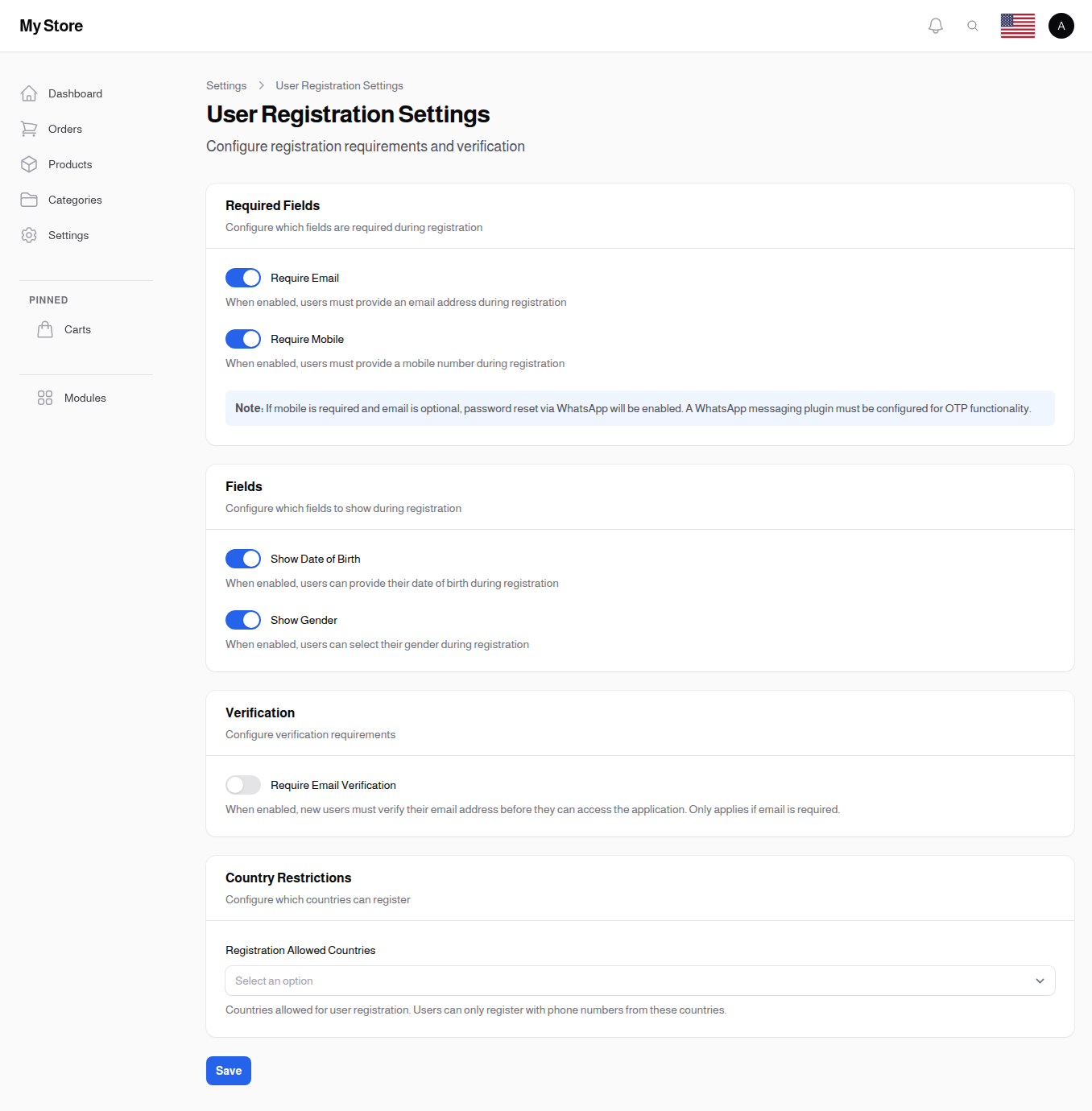
Choose what new customers fill in
| Field | What it does |
|---|---|
| Require Email, Require Mobile | Whether the email and the mobile number must be filled in to sign up. With both off, the customer gives at least one of the two. |
| Show Email | Shows the email field on the sign-up form. Hiding it makes the mobile number required, and Require Email disappears. |
| Show Date of Birth, Show Gender | Add those optional fields to the sign-up form. |
Ask customers to confirm their email or mobile
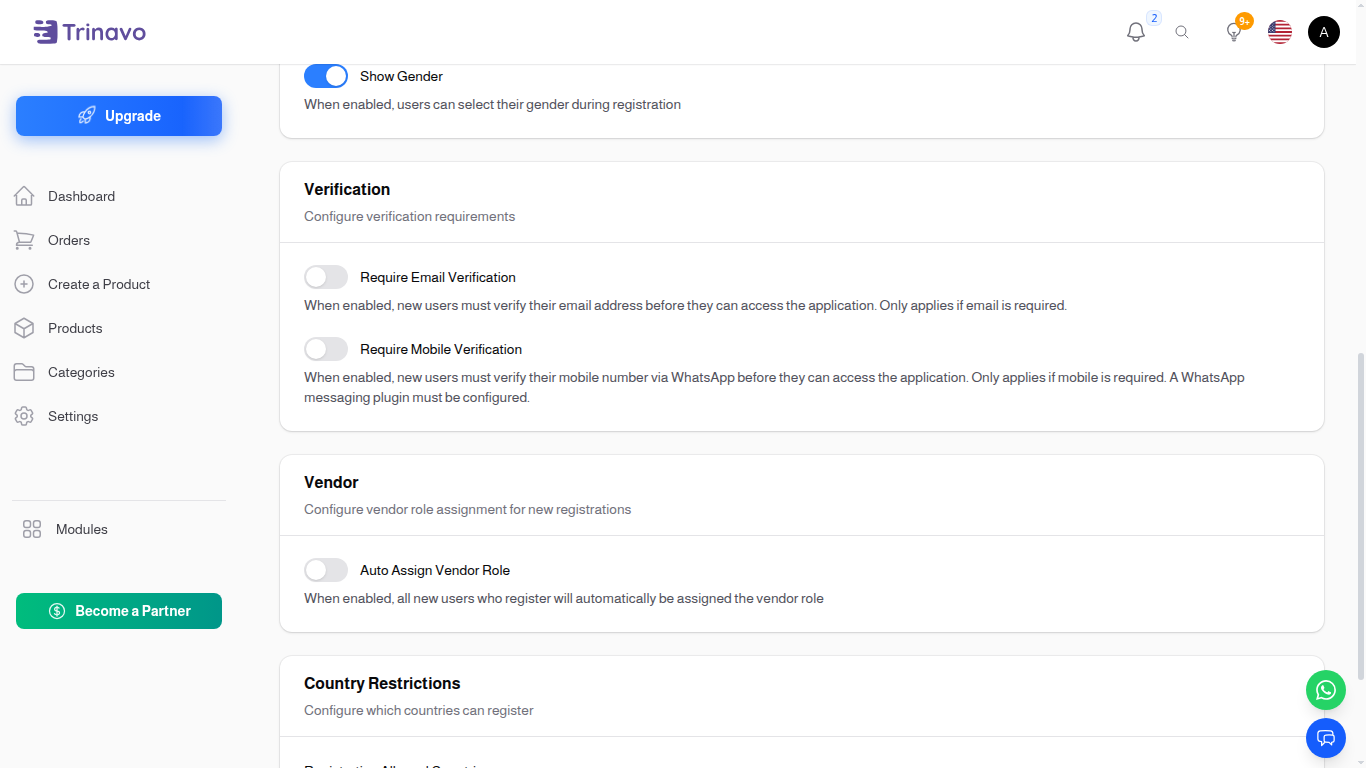
- Require Email Verification: new customers confirm their email address before they can use their account. Shown while Require Email is on.
- Require Mobile Verification: new customers confirm their mobile number with a code sent on WhatsApp. It needs a WhatsApp messaging plugin. Shown while Require Mobile is on.
Sign in with Google or Facebook
When signing in with Google or Facebook is available for your store, this section shows a switch for each. Customers then sign in or create an account in one tap, and are asked right after for anything else your store needs, such as a mobile number. A customer whose email already has an account is signed in to that account. Both are available on paid plans. Your admin dashboard always asks for the password.
Choose how customers reset a forgotten password
Turn on the ways customers can get back into their account. With none on, the "Forgot your password?" link is hidden.
| Field | What it does |
|---|---|
| Code by email | Sends a code to the customer's email. |
| Code by SMS | Sends a code by text message. It works once an SMS plugin is on; until then the switch is greyed out, with a link to Open plugins. |
| Code by WhatsApp or Telegram | Sends a code through your WhatsApp or Telegram plugin. |
| Customer sends us a WhatsApp | The customer sends a ready message to your WhatsApp number and gets a link back to choose a new password. Available on paid plans. |
To set up Customer sends us a WhatsApp:
- Turn it on, and type the WhatsApp number that receives the messages with its country code.
- Click Save. The Webhook URL field then holds your store's private link; copy it with the button at its end.
- Turn on the OneMessengerHub plugin and enter its API key (Open plugins in the steps on the page).
- In the OneMessengerHub app, open Automation, then Webhooks, and create one with that link and the "Message received" event.
- Keep the OneMessengerHub app running, signed in to that WhatsApp number.
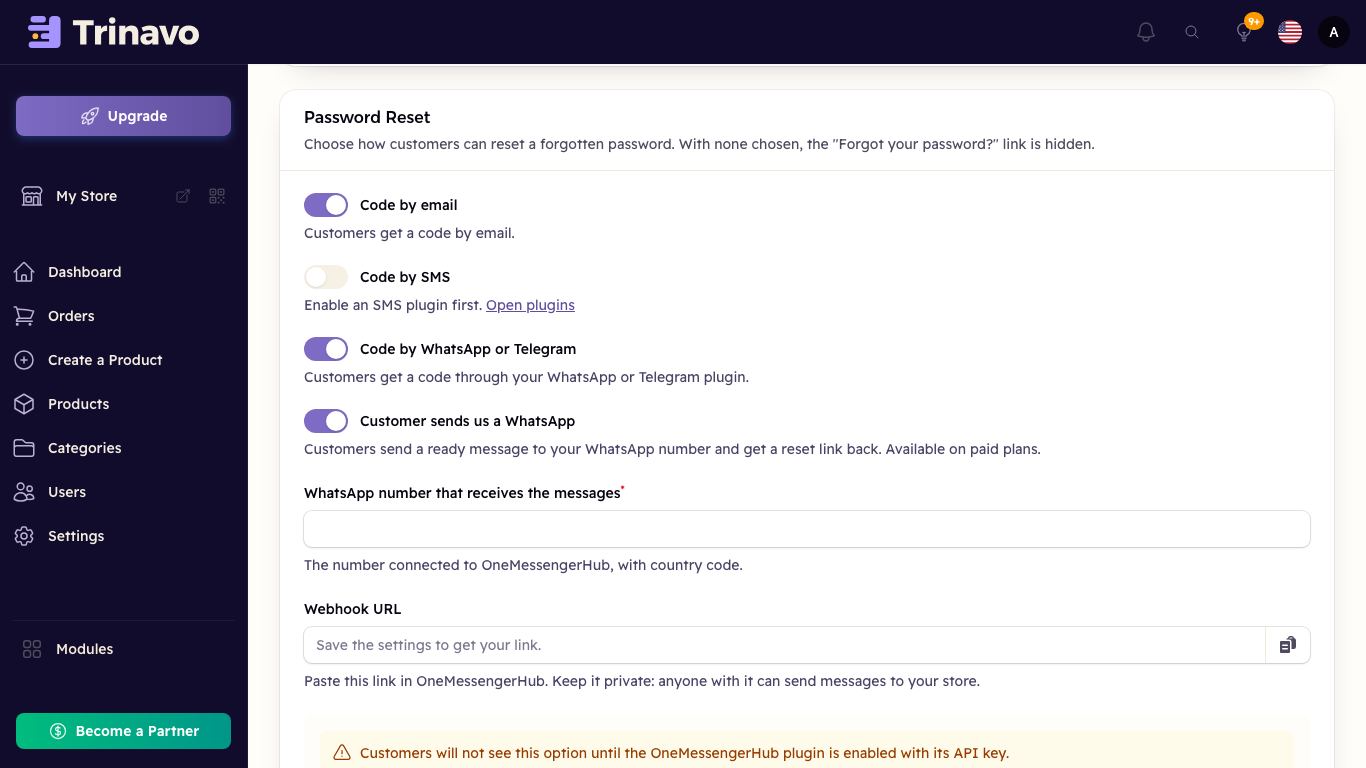
Customers then send "I forgot my password" from the number on their account. Keep the link private: anyone who has it can send messages to your store. Generate new link makes a new one and stops the old one at once; paste the new one in OneMessengerHub.
Vendor
This section shows only when your store has the multi-vendor add-on.
| Field | What it does |
|---|---|
| Auto Assign Vendor Role | Makes everyone who signs up a vendor. |
| Require Vendor Subscription | A vendor's products stay on your store only while they have an active subscription. |
| Vendor Grace Period (days) | How many days a vendor's products stay visible after their subscription lapses. 0 hides them at once. |
Saving applies these to every vendor at once.
Country Restrictions
In Registration Allowed Countries, choose the countries whose mobile numbers can sign up. A customer with a number from another country cannot register. To stop visitors from a country opening your store at all, use Country Blocking.